
How To Create A Graph On Word
:max_bytes(150000):strip_icc()/make-graph-in-word-windows-10-5b6db8c146e0fb0050f61c17.jpg)
So, you’ve got some super-duper important numbers that need to strut their stuff? Maybe you’re tracking your epic pizza consumption over the month, or perhaps you’re charting the meteoric rise of your pet goldfish’s popularity. Whatever it is, a picture is worth a thousand words, and when those words are numbers, a graph is your superhero cape!
And guess what? You don’t need a secret lab or a degree in rocket science to whip up a dazzling graph. Nope, not at all! Your trusty pal, Microsoft Word, is practically begging you to unleash your inner data artist.
Forget those dusty textbooks and confusing charts that look like they were drawn by a caffeinated spider. We’re about to embark on a glorious quest to create a graph so easy, it’ll feel like you’re just playing with digital LEGOs. Get ready to impress your boss, your friends, or even your bewildered cat with your newfound graphing prowess!
Must Read
Let's Get This Graph Party Started!
First things first, open up that magical document of yours in Microsoft Word. Imagine it's a blank canvas, a pristine snowfield just waiting for your artistic footprints. Now, let’s go find that hidden treasure chest of charting wonders!
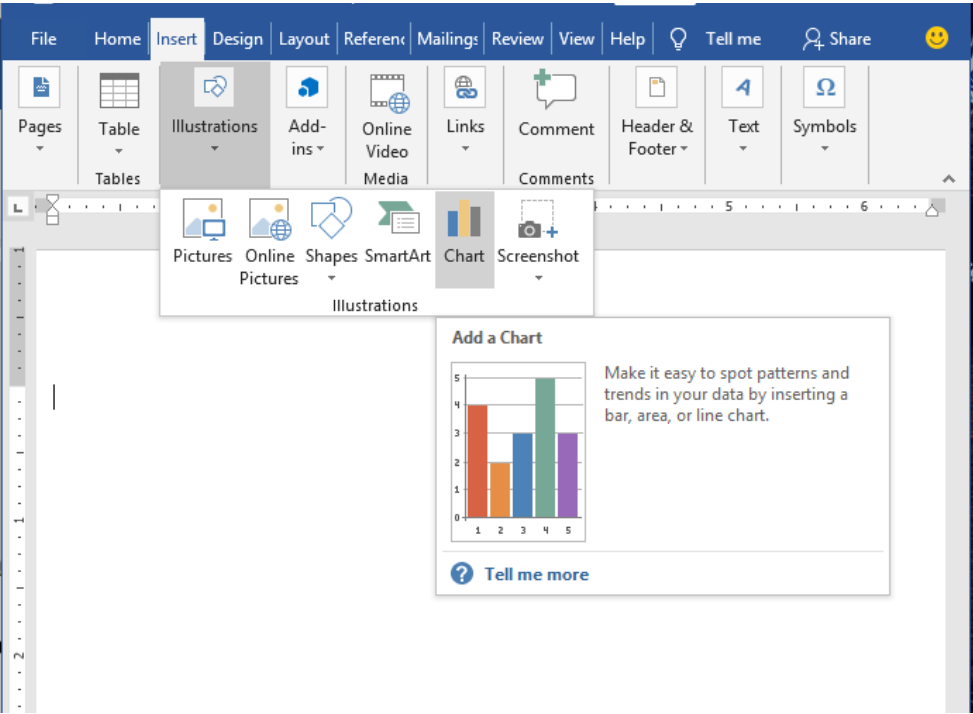
Look towards the very top of your Word screen. See that ribbon of tools? It's like the control panel for your entire document! We want to find the tab that screams "Insert". Click it. Go on, be brave!
Now, on this shiny new ribbon, scan around until your eyes land on something that looks suspiciously like a bunch of colorful bars or lines. It's probably labeled “Chart”. Bingo! This is where the magic happens. Click on that bad boy.
Suddenly, a window will pop up, looking like a fantastical menu of graph possibilities. Don’t panic! It’s like choosing your flavor of ice cream – so many delicious options! You'll see things like Column, Line, Pie, Bar, and a whole bunch of others. Each one is perfect for telling a different kind of numerical story.
For our first adventure, let’s imagine you’re tracking how many hours you actually spend on important tasks versus how many hours you spend scrolling through hilarious animal videos. A Column chart is perfect for this! It’s like little soldiers standing tall, proudly showing off their achievements (or lack thereof).
So, click on the Column option. You’ll probably see a few different styles within Column charts. Just pick the most basic one for now. Think of it as the "plain vanilla" of column charts – reliable and gets the job done. Then, hit the big, friendly “OK” button.
Meet Your New Best Friend: The Data Spreadsheet!
Voilà! A chart has magically appeared on your Word document. But wait, there's more! A little window, looking like a miniature spreadsheet, has also popped up. This is your secret sauce, your data dynamite!
This tiny spreadsheet is where you tell your graph what to show. You'll see some pre-filled text like "Category 1", "Category 2", and then some numbers. This is like a friendly ghostwriter who’s left you some notes.

Let’s fill it in with our pizza consumption example! Instead of "Category 1", type in "Monday". Instead of "Category 2", type in "Tuesday", and so on. You can go all the way up to "Sunday" if you're feeling particularly ambitious (or hungry).
Now, look at the numbers. These are the important bits! In the cells next to your days, type in how many slices of pizza you devoured on each of those days. Be honest, no judgment here! This is your graph's fuel.
As you type, watch your graph on the Word document magically update itself. It’s like a living, breathing data creature! See those bars grow and shrink? It’s a beautiful dance of numbers and visuals.
If you don’t need all those little data boxes, don’t sweat it. You can simply ignore the ones you don’t use. Or, if you’re feeling extra organized, you can even select the unused rows and columns, right-click, and choose “Delete”. Easy peasy!
Once you’re done entering your fabulous data, you can just click anywhere outside of that little spreadsheet window. It’ll disappear, leaving you with your glorious, completed graph. Give yourself a pat on the back! You’ve just wrestled numbers into submission and created visual awesomeness.
Making Your Graph Shine Like a Diamond!
Now, let’s not stop at just having a graph. Let’s make it the star of the show! Your graph is like a humble rock star, and we're about to give it a spotlight and some killer outfits.
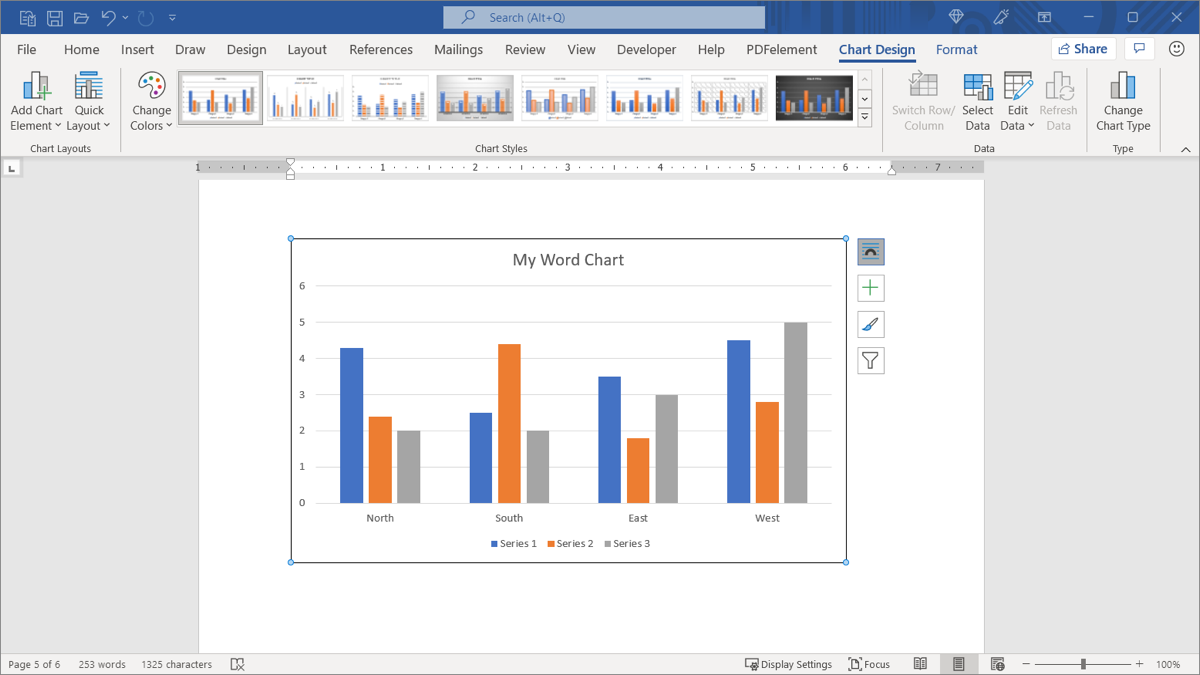
Click directly on your graph. See those little boxes and lines that appear around it? Those are your super-tools for customization. You’ll notice a new set of tabs appear at the very top of your screen, usually called “Chart Design” and “Format”.
In the “Chart Design” tab, you can go wild with colors! Click on the “Change Colors” option. Suddenly, you’ll see a rainbow of palettes. Pick one that makes your data pop like a bag of popcorn!
You can also change the overall look of your graph by browsing through the “Chart Styles”. It’s like browsing through different trendy outfits for your data. Some are sleek and modern, others are classic and sophisticated. Experiment and find what tickles your fancy.
What about labels? Graphs need names, just like us! Click on your graph, and then look for the “Add Chart Element” button, usually in the “Chart Design” tab. Here you can add things like “Axis Titles” (to label what your X and Y axes represent – like "Day of the Week" and "Pizza Slices"), and a “Chart Title”.
Give your graph a title that’s as exciting as the data itself! Instead of "Chart 1", how about “My Epic Pizza Journey” or “The Great Goldfish Popularity Contest”? Make it catchy!
If you want to change the color of a specific bar, or make the text of a label bigger, that's where the “Format” tab comes in. Click on the part of the graph you want to change, and then explore the options in the “Format” tab. It’s like a digital art studio in there!
You can even change the type of chart after you’ve created it! Maybe your column chart just isn’t cutting it anymore. Go back to the “Chart Design” tab and look for “Change Chart Type”. It's like a magical transformation spell for your data!
Seriously, it’s this easy. You’re no longer just a user of Word; you’re a data wizard, a visual storyteller, a chart champion! So go forth and graph all the things! Your numbers will thank you, and the world will be a little bit more visually informed (and hopefully, a lot more impressed). Happy graphing, you magnificent data maestro!

:max_bytes(150000):strip_icc()/008-make-a-graph-in-word-4173692-d7f3341b0978495d8c54fe8fc02baa15.jpg)