How To Link A Page In Wordpress
So, you've bravely ventured into the wonderful world of WordPress. You've probably wrestled with themes, perhaps even dared to tweak a plugin. But then, a new beast emerged: linking. It sounds simple, right? Just connect one bit of your digital kingdom to another. Yet, for some reason, it feels like trying to teach a cat to play the ukulele.
Fear not, fellow digital adventurers! We’re here to demystify this mystical art of linking. No more staring blankly at that little chain icon. No more accidentally linking your “About Us” page to a recipe for banana bread.
The Secret Handshake of Hyperlinks
Think of linking like leaving little breadcrumbs for your visitors. You want them to follow your magnificent ideas from one page to the next. It’s like a digital scavenger hunt, but with more information and less digging in the dirt.
Must Read
The most common way to do this is within your text. You’re writing a masterpiece, a blog post that will go down in history. Suddenly, you mention something brilliant that deserves its own dedicated page. This is where the magic happens.
The Classic Click-and-Link Method
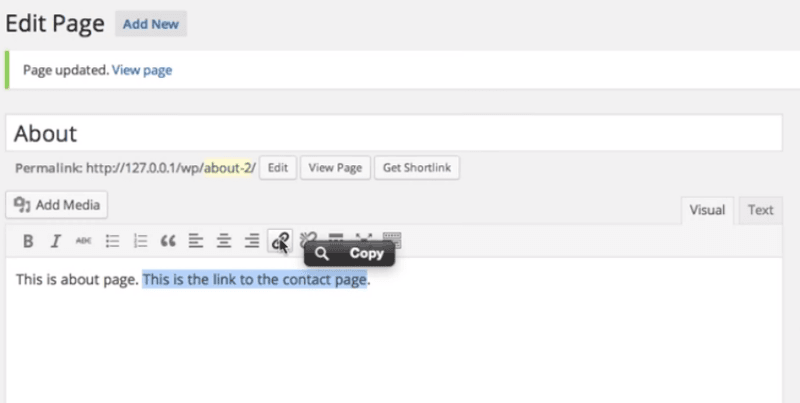
Imagine you’re writing about your prize-winning petunias. You’ve described their vibrant hues and intoxicating fragrance. Now, you want to link to your "Petunia Care Guide" page. You highlight the words “Petunia Care Guide” with your mouse.
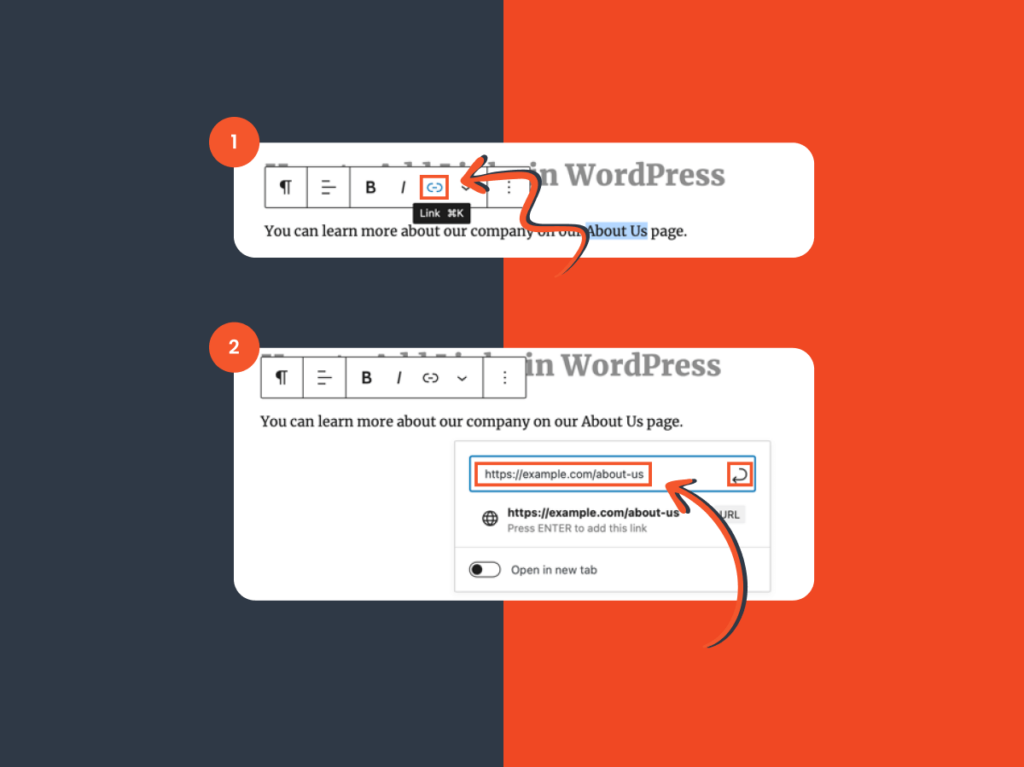
Then, you look for the magical link icon. It usually looks like a little chain. Sometimes it’s a bit shy, hiding amongst other icons. But it’s there, waiting for its moment to shine.
Click that little chain. A box will appear, asking you for the destination. This is where you tell WordPress, "Hey, send them to the 'Petunia Care Guide' page!"
You can either type in the full web address, which is a bit like giving someone a street address. Or, and this is the super-duper-easy way, WordPress often shows you a list of your existing pages. Just find your "Petunia Care Guide" page in the dropdown and select it.
Voila! Your chosen words are now clickable. Your visitors can hop over to learn all about keeping their petunias the envy of the neighborhood. It’s a small victory, but a victory nonetheless.
Linking to Other Websites: The World is Your Oyster (or Blog)
Sometimes, you want to point your readers towards other awesome corners of the internet. Maybe you’re citing a fantastic article or recommending a brilliant tool. This is where you become a benevolent guide, sharing the treasures you’ve discovered.
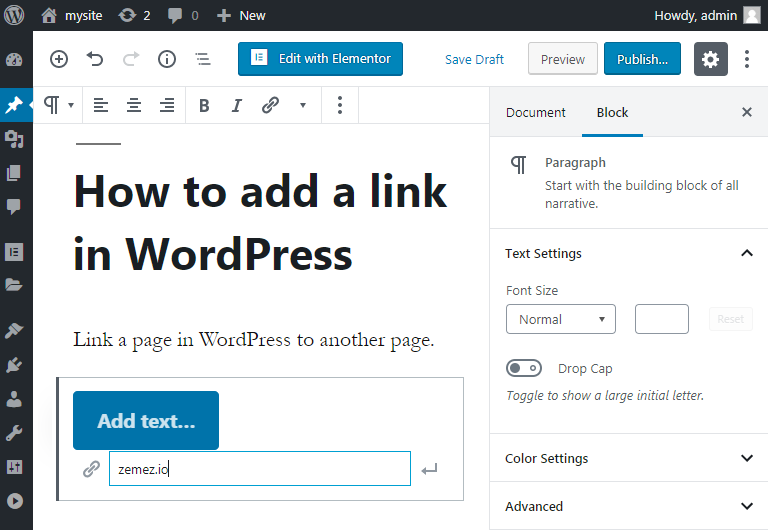
The process is almost identical. Highlight the words you want to turn into a clickable link. Click that trusty link icon. Instead of picking one of your own pages, you’ll enter the full web address of the external site.
Make sure you type it correctly! A typo here means your visitors will end up staring at a 404 error, which is the digital equivalent of a locked door. Nobody likes a locked door.
An important tip: consider whether you want the link to open in a new tab. This is done through a checkbox in the link popup. Opening in a new tab is polite. It keeps your site open while your visitor explores elsewhere. They can easily come back to your amazing content.
The "Unpopular Opinion": Linking is Not Rocket Science (But Sometimes Feels Like It)
Here's my "unpopular opinion": linking in WordPress isn't some arcane art practiced only by coding wizards. It's more like learning to ride a bicycle. You wobble a bit at first, you might even fall off once or twice, but eventually, you get the hang of it.

The fear often comes from the unknown. We see the icons, we see the menus, and we panic. But breaking it down into simple steps makes it much less intimidating. Highlight, click, enter destination. That's the mantra.
And if you make a mistake? Don't fret! You can always click on the linked text, and there will be options to edit or remove the link. It's not permanent until you hit "publish" on your entire site. Even then, you can usually go back and fix things.
Where Else Can You Link? So Many Places!
Beyond just text, you can link images! Imagine a beautiful photo of your dog. You want people to see more photos of your adorable canine. You can make that image a clickable link.
When you're editing an image, look for the options related to linking. You can link it to its own media file (showing a larger version of the image) or to a specific page. Think of it as a visual breadcrumb.
You can also link directly to files, like PDFs. So if you've got a downloadable guide or a handy checklist, make it a link! Just ensure the file is uploaded to your media library first.

The Navigation Menu: The Grand Highways of Your Website
This is a bigger kind of linking. Your navigation menu is the main roadmap for your visitors. It’s where they find your most important pages.
You'll find this under Appearance > Menus in your WordPress dashboard. Here, you can add pages, posts, custom links, and categories to your menu. It’s like building a custom road system for your visitors.
Drag and drop to reorder them. Nest them to create dropdown menus. It’s surprisingly intuitive once you see it in action.
This is where you link your "Home," "About Us," "Blog," and "Contact" pages. These are the main arteries of your website, ensuring people can find what they’re looking for.
Remember, a well-linked website is a happy website. It keeps visitors engaged and helps them discover all the amazing content you've created. Don't be afraid to experiment!
Troubleshooting: When Links Go Rogue
Sometimes, links just don’t behave. You click, and nothing happens. Or worse, you get that dreaded 404 error.
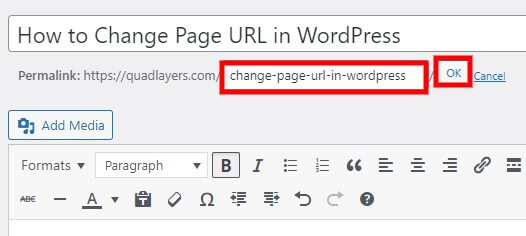
First, double-check the web address you entered. Typos are the arch-nemesis of good linking. Ensure you've included "http://" or "https://" at the beginning for external links.
If you're linking to an internal page, make sure the page actually exists and is published. Sometimes we forget to hit publish, or we accidentally delete a page.
Caching issues can also cause problems. If you’ve recently changed a link and it’s not working, try clearing your website’s cache. Many hosting providers offer this, or you might use a caching plugin like WP Super Cache or W3 Total Cache.
Embrace the Link, Conquer the WordPress
So, there you have it. Linking in WordPress, demystified. It’s not some dark art. It’s a practical tool that makes your website easier to navigate and more engaging for your visitors.
Start small. Link a paragraph or two in your next blog post. Then, try linking an image. Soon, you’ll be linking like a pro, guiding your readers through your digital world with confidence.
Don't let that little chain icon intimidate you. It's your friend. It's the key to unlocking a more connected and useful website. Now go forth and link with joy!