Setting Up Google Alerts
Hey there, super sleuths and curious cats! Have you ever found yourself endlessly scrolling, hoping to catch that one little mention of your name, your business, your favorite obscure hobby, or even that embarrassing nickname your aunt used to call you?
Yeah, me too. It’s like searching for a needle in a haystack, but the haystack is made of the entire internet, and the needle occasionally changes its mind about where it wants to be. Exhausting, right? Well, what if I told you there's a magical little helper that can do all that heavy lifting for you? A digital bloodhound, if you will. And guess what? It's completely free!
Introducing the wonderfully simple, yet surprisingly powerful, Google Alerts. Think of it as your personal internet paparazzi, but instead of chasing you for a blurry photo, it’s hunting down information for you. Pretty neat, huh?
Must Read
So, What Exactly Are Google Alerts?
In a nutshell, Google Alerts is a free service that lets you track new content on the web that matches your chosen search terms. You tell Google what you're interested in, and it’ll send you an email (or an RSS feed, if you’re feeling fancy and techy) whenever it finds something new that matches. It’s like having a tiny, dedicated research assistant working 24/7, fueled by… well, pixels and algorithms, not coffee and donuts.
This means you can stay on top of practically anything. Want to know when your favorite band releases a new song? Google Alerts. Curious about the latest research on sourdough starters? Google Alerts. Need to monitor what people are saying about your awesome new startup? Yep, you guessed it. Google Alerts.
Why Should You Even Bother? (Spoiler: It’s Awesome)
Let’s be honest, our brains are already juggling a million things. Adding "manually check the internet for specific keywords" to that list is like trying to pat your head and rub your belly while reciting the alphabet backward. It’s just… a lot. Google Alerts takes that burden off your shoulders.
Here are just a few reasons why you’ll wonder how you ever lived without it:
- Stay Informed: It’s the ultimate news-gathering tool for your niche interests.
- Brand Monitoring: Keep an eye on your reputation, find mentions of your business, and jump on opportunities.
- Competitor Analysis: See what the competition is up to.
- Research Made Easy: Gather information for projects, hobbies, or just satisfying your endless curiosity.
- Never Miss Out: From job opportunities to that limited-edition sneaker drop, you’ll be in the know.
Seriously, the applications are endless. It’s like having a superpower, but instead of flying, you can… know things. And isn’t knowing things pretty darn cool?
Okay, I'm Convinced. How Do I Set One Up? (It’s Easier Than Making Toast)
Alright, buckle up, buttercup, because this is where the magic happens. Setting up a Google Alert is so simple, you’ll probably finish it before your tea cools down.
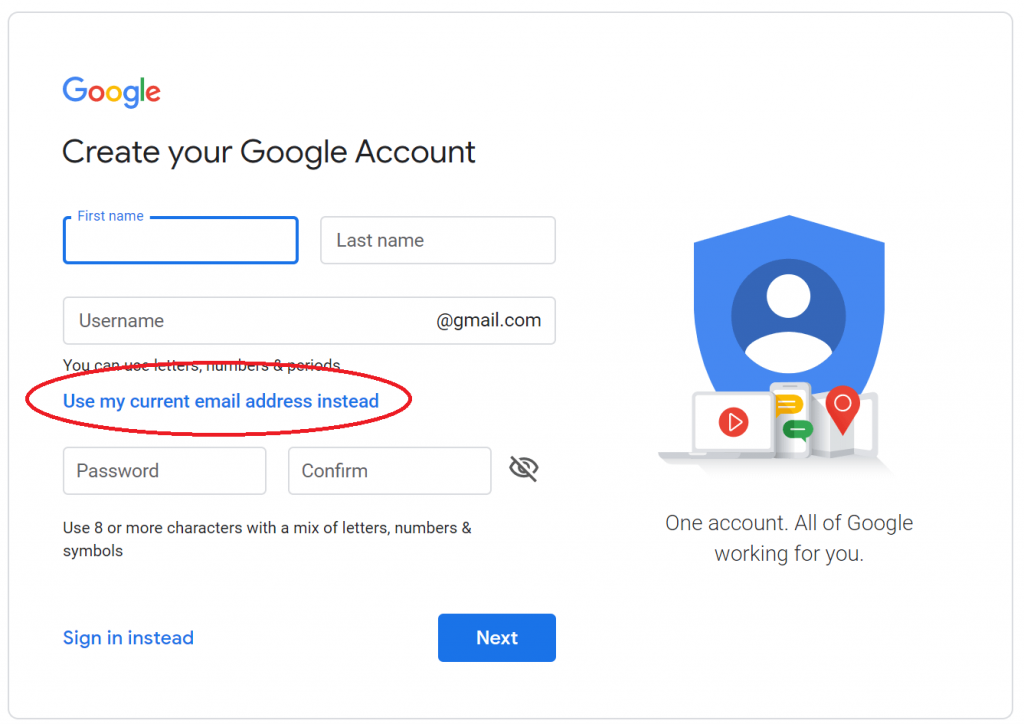
First things first, you need a Google account. If you have Gmail, you’re already golden. If not, well, you can create one for free. It’s like getting a VIP pass to the Google party.
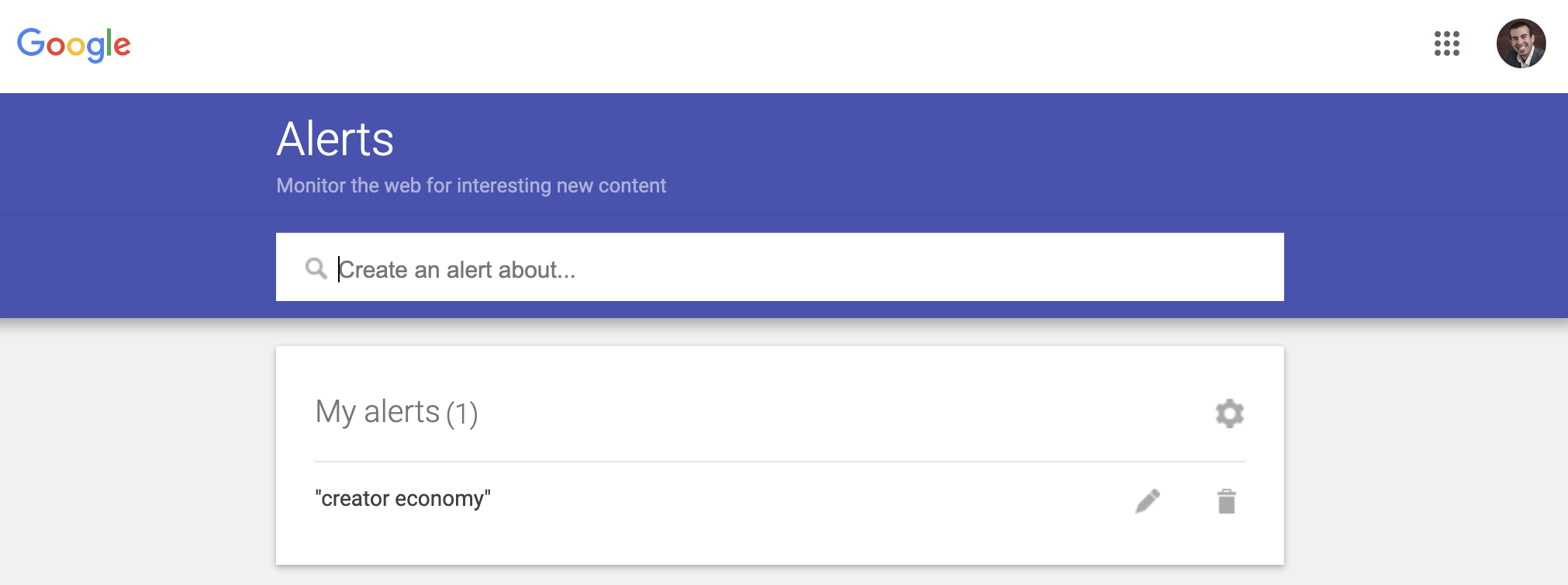
Now, head over to the Google Alerts website. You can just type google.com/alerts into your browser. See? Told you it was easy.
Step 1: Choose Your Keywords (The "What" of Your Alert)
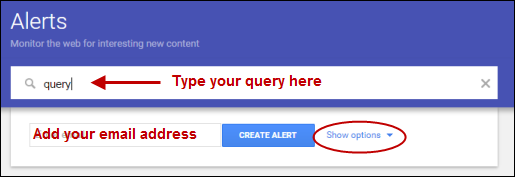
This is the fun part! What do you want to be alerted about? Get specific, but also think about variations. For example, if you’re interested in "organic gardening," you might also want to include "organic farming," "growing without chemicals," or even the name of a specific plant you love.
Here are some ideas to get your gears turning:
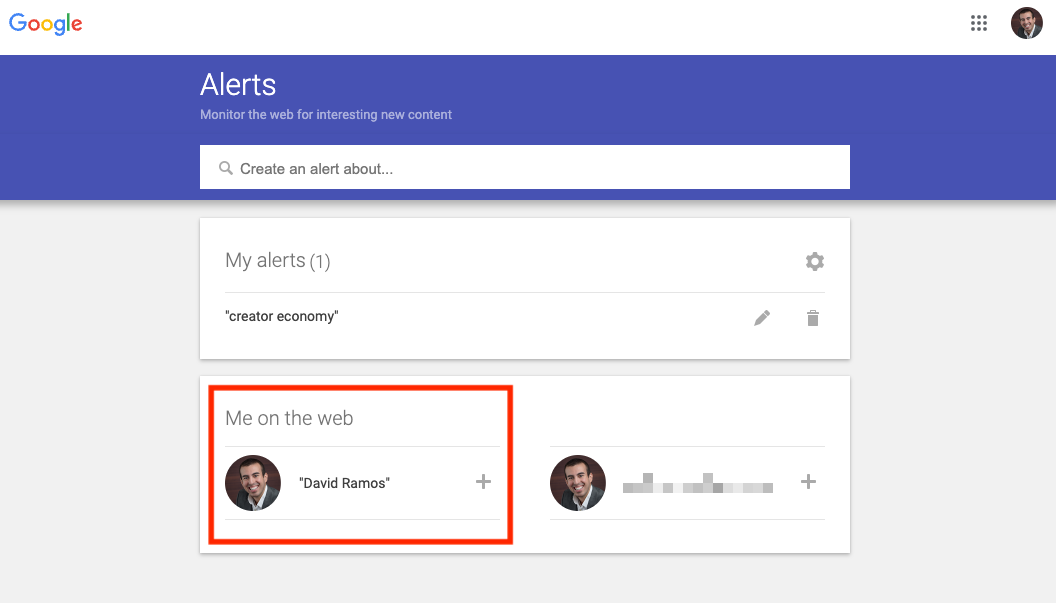
- Your Name: Yes, you! See what people are saying about you. Be brave!
- Your Business Name: Essential for any entrepreneur.
- Your Favorite Band/Author/Actor: Never miss a new release or interview.
- Your Hobby: "Knitting patterns," "vintage camera repair," "astrophotography tips."
- Industry News: "AI advancements," "sustainable fashion trends," "cryptocurrency news."
- Local Events: "Concerts in [Your City]," "[Your Neighborhood] farmers market."
- Unusual Interests: "Talking cats," "invisible paint," "historical sock puppets." (No judgment here!)
As you type your search term into the box at the top of the Google Alerts page, you’ll see a preview of what kind of results you might get. This is super helpful to refine your search. For instance, if you type in "apple," you might get a lot of results for the fruit. If you’re looking for the tech company, you’ll want to add "inc." or "iPhone" or "Apple stock" to be more precise.
Step 2: Refine Your Search (The "How" and "Where" of Your Alert)
Once you've got your keywords, you’ll see a few options to fine-tune your alert. This is where you turn your basic search into a finely tuned information-gathering machine.
Here’s a quick rundown:
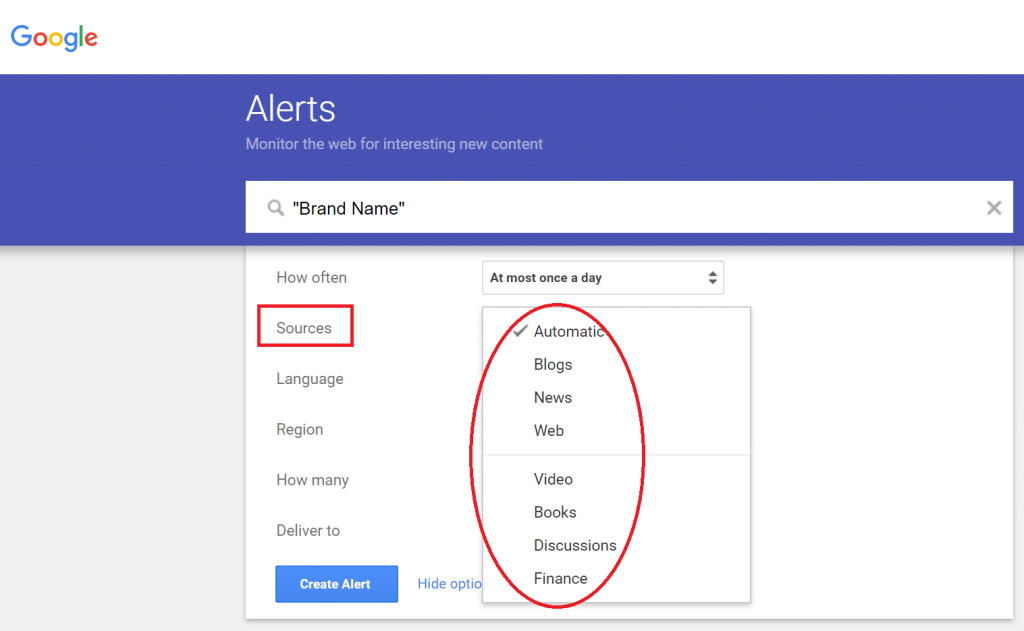
- Show results for: This is where you can be broad or specific.
- All results: The broadest search.
- News: Just what’s hitting the news sites.
- Blogs: For the more informal chatter.
- Web: The most comprehensive.
- Books: If you’re a literary detective.
- Video: For the visual learners.
- Discussions: Think forums and Q&A sites.
Oh, and there’s even a choice for "Resume Writing Services" if you’re on the job hunt! (Just kidding, that's not a real option, but it is a good example of a specific search!)
- How many:
- All results: You want everything.
- Only the best results: Google’s algorithm tries to find the most relevant stuff for you. This is usually a good default. Think of it as Google’s “greatest hits” for your search term.
- Languages: You can specify the language of the content you want to find. Handy if you’re a polyglot or studying a new language!
- Region: Want to focus on what’s happening in a specific country or continent? Now you can!
- How often: This is crucial!
- As-it-happens: You’ll get an email the moment something new pops up. This can be a bit overwhelming if your topic is super hot!
- At most once a day: A nice, balanced approach. You get a daily digest of what’s new.
- At most once a week: For topics where things don’t change that rapidly.
I usually lean towards "At most once a day." It keeps me informed without feeling like I’m drowning in emails. But hey, you do you!
- Where to send to: This is usually your email address. You can also choose an RSS feed if you’re a power user who likes to aggregate all their information in one place. For most of us, email is perfectly fine!
Step 3: Hit "Create Alert" (The Grand Finale!)
Once you’ve tweaked all those settings to your heart’s content, you just click the big ol’ "Create Alert" button. And poof! You’ve just set up your very own Google Alert. Congratulations, you’re now officially a digital intelligence agent!
Managing Your Alerts (Don't Let Them Take Over Your Inbox!)
Now that you’ve unleashed your inner information hunter, you might want to keep your alerts in check. It’s like having a pack of eager puppies; you love them, but you don’t want them chewing up all your furniture (or, in this case, your inbox).
To manage your alerts, simply go back to the Google Alerts homepage (google.com/alerts). You’ll see a list of all the alerts you’ve created. From here, you can:
- Edit: Tweak those keywords or settings if you’re not getting what you want. Maybe "cats" isn’t specific enough, and you need to add "fluffy cats" and "cats doing funny things."
- Delete: If an alert is no longer relevant, or if you’re just getting too much information, you can easily banish it to the digital abyss. Goodbye, mysterious sock puppet alerts!
- Pause: Sometimes you just need a break. You can pause an alert and bring it back later. Perfect for when you’re on vacation or just need to declutter your digital life for a bit.
It’s super straightforward, so don’t be shy about tinkering. The goal is to make this tool work for you, not the other way around.
Pro-Tips for Becoming a Google Alerts Guru
Want to take your Google Alert game to the next level? Here are a few insider tricks:
- Use quotation marks for exact phrases: If you type `"electric unicycle"` Google will look for that exact phrase, not just "electric" and "unicycle" separately. This is a game-changer for specificity!
- Use the minus sign for exclusions: If you're looking for information on "apple pie" but you don't want results about the fruit, type in `apple pie -fruit`. Say goodbye to endless apple recipes when you’re trying to find tech news.
- Combine keywords: Don't be afraid to use multiple keywords separated by spaces. "AI ethics debate," for instance.
- Set up alerts for different aspects of your life: One for work, one for hobbies, one for staying connected with family. You can have as many as you need!
- Check your alerts regularly: Even if you’ve set them to "once a day," make it a habit to scan your inbox. You never know what gem you might discover!
- Think about synonyms and related terms: If you want to track "climate change," you might also want to set up alerts for "global warming," "environmental policy," or "green initiatives." The more angles you cover, the more comprehensive your intel!
Remember, the beauty of Google Alerts lies in its simplicity and its ability to adapt to your ever-changing interests. It’s a tool that grows with you.
And So, The Journey Continues...
There you have it! You've unlocked the secrets of Google Alerts. You're no longer a passive observer of the internet; you're an active participant, shaping what information comes to you. From staying ahead in your career to indulging your passions, Google Alerts is your trusty sidekick in the vast digital universe.
So go forth, my friend! Set up those alerts, discover new things, and let the internet surprise you in the most delightful ways. May your inbox be filled with fascinating finds, your knowledge grow, and your curiosity always be sparked. Happy alerting!