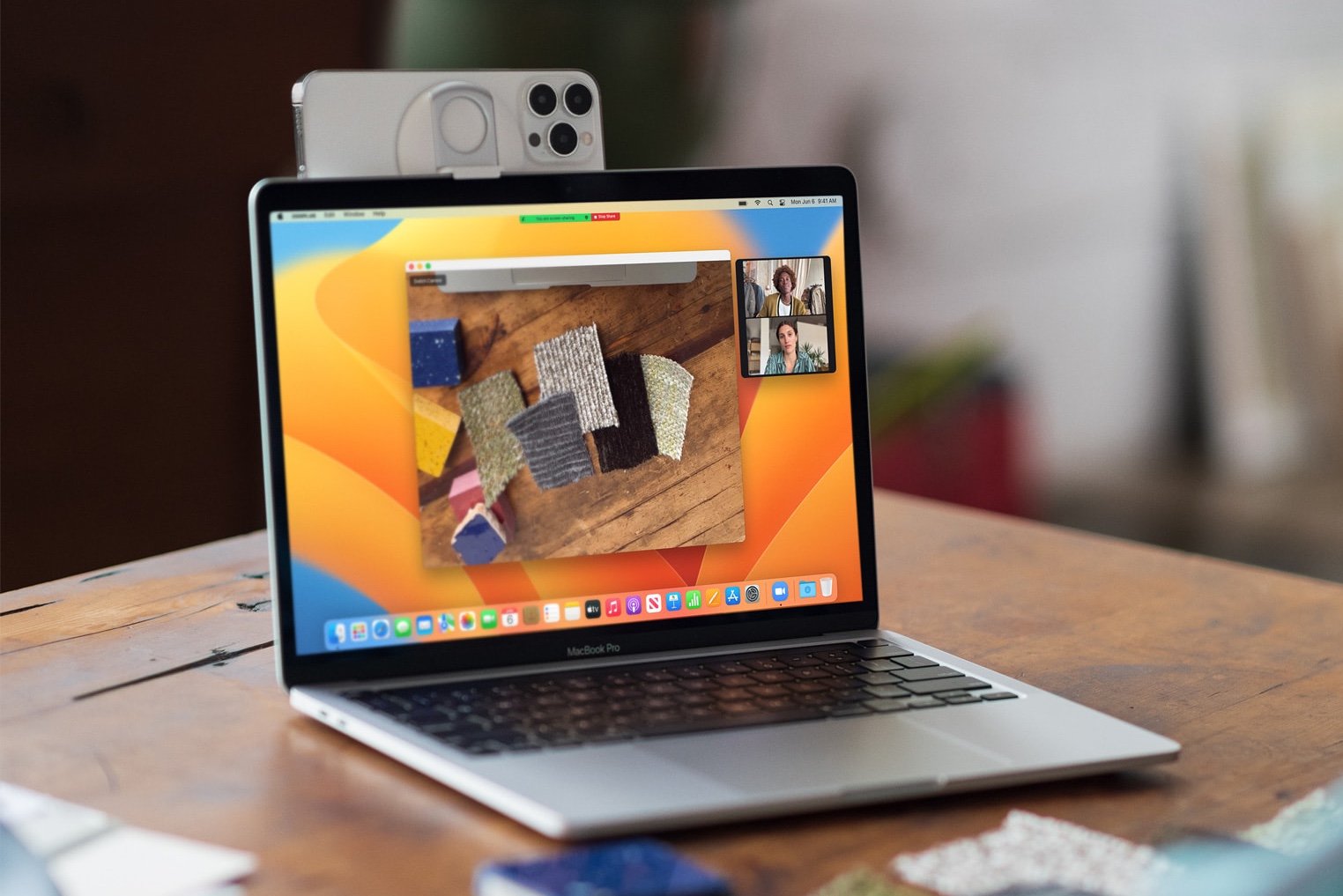
How To Use The Camera On Mac
/article-new/2022/10/19-continuity-camera-video-effects.jpg)
Alright, let's talk about that little eye staring out from your Mac. You know the one. It's been there, silently judging your questionable snack choices and your impressive collection of unread emails. We're talking about the built-in camera. For some of us, it's a portal to the outside world, a way to connect with faraway loved ones. For others, it's a mysterious device that occasionally springs to life, making us wonder if our Mac is secretly plotting to become a spy. But fear not, intrepid Mac user! Using this little gadget is about as complicated as making toast. And probably just as satisfying when you get it right.
Think of it like this: You’ve got a fancy new coffee maker, right? It has all these buttons and settings. You could probably brew a latte that would win awards. But most days, you just want a decent cup of joe. The Mac camera is like that. It can do amazing things, but for everyday use, it’s a breeze. We’re not talking about setting up a Hollywood studio here; we’re talking about popping on a quick video call, snapping a silly selfie, or maybe even recording a voice memo that sounds way better than you’d expect.
Remember the days of those clunky external webcams? They were like having a tiny, awkward robot attached to your monitor. You’d spend ages fumbling with wires, downloading drivers that sounded like ancient incantations, and praying to the tech gods that it would actually work. Well, the Mac camera has made that whole ordeal as obsolete as dial-up internet. It’s just… there. Ready and willing.
Must Read
The Grand Unveiling: How to Actually See What Your Mac Sees
So, how do you peel back the curtain and get a glimpse of your Mac’s eye view? It’s surprisingly simple. The most common way you’ll encounter your camera is through apps that are designed to use it. Think of it like your phone. You don’t “turn on” the camera app in a separate step; you just open an app that needs the camera, and poof, it’s ready to go.
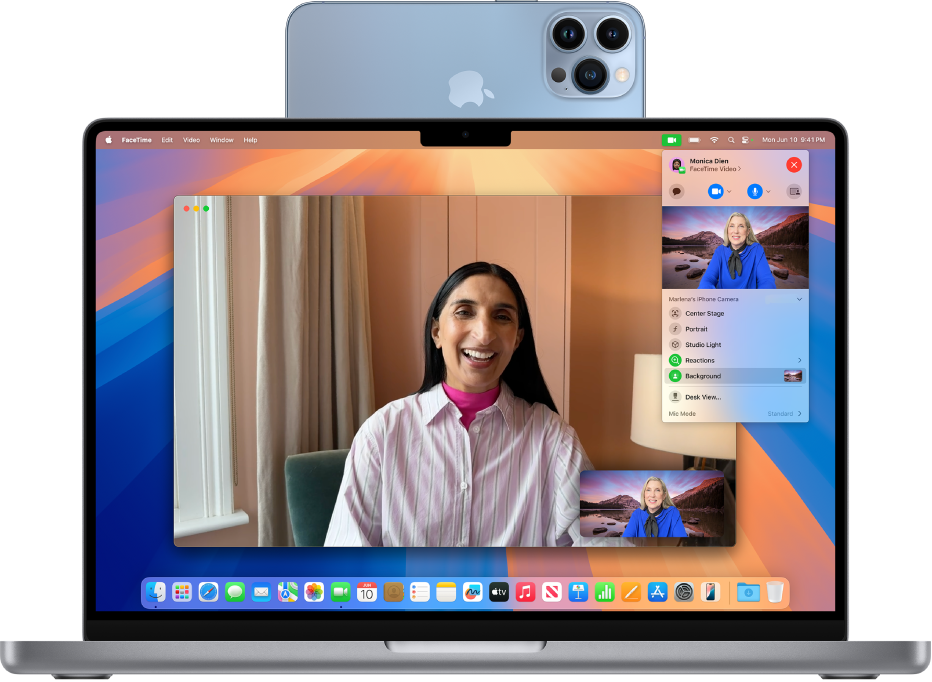
The absolute king of these apps, the one that probably makes the most use of your camera, is FaceTime. If you’ve ever sent a virtual hug to your grandma or had a virtual coffee with your best friend across the country, you’ve used the camera. When you initiate a FaceTime call, your Mac, bless its silicon heart, just knows what to do. The camera lights up (sometimes there’s a little green light, but don’t obsess over that), and you’re broadcasting live!
It’s that easy. You click “FaceTime,” you pick a person, and suddenly you’re looking at yourself, probably wondering why you’re wearing that T-shirt again. It’s the modern-day equivalent of walking into a room and seeing your reflection in a mirror, only this reflection can talk back and might be wearing pajamas too.
Beyond FaceTime: Apps That Embrace Your Inner Camera Enthusiast
But FaceTime isn't the only player in town. There are a whole host of other applications that happily tap into your Mac’s camera. Ever used Zoom, Microsoft Teams, or any other video conferencing tool? Yep, that’s your camera working overtime. These apps are designed for connection, and your Mac’s camera is the bridge.
Think about it: you’re in a crucial work meeting, and you need to share your screen and show your face. Your Mac doesn't need a special adapter or a ten-step setup. You just launch the app, and the camera joins the party. It’s like having a built-in assistant who’s always ready to make you look good (or at least presentable).

Then there are the more creative avenues. Have you ever thought about recording a quick tutorial? Or maybe a funny skit with your cat? For that, you’ll want to dive into something a little more hands-on. And for that, my friends, we have the surprisingly capable, often overlooked, Photo Booth app.
Photo Booth: Your Mac's Digital Playground
Ah, Photo Booth. This is where the magic really happens, or at least where the silly faces and distorted reflections reside. Photo Booth is basically your Mac’s built-in selfie station and mini-movie studio, all rolled into one. It’s the digital equivalent of a funhouse mirror and a polaroid camera combined, but without the weird chemical smell.
To fire it up, just go to your Applications folder and look for the icon that looks like a little camera. Or, you know, just use Spotlight search (that magnifying glass in the top right corner) and type in “Photo Booth.” It’s usually pretty quick to find. Once you click it, the camera will activate, and you’ll be greeted by… you!
Now, Photo Booth isn’t just about taking a plain old picture. Oh no. This is where you unleash your inner prankster or your budding filmmaker. See those buttons on the bottom? They’re your ticket to a world of fun.
Snap, Snap, Snap: Capturing Your Best (or Worst) Angles
The most straightforward function is, of course, taking a photo. You’ll see a big red button. Click it. Click! You’ve just taken a picture. It’s stored right there in Photo Booth, ready for you to admire, share, or promptly forget about. It’s that simple. No complex settings, no confusing menus. Just a clear, simple button.
Want to take a series of shots? Maybe you’re trying to capture that perfect moment of your dog mid-yawn. There’s usually a setting for burst shots, though in Photo Booth it’s more about just clicking repeatedly. Think of it like a very enthusiastic paparazzi, but the subject is you or your pet, and the paparazzi has excellent Wi-Fi.
One of the neatest things about Photo Booth is the ability to use filters and effects. Forget those complicated photo editing apps that require a degree in graphic design. Photo Booth has built-in effects that can turn you into a superhero, a robot, or even a character from a vintage comic book. You’ll find these effects on the side of the screen. Just click on one, and watch your reflection transform!
There are effects that distort your face, add backgrounds, and even put silly hats on your head. It’s like playing dress-up with your digital self. Ever wanted to see yourself with giant eyes or a comically large nose? Photo Booth has you covered. It’s a great way to lighten the mood, send a funny picture to a friend, or just entertain yourself during a particularly dull afternoon.
Roll 'Em: Recording Video with Ease
But Photo Booth isn't just for stills. It's also a surprisingly capable video recorder. See that little icon that looks like a film reel? Click that, and you’re in video mode. The red button now means “record.” Hit it, and your Mac starts capturing whatever your camera sees. Hit it again to stop.
This is perfect for those moments when a picture just won't cut it. Want to record a quick message to your team? Or maybe capture your cat’s latest attempt at world domination? Video is your best bet. The quality is more than good enough for casual use, and the simplicity means you’re not fiddling with settings when you should be focusing on your subject (whether that’s your face or your furry overlord).

Once you’ve recorded something, it’s saved within Photo Booth. You can then easily share it via email, save it to your desktop, or even import it into other applications. It’s a seamless workflow, which is exactly what you want when you’re trying to capture a fleeting moment of brilliance (or silliness).
QuickTips and Tricks: Making the Most of Your Mac's Camera
So, you’ve got the basics down. You can hop on a video call, take a goofy picture, or record a quick video. But there are a few little nuggets of wisdom that can make your camera experience even smoother.
Lighting is King (or Queen)! This is the golden rule of photography and videography, and it applies to your Mac camera too. If you’re trying to have a video call in a dark room, you’re going to look like a shadowy figure from a horror movie. Try to have some light source in front of you, ideally natural light from a window. It makes a world of difference. Think of it as giving your camera a nice, warm hug of photons.
Positioning is Key. Nobody wants to see up your nostrils. Or the ceiling. Try to position your Mac so the camera is roughly at eye level. This makes for a much more natural and engaging viewing experience. If you're using a laptop, this is usually pretty good. If you're on an iMac or Mac Studio, you might need to prop it up a bit. A stack of books can be your best friend here, no judgment.
Mute When Not Speaking. This is a courtesy, especially on video calls. If you’re not actively talking, just hit that mute button. It cuts down on background noise and prevents those awkward moments where everyone hears your dog barking at the mail carrier or your dramatic sigh. Your fellow participants will thank you.

Privacy Matters. Remember that little green light? It’s your indicator that the camera is active. If you’re not using it and you’re concerned about privacy, there are physical camera covers you can buy. Or, you can simply make it a habit to close the lid of your laptop when you’re done. Out of sight, out of mind, and definitely out of camera view.
Explore! Don’t be afraid to play around with Photo Booth. Try all the different effects. Record silly videos. Take pictures of your pets in weird hats. The more you experiment, the more you’ll discover what your Mac camera can do. It’s a tool, and like any tool, its potential is unlocked through use and exploration.
The Ever-Present Eye: Why Your Mac Camera is More Useful Than You Think
So there you have it. The Mac camera. It’s not some arcane piece of technology meant only for tech wizards. It’s a simple, accessible tool that enhances your daily digital life. From connecting with loved ones to documenting funny moments, it’s a little eye that sees a lot of the world – and your world, in particular.
Next time you’re about to hop on a video call, or you’re feeling inspired to capture a quick memory, remember that your Mac camera is ready. It’s been waiting patiently, right there on your machine, ready to bring your digital interactions to life. And who knows, you might just surprise yourself with the fun you can have with it.
So go ahead. Open up FaceTime. Launch Photo Booth. See what your Mac sees. You might just discover a whole new way to connect, create, and share. It's a simple tool, but in today's connected world, it's a surprisingly powerful one. Happy snapping, happy calling, and happy recording!