
How To Add Keywords To Website Wordpress

So, you've built yourself a fantastic corner of the internet! Your WordPress website is like your digital storefront, your virtual art gallery, or your online bakery, ready to wow the world. But here's the juicy secret: how do people find this amazing place? It's not enough to just have the coolest cat videos or the most insightful blog posts; the internet needs a little nudge to point people in your direction. And that, my friends, is where the magic of keywords comes in!
Think of keywords as the secret handshake of the internet. When someone types something into their search engine – like "fluffy kittens wearing tiny hats" or "best gluten-free sourdough recipe" – they're using keywords. Your job, as a website wizard, is to make sure your website has those same secret handshake words so the search engines go, "Aha! This is exactly what they're looking for!"
Now, you might be thinking, "Keywords? Sounds complicated!" But fear not, intrepid web explorer! Adding keywords to your WordPress site is actually a breeze, a delightful little dance that’ll have your website twinkling on the search results page. Let’s dive in!
Must Read
The Plugin Power-Up: Your Keyword Sidekick
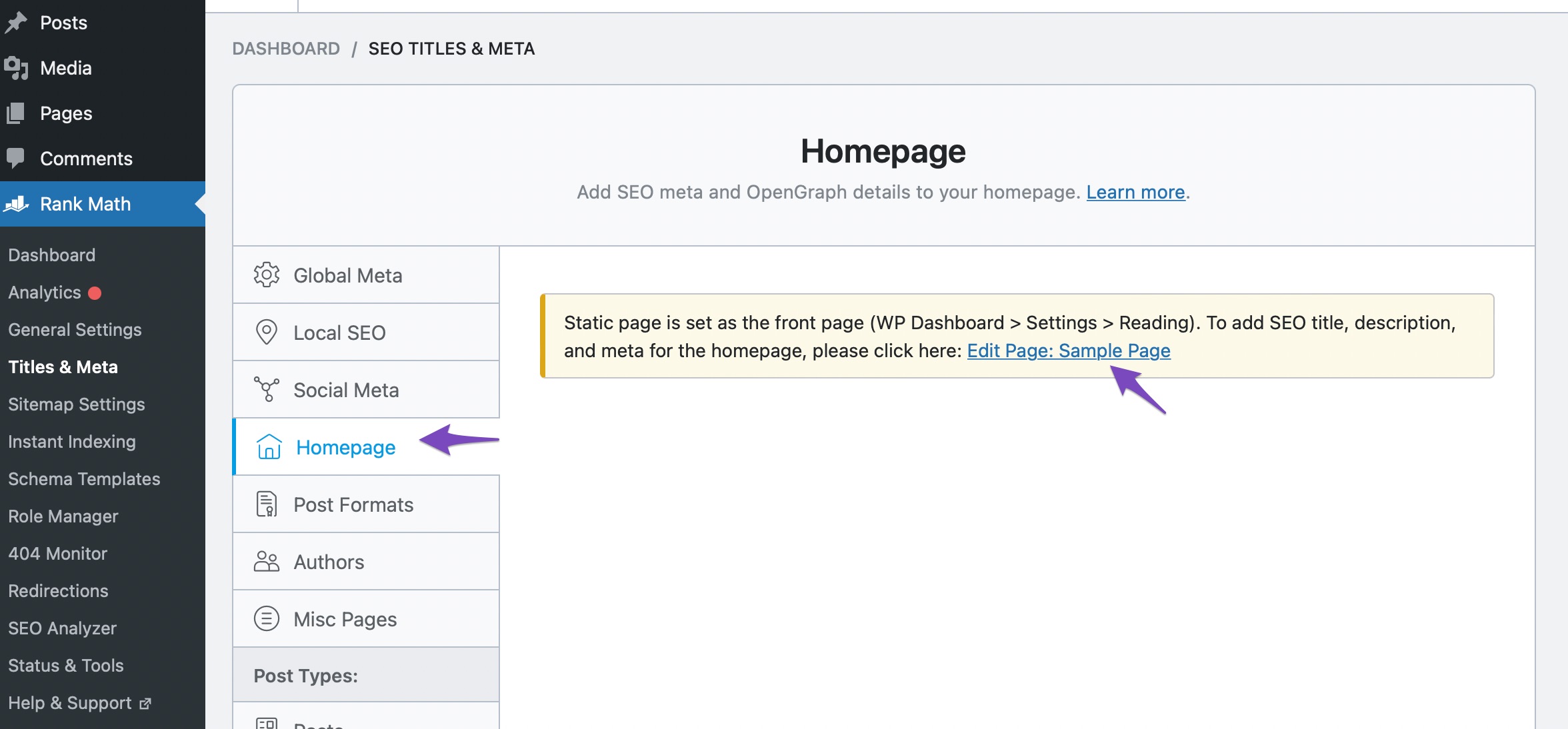
The absolute easiest way to become a keyword ninja is by using a super-powered helper called a plugin. These are like little digital elves that live within your WordPress dashboard and do all sorts of helpful things. For keywords, the reigning champion is often the mighty Yoast SEO or its equally awesome cousin, Rank Math SEO. You can find them in your WordPress dashboard under Plugins > Add New. Just search for them, click install, and then activate. Boom! You’ve just armed yourself with a secret weapon.
Once installed, these plugins will become your best friend when you’re creating or editing any page or post. Scroll down to the very bottom of your editing screen. See that magical box? That’s where the plugin lives, ready to guide you.

Focusing Your Keyword Fun
The plugin will ask you for your "Focus Keyword". This is the main keyword or short phrase you want that specific page or post to be found for. Imagine you’ve written a dazzling post about how to bake the perfect chocolate chip cookie. Your focus keyword might be "best chocolate chip cookie recipe". Or, if you're selling hand-knitted cat sweaters, your focus keyword could be "custom cat sweaters".
Don't go overboard! Each page or post should ideally have one primary focus keyword. Trying to rank for everything is like trying to catch a rainbow with a butterfly net – it’s a noble effort, but you’ll probably end up empty-handed and a little damp.

Sprinkling Keywords Like Fairy Dust
Now, here's the fun part: you get to sprinkle your focus keyword naturally throughout your content. Think of it as adding a delicious spice to your masterpiece. You want it to be present, but not overpowering. The plugin will actually give you feedback, like a friendly teacher, telling you if you've used it enough (but not too much!).
Where should you put these precious words?

- In the Title: Absolutely essential! Make sure your focus keyword is in the title of your page or post. It’s like putting a giant neon sign on your shop.
- In the First Paragraph: Get it in there early! The search engines are like impatient readers; they want to know what you’re about right away.
- Throughout the Content: Weave it in naturally. Use variations too! If your keyword is "fluffy cat beds," you can also use "soft cat beds," "cozy cat sleeping spots," and so on.
- In Headings (H2, H3): These are like chapter titles in your digital book. If it makes sense, pop your keyword in there.
- In Image Alt Text: When you upload an image, there’s a little box for "Alt Text". This is a description of the image for visually impaired users and search engines. Describe your image and include your keyword if relevant. For example, if you have a picture of your fluffy cat snoozing on a luxurious bed, your alt text could be: "Close-up of a fluffy cat sleeping soundly on a soft, plush cat bed."
The plugin will be your guiding light, giving you a little "traffic light" system. Green means you’re doing great, orange means you're on the right track, and red means you might want to tweak things a bit. It's like having a friendly chatbot cheering you on!
Beyond the Plugin: Being a Smarty Pants
While the plugins are amazing, remember they're tools. The real secret sauce is creating content that people actually want to read. If you're writing about "how to train a squirrel to fetch," make sure your content is genuinely helpful and engaging. The search engines are getting smarter all the time, and they love to reward truly valuable content. So, be yourself, be enthusiastic, and your keywords will naturally follow the brilliance of your ideas!
Adding keywords to your WordPress site is like learning to speak the language of the internet. With a little practice and the help of some fantastic plugins, you’ll be guiding visitors to your digital doorstep in no time. So go forth, add those keywords, and watch your website shine!


.jpg?1=&directory=catalog)
.png?1=&directory=catalog)


![How to Add Keywords in WordPress [without plugins]](https://redpishi.com/wp-content/uploads/2022/07/Add-keywords-in-Wordpress-Custom-Field.webp)