How To Go To Dashboard On Wordpress

Ever wondered what happens behind the scenes of a website, particularly one built on WordPress? It’s like having a secret clubhouse for your online presence, a place where you can shape, manage, and grow your digital corner of the internet. And the key to unlocking this clubhouse? It's the WordPress Dashboard.
Learning how to get to your WordPress Dashboard isn't just about technical know-how; it's about gaining control and unlocking a world of creative possibilities. Think of it as the command center for your website, where all the magic happens. Whether you're a blogger sharing your passion, a small business owner showcasing your services, or an educator creating engaging learning materials, your Dashboard is your ultimate tool.
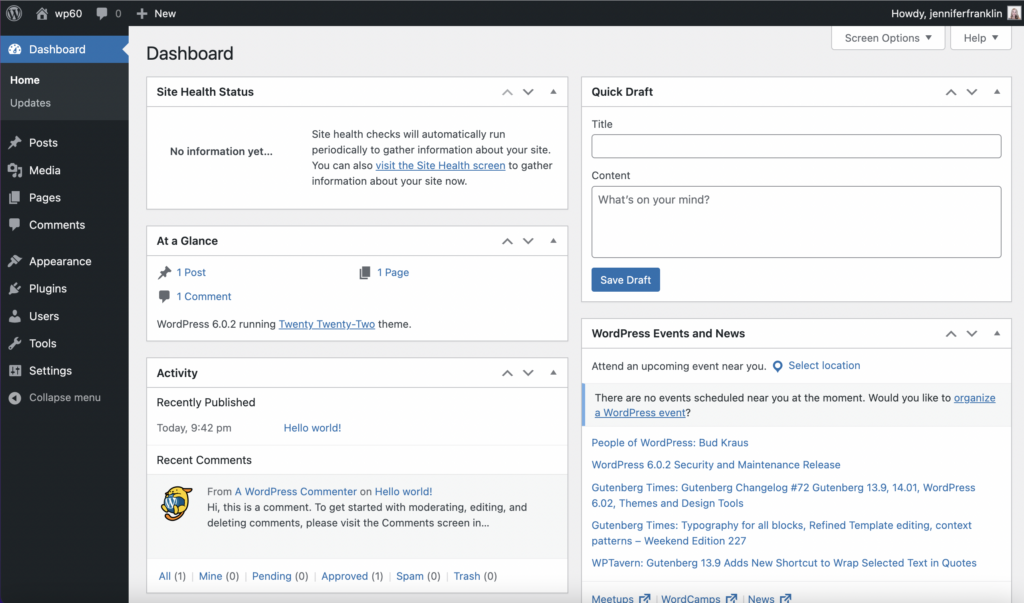
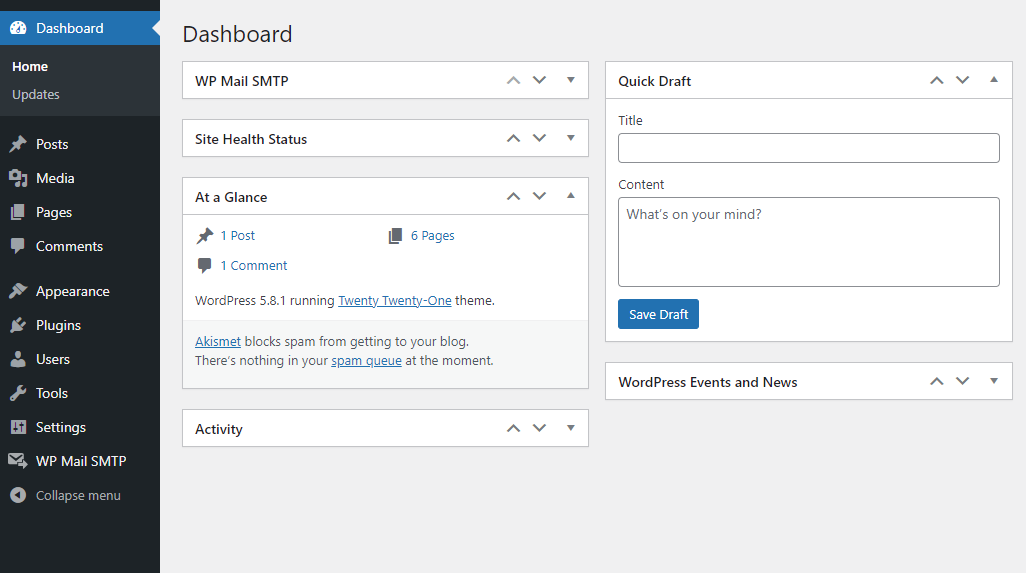
So, what exactly is this mysterious Dashboard? In simple terms, it's a private administrative area for your WordPress site. Once you log in, you’re greeted with a clean, organized interface that allows you to do everything from writing and publishing new posts to changing the look and feel of your site. You can manage comments, update plugins (those handy little tools that add extra features), and even keep an eye on your website's performance. The benefits are huge: you get to be the architect, the editor, and the manager of your own online space, all without needing to be a coding whiz.
Must Read
Imagine being a teacher creating a blog to share homework assignments, classroom updates, and engaging resources with your students and their parents. The Dashboard would be where you'd write and schedule those posts, upload helpful documents, and perhaps even set up a simple forum for questions. For a hobbyist baker, the Dashboard is where they’d upload mouth-watering photos of their creations, write recipes, and manage inquiries about custom orders. It's incredibly versatile and can be tailored to almost any need.
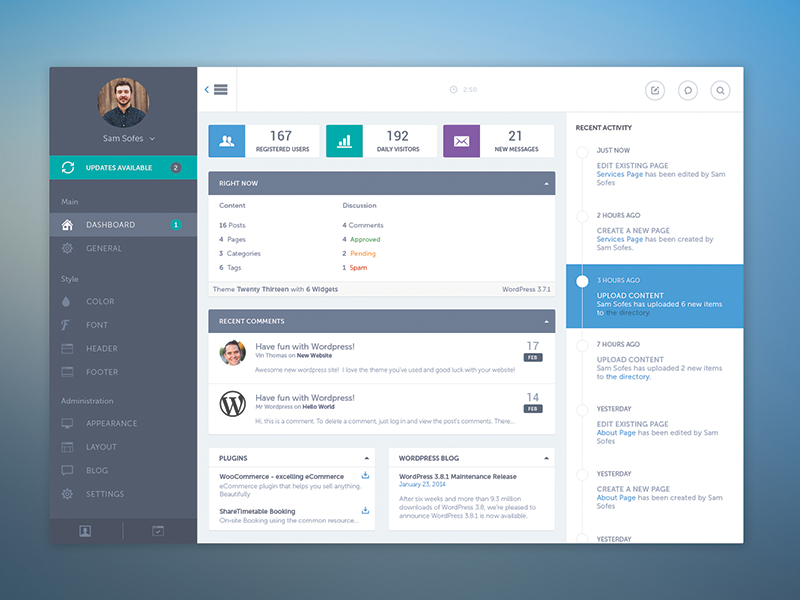
Getting there is surprisingly straightforward. Once you've set up your WordPress website, you'll typically access your Dashboard by typing a specific address into your web browser. Usually, it's your website’s domain name followed by /wp-admin or /wp-login.php. For example, if your website is youramazingwebsite.com, you'd go to youramazingwebsite.com/wp-admin. You’ll then be prompted to enter your username and password – the ones you created when you first set up your site. Once logged in, you'll find yourself in the Dashboard, ready to explore!
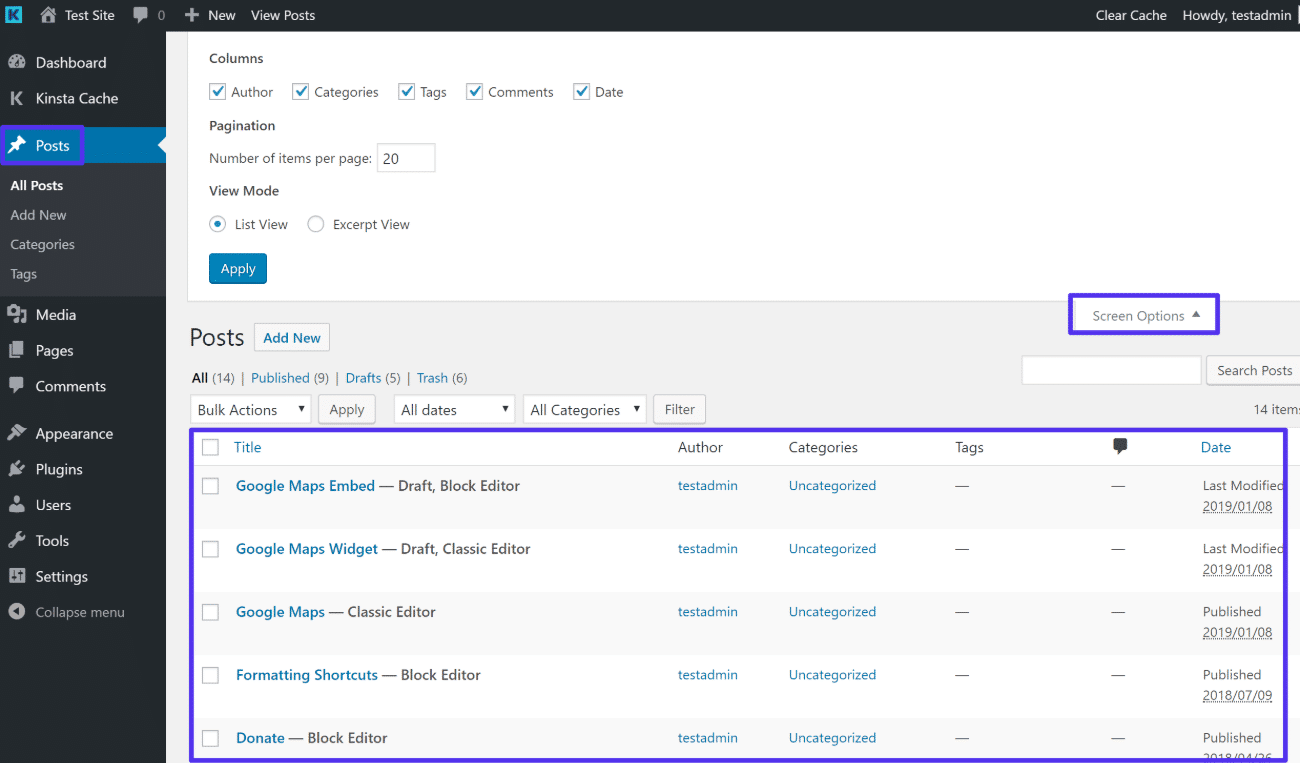
Don't be intimidated by all the options at first. Start small! Click around and see what each section does. Look for the "Posts" section to see how you can create a new blog entry. Explore "Pages" for creating static content like an "About Us" page. And don't forget to visit "Appearance" to get a peek at how you can change your site's theme – it’s like giving your website a fresh coat of paint! The more you play and experiment within your Dashboard, the more comfortable and confident you'll become. It's your personal digital canvas, and the Dashboard is your palette of infinite possibilities.