
How To Tell What Ipad You Have
Okay, so you’re staring at your trusty iPad, right? And maybe, just maybe, you’re a tiny bit fuzzy on which exact model it is. Happens to the best of us, honestly. It's not like they come with little name tags, are they? (Wouldn't that be cute, though? Tiny little leather tags!) Anyway, don't sweat it. Figuring out your iPad's identity is way less complicated than, say, assembling IKEA furniture. We'll get you sorted, no problem. Think of me as your friendly neighborhood iPad detective, armed with caffeine and a whole lot of patience.
Why bother, you ask? Good question! Well, it's kinda important. For starters, if you're looking for cases, screen protectors, or even apps that might run a bit differently on older models, knowing your specific iPad is a lifesaver. Plus, when you're trying to sell it or upgrade, that little piece of information is gold. And let's be honest, there's a certain satisfaction in knowing exactly what piece of Apple magic you're holding, isn't there? It's like unlocking a secret level in a video game, but for tech.
So, grab a cuppa, settle in, and let's dive into this iPad mystery. We've got a few super-easy ways to crack the case. No fancy tools required, just your iPad and maybe a little bit of squinting. We'll go from the easiest peasy methods to the slightly-more-involved-but-still-totally-doable ones. Ready? Let's do this!
Must Read
The Super-Duper Obvious Way (Seriously, You Might Have Missed It)
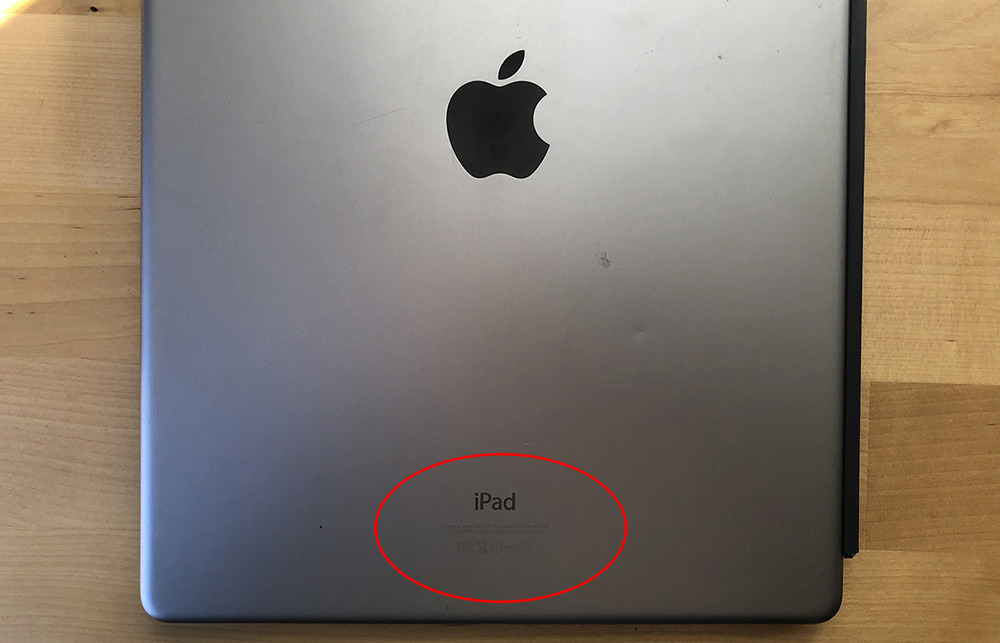
Alright, let's start with the absolute easiest, most "duh, why didn't I think of that?" method. It's hiding right there on your iPad's physical body. Nope, not a secret message etched into the aluminum (though that would be cool for a limited edition!). I'm talking about the tiny, often overlooked text on the back of your iPad.
Yep, the back. I know, I know, most of us just slap a case on and forget about it. But if you peel off that case, or if you're one of those brave souls who goes caseless, you'll see a whole bunch of tiny writing. It's usually at the bottom, in a smaller font than the Apple logo. And somewhere in that miniature novel, you'll find a word that starts with "Model" followed by a number or a letter combination. For example, you might see something like "Model A1566". That, my friend, is your model number.
This model number is like your iPad's Social Security number, but way less bureaucratic. It's unique and directly corresponds to a specific generation and type of iPad. Now, you could try to memorize it, but let's be real, who has that kind of brain space? It's probably better to have a backup plan, which we'll get to in a sec. But for now, give that back panel a good look. You might be surprised what secrets it holds!
Think of it like this: if your iPad were a person, this would be its birth certificate. It's the official record. So, if you're a visual learner and have a good pair of reading glasses handy (or just really good eyesight), this is your first and fastest clue.
The "Okay, But My Case Covers Everything" Solution
So, what if your iPad is perpetually swaddled in a protective cocoon? Totally understandable. We live in a world of dropped phones and coffee spills. In that case, the back of the iPad is a no-go zone. But fear not, there are still ways! The next easiest method involves a quick trip into your iPad's settings. It's like peeking behind the curtain, but without the danger of falling into a technological abyss.

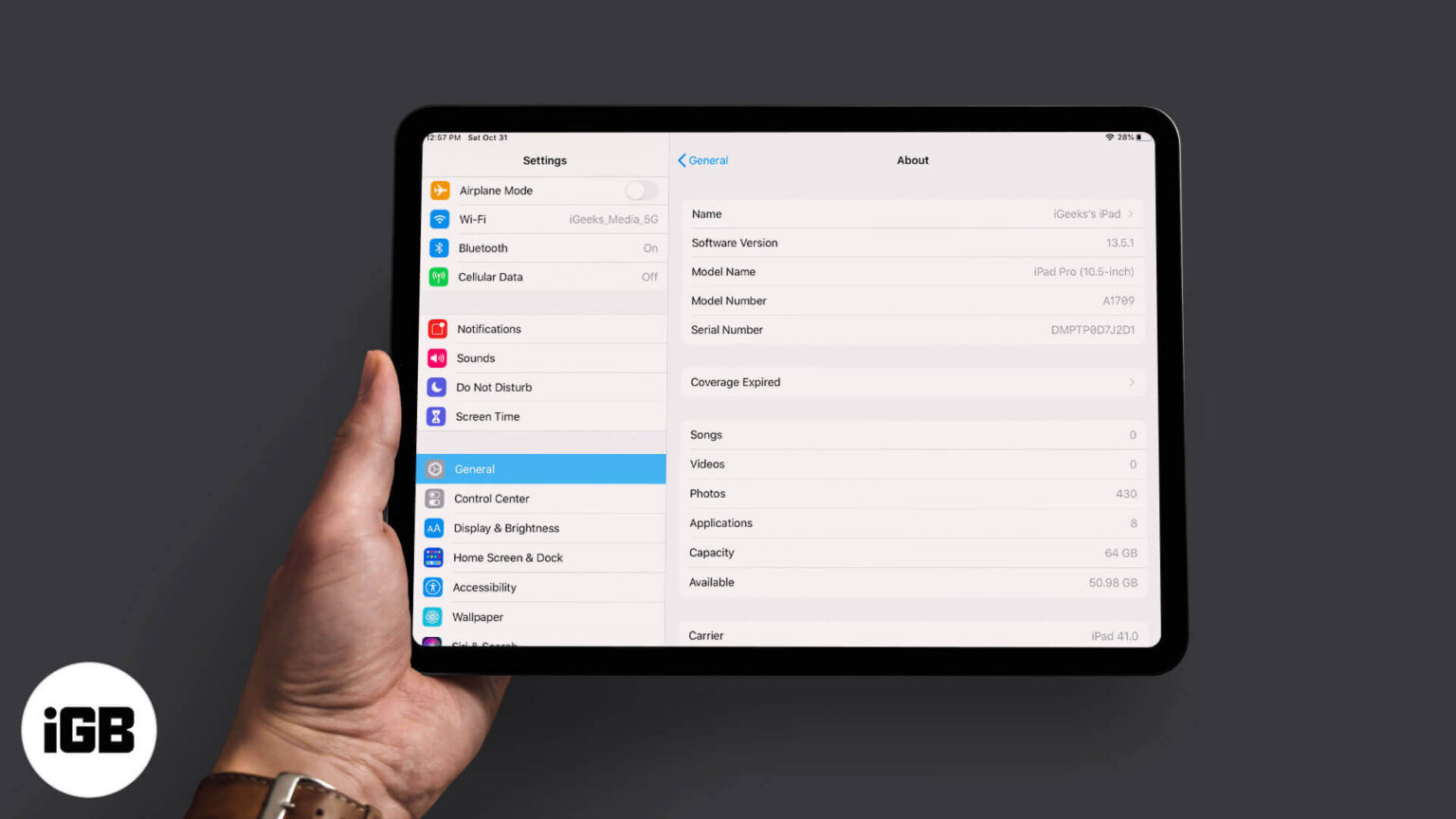
Pop open your Settings app. You know, the one that looks like a bunch of gray gears? Click on that bad boy. Once you're in, you'll want to navigate to General. Think of "General" as the iPad's main information hub. It's where all the important stuff lives.
After you tap on General, look for About. This is where your iPad spills all its secrets. Tap on About, and then your eyes should be drawn to a line that says Model Name. Boom! There it is. It’ll tell you something like "iPad Air (3rd generation)" or "iPad Pro (11-inch)". Much more user-friendly than a random string of numbers, right? This is usually what most people are looking for when they ask "what iPad do I have?". It tells you the name and generation, which is super helpful.
But wait, there's more! Right below Model Name, you'll also see Model Number. This is that "Axxxx" number we talked about earlier. Sometimes, especially if you're looking at Apple's support website or trying to find very specific technical specs, this is the number they'll want. So, keep that little gem in mind too. It's good to have options!
This method is fantastic because it's quick, clean, and you don't need to disrobe your precious device. Plus, you're already familiar with the Settings app, right? It's like finding a hidden feature in an app you use every day. Who knew your iPad was so good at keeping secrets, but so willing to share them once you know where to look?
The "I'm Still Not Sure, What's the Real Difference?" Deep Dive
Okay, let's say you've found your model name and number, but you're still feeling a bit like you're on shaky ground. You might be wondering, "Is the difference between an iPad 8th gen and an iPad 9th gen that big?" Or, "What exactly makes a Pro a Pro?" This is where we can get a little more detailed, but still keep it fun. It's like becoming an iPad aficionado, but without having to wear a tweed jacket.

The key differences between iPad models usually come down to a few main things: screen size, processor power, camera capabilities, storage options, and sometimes, the presence of features like Face ID or the ability to use specific Apple Pencils.
For example, if you have an iPad Pro, you're likely holding something with a more powerful chip (think "blazing fast"), a ProMotion display (which means super-smooth scrolling and responsiveness), and often a more advanced camera system. They also usually come in larger screen sizes, like 11-inch or 12.9-inch. These are the iPads for the creatives, the power users, the ones who want the absolute best for demanding tasks.
Then you have the iPad Air. These are often the sweet spot for many people. They usually offer a good balance of power and portability, with a sleek design that's thinner and lighter than the standard iPad. They might have a processor that's still very capable, but perhaps not quite the bleeding edge of the Pro models. Think of them as the stylish, capable siblings.
The standard iPad is your workhorse. It's reliable, affordable, and gets the job done for everyday tasks like browsing the web, watching videos, and using most apps. They tend to be a bit thicker and have slightly less advanced features, but they are the most accessible option for many. The classic, dependable friend.
And don't forget the iPad mini! As the name suggests, it's all about the compact size. These are perfect for reading, quick note-taking, or anyone who wants a super-portable tablet. They pack a surprising punch for their small stature, often with processors that rival larger models.
Using Your Model Number for Ultimate Clarity
Now, back to that model number. This is where you can get super specific. If you've noted down that "Axxxx" number, you can plug it into Apple's support website. It's like having a secret decoder ring for your iPad. No, seriously, Apple has a page dedicated to helping you figure this out, and it's brilliant.
Just search for "Identify your iPad model" on Google, and you'll find the official Apple support page. It usually has a table where you can match your model number to the specific iPad name, generation, and even the year it was released. It's incredibly detailed. You'll see things like "iPad (7th generation) - released September 2019". This is the ultimate confirmation, the final stamp of approval on your iPad's identity.
Why is this so handy? Well, sometimes Apple releases slight variations within a generation, or there might be a refurbished model with a slightly different naming convention. Using the model number bypasses all that potential confusion. It's the scientific method of iPad identification!
This is also incredibly useful if you're buying accessories online. Many accessory descriptions will list the compatible model numbers. So, instead of guessing or hoping, you can just check your iPad's model number against the list. Peace of mind, folks. It's a beautiful thing.
A Quick Recap: Your iPad Identity Cheat Sheet
So, let's just quickly summarize the easiest ways to figure out what iPad you've got. It's like a little cheat sheet for your iPad's brain:
Method 1: The Back Panel Scan. Flip your iPad over. Look for tiny text. Find the line starting with "Model" and the "Axxxx" number. Easy peasy, if your case allows!
Method 2: The Settings Sleuth. Go to Settings > General > About. Look for Model Name (like "iPad Pro") and Model Number (like "Axxxx"). This is your go-to, everyday method.
Method 3: The Apple Decoder Ring. Take your "Axxxx" Model Number and plug it into Apple's official "Identify your iPad model" support page online. This is for absolute certainty!
Honestly, most of the time, Method 2 will give you all the information you need. But it's good to know the other options, right? Especially if you're deep in accessory shopping or just want to impress your friends with your iPad knowledge. Who doesn't want to impress their friends with iPad knowledge?
And there you have it! You've successfully identified your iPad. Now you can confidently go forth and find that perfect case, the latest software update, or brag to your buddies about your specific model. You're practically an iPad whisperer now. Or at least, you know how to read a label. That's practically the same thing in the tech world, right?
So, next time someone asks, you can confidently say, "Oh, this old thing? It's the [Insert your iPad Model Name here], the [Insert Generation here]. Got it back in [Insert Year if you know it]." You've earned it. Now go forth and use your iPad with newfound knowledge and a smug sense of accomplishment!

