How To Modify A Theme In Wordpress
Hey there! So, you've got this WordPress site, right? And you're looking at your theme and thinking, "Hmm, it's... fine. But it could be more." Like, way more. Or maybe it's just not quite hitting the spot. You know the feeling! It's like wearing an outfit that's almost perfect, but that one sleeve is just a little too long, or the color is almost your favorite. Totally relatable.
Well, guess what? You've come to the right place! Today, we're gonna dive headfirst into the magical world of modifying a WordPress theme. No scary jargon, no intimidating code walls (okay, maybe a little bit of code, but we'll hold your hand!). Think of me as your friendly guide, armed with virtual coffee and an unhealthy obsession with making websites look amazing. We're gonna turn that "fine" theme into a "HECK YEAH, THIS IS MINE!" theme.
First things first, let's get cozy with the idea of themes. A WordPress theme is basically the design and layout of your site. It dictates how everything looks – fonts, colors, spacing, the whole shebang. And while there are tons of gorgeous themes out there, sometimes you just want to tweak things. You're not alone! Everyone with a website eventually gets that itch to personalize.
Must Read
But Why Modify? Isn't There an App for That?
Good question! And the answer is... sometimes! There are page builders and customization options built into many themes. And those are great! Seriously, if you can achieve your vision with drag-and-drop and a few clicks, go for it. More power to you! But what if you want something... different? Something the theme options just don't cover?
Maybe you want to change the way your blog posts are displayed, add a fancy animation that wasn't included, or perhaps you have a very specific color palette that needs to be implemented exactly. You know, the kind of stuff that makes your website feel uniquely you. That's when we roll up our sleeves and get a little hands-on.
Think of it like this: You buy a beautiful, pre-made cake. It's delicious! But maybe you want to add your own special sprinkles or a custom message on top. You wouldn't just throw the whole cake out, would you? (Please say no, I love cake). You'd add your personal touch. That's what modifying a theme is all about!
Before We Get Our Hands Dirty: The Golden Rule!
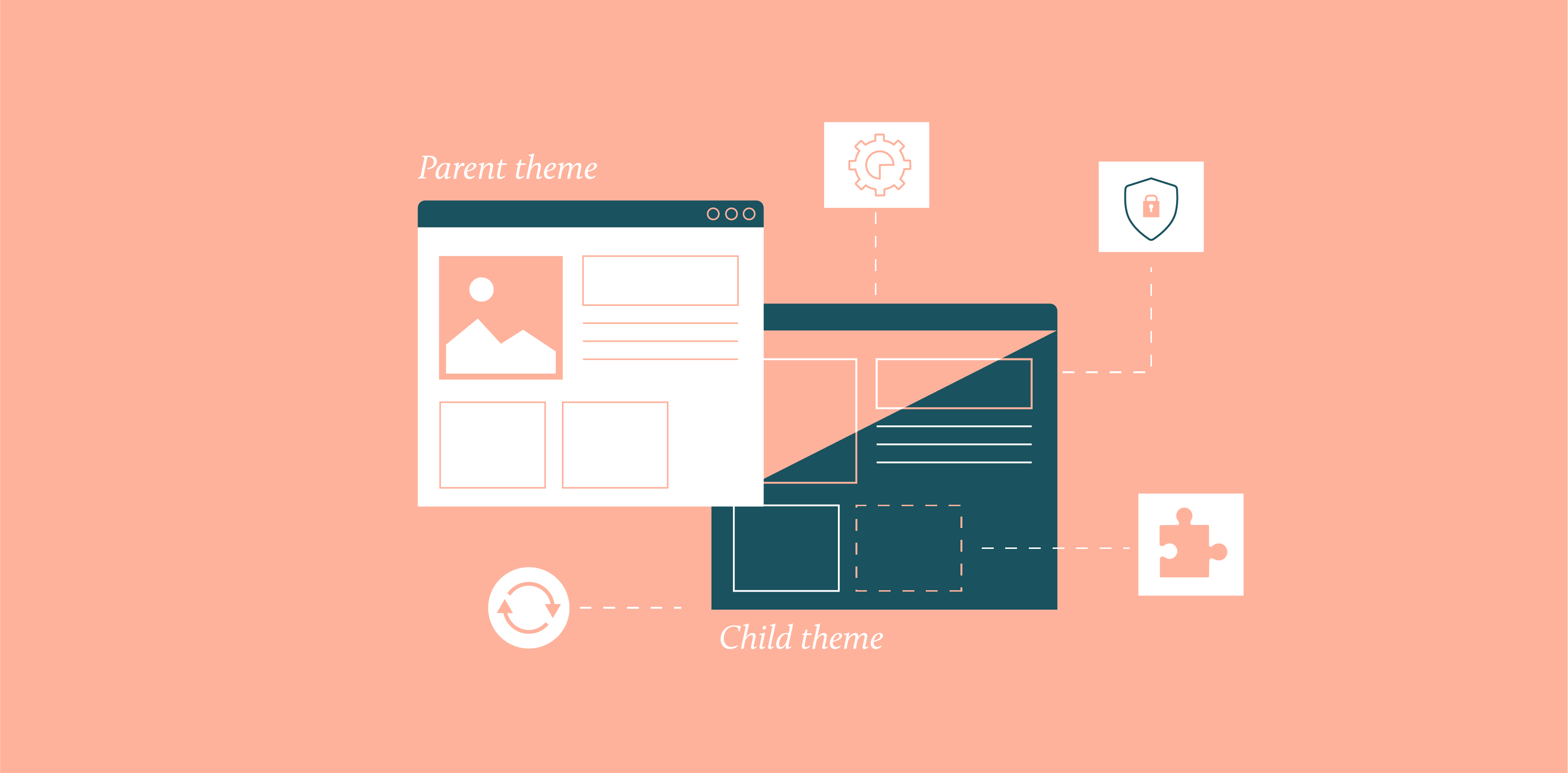
Okay, deep breaths. This is the MOST important part. Before you even think about touching a single line of code, you must create a child theme. I can't stress this enough. Seriously, tattoo it on your forehead if you have to. NEVER modify your parent theme directly.
Why? Because when the theme developer releases an update (and they do, for security and new features!), your amazing, hard-won customizations will be wiped out. Poof! Gone. Like a magician's rabbit, but way less entertaining. A child theme is like a copy of your theme that inherits all the styles and functionality of the parent, but it's separate. So, when the parent theme updates, your child theme stays put, keeping all your awesome mods safe and sound.
It sounds technical, but it's actually pretty straightforward. There are plugins that can create a child theme for you with a few clicks. Or, if you're feeling brave, you can do it manually. Just search for "how to create a WordPress child theme" and you'll find plenty of guides. Trust me, this one step will save you so much heartache. It's the difference between a happy DIY project and a full-blown tech tantrum.
So, How Do We Actually Do This Thing?
Alright, child theme created? Check! You're already halfway there. Now, let's talk about the main ways you can actually modify your theme. We're going to cover a few different approaches, from the super-simple to the slightly-more-involved. You can pick and choose what works best for you!
1. The Magic Wand of Custom CSS
This is probably the easiest and most common way to make visual changes. CSS, or Cascading Style Sheets, is what tells your browser how to display your website. Think of it as the interior decorator for your site. You can tell it to make that button a different color, change the font size of your headings, or even move things around a bit.
Where do you put this magical CSS? Well, WordPress has a built-in Customizer. You can find it by going to Appearance > Customize. See that "Additional CSS" section? That's your new best friend! You can type or paste your CSS code right in there.
Let's say you want to change the color of all your H2 headings to a vibrant purple. You'd find the CSS selector for H2 (which is, surprisingly, `h2`) and then tell it what color to be. Something like this:
h2 { color: purple; }
See? Not so scary, right? Now, if you want to make that button a nice bright red, you'd need to figure out its specific CSS selector. This is where it gets a tiny bit detective-y. You can use your browser's developer tools (usually by right-clicking on the element you want to change and selecting "Inspect" or "Inspect Element") to find the classes and IDs associated with it. Then you can target it specifically.
For example, if your button has a class called `my-awesome-button`, you might write:
.my-awesome-button { background-color: red; color: white; padding: 10px 20px; border-radius: 5px; }
You can do SO much with just CSS! Changing fonts, adjusting margins, making things bigger or smaller, adding borders... the list goes on. It's a great way to fine-tune the look of your site without diving into the deeper parts of your theme.

Pro tip: Always test your changes on a live preview in the Customizer before hitting publish. And if something goes wonky, just delete the CSS you added, and it'll go back to normal. Phew!
2. Getting Friendly with Template Files (A Little Braver!)
Okay, CSS is great for styling, but what if you want to change the structure of something? Like, maybe you want to add a "Share this post" button above the content instead of below it, or change the order of elements in your sidebar. That's where template files come in.
Remember that child theme we talked about? This is where it really shines! Your child theme has a folder, and inside that folder, you can create copies of the template files from your parent theme that you want to modify. WordPress is smart; it will look in your child theme first. If it finds the file there, it uses that. If not, it falls back to the parent theme.
So, let's say you want to change the `single.php` file (which typically controls the display of individual blog posts). You would copy `single.php` from your parent theme's folder and paste it into your child theme's folder. Then, you can edit the copy in your child theme!
Inside these template files, you'll see PHP code mixed with HTML. PHP is what makes WordPress dynamic – it pulls content from your database and displays it. This is where things can get a little more intimidating if you're new to it. But again, small steps!
You're not usually rewriting entire files. You're often looking for a specific section of code, maybe a function call or a piece of HTML, and making a small change. For example, you might find a line that outputs the post date and decide to remove it, or add some extra text before or after it.
Important note: If you're not comfortable with PHP, this is where you might want to ask for help or stick to custom CSS and plugins. But if you're curious and willing to learn, it's incredibly powerful!
Where do you edit these files? You can do it directly through the WordPress dashboard under Appearance > Theme File Editor. However, many people prefer to use an FTP client or their hosting control panel's file manager. This gives you more control and is generally considered a safer way to manage files.
3. Plugins: The Shortcut Superheroes
Sometimes, the easiest way to modify your theme is to use a plugin. Seriously, there's a plugin for almost everything in WordPress, and theme modification is no exception.
Need to add social media sharing buttons? There's a plugin for that. Want a super fancy contact form? Plugin. Need to change the footer text without touching code? You guessed it – plugin!
There are page builder plugins (like Elementor, Beaver Builder, or Divi Builder) that offer extensive visual editing capabilities, allowing you to design layouts from scratch or heavily customize existing ones. These are fantastic for users who want maximum control without diving deep into code.
There are also more specific plugins that target particular aspects of your theme. You might find plugins that allow you to customize WooCommerce layouts, add advanced typography options, or even create custom post types and templates.
The beauty of plugins is that they often handle the complexities for you. You install them, configure their settings, and voilà! Your theme is modified. Plus, most reputable plugins are well-maintained and updated regularly, which is always a good thing.
Word of caution: While plugins are awesome, try not to go overboard. Too many plugins can slow down your site, and sometimes they can conflict with each other or your theme. So, choose wisely and only install what you truly need. And always check reviews and update status before installing!
Putting It All Together: A Little Example Scenario
Let's say you're using a theme, and you love its blog post layout, but you want to make the title font really stand out. And maybe, just maybe, you want to add a little "Read More" button with a cool hover effect to your archive pages.

Here's how you might tackle it:
- Child Theme: First, make sure you have a child theme set up. If not, do that now!
- Custom CSS for Title Font: Go to Appearance > Customize > Additional CSS. You'll need to inspect your site to find the CSS selector for your post titles (it might be something like `.post-title` or `h1.entry-title`). Then, you'll add some CSS to change the font size, weight, and maybe even the color.
- Template File Modification for Archive Button: For the "Read More" button on your archive pages, you'll likely need to edit a template file. This is probably `archive.php` or `index.php` (depending on how your theme structures archives). You'll copy this file to your child theme. Then, within that file, you'll look for the loop that displays posts. You'll add a link that says "Read More" and style it with CSS.
.entry-title { font-size: 2.5em; font-weight: bold; color: #333; }
You'd then use custom CSS in your child theme's `style.css` file (or the Customizer) to style that "Read More" button and give it that cool hover effect you're dreaming of!
See? It's a combination of different techniques. You don't have to be a coding wizard to make meaningful changes. It's about understanding the tools available and knowing where to apply them.
Don't Be Afraid to Experiment (Responsibly!)
The biggest hurdle for most people is the fear of "breaking" their site. And while that's a valid concern, the beauty of modern WordPress and child themes is that it's often quite resilient.
Start small. Make one change at a time. Test it thoroughly. If it looks good and works well, move on to the next tweak. If something goes wrong, you can usually revert the change easily, especially with CSS. For file modifications, having a backup (which you should always have!) is your safety net.
And remember, this is your website! It should reflect your personality and your brand. Don't settle for a theme that's just "okay." Play around, explore, and make it your own. You've got this!
So, grab another coffee (or tea, or whatever your beverage of choice is!), and let's get those themes looking exactly how you want them. Happy customizing!