How To Setup A Redirect In Wordpress
So, you've got a WordPress website. You know, the one that's supposed to be your digital masterpiece? It's probably full of amazing blog posts, shiny new pages, and maybe even a few quirky cat pictures.
But then, disaster strikes! You've gone and changed a URL. Or perhaps you deleted something that was actually quite popular. Now, visitors are landing on a sad, empty page that says "Page Not Found." It's like showing up to a party and the host forgot to invite you.
This, my friends, is where the magic of a redirect comes in. Think of it as a friendly doorman for your website. It politely escorts your visitors to the right place. No more confusing detours!
Must Read
The Not-So-Secret Weapon: Plugins
Now, you could get all technical and fiddle with code. But who has time for that? We're here for easy and entertaining, remember? So, we're going to lean on our trusty sidekick: plugins.
WordPress is famous for its plugins. They're like little helpers that add extra features to your site. And for redirects, there are some absolute superstars out there. They make a potentially scary task feel as simple as ordering pizza.
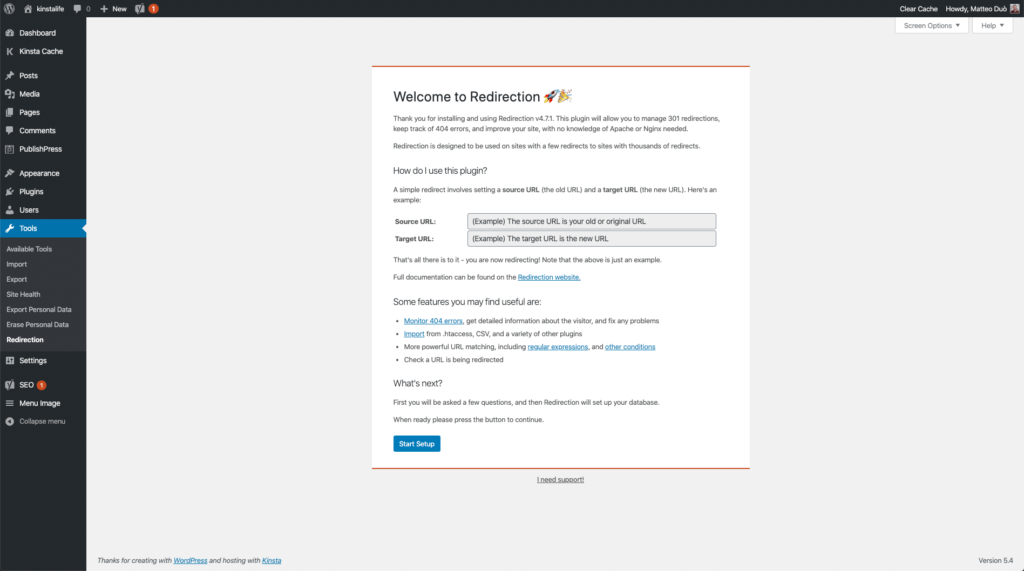
One of the most popular, and for good reason, is called "Redirection." Yes, the name is a little on the nose, but that's part of its charm! It’s like the superhero your website needs when its URLs go rogue.
Getting Your Hands Dirty (But Not Too Dirty)
First things first, you need to install this superhero. Log into your WordPress dashboard. You know, that place where you edit everything and secretly judge your own writing.
Navigate to Plugins > Add New. This is where all the downloadable goodness lives. Type "Redirection" into the search bar. Prepare for a small crowd of similar plugins.
Look for the one with the most downloads and a good rating. It will probably have a description that makes you feel instantly more confident about your tech skills. Click "Install Now."
Once it’s installed, click "Activate." Boom! You've just brought your URL superhero onboard. It might even wink at you. (Okay, it probably won't, but imagine it does.)
Setting Up Your First Redirect: A Tale of Two URLs
Now for the fun part! Let’s say you have an old URL, like yourwebsite.com/old-awesome-post. This post was amazing, but you’ve given it a new, even awesomer URL: yourwebsite.com/new-super-awesome-post.
You need to tell the internet that anyone who tries to go to the old address should be sent straight to the new one. It’s like leaving a forwarding address with the post office.
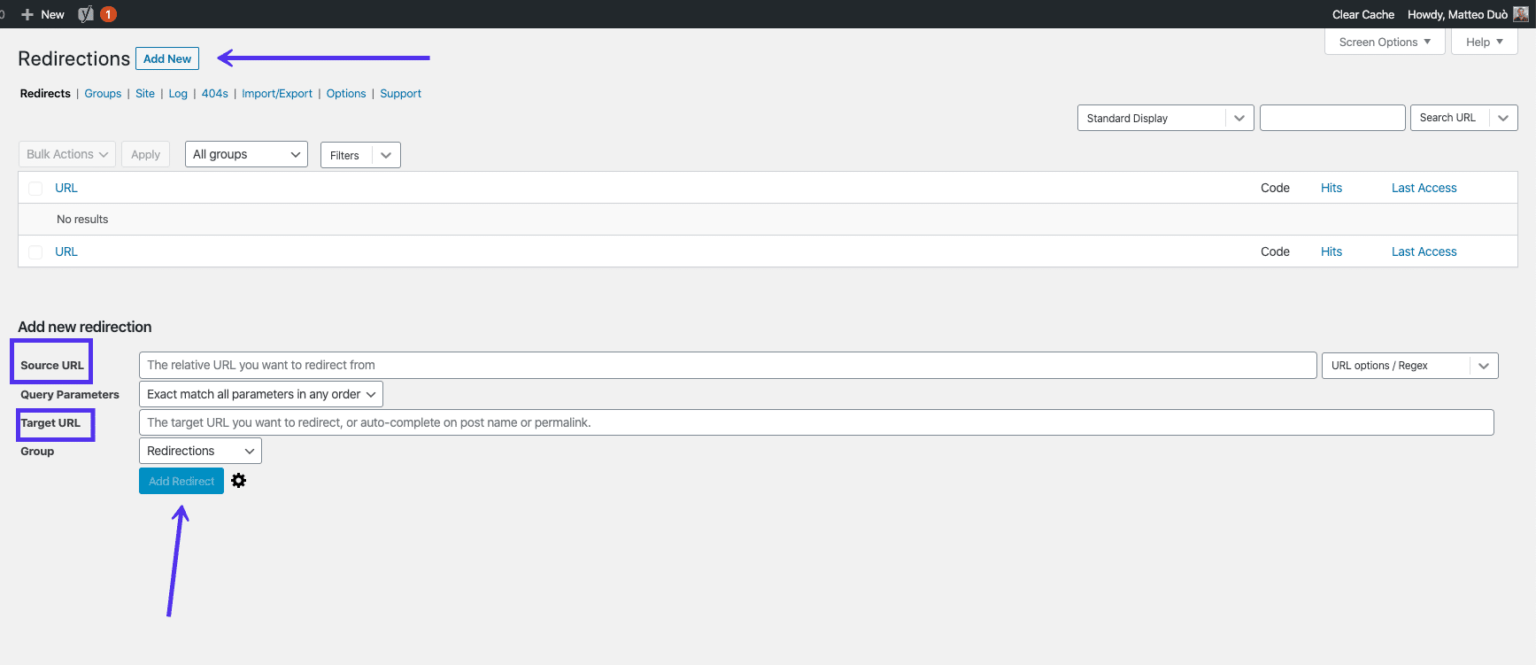
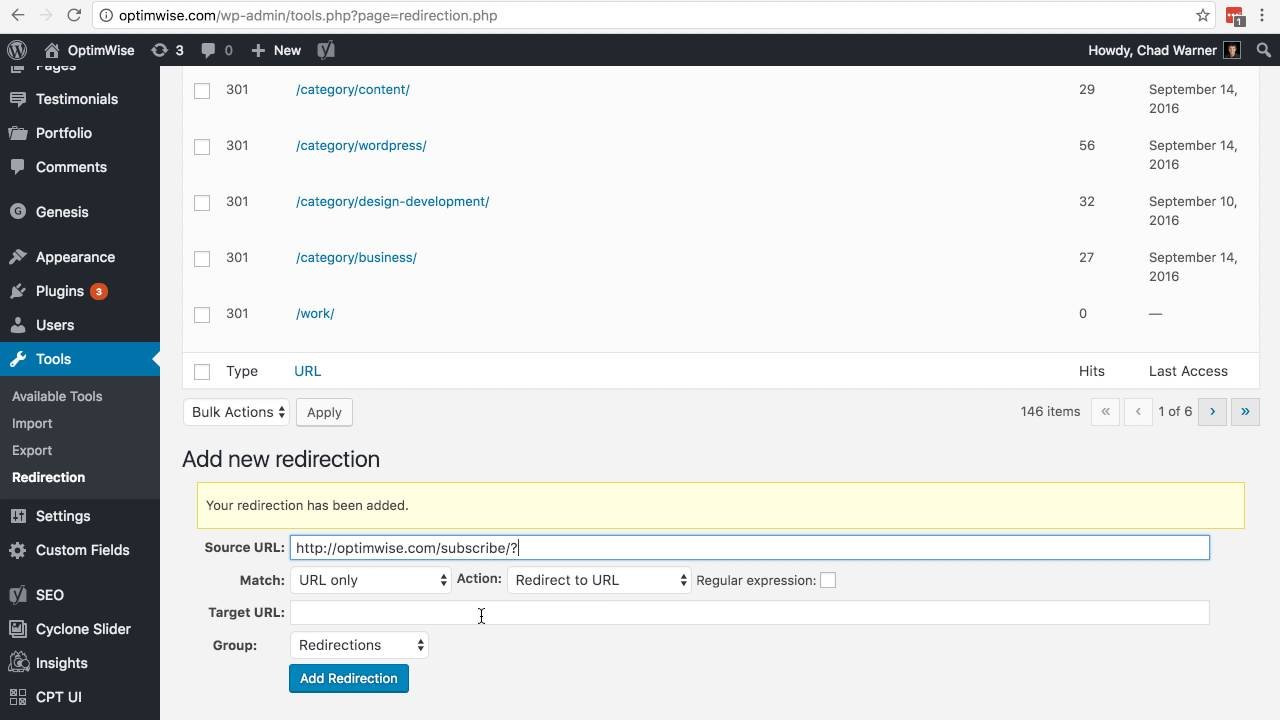
In your WordPress dashboard, you’ll now find a new menu item called "Redirection." Go ahead and click on that. It’s like entering the superhero’s secret lair.
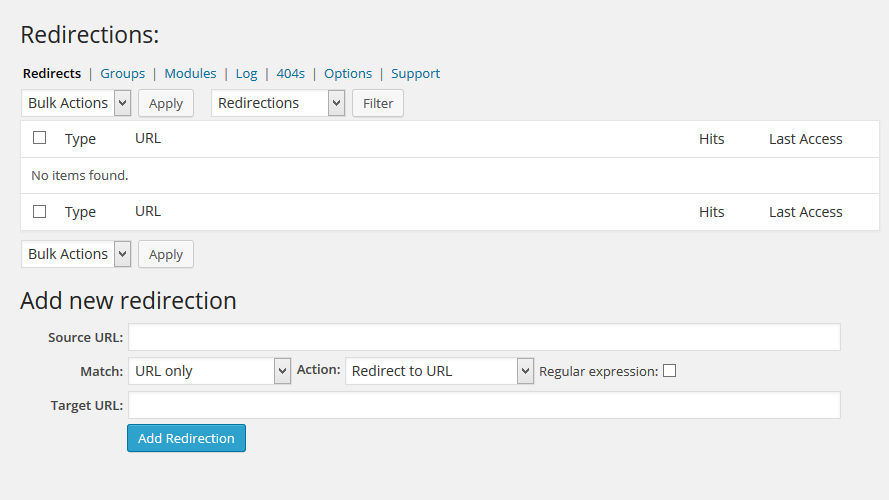
You'll see a section that asks for a "Source URL" and a "Target URL." This is where you tell your doorman where to direct traffic.
In the "Source URL" field, enter the old, outdated URL. Make sure you get it exactly right. Typos here are like giving your doorman the wrong directions.
In the "Target URL" field, enter the new, shiny URL. This is the destination. The place where all the glory awaits.
There might be other options, but for a simple redirect, these two are your main focus. You can usually just click "Add Redirect." And just like that, you’ve performed a digital miracle.
The "Unpopular" Opinion: It's Actually Easy!
Here’s my highly unpopular opinion: setting up redirects in WordPress isn’t that hard. I know, I know, you’ve probably heard horror stories. You’ve seen friends weep over broken links and 404 errors.
But with the right tools, like the Redirection plugin, it’s more like a gentle nudge than a complex operation. It’s empowering! You’re taking control of your website's destiny, one URL at a time.
Think about it. Before plugins, people had to mess with .htaccess files. That sounds like something you’d do in a secret code or when trying to communicate with aliens. Most of us just want our website to work, not to learn a new language.
So, the next time you have to move a page or change a permalink, don’t panic. Don’t stare at your screen in despair. Just remember the superhero plugin. Remember the simple fields for "Source" and "Target."
More Than Just Fixing Mistakes
Redirects aren’t just for emergencies. You can use them for all sorts of clever things. Want to make a super short, memorable URL for a marketing campaign? You can redirect a simple link to a longer, more complex one.
Are you merging two websites? Redirects are your best friend for ensuring visitors from the old site find their way to the new one. It's like a digital handshake between two online properties.
And let's not forget about those pesky typos in URLs. If someone accidentally types yourwebsite.com/aboot instead of yourwebsite.com/about, a redirect can catch that. It’s like a spellchecker for your web addresses.
A Few Extra Tips (Because We're Nice Like That)
Always test your redirects. After you set one up, open a new browser window (incognito mode is best!) and try out the old URL. Does it go where it's supposed to? If not, check for typos again.
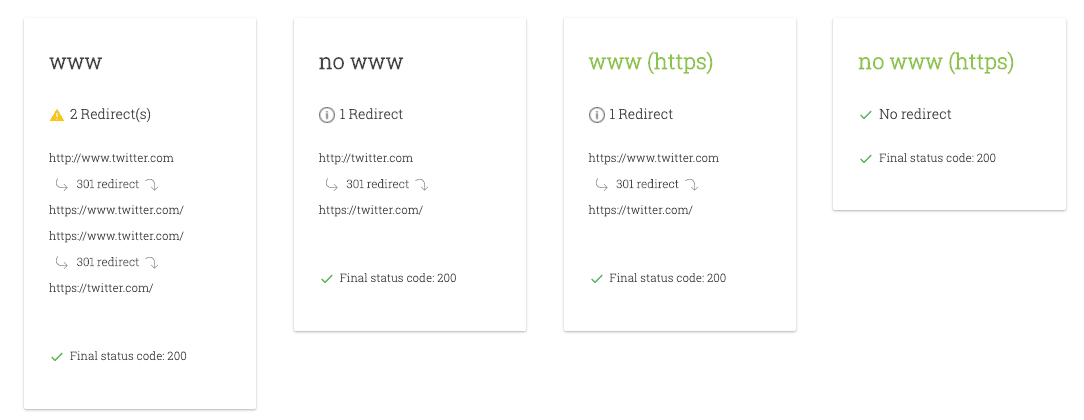
Be mindful of the type of redirect. The Redirection plugin usually handles this for you with a "301 redirect." This is a "permanent" redirect, which is generally what you want. It tells search engines that the old page is gone forever and the new one is its rightful successor.
Don’t go crazy with redirects if you don’t need to. Too many complicated redirects can, in rare cases, slow down your site. But for the occasional fix, they are gold.
Go Forth and Redirect!
So there you have it. Setting up a redirect in WordPress is not an insurmountable mountain. It’s a manageable hill, especially with plugins. You’ve got this.
Embrace the power of the redirect. Be the doorman. Be the friendly guide. Your website visitors will thank you for it. And who knows, maybe they'll even send you a virtual cookie.
Remember, a broken link is like a digital tumbleweed. A redirect is a smooth highway. Choose wisely!
Now go forth and conquer those URL changes! Your WordPress site deserves it. And so do you. It’s time to make your website a well-oiled, perfectly redirected machine.