
How To Reset Safari On A Mac
Hey there, fellow Mac user! Ever feel like your trusty Safari browser is acting a bit… sluggish? Or maybe it’s throwing some weird errors, like it’s got a digital case of the Mondays every day of the week? Don't sweat it! We've all been there. Sometimes, even the best of us need a little refresh, a digital spa day, if you will. And guess what? Resetting Safari on your Mac is surprisingly easy. Think of it like giving your browser a fresh start, a clean slate. No need to be a tech wizard; we’re going to walk through this together, step-by-step, with a smile.
So, why would you even want to reset Safari? Well, it's usually when things start getting a little… icky. Maybe websites are loading slower than a snail on vacation, or those annoying pop-up ads have decided to stage a comeback tour. Perhaps you’ve accidentally downloaded something sketchy (we’ve all been tempted by that "free vacation" banner, right?), and you want to banish any digital hitchhikers. Or, and this is a common one, Safari is just being weird. It’s freezing, it’s crashing, it’s acting like it’s seen a ghost. In these situations, a reset is like hitting the "undo" button on all those digital gremlins.
Before we dive in, let's just clarify what a reset actually does. It’s not like you're deleting your whole computer or anything drastic. We're talking about clearing out some of the stuff that builds up over time, like cookies, cache, history, and website data. Think of it like cleaning out your junk drawer. You know, the one where all those random cables, old receipts, and mysterious little screws end up? A Safari reset is the browser equivalent of a good old junk drawer declutter. It can also help with privacy concerns, by removing tracking data that websites might have stored.
Must Read
The "Quick & Dirty" Reset: Clearing Cache and Cookies
Alright, let's start with the most common and often most effective first step. We're going to tackle the cache and cookies. These are the usual suspects when it comes to a sluggish browser. Cache is like Safari's short-term memory, storing bits of websites so they load faster next time. Cookies are like little digital sticky notes that websites use to remember you (your login details, your preferences, etc.). Sometimes, these can get a bit jumbled or corrupted, leading to all sorts of fun (read: annoying) issues.
First things first, close all your open Safari windows. Yes, I know, it can feel a bit scary to close everything, but it's for the best. It ensures Safari isn't actively using any of the files we're about to clear. So, take a deep breath, say goodbye to that article you were totally going to finish later, and close those tabs. Ahh, peace.
Now, open Safari again. In the menu bar at the very top of your screen – you know, the one with "Safari," "File," "Edit," etc. – click on "Safari". You'll see a dropdown menu appear. Look for "Settings..." or, if you're on an older macOS version, it might say "Preferences...". Click on that. It's like opening up the control panel for your browser.
In the Settings/Preferences window, you'll see a few tabs across the top. We're looking for the one that says "Privacy". Click on that. This is where Safari keeps its secrets about who it's been talking to online. You'll see an option that says something like "Manage Website Data...". Go ahead and give that a click. A new window will pop up, showing you a list of all the websites that have stored data on your Mac. Don't be alarmed if it's a long list; it's like looking at your browser's diary.
Now, here’s the moment of truth. You have a couple of options here. You can click "Remove All". Yep, you read that right. This will clear out all the website data. This is usually the most effective way to fix those persistent issues. Alternatively, if you're feeling a bit more cautious and want to keep some data (maybe you really don't want to log back into that one obscure forum), you can select specific websites from the list and click "Remove". But for a proper refresh, "Remove All" is your best friend.
After you've clicked "Remove All" (or individually removed), click "Done". You've just given your browser a good scrubbing! Now, close that Settings window. See? Not so scary, right? You might notice that some websites take a tiny bit longer to load the next time you visit them, as Safari will need to re-download some of that information. That's totally normal!
The "Deeper Clean": Clearing History and Website Settings
Okay, so clearing cookies and website data helped, but maybe Safari is still misbehaving. No worries, we've got more tricks up our sleeve! Sometimes, your browsing history and other website-specific settings can cause a bit of a kerfuffle. Let's clear those out too.
Again, make sure all your Safari windows are closed. This is like tucking your browser into bed before giving it a good polish.
Open Safari. Go back up to the menu bar and click "History". You'll see a dropdown menu. At the very bottom of this menu, you'll find an option that says "Clear History...". Give that a click.
A little dialogue box will pop up. Here's where you choose how far back you want to go. You'll likely see options like "the last hour," "today," "today and yesterday," and my personal favorite for a full reset: "all history". If you're going for a complete refresh, you know what to choose! Click on "all history". Then, click the "Clear History" button.
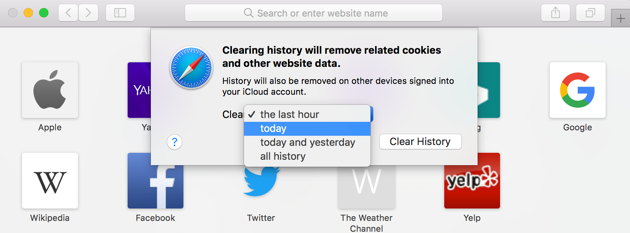
Boom! Just like that, your browsing history is gone. This clears out all the websites you've visited, making your browser feel a bit more anonymous and potentially freeing up some resources. It’s like pressing the reset button on your browser’s memory lane.
Now, while we're in this "deeper clean" mode, let's think about website settings that might be clinging on. Sometimes, specific websites might have permissions or settings that are causing problems. To access these, we'll go back to our good old friend, the Settings/Preferences window.
Click on "Safari" in the menu bar, then choose "Settings..." (or "Preferences..."). This time, we're looking for the tab that says "Websites". Click on that. This tab is like a directory of all the permissions and settings you've granted to different websites. You'll see categories like "Downloads," "Notifications," "Location," and more.
For a thorough reset, you might want to go through some of these categories. For example, under "Downloads", you can choose to clear all download locations. Under "Notifications", you can remove permissions for websites that have been pestering you. You can even go through the list of websites that appear under various permissions and individually remove them if you suspect they're causing issues.
It’s a bit more manual, but it gives you granular control. If you're feeling brave and want to just nuke everything from orbit (digitally speaking, of course!), you can go through each category and remove all the entries. This is especially helpful if you've been bombarded with annoying pop-ups or unwanted notifications from specific sites.
The "Nuclear Option": Resetting Safari Preferences (with a Warning!)
Okay, deep breaths everyone. We're about to enter advanced territory. If none of the previous steps have brought Safari back from the brink, there's one more thing we can try: resetting Safari's preference files. This is a bit more involved, and it's the closest you'll get to a "factory reset" for Safari.
Important Note: This is the most comprehensive reset, and it will revert Safari to its default settings. You'll lose any custom settings you've made, so proceed with caution and be prepared to re-enter any saved passwords or site preferences if you’ve chosen not to clear all website data in the earlier steps. Think of this as a complete system restore for your browser!
First, quit Safari completely. Make sure it's not running in the background. You can do this by clicking on "Safari" in the menu bar and choosing "Quit Safari," or by pressing Command + Q. Don't just close the windows; actually quit the application.
Now, we need to access a hidden folder on your Mac. This is where Safari stores its preference files. Don't panic; it's not as scary as it sounds. Open Finder. In the menu bar at the top of the screen, click on "Go". You'll see a dropdown menu. Press and hold the Option (⌥) key on your keyboard. Notice how a new option, "Library", suddenly appears in the Go menu? Click on "Library". Ta-da! You've unlocked a hidden treasure trove of your Mac's settings.
Once you're in the Library folder, look for a folder called "Preferences". Double-click to open it. Inside the Preferences folder, you're looking for files that start with "com.apple.Safari". These are Safari's preference files. You might see a few of them, like "com.apple.Safari.plist" and maybe some others related to specific features.
Here's the crucial part: we're going to move these files to the Trash. Do NOT delete them directly from here. Moving them to the Trash gives you a chance to recover them if something goes wrong. So, select all the files that start with "com.apple.Safari" and drag them to the Trash icon in your Dock. You might be asked for your administrator password; enter it if prompted.
Once those files are in the Trash, you can empty the Trash. To do this, right-click on the Trash icon in your Dock and select "Empty Trash". Confirm that you want to empty it.
Now for the magic! Restart your Mac. This is important because it ensures that Safari starts up with fresh preference files. After your Mac has restarted, open Safari. It should launch with its default settings, as if you just installed it for the first time. You might be greeted with the setup assistant again, asking you to set up your default search engine or homepage. Congratulations, you've performed the ultimate Safari spa treatment!
Remember, if you decide you want to revert this change, you can open the Trash, find the moved preference files, and drag them back into the Preferences folder before you restart your Mac again. But hopefully, this "nuclear option" has banished all those pesky Safari blues!
The Uplifting Conclusion
See? We navigated the sometimes-mysterious world of Safari resets, and you came out on top! Whether you just cleared out a few cookies or bravely ventured into the Library folder, you’ve taken positive steps to make your web browsing experience smoother, faster, and less frustrating. It's amazing what a little bit of digital housekeeping can do, isn't it?
Think of your Mac like your home. Sometimes, things get a bit cluttered, a bit dusty, and a bit out of sorts. But with a little bit of effort, a quick tidy-up, and maybe a good deep clean, it feels fresh, functional, and welcoming again. Your Safari browser is no different! You've given it a fresh start, and it's ready to serve you with renewed vigor. So go forth, explore the internet with joy, and remember that you've got this! Happy browsing, my friend!
![Reset Safari on Mac [Straightforward Guide to Discover]](https://www.fonelab.com/images/mac-sweep/reset-safari-on-mac/click-uninstall-button-on-mac-safari.jpg)
![Reset Safari on Mac [Straightforward Guide to Discover]](https://www.fonelab.com/images/video-center/reset-safari-on-mac.jpg)