How To Open Zip File In Ipad
Hey there, fellow iPad adventurers! Ever found yourself staring at a mysterious file with a `.zip` extension, wondering what all the fuss is about? Like, is it some kind of secret code? Or maybe a digital treasure chest just waiting to be unlocked? Well, good news! Opening those zipped files on your iPad is totally doable, and honestly, it's pretty darn neat once you get the hang of it.
Think of a zip file like a really well-organized suitcase for your digital stuff. Instead of carrying a bunch of individual items around, you can pack them all neatly into one zipped package. This is super helpful for sending larger files, saving space, or just keeping your digital life a little less cluttered. And the best part? Your iPad is already equipped to handle these little digital marvels. You don't need a fancy, complicated app for most of what you'll want to do. It's like having a built-in unzipper!
Unpacking the Magic: Why Zip Files Are Your Friend
So, why would you even bother with zip files? Imagine you want to send your whole photo album from your last vacation to your bestie. If you tried to send each photo individually, it would take forever, right? And your friend might get overwhelmed with dozens of separate emails. Zip files to the rescue! You can bundle all those glorious vacation snaps into one tidy `.zip` file. It's like wrapping a whole bouquet of flowers instead of handing them over one by one. Much more elegant, don't you think?
Must Read
It's not just about sending things, though. Zip files are also fantastic for saving space on your devices. If you've got a ton of documents, music, or even older videos taking up precious real estate, zipping them up can shrink their digital footprint. It’s like decluttering your digital closet – everything still there, just taking up less room. Plus, when you download files from the internet, you’ll often find them zipped. It’s a common way for websites to package things up for you.
The Built-In Superstar: Your iPad's Files App
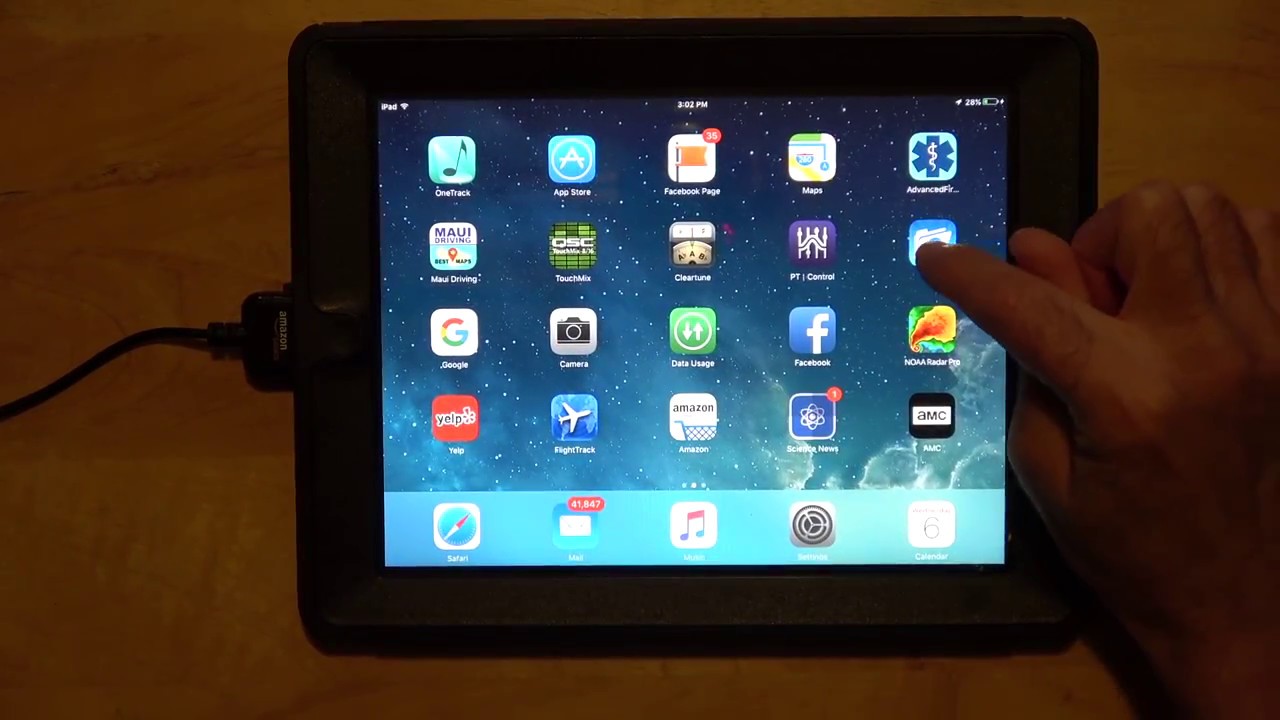
Now, let's get to the good stuff: how to actually open these things on your iPad. Forget those complicated software installations you might be used to on a computer. Your iPad is way smarter than you might think! For most modern iPads running recent versions of iPadOS, the magic happens right within the Files app. Yep, that’s the one that looks like a blue folder icon. If you don’t see it, a quick swipe down from the middle of your home screen with the search bar will help you find it.
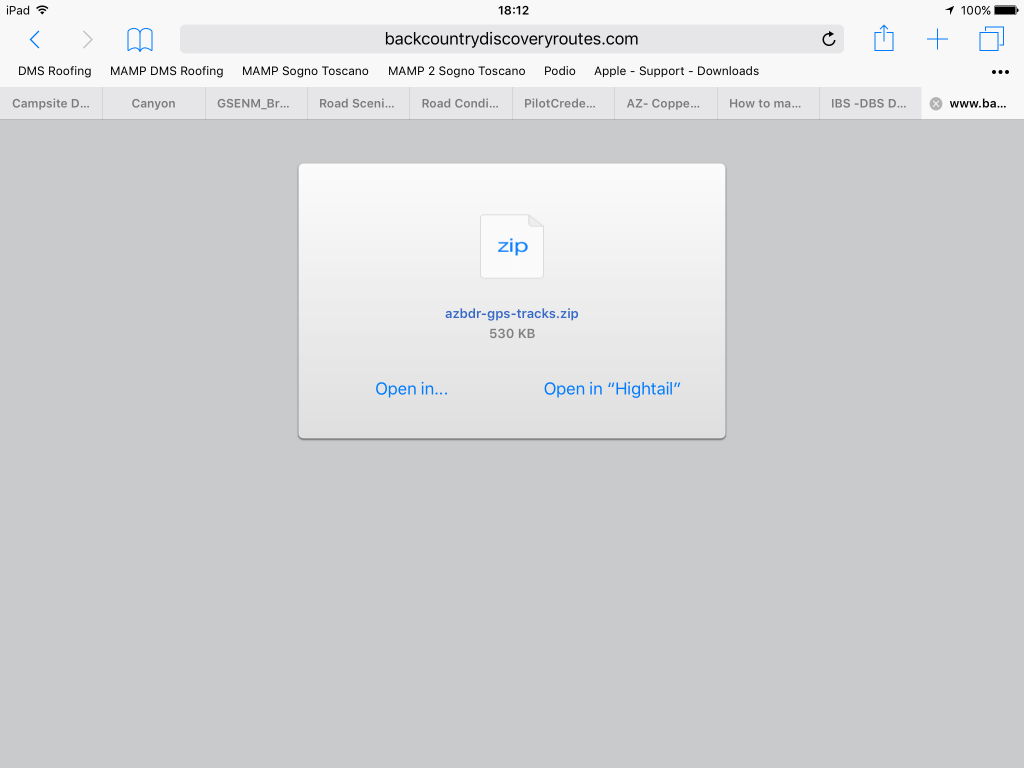
Once you’ve got the Files app open, navigating to your zip file is just like finding any other document or photo. It might be in your 'Downloads' folder, on your iCloud Drive, or in another cloud service you’ve connected to your Files app, like Dropbox or Google Drive. Just tap on the folder where your zip file is hiding. You’ll see the familiar `.zip` extension on the file name. So far, so good, right? Easy peasy.
The Moment of Truth: Tapping to Unzip!
Here’s where the real fun begins. When you find that `.zip` file in your Files app, all you need to do is tap on it. That’s it. No buttons to click, no menus to navigate. Just a simple tap. And like a magician pulling a rabbit out of a hat, your iPad will automatically start unpacking the contents of that zip file.
What happens next is pretty cool. Your iPad will create a new folder in the same location as your zip file. This new folder will have the same name as your zip file, but without the `.zip` part. Inside this newly created folder, you’ll find all the goodies that were tucked away inside the zip file. It’s like opening that suitcase and finding all your clothes neatly organized into separate compartments!
:max_bytes(150000):strip_icc()/003-zip-and-unzip-files-on-ios-4691755-1f3d32ea07da41b69a3c5ccfcb8b28ac.jpg)
So, if you had a zip file named "VacationPhotos.zip," after tapping it, you'll see a new folder called "VacationPhotos." Open that folder, and voilà! All your vacation pictures will be there, ready for you to admire, edit, or share. It’s so intuitive, it almost feels like cheating!
What if it's More Than Just Photos?
Now, you might be thinking, "What if my zip file contains more than just pictures? What if it has documents, PDFs, or even other apps (though that's a bit more complex on iPadOS)?". Don't worry, the Files app is pretty versatile. It can handle a whole bunch of different file types. Once you’ve unzipped a file, you can tap on individual items within the new folder.
If it’s a PDF, it will open in a PDF viewer. If it’s a Word document, it will likely open in Pages (Apple's word processor) or another compatible app you have installed. If you have apps like Microsoft Word or Google Docs on your iPad, they'll usually be able to open those documents directly from the Files app after unzipping. It's all about seamless integration. Your iPad is like a digital librarian, knowing just which book (app) to grab for each document.

When Things Get a Little Zipper-ed
Okay, so most of the time, tapping the zip file in the Files app is all you need. But what if it doesn't work? Or what if you have a slightly older iPad or a different version of iPadOS? In those rare cases, or if you want a bit more control, there are some excellent third-party apps you can use. Think of these as specialized tools for more complex jobs.
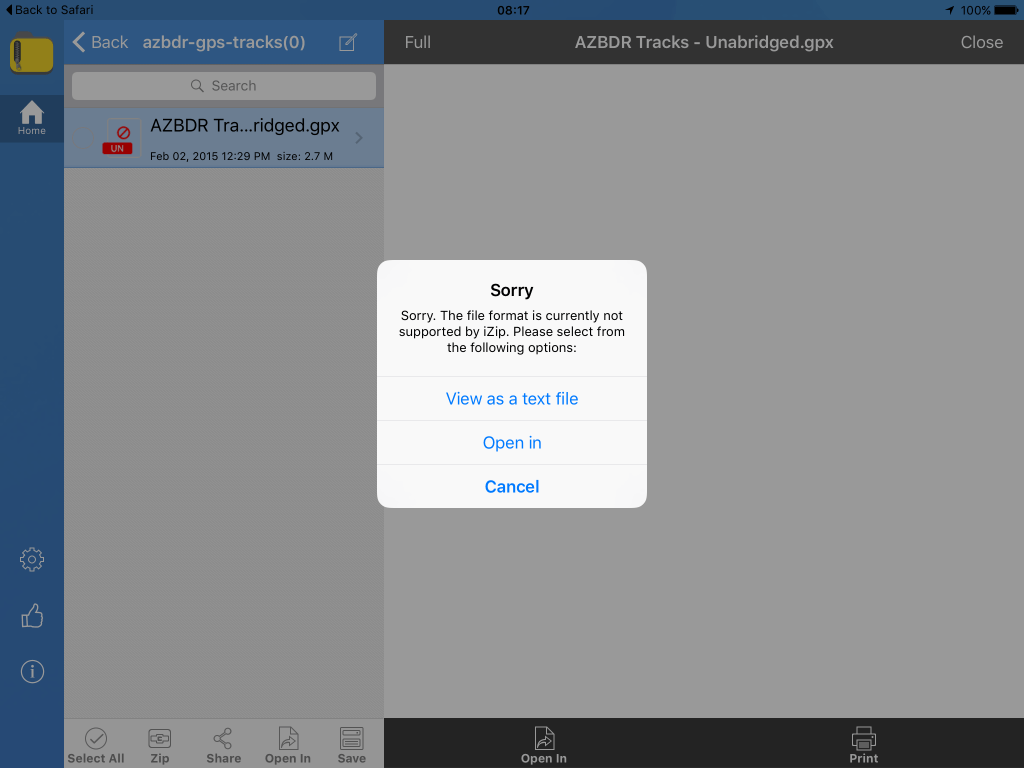
There are plenty of free and paid apps on the App Store that are designed specifically for handling archives like zip files. Apps like iZip, Documents by Readdle, or WinZip are popular choices. These apps often offer more features, like the ability to open different types of compressed files (like RAR or 7z), create zip files yourself, or even password-protect your zipped contents. It’s like upgrading from a basic toolkit to a professional workshop.
How to Use Third-Party Apps (The Quick Version)
If you do opt for a third-party app, the process is usually straightforward. First, download and install your chosen app from the App Store. Then, you’ll typically need to either:

- Open the zip file within the app. Many apps will have a button to "Open" or "Import" files, and you can then navigate to your zip file using their built-in file browser.
- Share the zip file to the app. In the Files app, you can tap on the zip file, then tap the "Share" icon (that little square with an arrow pointing up). Scroll through the app options until you find your chosen unzipping app, and tap it. The app will then take over and unpack the file for you.
Again, for most people, this is going the extra mile. Your iPad's native Files app is so good now that you might not ever need to download an extra app for this!
The Power of Compression: It's a Good Thing to Know
So there you have it! Opening zip files on your iPad is a surprisingly simple and very useful skill to have. It’s all about understanding that little `.zip` extension as a sign of a conveniently packaged digital item. Whether you’re receiving files from a colleague, downloading resources from the web, or just wanting to tidy up your own digital space, knowing how to unzip is like having a little superpower.
It’s a testament to how far technology has come, where even our tablets can handle these organizational tasks with ease. So next time you see a zip file, don't be intimidated. Embrace it! Tap it. Unpack it. And enjoy the contents within. Happy unzipping, everyone!
:max_bytes(150000):strip_icc()/002-zip-and-unzip-files-on-ios-4691755-0bc8581e6a9c440ead76554d94b2c219.jpg)