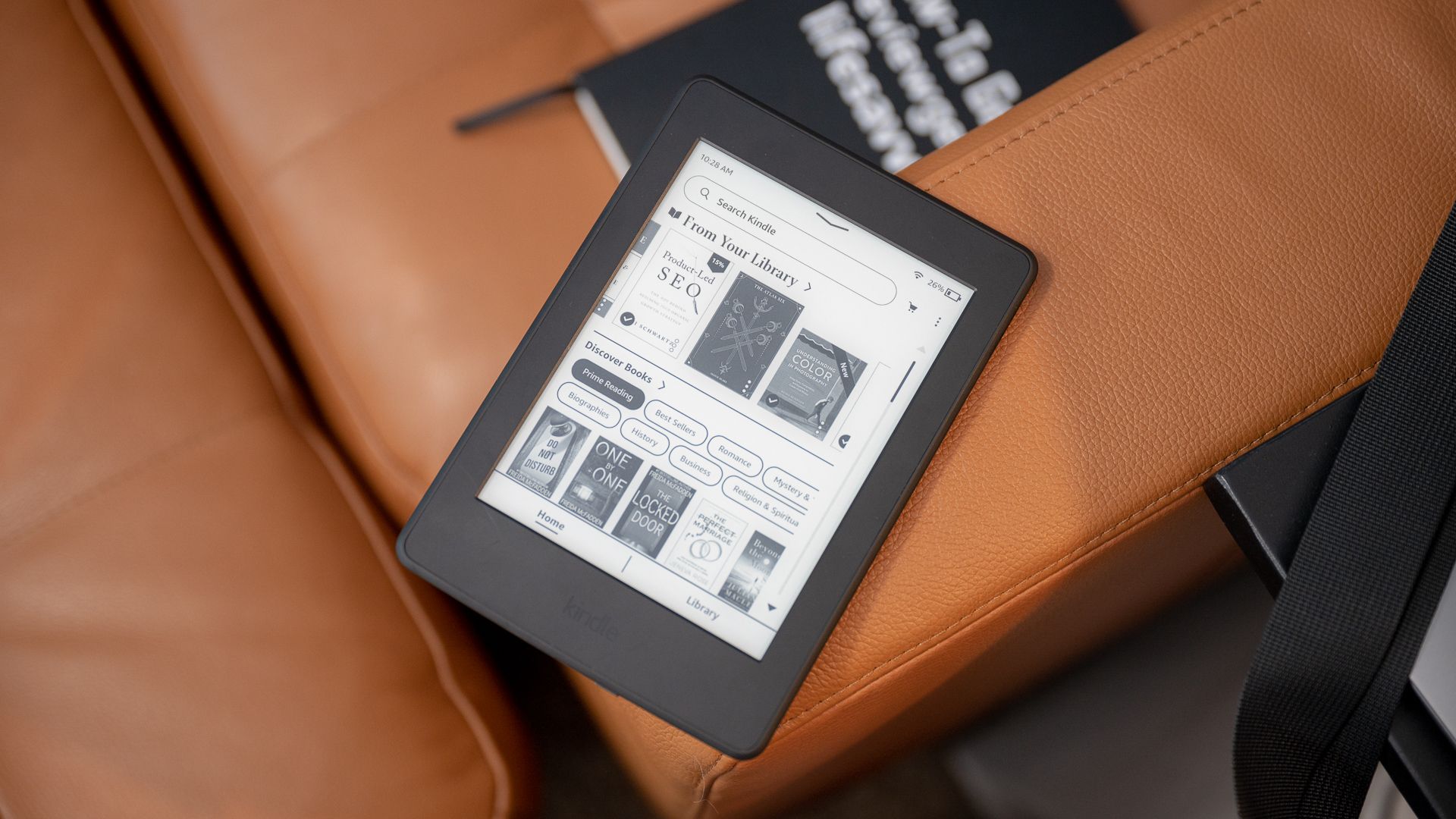
How To Know Which Kindle I Have

Alright, gather ‘round, bookworms and accidental tech hoarders! Let’s talk about a pressing modern dilemma, one that keeps even the most seasoned bibliophile up at night: "Which darn Kindle do I have?" You know, that sleek, slightly dusty rectangle that’s probably nestled amongst your actual, gloriously papery books. It’s like that one friend who’s always around, but you can never quite remember their last name. Don’t worry, you’re not alone. We’ve all been there, staring at a tiny serial number on the back and thinking, “Is this a Paperwhite? A Voyage? Did I accidentally buy a Nook disguised as a Kindle?!”
It’s a question that’s more important than it sounds. Imagine this: you’re scrolling through Amazon, excitedly eyeing a new e-book. You see that magical little button: "Buy with 1-Click." You click. Then, BAM! A pop-up appears, asking you to select which device you want to send it to. And there you are, presented with a list of Kindles, each with a name that sounds vaguely like a Greek myth or a particularly aggressive type of cloud. You point randomly, hoping for the best. Sometimes it works. Sometimes you end up with a romance novel on your Kid’s Edition Kindle, which, let me tell you, is a recipe for some very awkward bedtime stories.
So, let’s embark on this grand adventure of Kindle identification. Think of me as your Indiana Jones, but instead of a whip, I’ve got a trusty internet connection and a knack for deciphering Amazon’s cryptic naming conventions. We’re going on a quest, and the treasure? Knowing exactly which digital reading companion you possess.
Must Read
The Great Kindle Caper: Where to Begin?
First things first, we need to do some detective work. Grab your Kindle. Yes, the one you’re probably holding right now. Feel its weight. Admire its… e-ink glory. Now, flip it over. Look for any identifying marks. It's usually on the back, tucked away like a shy semicolon. You might see a model number, a serial number, or – if you’re lucky – a label that proudly declares, “I am a Kindle!” (Spoiler: they never do that.)
This little label is your Rosetta Stone. If you can find a model number, you’re already halfway there. It might look something like “D01100” or “DP75SDI.” Don’t let these cryptic strings of characters intimidate you. They are, in fact, the secret handshake of the Kindle world.
The "Look at the Back" Method: Your First Clue
This is the most straightforward approach, and often, the most effective. Turn your Kindle over. Behold the back! You’re looking for a small section of text, often in a lighter color or a different font. Sometimes it’s on a sticker, sometimes it’s printed directly onto the device. It might say something like:

- “Model No: D01100”
- “Kindle Paperwhite (10th Gen)”
- “Fire HD 8 (9th Gen)” (Yes, Fire tablets count in our book – they’re Amazon devices that can read books, so we’re claiming them!)
If you find a model number like D01100 or even just a name like "Kindle Paperwhite," you’re golden! You can then take that information and do a quick Google search. Typing in “Kindle D01100” will likely lead you straight to Amazon’s support pages or Wikipedia, where you can identify your specific model. It’s like finding a treasure map, but instead of X marking the spot, it’s a cleverly disguised Amazon support page.
Now, what if the text is worn off? Or what if it’s so tiny it looks like ant footprints? Don’t panic! We have backup plans. Think of them as our secret weapons in this digital archaeological dig.
The "Check Your Amazon Account" Maneuver: Digital DNA
Amazon, bless its algorithm-loving heart, keeps track of all your devices. It’s like they’re constantly whispering, “Remember that Kindle you bought during that Prime Day sale after three glasses of wine? Yeah, we remember.”
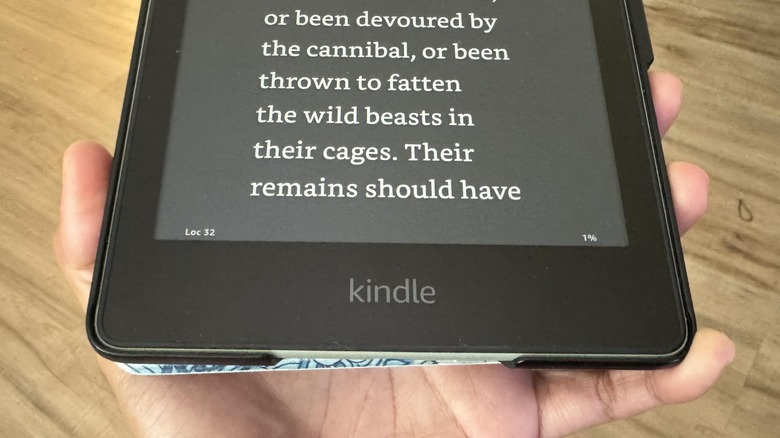
Here’s how to access this digital memory:
- Go to the Amazon website.
- Log in to your account – the one you use to buy all your e-books and questionable impulse purchases.
- Hover over “Account & Lists” in the top right corner.
- From the dropdown menu, select “Content & Devices”.
- Once you’re on the “Content & Devices” page, click on the “Devices” tab.
Voila! You should see a list of all the Amazon devices registered to your account. And there, in all its glory, will be your Kindle (or Kindles, no judgment here!). It will usually say something like “Kindle Paperwhite”, “Kindle Oasis”, or “Fire HD 10”. This is the most reliable method, akin to having the actual blueprints of your digital kingdom.
This is also where you can do some digital decluttering. If you see a Kindle from 2012 that you haven't touched since you bought it because you were convinced you’d read “War and Peace” on it (spoiler: you didn't), you can de-register it. It’s like giving your digital bookshelf a much-needed spring clean. Plus, if you ever decide to sell it, de-registering is a crucial step to ensure your personal library doesn't go with it. Nobody wants their embarrassing poetry collection accidentally shared with a stranger, right?
The "Check Your Wi-Fi Settings" Gambit: A Sneaky Approach
Sometimes, the Kindle itself will give you a hint. If your device is powered on and connected to Wi-Fi, you can often find your device name within the settings.

Navigate to your Kindle’s settings menu. The exact path can vary slightly depending on your model, but generally, it’s something like:
- Go to Settings.
- Look for “Device Options” or “About”.
- Within that menu, you should find an option that displays your Device Name.
This name is often what you see in the “Content & Devices” list on Amazon, so it’s a good way to confirm what you’re looking at. It might be the generic name Amazon assigned, or you might have lovingly renamed it “My Precious Tome” or “The Book Beast.” Whatever it is, it’s a clue!
Decoding the Kindle Generations: The "Age is Just a Number" Edition
Once you've identified the type of Kindle you have (Paperwhite, Oasis, basic Kindle, Fire), you might want to know its generation. This is important for things like software updates, screen technology, and knowing if your e-reader is practically an antique. Amazon is notoriously coy with explicit generation numbers on the device itself, but the model number or the information in your Amazon account usually tells the tale.
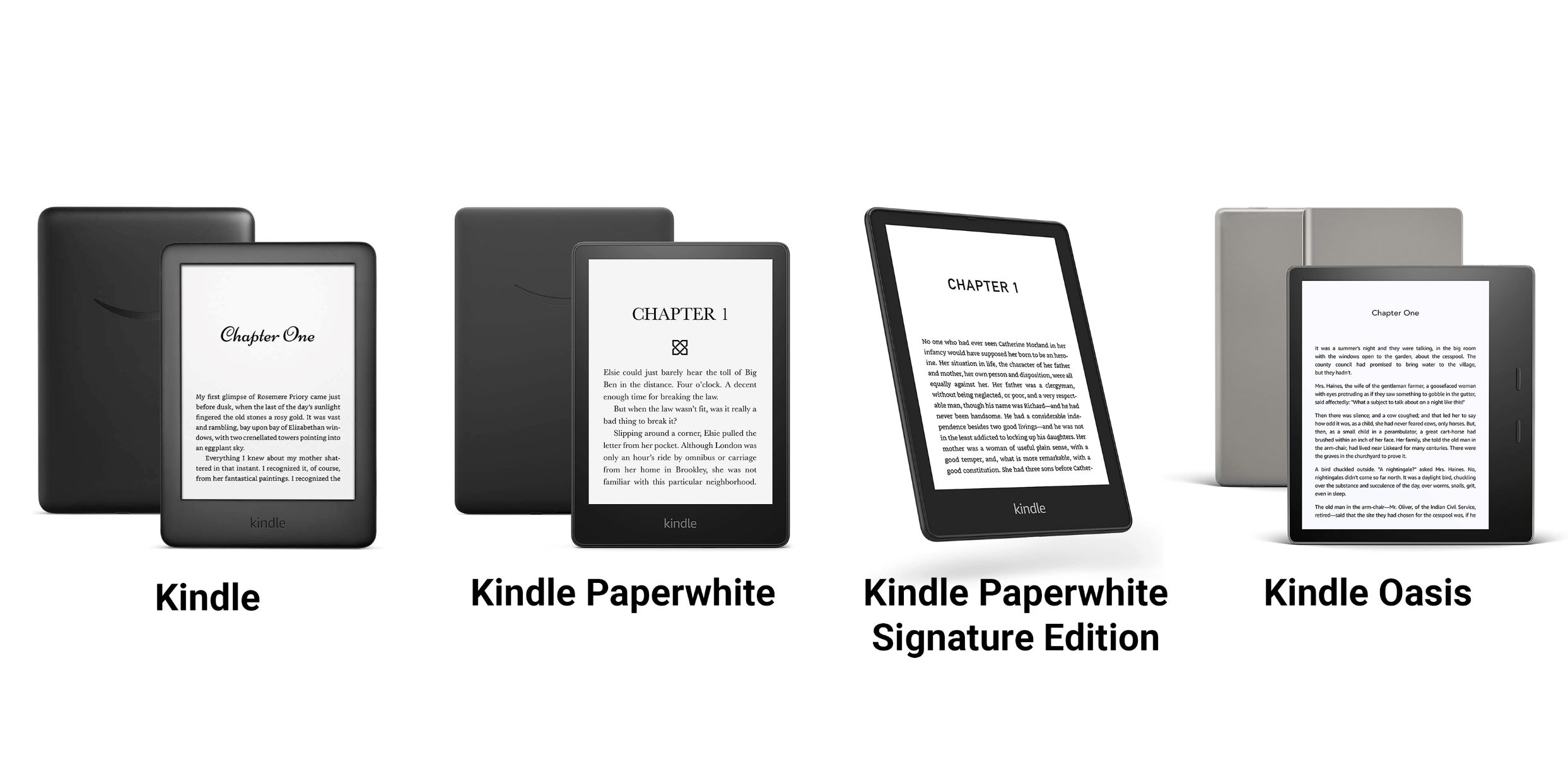
For example, if you look up “Kindle Paperwhite D01100” on Google, you’ll quickly discover it’s the first generation Paperwhite. The “10th Gen” in a model name, like “Kindle Paperwhite (10th Gen),” is a dead giveaway. It’s like finding a birth certificate for your e-reader!
A quick search for your specific model number on Amazon’s support site or a tech review site will almost always reveal its generation. You’ll learn fascinating things, like how the Paperwhite’s backlight was a revolutionary invention that allowed people to read in dimly lit environments without blinding their partners. Truly, a marvel of modern engineering, right up there with the spork.
Why Does This Even Matter? (Besides Avoiding Awkward E-book Mishaps)
Knowing your Kindle model is more than just a pub quiz tidbit. It’s essential for:
- Troubleshooting: If your Kindle is acting up, Amazon’s support articles will be tailored to your specific model.
- Accessory Purchases: Trying to buy a case or a stand? They’re usually model-specific. You don’t want to end up with a beautiful leather case that’s two inches too short.
- Understanding Features: Different generations have different screen resolutions, water resistance, and battery life. Knowing yours helps you appreciate its capabilities (or lament its limitations, with a gentle chuckle).
- Software Updates: While most Kindles get updates, older models might eventually be phased out.
So, there you have it! Armed with a bit of digital sleuthing and the patience of a saint (or at least someone who really wants to download that new fantasy series), you can uncover the identity of your beloved Kindle. Whether it's a trusty basic model or a fancy Oasis that makes you feel like royalty, it’s your gateway to worlds of adventure, knowledge, and slightly-too-realistic historical fiction. Now go forth, and conquer your TBR pile with the confidence of a Kindle-owning pro!