How To Find The Ip Of A Printer
Ever feel a little bit like a detective when it comes to your home network? Finding your printer's IP address might sound technical, but honestly, it's more like a fun little puzzle that can unlock some serious convenience. Think of it as giving your printer its own unique address on your digital street. Knowing this address can be super helpful, whether you're a tech newbie trying to get things working smoothly, a busy family juggling multiple devices, or even a hobbyist looking to add a bit of automation to your setup.
For beginners, understanding your printer's IP is often the first step to solving those frustrating "printer not found" errors. It's the key to making sure your computer and your printer can actually talk to each other. For families, it means smoother printing for everyone – no more shuffling cables or rebooting the router every time someone wants to print a school project or a vacation itinerary. Imagine the peace of mind knowing that when inspiration strikes, your printer is ready to go, no fuss required. And for hobbyists, it opens up a world of possibilities. Want to set up a wireless print server for your crafting station? Or maybe integrate printing into a smart home routine? Knowing the IP address is your first step.
So, how do you go about finding this elusive number? Don't worry, it's not as complicated as it sounds. One of the easiest ways is to look directly at your printer's control panel. Most modern printers have a menu where you can find network settings. Just navigate through the options, and you should see something like "Network Status," "TCP/IP Settings," or even "Printer IP Address." It's usually a series of four numbers separated by dots, like 192.168.1.105. Another handy trick is to print a network configuration page directly from your printer. This page is like a cheat sheet, listing all the important details about your printer's connection, including its IP address.
Must Read
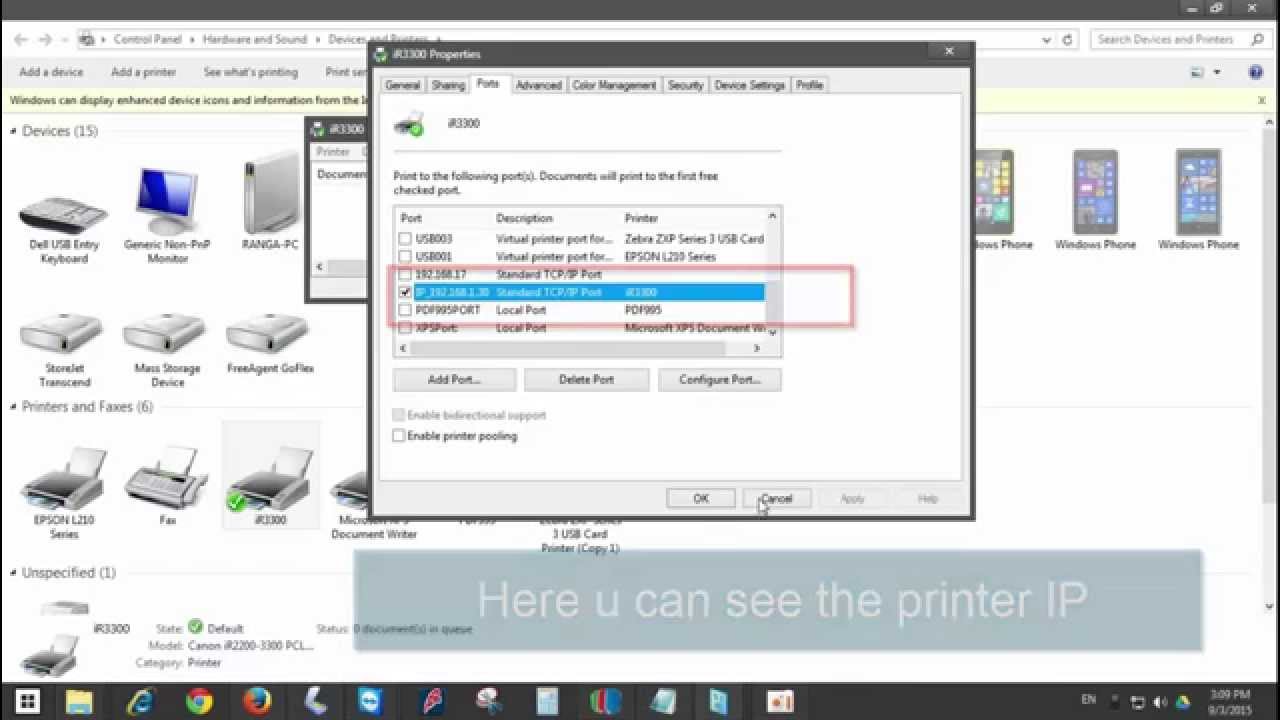
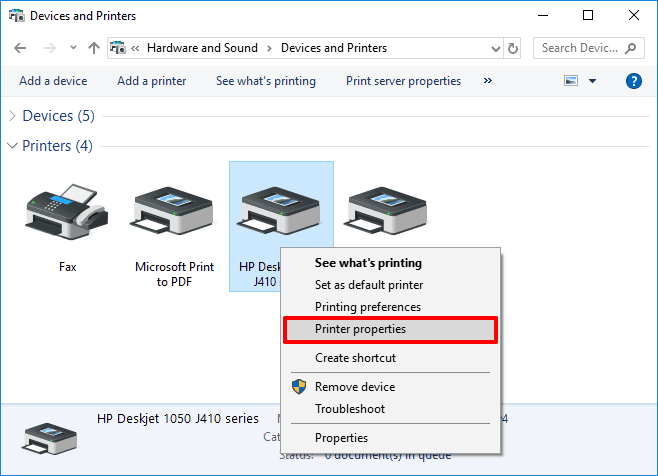
If your printer is a bit shy and doesn't readily display this information, or if you're already comfortable poking around your network, you can often find it from your router's administration page. You'll need to log into your router (usually by typing an address like 192.168.1.1 into your web browser). Once you're in, look for a section called "Connected Devices," "DHCP Clients," or "Network Map." Your printer should be listed there with its IP address. Some operating systems also have ways to help. On Windows, you can often find the printer's IP by going to "Printers & Scanners," right-clicking your printer, selecting "Properties," and then checking the "Ports" tab. On a Mac, you can go to System Preferences, then "Printers & Scanners," select your printer, and look for the "Location" or "IP Address" field.
The beauty of finding your printer's IP address is that once you know it, you can often use it to directly connect to your printer, troubleshoot connection issues more effectively, or even set up advanced printing features. It's a small piece of information that makes a big difference in how smoothly your digital life flows. So next time you're faced with a printing dilemma, channel your inner tech detective, find that IP address, and enjoy the satisfaction of a problem solved!

:max_bytes(150000):strip_icc()/003_find-printer-ip-address-4176356-f3cb86a611014263a01f3da6ea619800.jpg)