How To Do P Value In Excel

Hey there, fellow spreadsheet wrangler! Ever stare at your Excel data and feel a little… lost? Like, "What does this all mean?" You've probably heard whispers of this mystical thing called a 'p-value,' right? Sounds kinda fancy, like something a scientist in a lab coat would mutter. But guess what? You can totally do it in Excel. No tweed jacket required, promise!
So, grab your favorite mug, settle in, and let's chat about how to wrangle those p-values like a pro. It's not rocket science, though sometimes it feels like it, am I right?
What in the World is a P-value Anyway? (The "So I Don't Sound Like a Total Noob" Edition)
Okay, deep breaths. A p-value is basically a way to tell you if your results are likely due to random chance or if something actually interesting is going on. Think of it like this: you're testing if a new fertilizer makes your prize-winning tomatoes grow bigger. If they grow a little bigger, is it because of the fertilizer, or did you just get lucky with a particularly sunny week?
Must Read
The p-value helps answer that. A low p-value (usually anything below 0.05) suggests that your results are not likely due to chance. Whoa, mind blown! That means your fertilizer might actually be the superhero your tomatoes needed. Conversely, a high p-value means, "Eh, probably just the weather." Bummer for the fertilizer, but good to know!
It's like a little rumor mill for your data. If the rumor (your result) is strong enough, the p-value is small. If it's just a whisper, the p-value is big. Simple, right? (Okay, maybe not that simple, but we're getting there!)
Why Should I Care About P-values in Excel? (Besides Impressing Your Colleagues)
Honestly, it's not just about sounding smart. P-values are super useful for making informed decisions. Let's say you're testing two different website designs. Which one gets more clicks? A p-value helps you figure out if the difference you see is a real win for one design, or just a fluke from a few quirky visitors.
Or, maybe you're a baker! You're testing two different chocolate chip recipes. Which one do people really prefer? You wouldn't want to spend ages on a recipe that only looks better because of a few biased taste testers, would you?
It's all about cutting through the noise and getting to the signal. The p-value is your data's trusty translator, helping you understand what's truly significant and what's just… well, data. And who doesn't want clearer data? More clarity, less guessing. That's a win in my book!
The "Hands-On" Part: How to Actually Calculate P-values in Excel
Alright, enough theory. Let's get our hands dirty. Excel has a bunch of built-in functions that make this surprisingly easy. We’re not going to invent a new statistical method here, folks. Excel’s got our backs.
The most common scenario is comparing two groups. Are the averages of Group A and Group B significantly different? For this, we often use a "t-test." Sounds intimidating? It’s really not. Excel has a few t-test functions, and they're your new best friends.

Scenario 1: Two Samples, Assuming Equal Variances (The "Simpler" t-test)
So, you've got two sets of numbers, and you think they have roughly the same spread. This is where `T.TEST` comes in. It's a versatile function. We'll be using it for a couple of ways.
Let's say you have your data in two columns. Column A has your "Control" group, and Column B has your "Treatment" group. To get the p-value for a two-tailed test (meaning you're looking for a difference in either direction – A is bigger than B, or B is bigger than A), you'd use this:
=T.TEST(Array1, Array2, 2, 2)
Let's break this down:
Array1: This is your first group of data. Select the cells containing your control group.Array2: This is your second group of data. Select the cells containing your treatment group.2(the first one): This tells Excel you want a two-tailed test. Remember, this is for when you don't have a pre-conceived notion of which group will be higher. You're just looking for any significant difference.2(the second one): This tells Excel you're assuming equal variances between your two groups. This is a common assumption, but you gotta be a bit careful here. More on that in a sec!
So, if your control data is in cells A2:A10 and your treatment data is in B2:B10, you'd type into an empty cell:
=T.TEST(A2:A10, B2:B10, 2, 2)
Hit Enter, and BAM! There's your p-value. If it's less than 0.05, you can high-five yourself. Your treatment likely had an effect!
Scenario 2: Two Samples, Assuming Unequal Variances (The "More Realistic" t-test)
Now, what if your data groups look a bit… different in their spread? Like one group is all over the place, and the other is tightly clustered? That’s when you can't assume equal variances. Excel's got your back again with a slightly different `T.TEST` setup.

You'll use the same `T.TEST` function, but you change that last number. Instead of `2` (equal variances), you use `3` (unequal variances). This is often called Welch's t-test, and it's generally safer if you're unsure about your variances.
So, for unequal variances, the formula looks like this:
=T.TEST(Array1, Array2, 2, 3)
And again, if your data is in A2:A10 and B2:B10:
=T.TEST(A2:A10, B2:B10, 2, 3)
This is often the go-to if you're not a statistics wizard and just want a solid answer. Better safe than sorry, right?
What About One-Tailed Tests? (For When You Have a Guess)
Sometimes, you do have a specific hunch. You’re pretty sure your fertilizer will increase tomato size, not just change it. In this case, you can use a one-tailed test. This makes it easier to find a significant result if your hunch is correct.

To do this, you change that third number in the `T.TEST` function. Instead of `2` (two-tailed), you use:
1for a one-tailed test looking for an increase in Array1 compared to Array2 (or Array1 > Array2).1(again!) but you might need to swap your Array1 and Array2 if you’re testing for an increase in Array2 compared to Array1. It can get a little confusing, so often sticking to two-tailed is simpler unless you're really sure!
So, if you were testing if Array1 is greater than Array2, assuming equal variances:
=T.TEST(Array1, Array2, 1, 2)
And if you were testing if Array1 is greater than Array2, assuming unequal variances:
=T.TEST(Array1, Array2, 1, 3)
Honestly, for most casual data analysis, the two-tailed test (`2` as the third argument) is perfectly fine, and less likely to lead you down a rabbit hole of interpretation. Stick with `2, 2` or `2, 3` unless you've got a solid reason and understand the implications!
What if I have More Than Two Groups? (ANOVA, Anyone?)
Okay, so t-tests are great for two groups. But what if you're comparing, like, three different fertilizers? Or four different website layouts? That's where things get a little more advanced, and you'd typically use something called ANOVA (Analysis of Variance). Excel has functions for this too, like `F.TEST` or more complex ones in the Data Analysis Toolpak. We're not going to dive deep into ANOVA today, because, well, coffee break! But know that Excel can handle it. If you need it, Google "Excel ANOVA p-value" and you'll find plenty of tutorials. It's a whole other can of worms, but a useful one!
Interpreting Your P-value: The "So What Does This Number Actually Mean?" Section
You've calculated your p-value. Congrats! Now, what do you do with it? This is the part where you become a data detective.
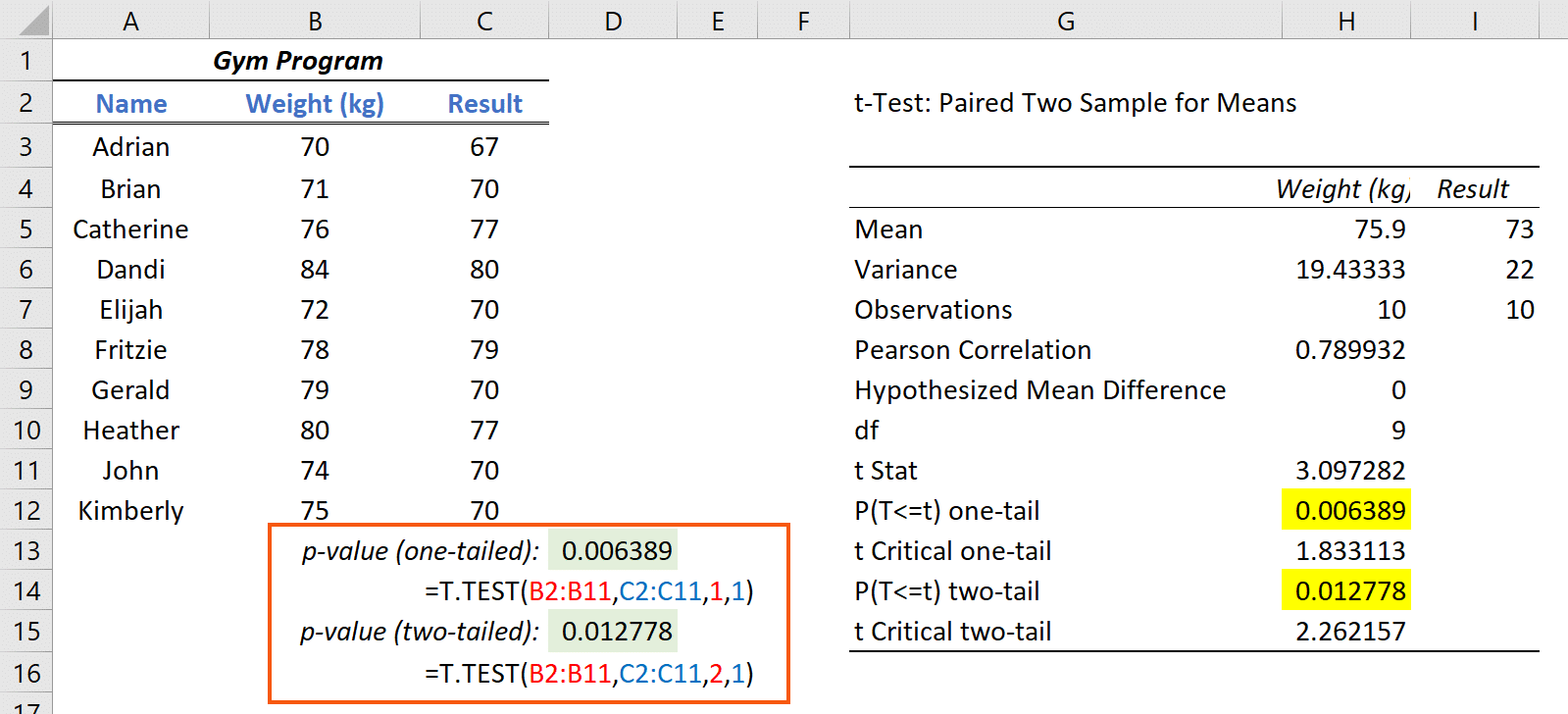
Remember our magic number: 0.05. This is the most common threshold, called the significance level or alpha (α). You set this yourself, usually before you even look at the data. It's like your standard for how sure you need to be.
Here's the simple rule:
- If p-value < 0.05: You reject the null hypothesis. In plain English? Your results are statistically significant. This means it's unlikely your results happened by random chance alone. Whatever you tested (fertilizer, website design, etc.) likely had a real effect. Yay!
- If p-value >= 0.05: You fail to reject the null hypothesis. This means your results are not statistically significant. It's likely that what you're seeing is just due to random variation. Don't despair! It just means you didn't find strong evidence for an effect this time.
Important Caveat: A p-value of 0.05 doesn't mean there's a 5% chance your results are due to chance. That's a common misconception! It means if the null hypothesis were true (i.e., there's no real effect), there's a less than 5% chance you'd observe results as extreme as yours, just by luck. It’s a subtle but important distinction for the truly pedantic!
Also, don't be a p-value snob. A p-value of 0.049 is "significant," but a p-value of 0.051 is "not significant." It's not a black and white "it works/it doesn't work." Think of it as a spectrum. A p-value of 0.0001 is very strong evidence. A p-value of 0.40 is very weak evidence. It's about the strength of the evidence against the "no effect" idea.
Common Pitfalls to Avoid (So You Don't Cry Over Spreadsheets)
Oh, the joys of data analysis! There are a few landmines out there you might want to sidestep:
- Confusing Correlation with Causation: Just because two things happen together (low p-value!) doesn't mean one caused the other. Remember the ice cream sales and drowning deaths example? Both go up in the summer, but ice cream doesn't cause drowning. Weird, right?
- P-hacking (The Data Snooper's Worst Nightmare): This is when you keep running tests and looking at your data in different ways until you find a p-value that's below 0.05. It’s like shuffling cards until you get the hand you want. Not cool. Be upfront about your hypotheses before you dive deep into the analysis.
- Ignoring Effect Size: A tiny p-value doesn't always mean a big effect. You could have a statistically significant difference that's so small, it's practically meaningless in the real world. Always look at the actual numbers and the context. Is a 0.1mm difference in tomato size really worth bragging about?
- Misinterpreting "Not Significant": Failing to reject the null hypothesis (p >= 0.05) doesn't mean there's no effect. It just means you don't have enough evidence to prove there is one with your current data. Maybe your sample size was too small, or the effect is truly subtle. Don't throw out your research with the bathwater just yet!
- Forgetting About the Context: The p-value is a number, but it lives in a world of your data, your experiment, and your question. Always interpret it within that context.
Putting it All Together: Your P-value Checklist
So, when you're about to calculate a p-value in Excel, ask yourself:
- What's my research question? Are you comparing two groups? More than two?
- What's my null hypothesis? (Usually, "there is no difference" or "there is no effect.")
- What's my alternative hypothesis? (Usually, "there is a difference" or "there is an effect.")
- Do I have a reason to believe one group will be higher than the other (one-tailed), or am I just looking for any difference (two-tailed)? (Two-tailed is safer for beginners!)
- Are the variances of my groups likely to be similar or different? (If unsure, unequal variances, `2, 3`, is often a good bet.)
- Which Excel function is right? For two groups, `T.TEST` is your friend.
- What's my significance level (alpha)? (Usually 0.05)
- How does my calculated p-value compare to my alpha?
- What's the practical meaning of my result? Don't just stop at the p-value!
And there you have it! You've just navigated the slightly daunting, but totally doable, world of p-values in Excel. It’s a powerful tool, and now you know how to wield it. So next time you’re staring at that spreadsheet, you can confidently say, "Let's see what the p-value has to say!" Happy analyzing!