How To Create A Vanity Url In Wordpress
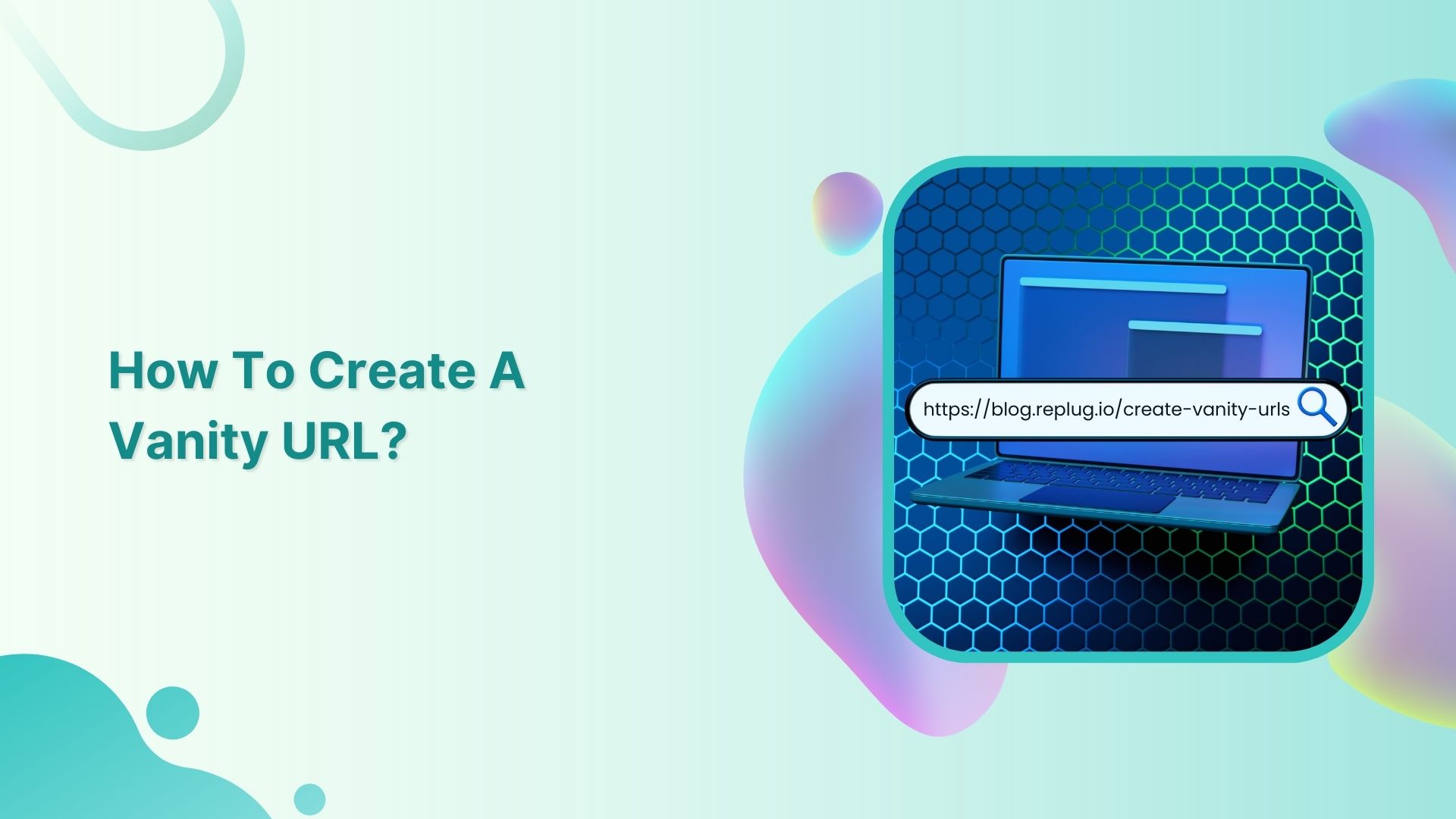
Alright, gather 'round, my fellow internet dwellers! Have you ever gazed upon your WordPress website's URL and thought, "This looks less like a glamorous digital storefront and more like a secret agent's coded message"? You know, something like yourwebsite.com/blog/?p=123? Yeah, that's about as exciting as watching paint dry, or trying to explain the internet to your grandma. We’re talking about a URL that screams "I barely know what I'm doing here!"
But fear not, my friends! Today, we're embarking on a grand quest. A quest to transform those clunky, unmemorable web addresses into something sleek, stylish, and oh-so-shareable. We're talking about creating vanity URLs in WordPress! Think of it as giving your website a much-needed makeover, swapping out those sensible-but-boring shoes for a pair of dazzling stilettos. Or, you know, some really comfy, but still cool, sneakers.
Why bother, you ask? Well, for starters, it's like giving your content a superhero cape. A good vanity URL is easier to remember, easier to share, and frankly, it just looks a whole lot more professional. Imagine telling your friends to visit yourwebsite.com/my-awesome-party-pics instead of that jumbled mess. They'll be impressed, you'll be smug, and your cat will probably give you a slow blink of approval. And who doesn't want that?
Must Read
Now, before you start imagining we’re about to pull out a magic wand and sprinkle fairy dust on your permalinks (though that would be pretty cool, let’s be honest), the process is actually quite straightforward. WordPress, in its infinite wisdom, has built-in tools to help us with this digital sartorial upgrade. It’s less about sorcery and more about a few clicks and a sprinkle of common sense.
Step 1: The Permalinks Pilgrimage
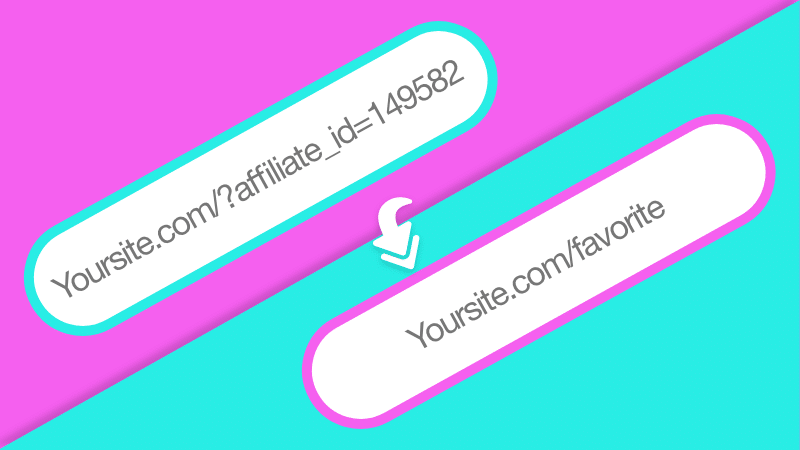
Our first stop on this URL beautification journey is a place known as "Permalinks." Don't let the fancy name fool you; it's just the fancy WordPress way of saying "your website's URL structure." To get there, you'll need to log into your WordPress dashboard. Think of it as your digital command center, where all the important decisions are made, like whether to have a sidebar or not, and how to make your website look like it was designed by a team of highly caffeinated elves.
Once you're in, navigate to the left-hand side of your screen. See that menu? It’s like a treasure map, leading you to the gold! Look for Settings, and then click on Permalinks. It’s usually pretty low down on the list, probably chilling with "Users" and "Tools," like the quiet, but essential, members of the digital party.
Upon clicking, you'll be greeted by a page filled with various options. It might look a bit like a choose-your-own-adventure book, but don't worry, we're only interested in one particular path. You'll see options like "Plain," "Day and name," "Month and name," and the ever-popular, "Post name."
Step 2: Choosing Your URL's Destiny (The "Post name" Path)
Now, for the magic trick, the pièce de résistance, the secret sauce: you're going to want to select the "Post name" option. Why "Post name"? Because this setting tells WordPress to use the title of your post or page as the end of your URL. It's like saying, "Hey WordPress, when you create a new piece of content, use its title to make its web address sound fabulous!"
For example, if you write a blog post called "The Hilarious Misadventures of My Cat Trying to Catch a Laser Pointer," the "Post name" setting will, by default, create a URL like yourwebsite.com/the-hilarious-misadventures-of-my-cat-trying-to-catch-a-laser-pointer. See? Already a massive improvement! It's descriptive, it's memorable, and it doesn't require a decoder ring to understand. It's the difference between a mumbled greeting and a booming, "Hello, world!"

What about the other options? "Plain" is the villain of our story, the URL equivalent of a potato sack. "Day and name" or "Month and name" are okay, but they add unnecessary date information, which can make your URLs look a bit dated (pun absolutely intended). We're aiming for timeless elegance here, folks, not a digital time capsule.
So, with the certainty of a seasoned barista pulling the perfect shot, select "Post name". You’ll notice a little button at the bottom of the page that says "Save Changes". Click it. Do it with gusto! This is where the transformation begins!
Step 3: The Individual URL Makeover (When You Need a Special Touch)
So, you've set your global permalink structure to "Post name." High five! But what if you want to get even more specific, or maybe you want to edit the slug (that's the part of the URL after your domain name) for a particular post or page? For instance, maybe your post title is a bit long and you want a shorter, punchier vanity URL. Or perhaps you've renamed a post and want its URL to reflect the new title.
This is where we go back to our individual content. Go to your WordPress dashboard and find the post or page you want to tweak. Click "Edit". Now, look for a little box, usually on the right-hand side of your editing screen, that says "Permalink". It might be hidden under a few other options, so don't be afraid to scroll a bit or click on the "Permalink" section to expand it. It’s like finding a hidden compartment in a pirate chest!
You'll see your full URL, and then, a handy little field where you can edit the "slug". This is your chance to craft that perfect, custom vanity URL. Let’s say your post is titled "My Epic Journey to Find the Perfect Cup of Coffee," but you want the URL to be shorter and catchier, like yourwebsite.com/coffee-quest. You can simply edit the slug field to read coffee-quest.
Remember to keep it short, descriptive, and easy to read. Avoid using too many hyphens, or weird characters. Think of it as a catchy nickname for your content. And, of course, always click "Update" to save your glorious changes. It's the digital equivalent of hitting "send" on that perfectly crafted text message.
A Few Extra Tips to Keep Your URLs Sparkly
A word to the wise: while it’s awesome to have beautiful URLs, don't go overboard. Your vanity URL should still accurately reflect the content it’s linking to. Don’t create a URL like yourwebsite.com/free-unicorns if you're actually selling artisanal socks. That's just setting up your visitors for disappointment, and frankly, a bit of a digital bait-and-switch. We're going for class, not chaos.
Also, if you change a URL for a post that's already live and has been shared around the internet, it's a good idea to set up a redirect. This tells old visitors and search engines, "Hey, this content has moved! Go check it out over here!" Many SEO plugins can help you with this, and it’s like leaving a helpful signpost at a crossroads. You don’t want anyone getting lost in the digital wilderness!
And finally, remember that consistency is key. Once you’ve established your permalink structure and started creating vanity URLs, try to stick with it. It helps with SEO, makes your site look more organized, and prevents you from having a chaotic collection of URLs that look like they were randomly generated during a particularly energetic game of Scrabble.
So there you have it! You’re now armed with the knowledge to transform those drab URLs into something truly special. Go forth, experiment, and make your WordPress website shine. Your visitors, and your search engine rankings, will thank you. And who knows, maybe your cat will finally start using the litter box with renewed enthusiasm. Happy URL vanity-ing!