How To Change 2.4 Ghz To 5ghz
Ah, the humble Wi-Fi connection! That invisible thread connecting us to the vast digital universe. For many of us, tinkering with our home network, especially the mystical transition from 2.4 GHz to 5 GHz, feels like unlocking a secret level in our own personal tech kingdom. It's a surprisingly satisfying quest, often undertaken with a cup of tea (or something stronger) and a determination to banish the dreaded spinning wheel of buffering death. Why do we do it? Because a smoother, faster internet experience isn't just a luxury; it's become the backbone of our modern lives!
So, what's the big deal about 2.4 GHz versus 5 GHz? Think of it like roads. The 2.4 GHz band is like a busy, multi-lane highway. It's great for distance and can penetrate walls and obstacles more effectively. It’s also more common, meaning more devices are using it. This is why you might experience congestion, leading to slower speeds, especially in crowded apartment buildings or areas with lots of other Wi-Fi networks. It’s like a traffic jam during rush hour.
Now, the 5 GHz band is like a sleek, express toll road. It offers much higher speeds and less interference because fewer devices use it, and it has more available channels. The trade-off? It has a shorter range and doesn't penetrate solid objects as well. So, if you're right next to your router, the 5 GHz band is your ticket to lightning-fast downloads, seamless streaming of your favorite 4K shows (no more pixelation!), lag-free online gaming sessions, and zippy video calls where you can actually see your grandma's smiling face without it freezing every two seconds.
Must Read
You'll find this dual-band capability in most modern routers. When you set up your Wi-Fi, you’ll often see two network names (SSIDs) – one ending in "2.4G" and another ending in "5G," or perhaps a single name where the router cleverly directs your devices to the best band automatically. Many smart home devices, like smart plugs and older smart speakers, will only connect to the 2.4 GHz band, while your newer laptops, smartphones, and streaming devices will benefit significantly from the 5 GHz band.

Ready to make the switch for your devices? It’s usually quite straightforward!
- Access your router’s settings: This typically involves typing an IP address (like 192.168.1.1 or 192.168.0.1) into your web browser. You'll need your router's username and password, which are usually on a sticker on the router itself.
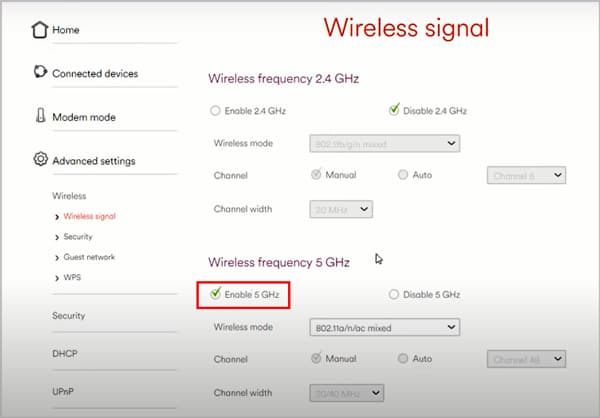
- Locate the wireless settings: Look for sections labeled "Wireless," "Wi-Fi," or "WLAN."
- Find the 5 GHz band: You'll usually see options to enable or disable it, and to set its network name (SSID) and password. For the best experience, consider giving your 5 GHz network a distinct name (e.g., "MyHomeWi-Fi_5G") so you can manually choose to connect to it.
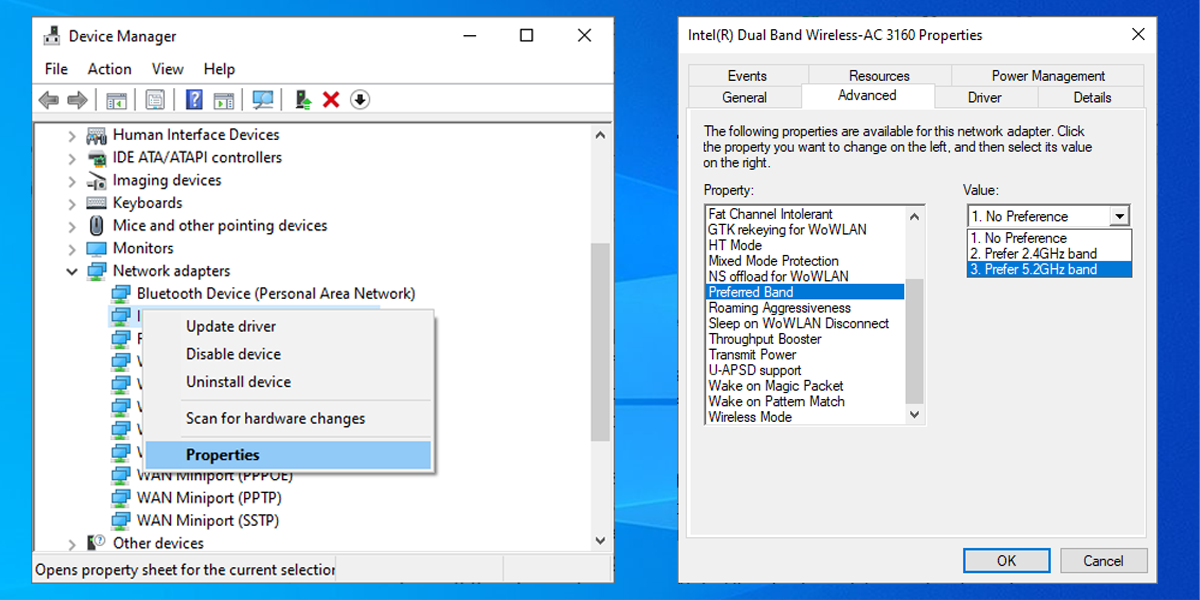
- Connect your devices: On your laptops, phones, and tablets, simply scan for Wi-Fi networks. Select your 5 GHz network name and enter the password.
To enjoy your newfound speed even more, try positioning your router in a central location, away from obstructions. And remember, for devices that don't support 5 GHz or are far from the router, the 2.4 GHz band is still your reliable workhorse. It’s all about choosing the right tool for the right job!