How To Add Check Boxes In Excel

Have you ever scrolled through your favorite social media feeds and seen those incredibly organized, visually appealing digital art pieces that just scream "masterfully crafted"? You know, the ones with little boxes that you can tick off to track progress, or perhaps represent a collection of tiny treasures? Well, guess what? You don't need to be a coding wizard or a Photoshop guru to achieve that satisfyingly structured look. In fact, you can sprinkle a little bit of that magic right into your spreadsheets using good old Microsoft Excel! Adding checkboxes might sound technical, but it's actually a surprisingly accessible and wonderfully creative tool.
Why would you even want checkboxes in Excel? Let's think beyond just jotting down grocery lists. For the budding artist, imagine creating a visual inventory of your paint colors, a checklist of art supplies to repurchase, or even a progress tracker for a complex painting. Hobbyists can use them to manage their vast collections of anything from stamps to model trains, or to plan out intricate craft projects. And for the casual learner, it's a fantastic way to break down daunting tasks into manageable, satisfyingly tickable steps. Think learning a new language – one checkbox for each verb conjugation mastered! The possibilities are truly limitless.
The beauty of Excel checkboxes lies in their versatility. You can use them for simple "to-do" lists, turning mundane tasks into a visually rewarding experience as you systematically check them off. Imagine creating a "Books to Read" list where each title has a little box next to it. Or perhaps a "Movies to Watch" list. For the more artistically inclined, consider a "Color Palette Tracker" where you can visually represent the colors you've used in a project. You could even create a "Mood Tracker" where each day has a checkbox indicating your general feeling. It’s all about adding a layer of interactive organization to your data.
Must Read
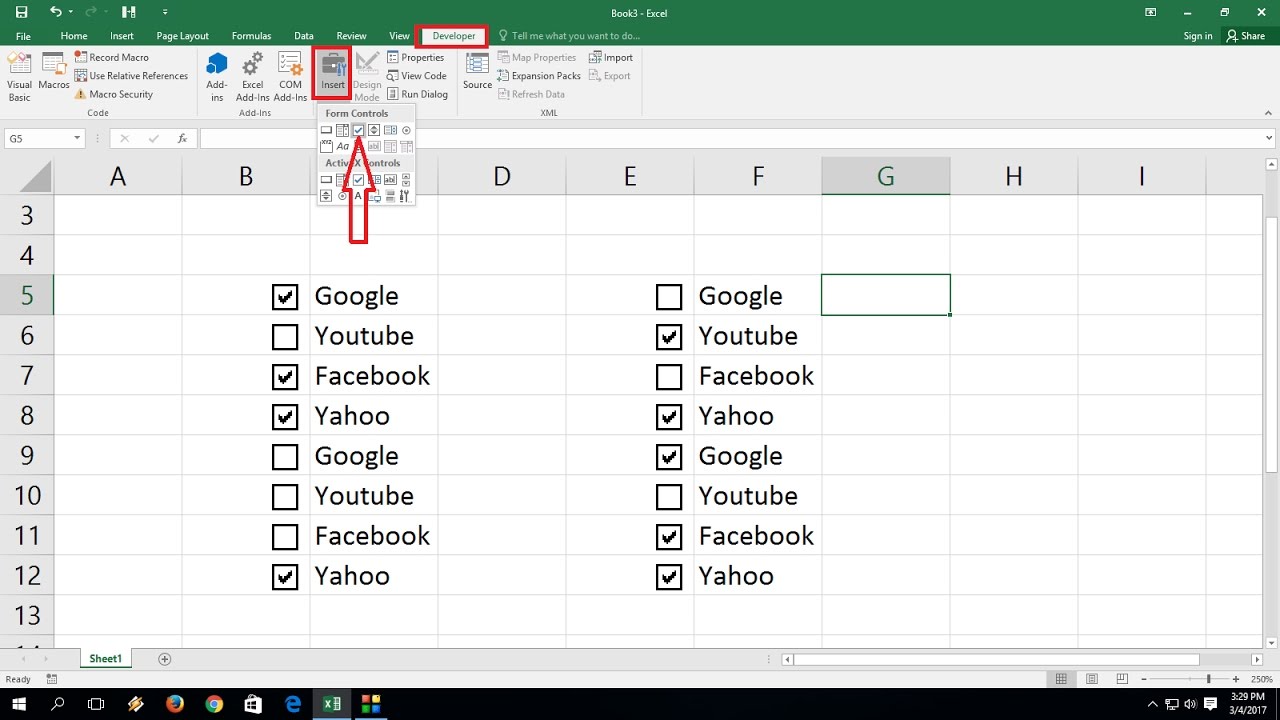
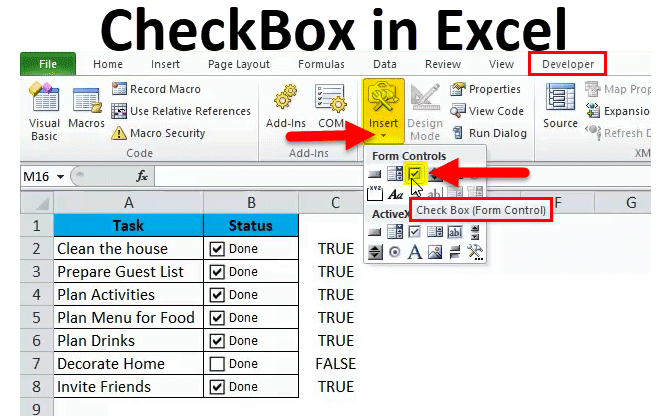
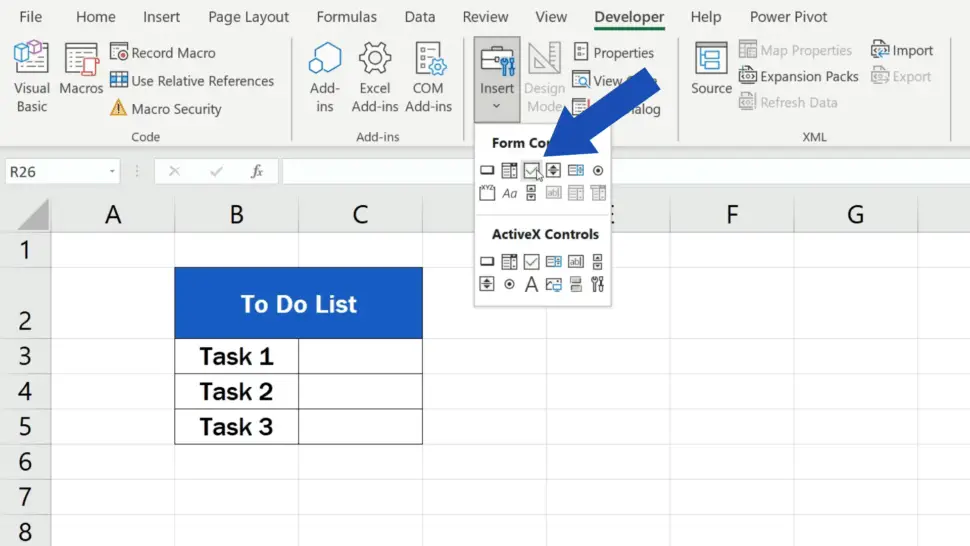
Ready to give it a whirl? It's simpler than you might think! First, you'll need to enable the "Developer" tab in Excel. Don't panic, it's just a setting! Head to File > Options > Customize Ribbon and check the box next to "Developer." Once that's visible, navigate to the "Developer" tab, and within the "Controls" group, you'll find the magic button: "Insert". From the "Form Controls" section, select the "Check Box". Click and drag on your worksheet to draw your checkbox! You can then right-click on it to edit the text that appears next to it.
The real joy comes from the tangible sense of accomplishment. Each checked box represents a small victory, a step forward, or a confirmation. It's a visual affirmation that you're making progress, no matter how big or small the task. This simple act of ticking a box can transform a overwhelming list into a series of easily achievable milestones, making the entire process feel more engaging and less daunting. So go ahead, add some checkboxes to your next project, and discover the simple, yet profound, pleasure of a well-managed and visually satisfying Excel sheet. It's a little bit of order, a dash of creativity, and a whole lot of fun!