How To Add Canonical Tag In Wordpress

Alright, fellow website wizards and digital dreamers! Ever feel like your fantastic WordPress site is playing a bit of a shell game with Google? Like it's got all these amazing pages, but sometimes the search engine gets a little confused about which one is the real star of the show? Well, fear not, because today we're diving into a super-duper easy trick that'll make your site shine brighter than a disco ball at a karaoke night: adding a canonical tag!
Think of your website like a fabulous party. You've got your main entrance, your fancy ballroom, and maybe a cozy little corner for deep chats. Now, imagine if someone kept telling guests, "Oh, that hallway over there? Yeah, that's kinda like the ballroom too!" Chaos, right? Google can sometimes get that same fuzzy feeling when it sees similar content on different URLs. The canonical tag is like sending out super-clear invitations, shouting from the rooftops (or, you know, the code!), "Hey Google, this is the original, the VIP, the Beyoncé of this particular page!"
Now, don't let the word "tag" or "code" scare you. This isn't about wrestling with a grumpy dragon of technical jargon. WordPress, bless its user-friendly heart, makes this easier than finding a matching pair of socks in the morning. We're going to explore the magical realms of plugins, because, let's be honest, plugins are the superheroes of the WordPress universe, swooping in to save the day!
Must Read
The most popular and arguably the easiest way to get your canonical tags in order is by using a trusty SEO plugin. The undisputed champion in this arena is none other than Yoast SEO. If you haven't met Yoast yet, consider this your official introduction to your new best friend. It's like having a tiny, incredibly smart assistant living inside your WordPress dashboard, whispering SEO secrets into your ear.
So, here's the lowdown on how to enlist Yoast SEO's help in the canonical tag department. First things first, you need to have Yoast SEO installed and activated on your WordPress site. If you're still on the fence, this is your sign! Go to your WordPress dashboard, hover over 'Plugins,' and click 'Add New.' In the search bar, type in 'Yoast SEO.' You'll see it pop up like a celebrity at a red carpet event. Click 'Install Now' and then 'Activate.' Easy peasy, lemon squeezy!

Once Yoast SEO is all fired up and ready to roll, it's time to let it do its magic on each of your pages and posts. When you're editing a page or a blog post, scroll down below your content editor. You'll see a section called 'Yoast SEO.' This is where the enchantment happens! You'll see a few different tabs, but we're interested in the one that says 'Advanced.' Click on that bad boy.
Now, within the 'Advanced' tab, you'll find a field labeled 'Canonical URL.' This is our star player! By default, Yoast SEO is pretty darn smart. For most of your pages, it will automatically set the canonical URL to be the URL of that very page. So, if you're on your "About Us" page, Yoast will smartly tell Google, "Yep, the canonical for this page is this exact URL!"
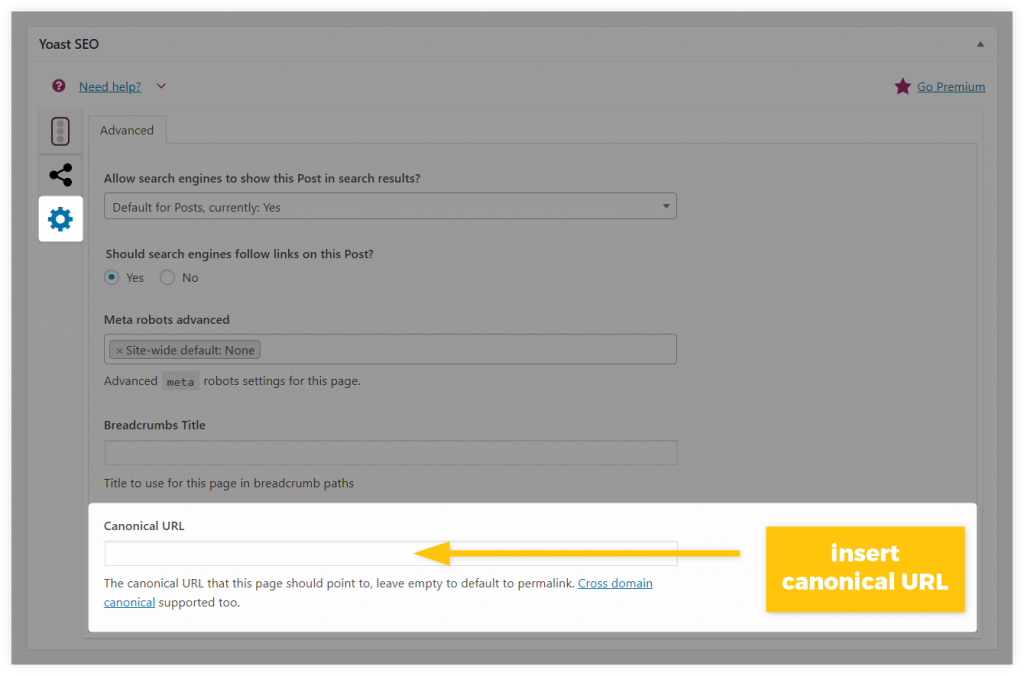
But what if, for some reason, you have a page that's a little bit of a clone, a distant cousin, or a slightly different version of another page? Let's say you have a product page that also has a printer-friendly version. You wouldn't want Google to get confused, right? That's where you manually tell it where the real party is. In the 'Canonical URL' field, you'd paste the URL of the original, the main, the absolute best version of that page.
For example, imagine you have a blog post about "10 Amazing Dog Breeds," and you also have a version that ends in ?print=true. You want Google to know that the main URL, without the ?print=true, is the one to pay attention to. So, on the printer-friendly version's edit screen, in the Yoast SEO 'Canonical URL' field, you'd paste the URL of the original "10 Amazing Dog Breeds" post. It's like saying, "Psst, Google, this one's just a printout, the real masterpiece is over here!"

Remember, the goal is to guide Google, not to confuse it. Think of yourself as a friendly tour guide, pointing out the most beautiful sights!
Another super-plugin that can help you with this sacred task is Rank Math SEO. If Yoast isn't your cup of tea, Rank Math is another fantastic option that's packed with features. The process is very similar. Once installed, you'll find its metabox on your post and page edit screens. Look for the 'Advanced' tab within the Rank Math settings, and you'll discover the 'Canonical URL' field. Just like with Yoast, Rank Math will usually handle things automatically, but you have the power to step in and manually define your canonical URLs if needed.

And for those who are feeling particularly adventurous or have a very specific setup, there's always the option of adding the canonical tag directly to your theme's header. This is a bit more hands-on and involves a sprinkle of coding knowledge. You'd typically add a line like this within the `
` section of your `header.php` file:<link rel="canonical" href="YOUR_CANONICAL_URL_HERE" />But, honestly, for 99.9% of us mere mortals, sticking with the user-friendly power of plugins like Yoast SEO or Rank Math is the way to go. It’s like choosing between building a rocket ship from scratch or using a perfectly good car to get to your destination. Both work, but one is significantly less likely to result in an existential crisis!
By strategically using the canonical tag, you're ensuring that search engines understand the primary version of your content, preventing duplicate content issues, and ultimately helping your awesome pages get the recognition they truly deserve. So go forth, add those canonical tags, and watch your WordPress site conquer the digital world with newfound clarity and confidence. Happy blogging!