How Do I Sign A Pdf On Mac

Ever get that email asking you to sign a PDF? You know, the one that’s all official-looking and makes you feel like you’re signing away your kingdom (even if it’s just for a new library card)? And then you’re staring at your Mac, wondering, “Okay, how on Earth do I do this?” Don't worry, you're definitely not alone! Signing a PDF on a Mac is probably one of those things that sounds way more complicated than it actually is. Think of it like learning to tie your shoelaces – a little clumsy at first, but then it becomes second nature.
Why should you even care about signing a PDF? Well, in our increasingly digital world, more and more important documents are going electronic. From accepting a job offer to approving that ridiculously detailed project plan, signing a PDF is your digital handshake, your virtual nod of agreement. It's like putting your name on a birthday card, but instead of glitter glue, you're using a digital pen. It’s your way of saying, "Yep, I'm on board with this!"
So, let’s ditch the drama and get down to the nitty-gritty of signing your PDFs on your trusty Mac. The good news is, Apple has built-in tools that make this super easy. You don't need fancy, expensive software that looks like it belongs in a NASA control room.
Must Read
The Magic Wand: Preview (It’s Already There!)
Your Mac comes with a secret weapon for this, and it’s called Preview. Yep, that’s the same app you probably use to look at all your photos. It’s like the Swiss Army knife of your Mac’s basic functions – it does more than you think!
Think of Preview as your friendly neighborhood document assistant. It’s always ready to help you open, view, and yes, even sign those PDFs. No downloading, no installing, just pure, unadulterated Mac magic.
Step 1: Open Your PDF in Preview
First things first, find that PDF document. You know, the one you’ve been avoiding? Double-click on it. Most of the time, it will automatically open in Preview. If it opens in something else (like your web browser), no worries! Just right-click on the PDF file, go to “Open With,” and select “Preview.” Easy peasy!
Step 2: Find the Markup Toolbar
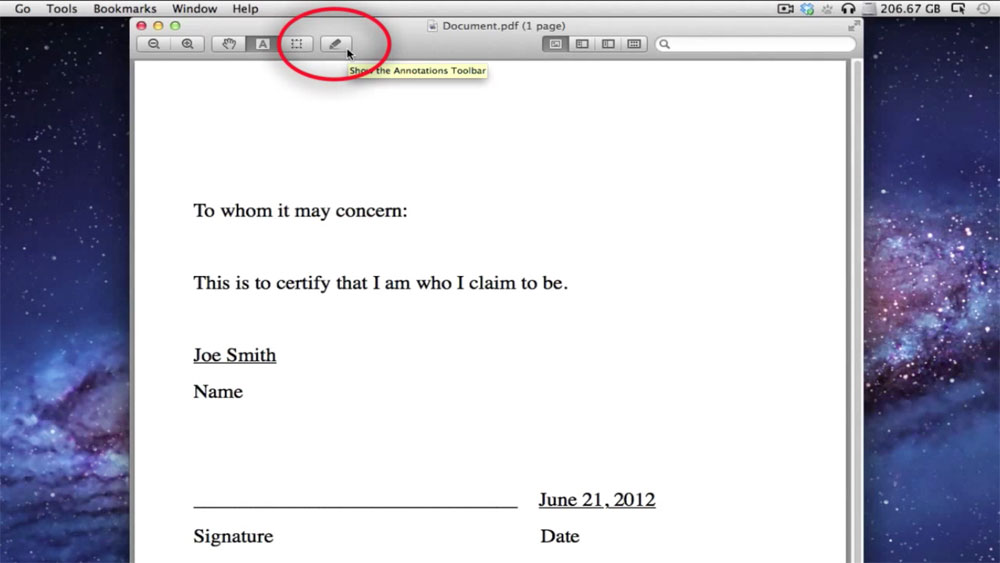
Once your PDF is open in Preview, look for a little icon that looks like a pen tip inside a circle. It’s usually at the top of the Preview window. This is the Markup Toolbar. If you don’t see it, don’t panic! Just click the little icon that looks like a square with a dot in the middle (it's often called the "Show Markup Toolbar" button). This button reveals all the fun annotation tools.
This toolbar is where all the action happens. It’s like the control panel for your document's destiny.
Step 3: Unleash Your Signature!
Now for the star of the show: your signature! Click on the little icon that looks like a squiggle or a signature. It’s usually right next to the text tool and the shapes tool. When you click it, you'll see a few options. The one we want is “Create Signature.”
This is where it gets fun! You have a couple of ways to create your digital masterpiece:
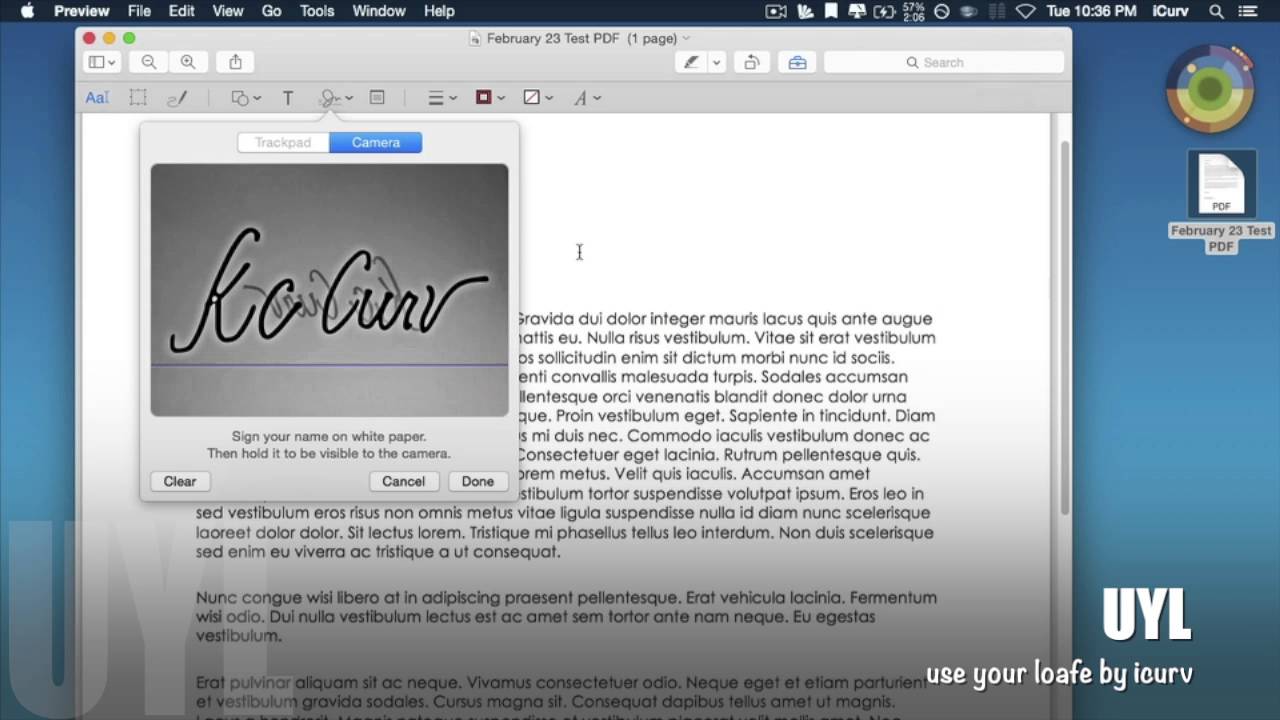
- Trackpad: This is the most common and often the easiest way. Click “Trackpad,” and then gently (or with a flourish!) draw your signature on your Mac’s trackpad. Pretend you're drawing a masterpiece on a tiny digital canvas. Don’t worry if it’s not perfect the first time. You can try it a few times until you’re happy. It’s like practicing your autograph for your adoring fans (even if those fans are just your boss or your landlord).
- Camera: This is a cool trick! Click “Camera.” Then, grab a piece of white paper and sign your name on it with a black pen. Hold the paper up to your Mac's camera. Preview will scan it and turn your physical signature into a digital one. It’s like magic, but with less smoke and mirrors! This method can sometimes give you a cleaner, more professional-looking signature than the trackpad.
Once you’ve created your signature, click “Done.” Your signature will appear on your PDF. Ta-da! You’ve just signed a PDF!
Step 4: Place and Resize Your Signature
Now, your signature might be floating around like a lost balloon. You need to place it where it belongs. Click and drag your signature to the dotted line or the designated signature area in the PDF. If it’s too big or too small, you can use the little blue handles around it to resize it. Just click and drag those handles to make it perfect.

Remember, this signature is now part of the document. It’s as good as a real ink signature, so make sure it’s in the right spot!
Step 5: Save Your Signed PDF
Once your signature is perfectly placed, you need to save your work. Go to File > Save (or press Command + S). It's like putting your masterpiece in a digital frame. Your PDF is now officially signed and ready to be sent back into the world.
What If I Need to Sign the Same PDF Multiple Times? (Or Just Want it Easier)
Okay, so you’ve signed one. What if you have a stack of PDFs to sign? Or maybe you just want to speed things up? Good news! Once you’ve created your signature in Preview, it’s saved. The next time you need to sign a PDF, when you click that signature icon, your saved signature will be right there, ready to be dragged and dropped onto the document. It’s like having your signature on speed dial!
This is a real lifesaver when you’re dealing with a lot of paperwork. Imagine signing all your holiday cards in a single sitting – that’s the kind of efficiency we’re talking about!
A Quick Note on Other Signing Methods
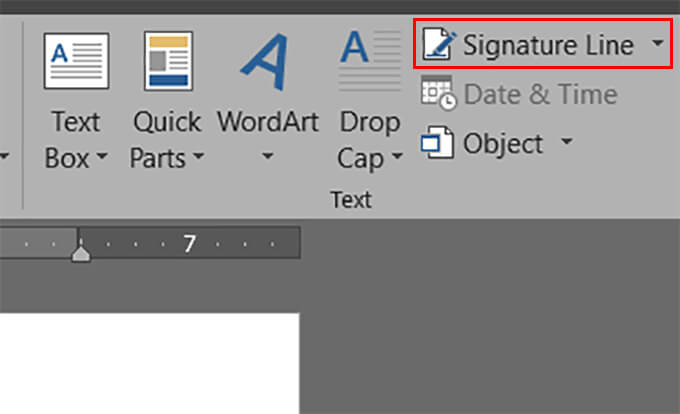
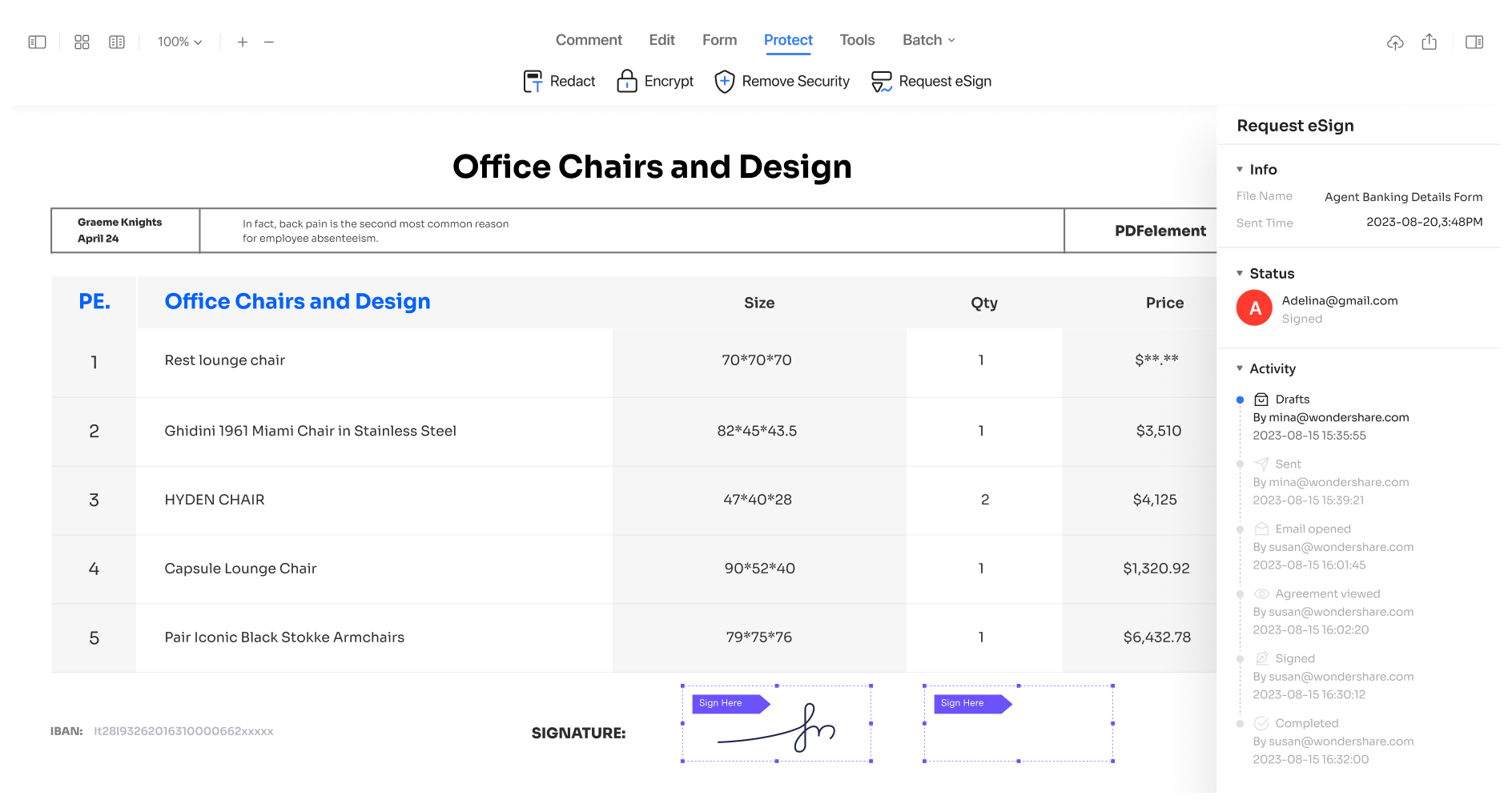
While Preview is your go-to, there are other ways to sign PDFs on your Mac, especially if you're dealing with more complex digital workflows or need advanced features.
- Adobe Acrobat Reader (Free Version): If you have Adobe Reader installed (which many people do), it also has a signing feature. You’ll usually find it under “Tools” and then “Fill & Sign.” It works very similarly to Preview, offering options to type, draw, or import your signature.
- Online PDF Editors: There are countless websites that offer online PDF editing and signing. These can be convenient for quick jobs, but always be mindful of privacy and security when uploading sensitive documents to third-party sites. It’s like sending a postcard – visible to many! Stick to trusted sources.
Why This Matters (Besides Just Getting Stuff Done!)
Knowing how to sign a PDF on your Mac isn't just about convenience; it’s about empowerment. It means you can handle your digital life with confidence. You’re not dependent on someone else to print, scan, and send things back. You can be independent and efficient.
Think about it: that quick contract approval, that permission slip for your kid’s school trip, that crucial document for your new apartment – being able to sign it on your Mac means you can do it on your own terms, wherever you are. It's like having a magic wand in your pocket that can seal deals and make things happen.
So, the next time you see that email asking for a signed PDF, don’t sigh. Just smile, open up Preview, and unleash your digital signature. You’ve got this!