Wordpress Child Theme Setup Best Practices 2025

Alright, gather 'round, you digital adventurers! Let's talk about something that might sound drier than a stale croissant: WordPress child themes. Now, I know what you're thinking. "Child themes? Isn't that for code wizards and people who wear pocket protectors?" Wrong! Think of it more like… giving your website a stylish, personalized makeover without accidentally knocking down the whole house. And in 2025, we're not just setting them up, we're setting them up right, like seasoned pros who know the secret handshake to the internet's coolest club.
So, why the fuss? Imagine you’ve found the most gorgeous WordPress theme. It’s got all the bells and whistles, it makes your cat photos look like Renaissance masterpieces, and you’re practically in love. Then, the theme developer drops an update. Boom! All your brilliant customizations – the tiny heart icon you painstakingly added next to your “buy now” button, the bizarre font you chose because it reminded you of a medieval scroll, the way you wrestled with CSS until it cried uncle – all gone. Poof! Like a magician’s trick, but with less sequins and more despair.
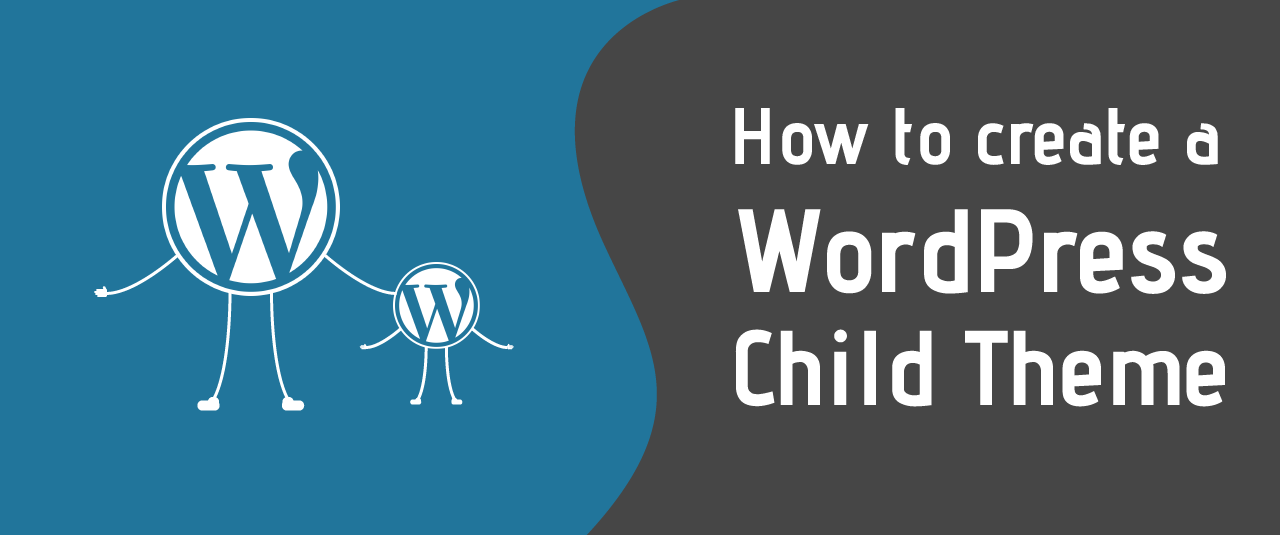
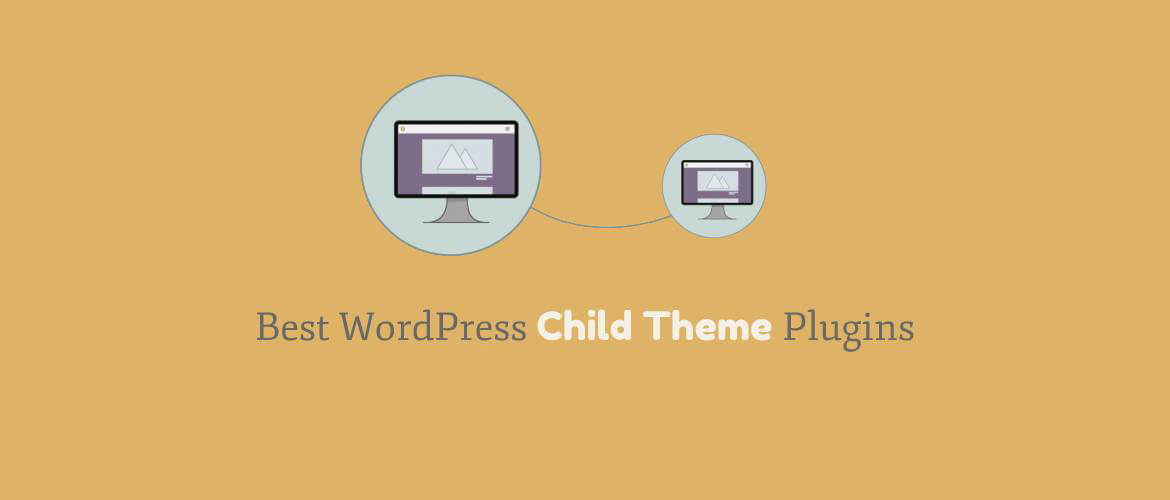
This, my friends, is where our superhero, the child theme, swoops in. Think of your main, fancy theme as the parent theme. It’s the sturdy foundation, the cool parents who bought the big house. Your child theme is like the rebellious teenager who wants to paint their room neon green and hang posters of obscure bands. But instead of causing a parental meltdown, it safely inherits everything from the parent theme and lets you go wild with your own customizations, completely insulated from those pesky parent updates.
Must Read
Let’s get down to the nitty-gritty, 2025 edition. First things first, you NEED a child theme. I’m not even joking. It’s like trying to build a skyscraper on a foundation of Jell-O. It might look pretty for a bit, but disaster is lurking. In 2025, this is just… table stakes. It’s the digital equivalent of knowing how to tie your shoelaces. If you’re not using one, well, let’s just say your website’s future is looking a bit like my attempt at baking sourdough last week – a dense, disappointing lump.
The Essential Ingredients for Your Child Theme Masterpiece
Okay, deep breaths. We're not building a rocket ship here. We're just making a folder and a couple of files. Think of it like packing for a weekend getaway: you need a suitcase, some clothes, and your toothbrush. For our child theme, the essentials are:
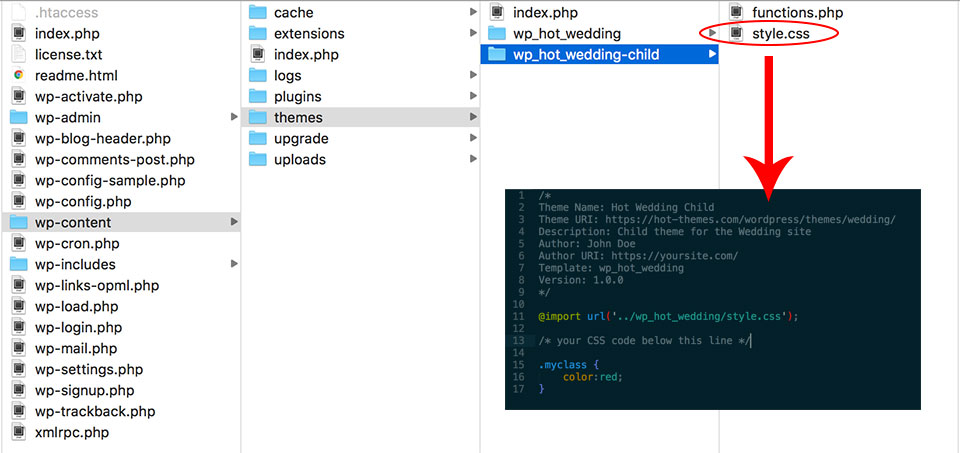
1. A Theme Folder: This is where all the magic happens. You'll create a new folder in your `wp-content/themes` directory. Name it something descriptive, like `yourthemename-child`. See? Already sounds more official, doesn’t it?

2. `style.css`: The Fashionista of Your Theme. This is the most crucial file. It tells WordPress, "Hey, this is a child theme, and here’s how it’s different!" You’ll need a header comment block here. Don't skip this! It’s like the ingredients list on a fancy chocolate bar – vital information that prevents confusion and potential allergic reactions (to your code).
The header comment is where you declare it’s a child theme. It looks a bit like this:
/*
Theme Name: My Awesome Child Theme
Theme URI: http://yourwebsite.com/my-awesome-child-theme/
Description: A child theme for My Awesome Parent Theme, making it look even more awesome.
Author: Your Name or Your Company
Author URI: http://yourwebsite.com
Template: parent-theme-slug  (This is SUPER important! Replace with your parent theme's folder name!)
Version: 1.0.0
License: GNU General Public License v2 or later
License URI: http://www.gnu.org/licenses/gpl-2.0.html
Text Domain: my-awesome-child-theme
/
Seriously, that `Template:` line is the Golden Ticket. If you get that wrong, your child theme will be wandering the digital streets like a lost puppy, unable to find its parent. We can't have that in 2025!
3. `functions.php`: The Brains of the Operation. This file is where you’ll enqueue (fancy word for "link up") your parent theme’s stylesheet and your own child theme’s stylesheet. This is how WordPress knows to load them in the right order. You’ll also add any custom PHP functions you dream up here. Think of it as the conductor of your website's orchestra, making sure all the instruments play in harmony.

Here's a basic `functions.php` to get you started:
<?php
/*
 * Enqueue parent and child theme stylesheets.
 /
function my_awesome_child_theme_enqueue_styles() {
    wp_enqueue_style( 'parent-style', get_template_directory_uri() . '/style.css' );
    wp_enqueue_style( 'child-style', get_stylesheet_directory_uri() . '/style.css', array( 'parent-style' ), wp_get_theme()->get('Version') );
}
add_action( 'wp_enqueue_scripts', 'my_awesome_child_theme_enqueue_styles' );
?>
See that `array( 'parent-style' )`? That’s the magic sauce ensuring your parent theme’s styles load *before your child theme’s. So your awesome new styles can override the old ones. It’s like putting on a cool new jacket over your existing outfit. Much better!
Best Practices: Because We're Not Amateurs Anymore
Now, let's elevate this from "making it work" to "making it brilliant." In 2025, we're all about efficiency and looking like we know what we’re doing, even if we just learned it last week.

1. Keep It Lean and Mean: Only Add What You Need.
Your child theme shouldn't be a carbon copy of the parent. It's meant for your specific tweaks. Don’t start copying entire files from the parent unless you absolutely have to and know what you’re doing. Think of it as a minimalist wardrobe. You don't need five black t-shirts; you need one really good one. Only include the files you intend to modify. WordPress is smart enough to pull the rest from the parent.
2. Use a Starter Theme (Optional, but Highly Recommended!)
For the truly ambitious (or those who want a head start), consider using a starter theme. These are pre-built child theme frameworks like _s (Underscores) or GeneratePress (which also has a fantastic premium version, by the way). They come with a lot of the foundational structure already set up, making your life exponentially easier. It's like buying a pre-made cake mix versus grinding your own flour. Both work, but one is a lot less messy!
3. Test, Test, and Then Test Some More!
Before you unleash your masterpiece on the live site, test it thoroughly on a staging environment. Seriously. This is where you find those rogue semicolons that make your website look like it's been attacked by a flock of angry pigeons. Does everything look right? Are all the buttons clickable? Can users actually buy your stuff? A broken checkout process is about as welcome as a tax audit.
4. Keep Your `functions.php` Organized
As you add more custom functions, your `functions.php` file can get long. Use comments to explain what each function does. Group related functions together. It’s like tidying up your sock drawer – it might take a few extra minutes, but you'll thank yourself later when you can actually find a matching pair.
5. Embrace the Power of WordPress Hooks
Instead of overriding entire template files (which can be a pain), often you can achieve your desired changes using WordPress actions and filters (hooks). These are like little insertion points in WordPress’s code. You can add content, modify output, or even remove things without touching the original files. It’s the polite way to edit – you’re asking permission to add a little flair, not barging in and redecorating.
6. Name Your Stylesheets and Functions Thoughtfully
Avoid generic names like `style.css` for your child theme. While the `style.css` must have that name for WordPress to recognize it as the theme's main stylesheet, if you create additional CSS files, give them descriptive names. Same goes for your functions. `my_awesome_child_theme_custom_function()` is much better than `custom_function()`, especially if you ever decide to use multiple child themes (though please, don't do that unless you have a very good reason and a therapist on standby).
7. Always Back Up!
This one is so obvious it's practically a cosmic law of the internet. Before you touch anything, BACK UP YOUR WEBSITE. Seriously. Think of it as wearing a seatbelt. You hope you never need it, but if you do, you’ll be eternally grateful you buckled up. There are plenty of great backup plugins out there – use them!
So there you have it! Setting up a WordPress child theme in 2025 isn't some arcane ritual for the tech-savvy elite. It's a sensible, strategic move that saves you headaches, preserves your hard work, and allows you to truly make your website your own. Now go forth, create beautiful things, and remember: your website’s future is in your (well-organized) hands!