How To Zoom In On Premiere Pro
Ever found yourself watching a video, maybe a hilarious cat compilation or a tear-jerking wedding montage, and thought, "Wow, I wish I could just… get a closer look at that magnificent ear twitch?" Or perhaps you've seen a movie trailer and marveled at how the director pulls your gaze right to the actor's trembling lip, making you feel every ounce of their emotion. That, my friends, is the magic of zooming, and in the wonderful world of video editing, particularly in a program called Adobe Premiere Pro, it's surprisingly easy to achieve. Think of it like giving your audience a guided tour of your footage, highlighting the juicy bits, the subtle jokes, or the moments that make your heart flutter.
Imagine you’ve just filmed your niece’s first birthday party. There’s cake, there are tiny, enthusiastic dancers, and there’s that one moment where she smushes her entire face into the frosting. You want to share that pure, unadulterated joy with your family, but maybe the camera was a little far away. This is where Premiere Pro comes to your rescue, transforming your slightly distant footage into an intimate, giggle-inducing memory. It’s like having a magic wand that lets you reach into the screen and give your audience a gentle nudge towards the most delightful details.
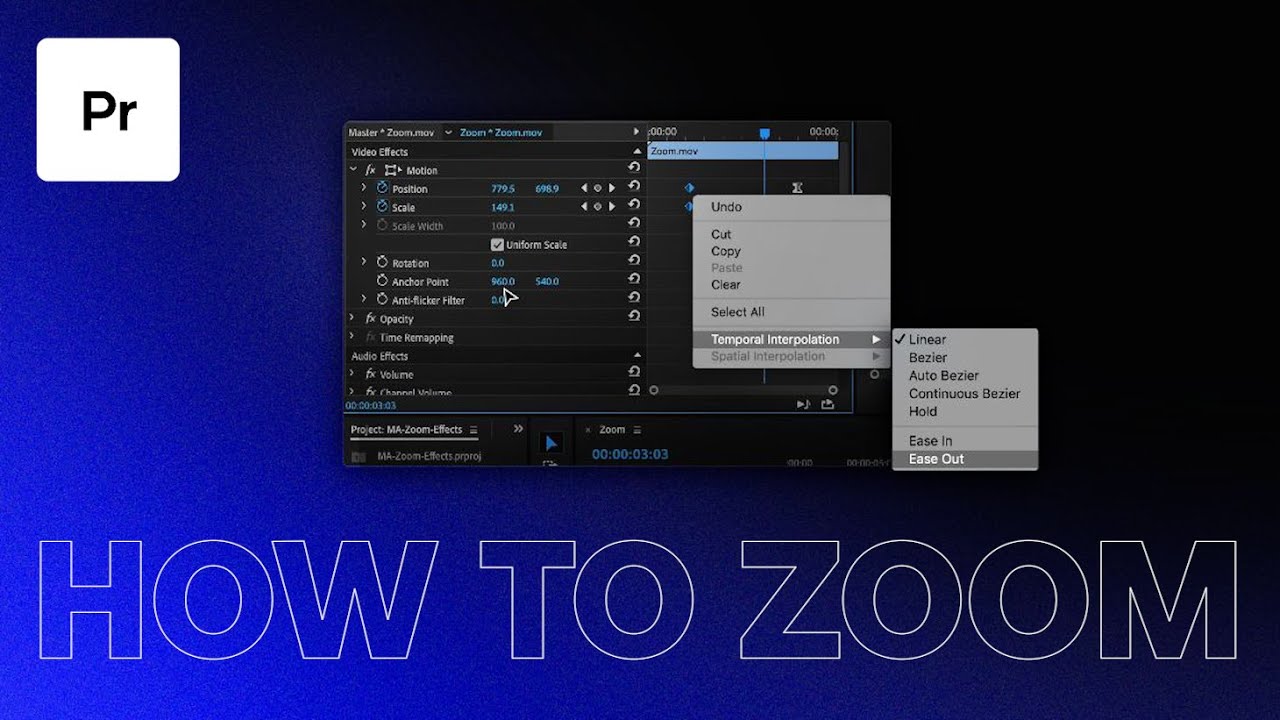
Let’s dive into the fun part, shall we? You’ve got your video clip sitting there, patiently waiting to be spruced up. You’ll find a little panel, often on the right side of your screen, called the Effect Controls panel. Don't let the fancy name scare you; it's more like a toolbox filled with fun gadgets. Within this toolbox, you’ll find something delightfully named Motion. And under Motion? Bingo! You’ll see something called Scale. This, my friends, is your zooming lever.
Must Read
Think of Scale as a percentage. If your video is at 100%, it’s showing you exactly what the camera saw. But what if you want to get in closer? You simply increase that percentage. Want to go from a wide shot of the birthday chaos to a tight focus on your niece’s frosting-covered grin? You might nudge that Scale from 100% all the way up to, say, 200% or even 300%. Suddenly, that little face fills the screen, and everyone watching can appreciate the sheer, uninhibited delight of a baby with cake.
But it gets even better. This isn't just about hitting a number and calling it a day. What if you want to create a dynamic zoom, a slow, loving approach towards that incredible moment? This is where those little stopwatch icons come into play. Right next to Scale, you’ll see a tiny stopwatch. Clicking this is like telling Premiere Pro, "Okay, start watching! I’m going to tell you where I want this zoom to begin and where I want it to end."
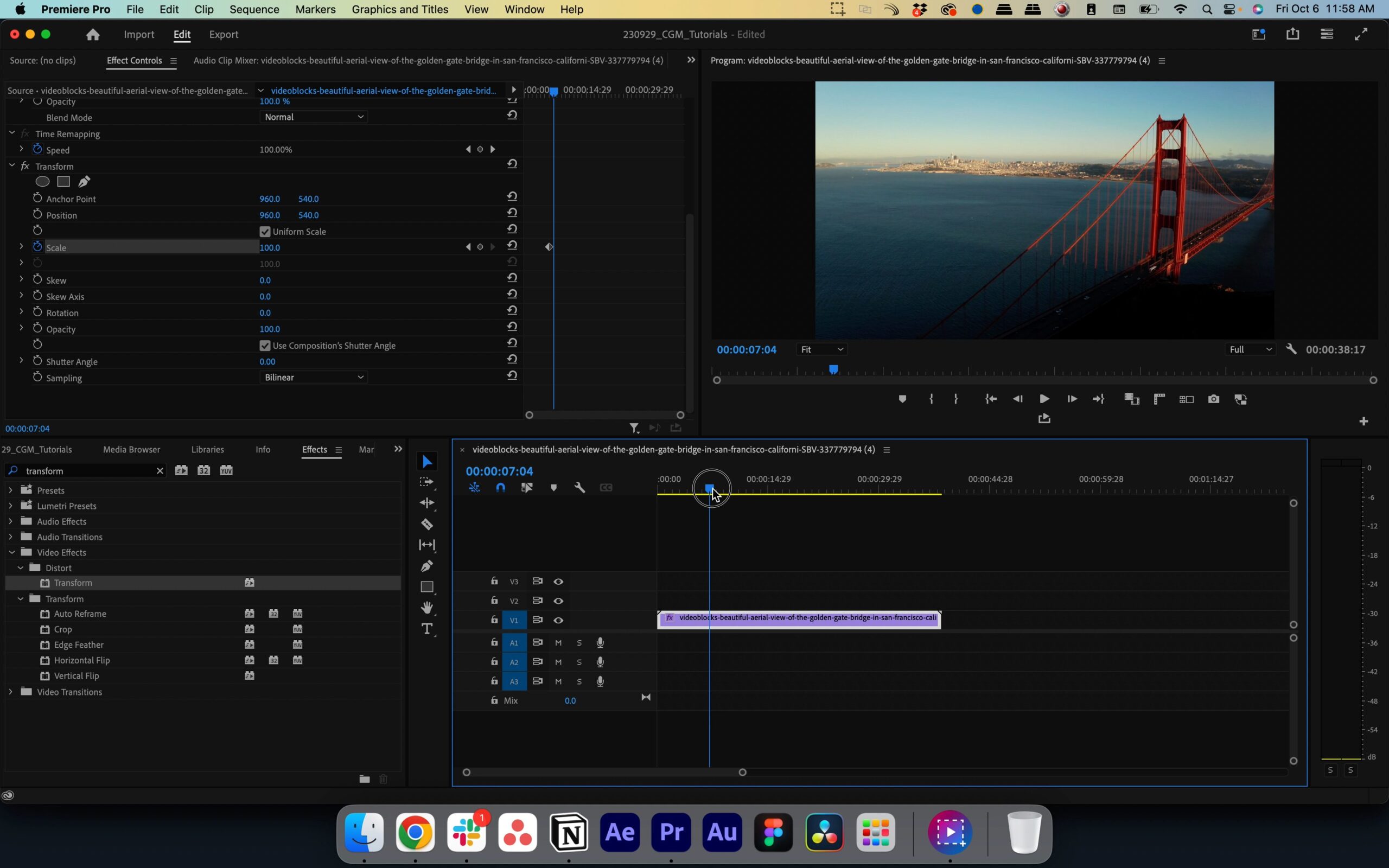
It’s like setting up a little guided journey for your viewer’s eyes. You can start wide, then slowly, smoothly, bring them in for that perfect close-up, making them feel like they're right there with you, sharing in the experience.
So, you click that stopwatch. Now, you move your cursor forward in your timeline, to the exact moment you want the zoom to be finished. Then, you adjust your Scale value again. Maybe you start at 100% at the beginning of your clip and then move to 200% a few seconds later. Premiere Pro, with its magical brain, will automatically create the smooth transition, the gentle in-and-out that makes your videos feel so much more polished and engaging. It’s like animating your camera’s focus, guiding the audience’s attention with a subtle, invisible hand.
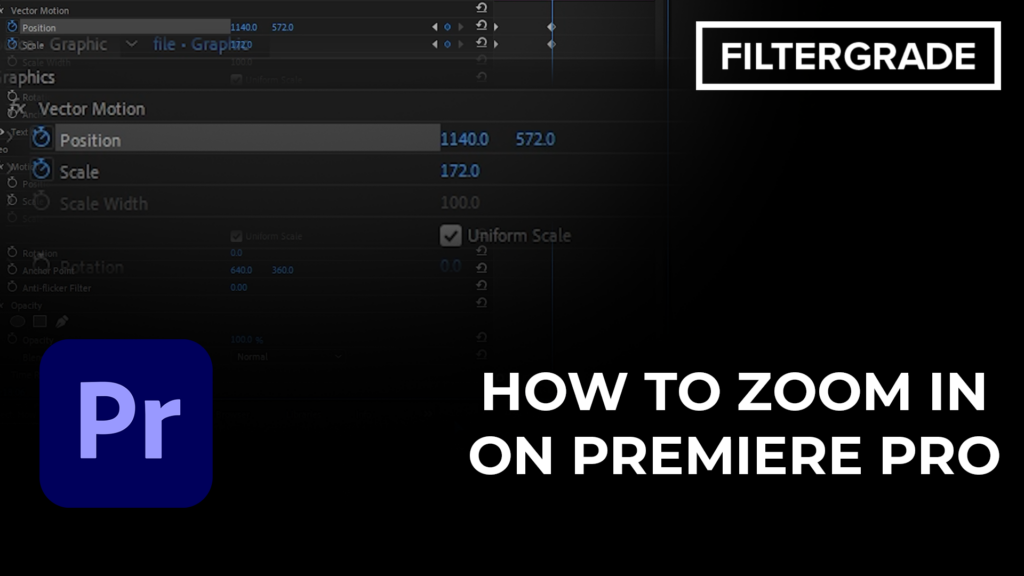
And don’t forget about Position! While Scale is all about making things bigger or smaller, Position is about where that magnified image sits on your screen. If you zoom in on your niece's face, but her eyes are now off to the side, you can use Position to nudge her face back to the center, ensuring that the viewer's attention is perfectly framed on the most important element. It's like adjusting the frame of a painting to make the subject pop.
The beauty of this is that it’s not just for dramatic effect. Think about those quiet, heartfelt moments in a documentary where a character shares a profound memory. A gentle zoom-in on their face, perhaps just a slight increase in Scale, can amplify their emotion, drawing the viewer closer to their story. It’s like leaning in to hear a whispered secret, creating a more intimate connection.
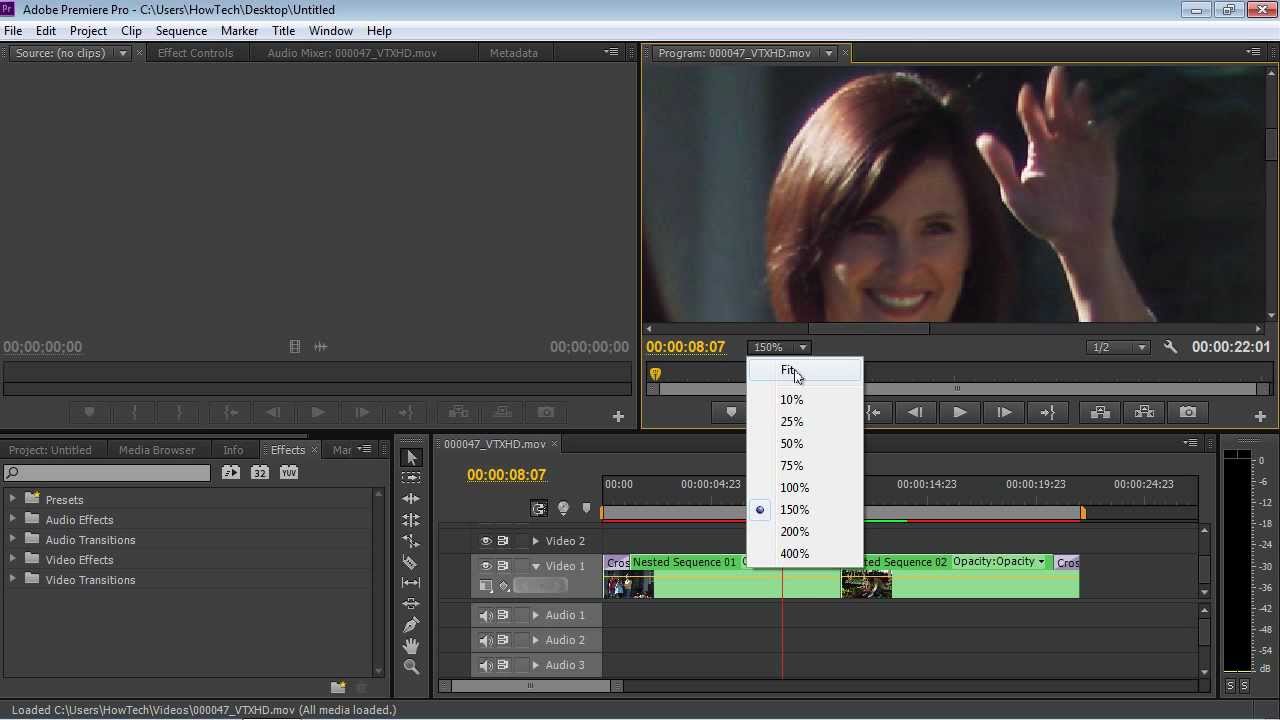
Or consider a cooking show. You’ve just demonstrated a crucial technique, like perfectly folding in egg whites. Instead of just showing the bowl from afar, a carefully timed zoom can highlight the delicate texture, the airy fluffiness. It’s the difference between telling someone how delicious a cake is and showing them, letting them see the perfect crumb. Suddenly, that mundane ingredient becomes an edible work of art, all thanks to a little bit of zooming magic.
So, the next time you're editing, remember that Premiere Pro isn't just a tool; it's your storytelling partner. It empowers you to direct your audience's gaze, to emphasize the moments that matter, and to inject a sense of dynamism and emotional depth into your videos. Whether it’s the comical wobble of a toddler’s first steps or the earnest gaze of a seasoned storyteller, a well-placed zoom can elevate your footage from simply being seen to being truly felt. It’s a simple technique, but oh, the stories it can tell!