
How To Wipe A Usb Flash Drive

Hey there, tech wizard (or soon-to-be tech wizard)! So, you’ve got a USB flash drive hanging around, maybe it’s seen better days, or perhaps you’re just feeling a bit… private about its contents. You know, like when you have to share your Netflix password and you really don't want them seeing your 3 AM documentary binges? Yeah, kinda like that. Anyway, you’re probably wondering, "How in the heck do I wipe this thing clean?" Well, grab a cuppa joe, settle in, and let’s chat about making that little flash drive sparkle like new again, sans any embarrassing vacation photos or questionable download histories.
Think of wiping a USB drive like giving it a fresh start. It’s not just about deleting files, which, let’s be honest, is about as effective as telling a toddler to "just ignore the cookie." Deleting files just makes the space available; the actual data is still lurking in the shadows, waiting for a sneaky program to resurrect it. We’re talking about a full-on digital spa day for your USB. A deep clean, a refresh, a complete do-over.
Why would you even want to do this, you ask? Several good reasons! Maybe you’re selling it. You definitely don’t want the next owner to stumble upon your secret recipe for the world’s best guacamole. Or perhaps you're lending it to a colleague, and you'd prefer they don't accidentally send your boss that embarrassing karaoke video from last Friday. Or, and this is a big one, if your drive has been acting a bit funky – slow, glitchy, or throwing up error messages like a teenager at dinner – a wipe can sometimes work wonders. It’s like a digital reboot for your storage.
Must Read
Getting Your USB Ready for the Big Wipe
Before we dive headfirst into the digital abyss, let’s make sure we’re prepped. First things first, back up anything important. I know, I know, you probably think you’ve backed it all up already. But humor me. Open up that USB drive. Take a good, long look. Are you absolutely, positively, 100% sure everything you need is safely tucked away somewhere else? On your computer, in the cloud, on another, even older USB drive you’ve forgotten about? If there’s even a tiny shred of doubt, hit that copy-paste button like your digital life depends on it. Because, well, it kinda does.
Once you’re absolutely, positively, undeniably sure you don’t need a single byte of data from that drive, then and only then can we proceed. Think of it as cutting the red wire before the blue wire – no take-backsies!
Method 1: The Built-in Windows Magic (For the Casual User)
Alright, Windows users, this one’s for you. It’s pretty straightforward, and you don’t need to be a coding ninja to do it. In fact, it’s so easy, your cat could probably do it (if it had opposable thumbs and an interest in data security, which, let's face it, most cats are more interested in naps and world domination).
First, plug your USB drive into your computer. You know, the usual way. Like you’re introducing a new friend to your PC. Now, open up File Explorer. You can do this by clicking the little folder icon on your taskbar, or by hitting the Windows key + E. It’s like a magic shortcut for opening up your digital world.
In File Explorer, you’ll see a list of drives on the left-hand side. Look for your USB drive. It’ll usually have a name like "Removable Disk" or whatever you’ve christened it. Right-click on your USB drive. Don't be shy, give it a good click. A little menu will pop up, like a tiny digital butler offering you options.
From that menu, select Format.... Don’t worry, this isn’t like formatting your computer’s hard drive, which is a whole different ballgame and a recipe for panic if you haven’t backed up. This is just for your USB.
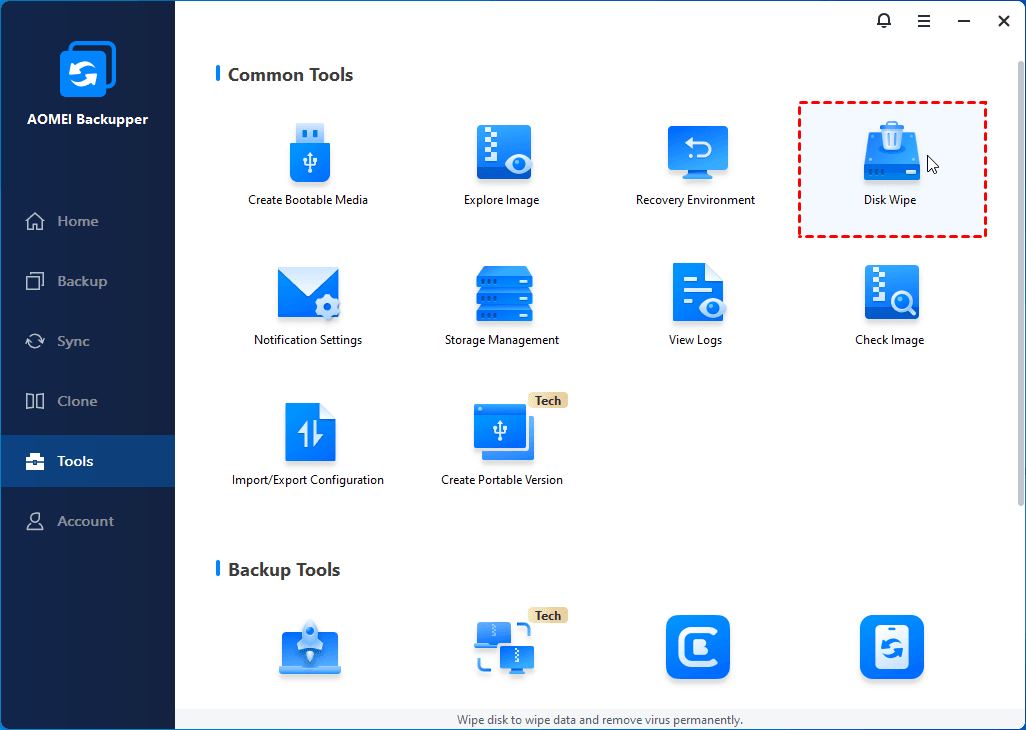
Now, a new window will appear. This is where the magic happens. You’ll see a few options. For most situations, you can leave the File system as it is, unless you have a specific reason to change it (like if you know the next computer will only read FAT32, but that’s a bit more advanced than we need for a simple wipe). The most important option here is Quick Format. Uncheck this box. Yes, I know it says "quick," and who doesn't love quick? But for a proper wipe, we want to go the scenic route.
By unchecking "Quick Format," you're telling Windows to do a more thorough job. It will actually scan the drive for bad sectors and write zeros to every sector, which essentially overwrites any old data. It’s like scrubbing every nook and cranny of your USB drive. It’ll take a bit longer, but it’s worth it for that peace of mind.
Once you’ve unchecked "Quick Format," click Start. Windows will probably give you one last warning, like a parent saying, "Are you sure you want to do this?" with a little sigh. Confirm that you do, and let Windows work its magic. This might take a few minutes, depending on the size of your USB drive. So, go grab another coffee, or maybe some snacks. This is the digital equivalent of waiting for a slow cooker meal.
When it’s all done, you’ll get a little "Format Complete" message. Click OK, and then Close. Boom! Your USB drive is now as clean as a freshly polished mirror. Ready for its next adventure.
Method 2: Diskpart – The Command-Line Conqueror (For the Slightly More Adventurous)
Feeling a bit brave? Want to impress your friends with your command-line prowess? Or maybe you just want to skip the fancy graphical interface and get straight to the nitty-gritty. Then Diskpart is your new best friend. Don’t be intimidated by the word "command," it’s not as scary as it sounds. Think of it as talking directly to your computer in its own secret language.
First, press the Windows key + R to open the Run dialog box. Type in cmd and hit Enter. This will open the Command Prompt. It’s a black window with white text – very retro, very cool.
Now, type diskpart and press Enter. You’ve just entered the Diskpart environment. Your prompt will change to DISKPART>. See? You’re already speaking computer!
![How to completely wipe a USB flash drive on Windows 11/10/8/7? [Free]](https://www.eassos.com/how-to/images/wipe-a-USB-flash-drive-03.png)
Next, you need to see a list of all the disks connected to your computer. Type list disk and press Enter. You’ll see a list of disks with their sizes. Your USB drive will be one of these. You need to identify which one it is. Look at the sizes – your USB drive will likely be much smaller than your computer’s main hard drive.
Let’s say your USB drive is listed as "Disk 1". Be very careful here. If you choose the wrong disk, you could wipe your entire computer! It’s like picking the wrong potion in a fantasy game – consequences! Once you're 100% sure, type select disk 1 (replace "1" with the number of your USB drive) and press Enter.
Now, to wipe the disk, we’ll use the clean command. This command removes all partitions and formatting from the selected disk. Type clean and press Enter. You’ll see a message that Diskpart succeeded in cleaning the disk. Congratulations, you’ve just de-gunked your USB!
But wait, there’s more! The disk is clean, but it’s not formatted yet. We need to make it usable again. Type create partition primary and press Enter. This creates a new primary partition on the clean disk.
Then, type format fs=ntfs quick and press Enter. This command formats the partition using the NTFS file system and performs a quick format. If you need FAT32 for compatibility, you can use format fs=fat32 quick instead. NTFS is generally preferred for larger drives and better performance on Windows.
Finally, type assign and press Enter. This assigns a drive letter to your USB drive, making it visible in File Explorer again. And there you have it! Your USB drive is wiped and ready to go, all thanks to the power of the command line.
Pro tip: If you want to go the extra mile and ensure no data can ever be recovered (think government-level security!), you can use the command format fs=ntfs quick followed by format fs=ntfs without "quick". The second command will take significantly longer as it overwrites every sector with zeros multiple times. For most of us, though, the initial "clean" command followed by a quick format is more than enough.
Method 3: Mac Users – Disk Utility to the Rescue!
Hey Mac folks, don't you worry, we haven't forgotten about you! Apple makes things pretty intuitive, and wiping your USB is no exception. It's almost as easy as making toast.
First, plug your USB flash drive into your Mac. You know, the little port that looks like it's smiling at you. Once it appears on your desktop, you're ready to roll.
Now, open up Disk Utility. The easiest way is to open Spotlight Search by hitting Command + Spacebar, then type "Disk Utility" and press Enter. It’s like having a digital genie granting your wishes.
In Disk Utility, you'll see a list of drives on the left-hand side. Look for your USB drive. It might be under "External." Click on your USB drive. Again, be sure you’re selecting the correct drive. We don’t want any accidental data disappearances!
At the top of the Disk Utility window, you’ll see a button that says Erase. Click that bad boy. A dialog box will pop up, asking you to name your drive (you can name it "Blank Slate" or "Fresh Start" for fun) and choose a format. For most Mac users, Mac OS Extended (Journaled) or APFS are good choices. If you need to use the drive on a Windows PC, choose ExFAT.
Now, for the actual wiping part. Below the format options, you'll see a Security Options... button. Click on that. This is where you tell your Mac how thoroughly you want to erase the data.
You'll likely have a few options:
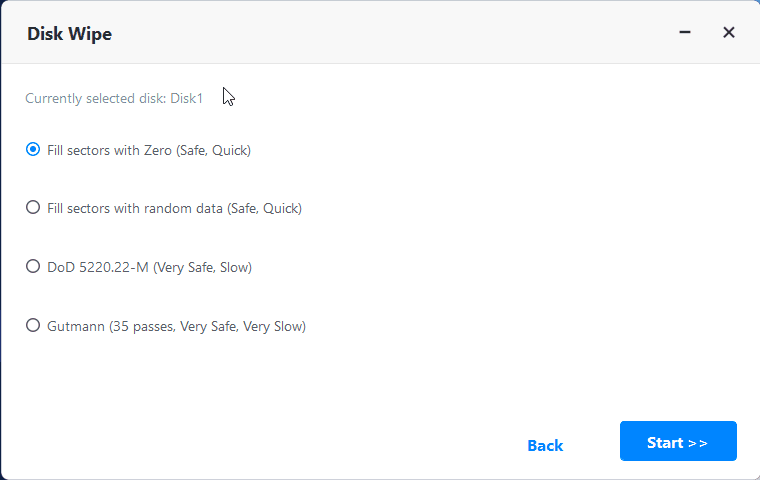
- The fastest option (usually a single pass): This is the quickest and generally sufficient for most users. It’s like a quick spray and wipe.
- A more secure option (multiple passes): This writes over the data multiple times, making recovery even harder. It’s like a deep scrub and polish. The more passes, the more secure, but the longer it takes.
For most personal uses, the fastest option is perfectly fine. If you're dealing with highly sensitive data or the drive has been compromised, consider the more secure options, but be prepared for a longer wait.
Once you’ve selected your desired security level, click OK, then click Erase. Disk Utility will do its thing, and soon you'll have a squeaky-clean USB drive ready for whatever you throw at it.
A Note on Data Recovery and "Wiping"
So, we’ve talked about wiping. But it’s important to understand what "wiping" actually means in this context. For most of us, a standard format (especially the non-quick format in Windows or the security options in Mac) is more than enough to prevent casual data recovery. Think of it like shredding a document – someone could potentially piece it back together with a lot of effort, but it’s highly unlikely for the average person.
If you are dealing with extremely sensitive information, like government secrets or evidence for a high-stakes espionage mission (hey, you never know!), then you might need more advanced, specialized software that performs multiple overwrites and physically destroys the drive after wiping. But for the vast majority of us, the methods above will keep your digital secrets safe and sound.
It's also worth noting that the lifespan of a flash drive is finite. Repeatedly wiping and writing data can, over time, wear out the drive. So, don't go around wiping your USB every day unless you really have to! It’s like constantly cleaning your favorite pair of shoes – sometimes they just need a good wear.
And Now, A Moment of Digital Peace
There you have it! You've successfully navigated the world of USB wiping. You’ve learned how to make your drive disappear and reappear, refreshed and revitalized. Whether you used the trusty Windows format, the powerful Diskpart, or the sleek Mac Disk Utility, you’ve accomplished a great digital deed.
So go forth and wield your freshly wiped USB with pride! Think of it as a blank canvas, ready for new memories, important documents, or even that embarrassing karaoke video you do want to share with your closest friends. You’ve given your digital companion a new lease on life, and that’s something to smile about. Go on, give yourself a pat on the back. You’ve earned it!

