How To Send A Folder Via Email

So, you've got a folder. A whole bunch of files chilling in there, like a digital family reunion. And now, for reasons that are probably very important and definitely not just because you want to show off your meticulously organized photo collection, you need to send it. Via email. I know, I know. It sounds like a quest for ancient artifacts. But fear not, brave digital traveler!
The internet, in its infinite wisdom, has presented us with options. Some are elegant. Some are… less so. We’ll navigate this labyrinth together. Consider me your slightly eccentric, probably caffeinated guide. We’ll aim for smiles, maybe a chuckle, and definitely avoid any technical jargon that sounds like it belongs in a sci-fi movie. Unless it's a funny sci-fi movie.
The "Direct Attachment" Detour: A Classic, If Not Always Speedy, Route
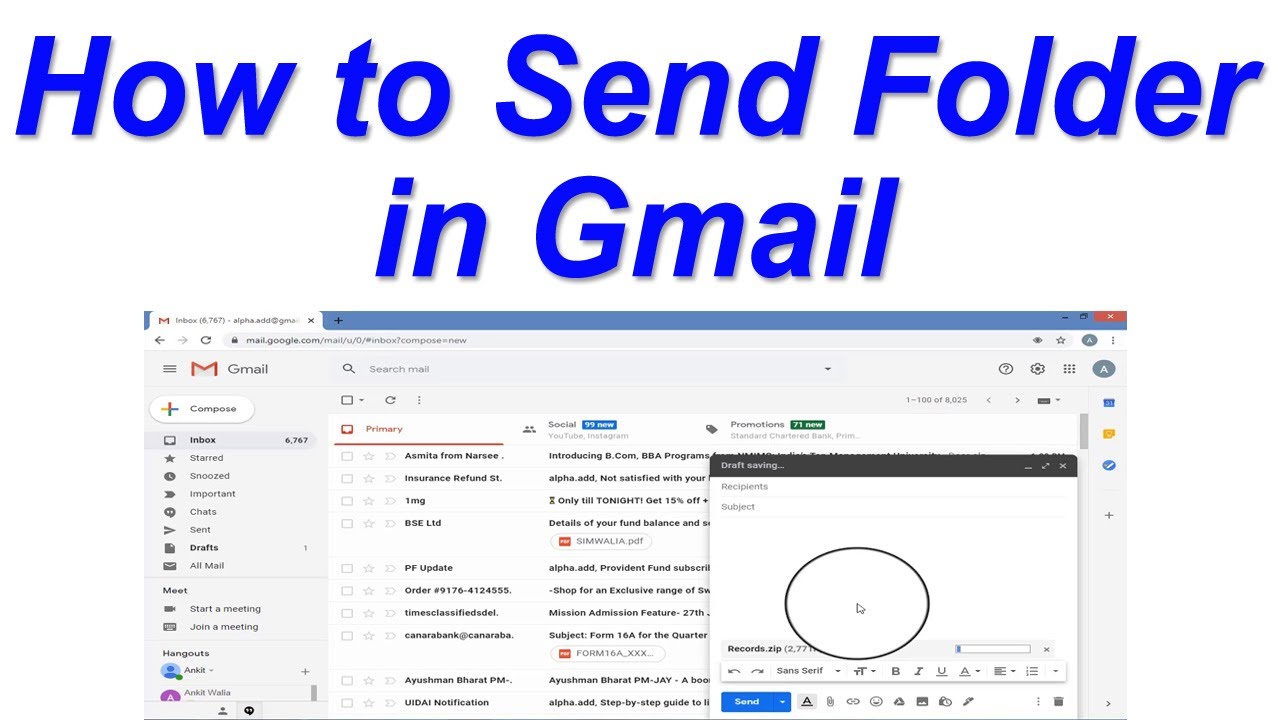
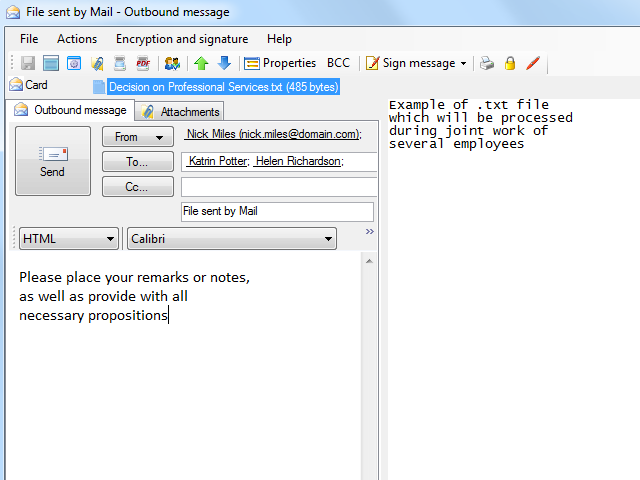
Let’s start with the most obvious. The one that flashes in your mind like a neon sign. You can, in theory, just attach that whole folder to your email. Easy peasy, right? Click the little paperclip icon, find your precious folder, and… wait.
Must Read
This is where things can get… interesting. Your email provider, bless their digital hearts, has a secret nemesis: the file size limit. It’s like a bouncer at a tiny club, and your folder, no matter how fabulous, might just be too big to get in.
If your folder is a tiny sprout, a mere sapling of files, you might be golden. But if it's a sprawling oak, a digital redwood, prepare for a stern "Access Denied." Your email will likely bounce back, a digital boomerang of disappointment.
The other snag is what happens on the other end. Imagine your friend, eagerly awaiting your digital bounty. They open your email, see the attachment, and… click. And then they wait. And wait. Their computer might start making strange whirring noises. It’s like trying to download a whole library through a straw.
So, while attaching a folder directly is an option, it's often the equivalent of trying to mail a live badger. Possible, but probably not the most practical or pleasant experience for anyone involved.
The "Zip It Up!" Strategy: Our First Real Hero
Ah, but what if we could shrink our folder? Like a magic trick? Enter the humble, yet mighty, ZIP file. Think of it as a digital hug for your files, a way to bundle them up all cozy and compact.
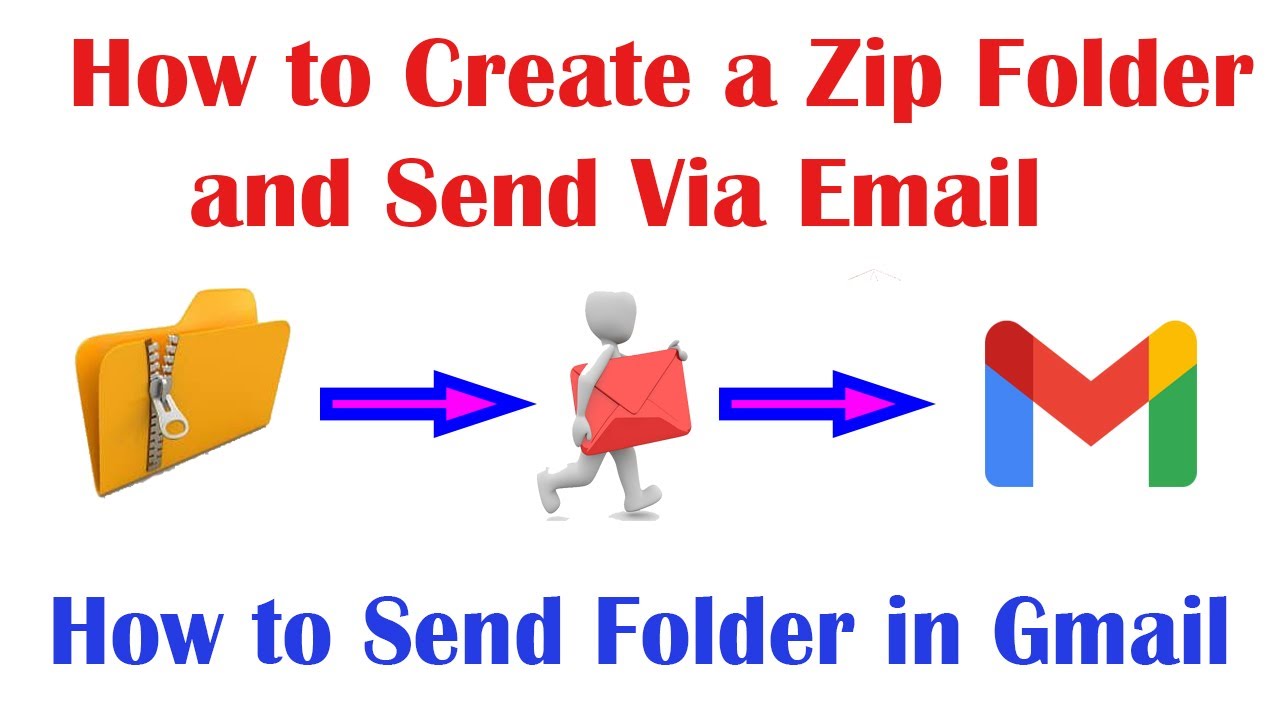
Most operating systems have this built-in, like a secret superpower you didn’t know you had. On a Windows computer, you simply right-click on your folder. Then, you’ll see an option that usually says something like "Send to" and then "Compressed (zipped) folder." Voila! Your folder is now a neat, tidy ZIP file.
On a Mac, it’s equally straightforward. Right-click (or Control-click) on your folder, and select "Compress [Folder Name]." Poof! You have a ZIP file.
This ZIP file is now significantly smaller. It’s like going from a giant, unwieldy suitcase to a sleek, carry-on bag. Much easier to manage. Much easier to email. This is where things start feeling more hopeful, more… doable.
Once you have your ZIP file, you attach that to your email. Your recipient then receives a single, smaller file. They just need to "unzip" it on their end. Most computers know how to do this automatically. It’s like unwrapping a present. Less frustration, more appreciation.
This is, in my highly unqualified but strongly held opinion, the best way for most situations. It’s elegant, efficient, and doesn’t make your recipient want to throw their computer out the window. It strikes a good balance. It’s the sensible middle ground.
When Your Folder is a Goliath: The Cloud Storage Crusaders
Now, sometimes your folder isn’t just a big folder. It’s a ginormous folder. Think of it as a digital elephant. Even a ZIP file might be too much for the gentle arteries of email.
This is where our modern-day heroes, the cloud storage services, swoop in. These are like digital warehouses for your files. You upload your big, beautiful folder to one of these services, and then you send a simple link to your recipient.
Popular options include Google Drive, Dropbox, and Microsoft OneDrive. You’ve probably heard of them. They’re the digital equivalent of having a really, really big storage unit that you can access from anywhere.
The process usually involves creating an account (if you don’t have one already), uploading your folder, and then generating a shareable link. Think of it as giving someone the secret handshake to access your digital treasure chest.
Your recipient clicks the link, and they can then access your folder directly from the cloud. They might be able to download it, or even view files within it, without ever having to deal with clunky email attachments. It’s seamless. It’s modern. It’s the future!
This is particularly brilliant for sharing large video files, massive photo albums, or entire project archives. It takes the pressure off your email server and your recipient’s inbox. It’s like sending a postcard instead of a truckload of furniture.
The "WeTransfer" Wonder: For When You Need to Go Big, Fast
But what if you don’t want to sign up for another cloud service? What if you just have one giant folder and need to send it to your Aunt Mildred who’s still figuring out how to use her flip phone? Enter services like WeTransfer. They’re like express delivery for your digital stuff.
These services are designed for one-off, large file transfers. You go to their website, upload your folder, enter your recipient’s email address, and they handle the rest. It’s remarkably simple and often doesn't even require an account for basic use.
WeTransfer (and similar services like Send Anywhere or Filemail) acts as an intermediary. You upload, they store it temporarily, and then they send your recipient a link to download it. It’s like hiring a courier for your digital package.
The files are usually available for a limited time, which keeps things manageable for the service. So, it’s perfect for those times when you need to send something big, but don’t need long-term cloud storage. It’s a friendly, no-fuss solution.
The beauty here is the simplicity. You’re not fussing with ZIP files, you’re not setting up cloud accounts. You’re just sending. It’s wonderfully straightforward. And in a world of ever-increasing digital complexity, simple is often the most entertaining outcome.
The "Unpopular Opinion" Corner: Why We Should Embrace Simplicity
Now, for my unpopular opinion. While all these methods are valid, and cloud storage is undoubtedly powerful, there’s a certain charm to the simplicity of a well-prepared ZIP file. It feels like a deliberate act, a conscious choice to make things easier for everyone.
It’s the digital equivalent of carefully wrapping a gift. You’re not just handing over a random assortment of items. You’re presenting them in a neat package, showing you’ve put in a little effort. It says, "I respect your inbox, and your time."
Cloud storage is fantastic, don't get me wrong. It's the superhero of large file sharing. But sometimes, for those everyday sharing needs, the ZIP file is the trusty sidekick. It gets the job done without all the fanfare. It’s the reliable friend who’s always there for you.
So, the next time you need to send a folder, consider the journey. Will it be a direct attachment that might offend your email provider? A zipped treasure waiting to be opened? Or a cloud-based portal to endless digital possibilities? Whichever path you choose, may your sharing be smooth and your recipients be delighted!