How To Send A Folder By Email

Ever found yourself staring at a bunch of files and thinking, "How on earth do I get all of this to my friend/colleague/family member without sending a hundred separate emails?" You're not alone! Sending a whole folder of precious memories, important documents, or creative projects might sound a bit techy, but it's actually a super useful skill and surprisingly straightforward once you know the trick. Think of it like packing a picnic basket instead of carrying each sandwich individually – much more efficient and way less messy!
So, why bother learning this? Well, let's break it down for different folks. For absolute beginners, it's about demystifying email attachments. Instead of being intimidated by "attached files," you'll understand you can group things together. Imagine your kid's school project has several documents, photos, and maybe even a video. Sending them as individual emails is a recipe for confusion. Sending them in one neat folder makes it a breeze for the teacher to review everything.
For families, this is a game-changer for sharing! Think about all those holiday photos, vacation videos, or even scanned recipes from Grandma. Instead of sifting through individual files, you can gather them into a "Summer Vacation 2023" folder and send it off in one go. It's perfect for grandparents who might not be the most tech-savvy; they receive one email with a single link or attachment, making it easy for them to download and enjoy.
Must Read
And for hobbyists? Whether you're a photographer sharing a client's gallery, a writer sending a manuscript with research materials, or a crafter sharing patterns and inspiration, organizing your work into folders is key. Sending a folder means you can present your projects professionally and ensure all related files arrive together, no fuss.
Now, the most common way to send a folder is by zipping it. Don't let the word "zip" scare you; it just means compressing the folder into a single file. Think of it like putting all your clothes into a suitcase for a trip – everything is contained and takes up less space. On most computers, you can do this by right-clicking the folder you want to send and looking for an option like "Send to" > "Compressed (zipped) folder" (on Windows) or "Compress" (on Mac).

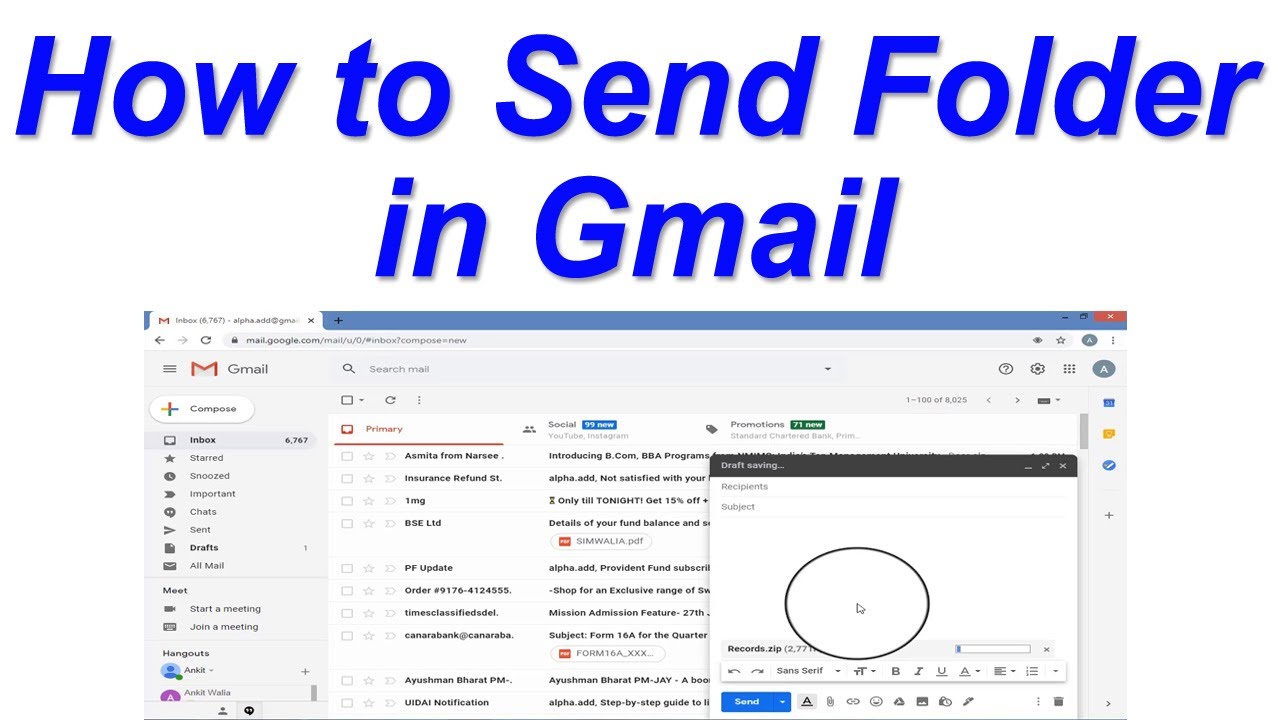
Once zipped, that single file acts just like any other attachment. You can drag and drop it into your email, attach it using the paperclip icon, and hit send. Voila! The recipient will then download this single zipped file and can "unzip" it on their end (again, usually by a simple double-click) to get all the original files back.
Another popular variation, especially for larger files or when you want to avoid attachment size limits, is using cloud storage services like Google Drive, Dropbox, or OneDrive. You upload your folder to one of these services and then simply share a link to that folder via email. It's incredibly convenient and means you don't have to worry about email size restrictions.
Here are some super simple tips to get you started:
- Keep it organized: Before zipping, make sure your folder has a clear, descriptive name.
- Check file sizes: If your zipped folder is huge, consider using a cloud service instead of attaching it directly to an email.
- Communicate: Let the recipient know what they're receiving and if it's a zipped file they'll need to open.
Learning to send a folder by email, especially by zipping it, is a small but mighty digital skill. It simplifies sharing, keeps things organized, and makes you look like a tech wizard in no time! So go ahead, try it out – you'll find it surprisingly satisfying and immensely useful.