How To See What Ipad You Have
Ever found yourself gazing at your iPad, perhaps while scrolling through photos or trying to download the latest app, and a little voice in your head whispers, "Which one is this, exactly?" You're not alone! It's a surprisingly common thought, and knowing your iPad's specific model can unlock a whole new level of appreciation – and usefulness – for this sleek device. It's like finally learning the name of a friendly neighbor; it just makes things a bit more familiar and connected.
So, why bother knowing your iPad's identity? Well, think of it as your iPad's personal ID card. This little piece of information is incredibly practical. For starters, it helps you determine what accessories are compatible. That cool new keyboard cover? That stylus you've been eyeing? Knowing your model ensures you're not buying something that won't quite fit. More importantly, it dictates which software updates your iPad can run. Newer models get the latest features and security patches, while older ones might eventually have their software support phased out. It's the key to keeping your device running smoothly and securely for as long as possible.
In the realm of education, knowing your iPad model can be particularly beneficial. If your school or university recommends specific apps or software, they often list compatibility requirements. Understanding your iPad's generation helps you confirm if it's up to the task, saving you frustration and ensuring you can access all the learning resources available to you. For instance, if a cutting-edge drawing app requires the Apple Pencil 2, you'll want to know if your iPad supports it. In daily life, it’s useful when troubleshooting issues. If you need to search for a solution online or contact Apple support, having your exact model handy will speed up the process immensely. Imagine explaining a problem without knowing if you're talking about an iPad Air or an iPad Mini!
Must Read
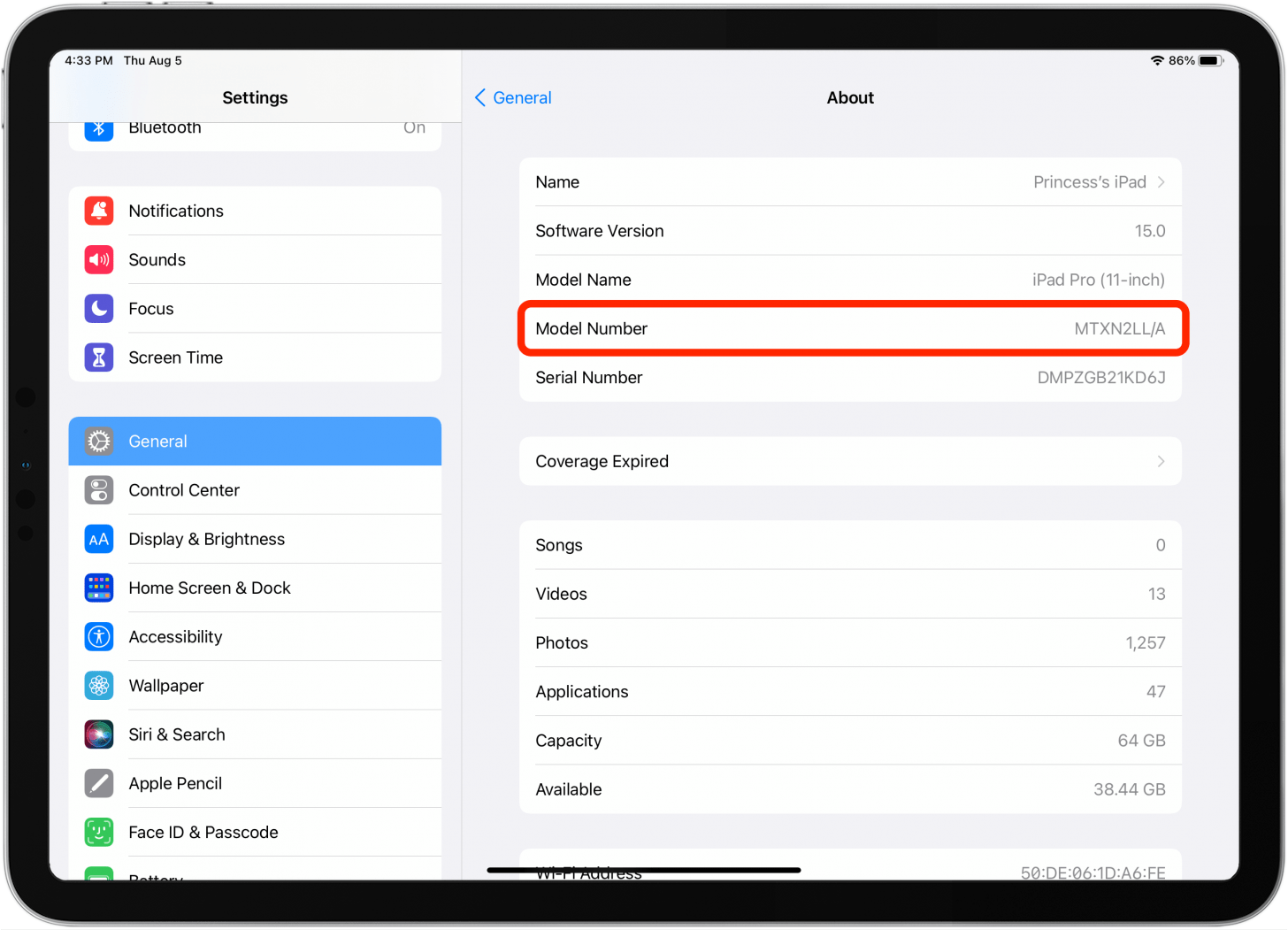
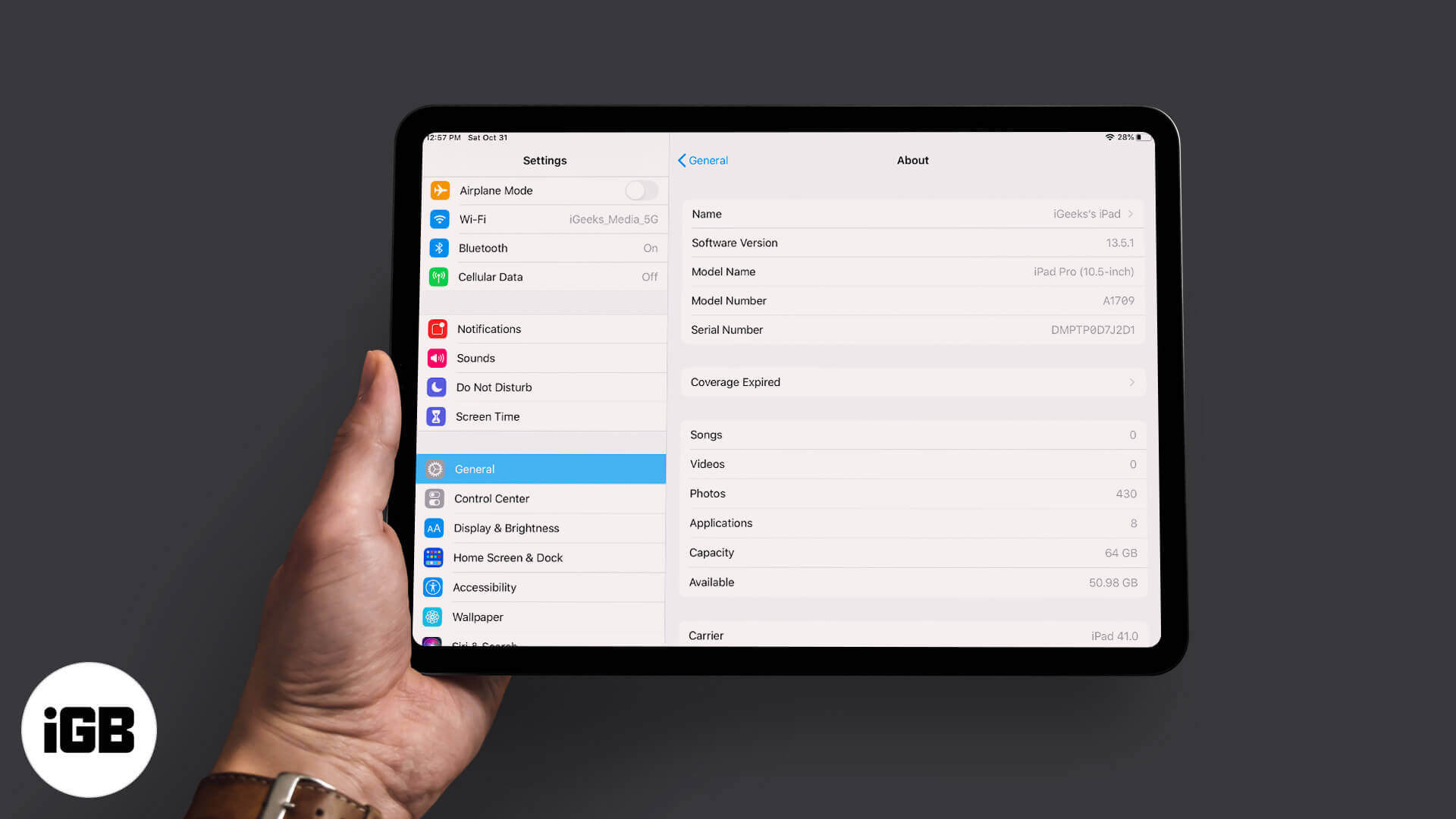
Discovering your iPad's model is refreshingly simple. The most straightforward way is to head to your iPad's Settings app. Once there, tap on General, and then select About. Right at the top, you'll see the Model Name. It's usually something like "iPad (10th generation)" or "iPad Air (5th generation)." You can also find the Model Number here, which looks like "A2588." If you’re feeling extra curious, you can even look at the back of your iPad itself. In very small print, usually near the bottom, you’ll find the model number. This can be a bit tricky to spot, especially on older, well-loved iPads, but it’s there! If you're still unsure, a quick search online using that A-number will often reveal the exact model and its specifications.
It’s a small detail, but knowing your iPad’s identity truly empowers you to get the most out of your device. So next time you pick up your iPad, take a moment for this little discovery. It’s a simple act that can lead to a more informed and enjoyable user experience, opening doors to new possibilities and ensuring you’re always in tune with what your faithful companion can do.
:max_bytes(150000):strip_icc()/001-turn-find-my-ipad-on-off-1994525-15787ab6ddbd4fab9596dd24b6c3b566.jpg)