
How To See Ram On Windows 10

Ever wondered what's going on under the hood of your trusty Windows 10 computer? It's like peeking into a kitchen while a chef is cooking – you see all the ingredients and tools that make the magic happen! One of those key ingredients is RAM, and knowing how much of it you have is surprisingly useful and can even be a bit of fun to discover. Think of RAM as your computer's short-term memory, where it keeps all the things it's currently working on. The more RAM you have, the more things your computer can juggle at once without slowing down!
So, why would you want to know about your RAM? For beginners, it’s a great way to understand the basics of how your computer performs. If your computer feels a bit sluggish when you're browsing the web with lots of tabs open or running a few programs, knowing your RAM can help you understand why. For families, it might be about ensuring everyone can use their devices smoothly. Maybe one child is playing a game while another is doing homework, and you want to make sure things don't grind to a halt. For hobbyists, whether you're into photo editing, video creation, or even just managing a large digital music library, having enough RAM is crucial for a smooth and enjoyable experience. Knowing your RAM helps you decide if you need an upgrade to handle your creative projects.
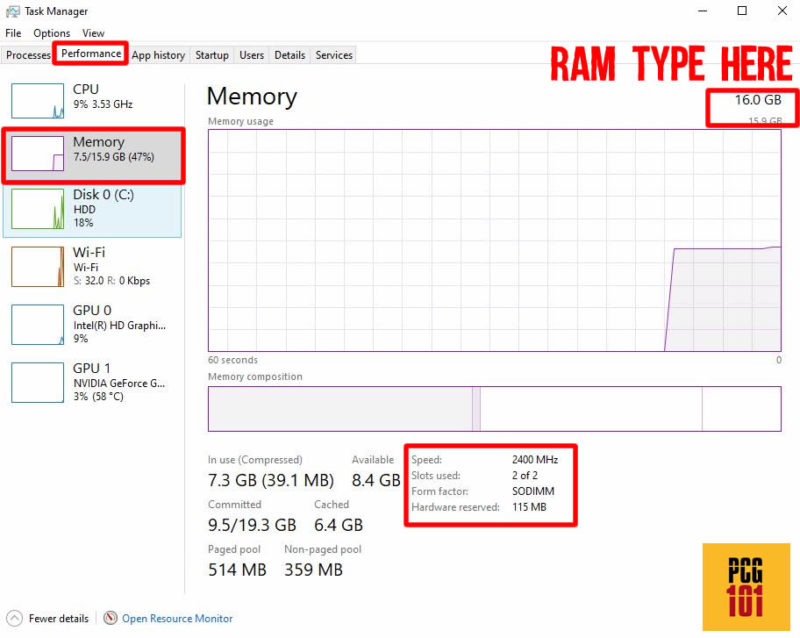
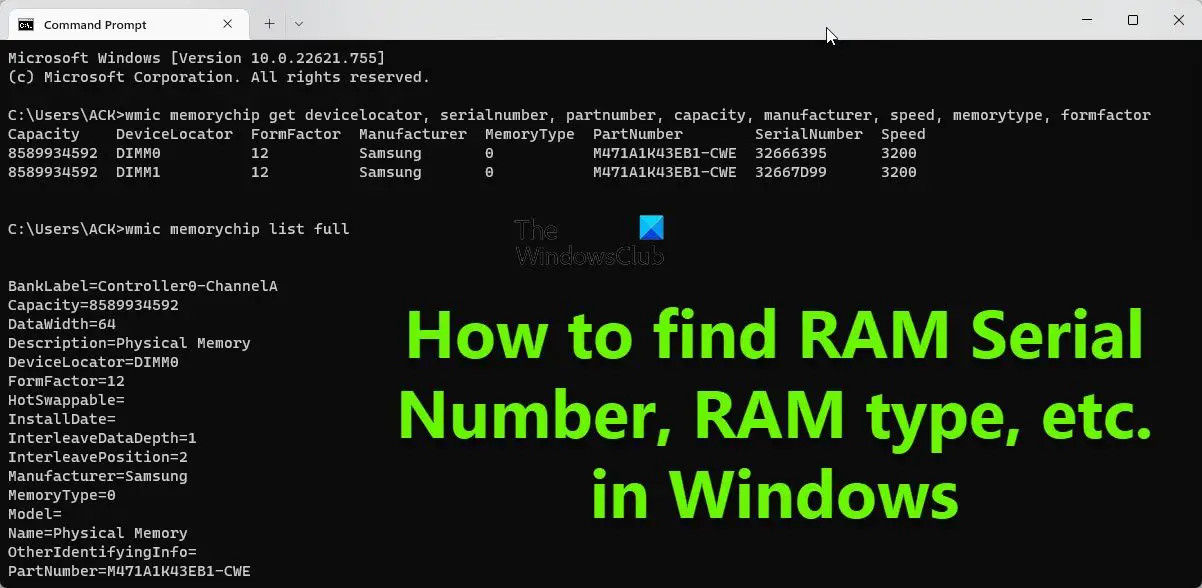
There aren't really "variations" of seeing RAM in Windows 10, but rather different ways to view this information. You can see the total amount, and sometimes even get details about the speed and type of RAM installed, which can be interesting for those who like to tinker. Think of it like checking the fuel gauge in your car; you just need to know the basic reading!
Must Read
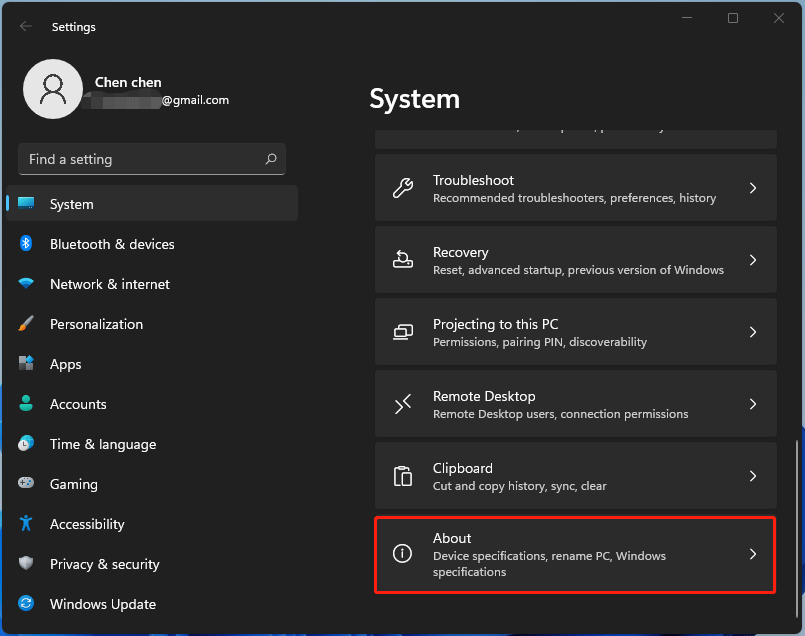
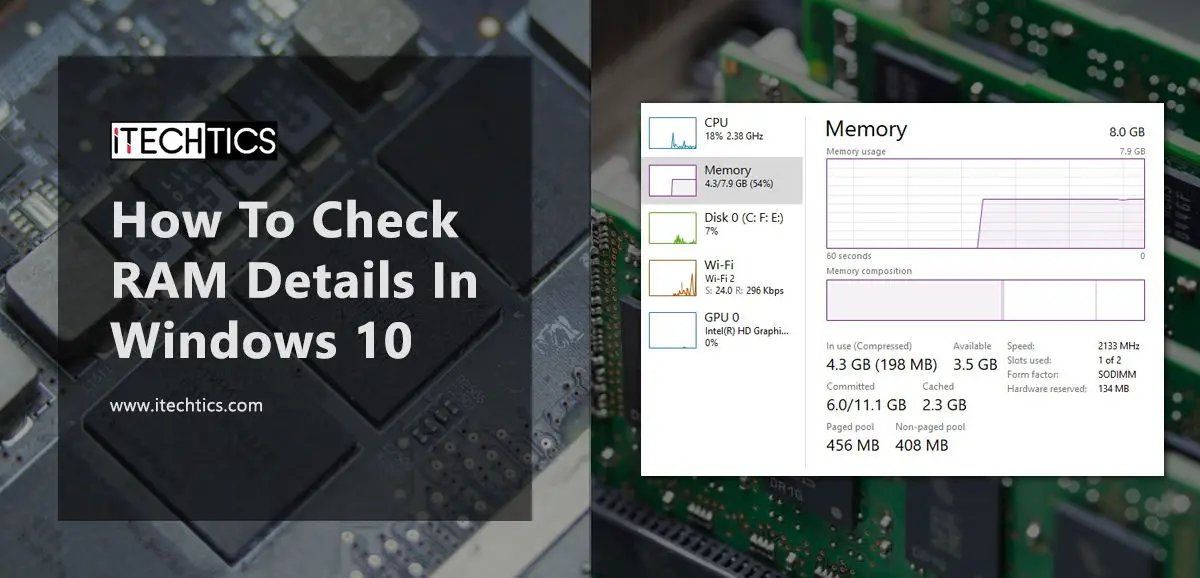
Getting started is incredibly simple. The easiest way is to right-click on your Start button (the little Windows logo in the bottom-left corner of your screen). From the menu that pops up, select "System." A new window will open, and right there, under "Device specifications," you'll see "Installed RAM" with the amount clearly listed. It’s that straightforward! Another quick method is to press Ctrl + Shift + Esc to open the Task Manager, then click on the "Performance" tab, and finally select "Memory" on the left-hand side. This gives you a visual representation and more detailed information.
So, the next time your computer is running a little slow, or you're curious about what makes it tick, take a moment to check your RAM. It's a small step that can lead to a better understanding of your digital workspace and ensure a more enjoyable and efficient computing experience for everyone.

:max_bytes(150000):strip_icc()/how-to-check-ram-on-windows-10-4780513-3-d94896f87bed42bdb20bfc20a1d8148e.jpg)