How To Put A Trendline In Excel
Ever stare at a spreadsheet full of numbers and feel like you're trying to find a needle in a haystack? You know there's something interesting going on, some kind of pattern, but it's just... hidden. Well, get ready to unleash your inner data detective, because today we're unlocking a super-powered Excel trick that will make your numbers sing: adding a trendline! Yep, it’s not as scary as it sounds, and trust me, it’s going to make looking at your data way more fun.
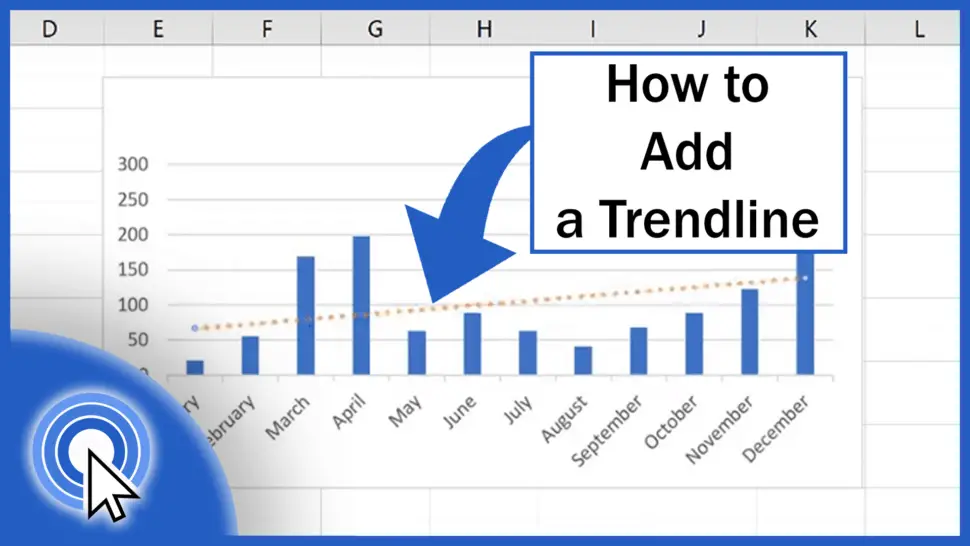
Think of a trendline as your personal crystal ball for data. It’s a line that smoothes out the ups and downs in your data points, revealing the general direction things are heading. Are sales climbing like a rocket ship? Is your budget slowly creeping upwards (uh oh!)? Or is that hobby project taking a nosedive? A trendline will show you, visually and undeniably.
And the best part? It’s surprisingly simple to do. No advanced degrees required, no secret handshake needed. Just a few clicks and BAM! You’ll be analyzing trends like a pro. So, let’s ditch the spreadsheet blues and dive into the wonderful world of Excel trendlines. Your data (and your brain!) will thank you.
Must Read
Unlocking Your Data's Secrets: The Magical Trendline
Okay, imagine you’ve got a list of, say, your monthly ice cream sales and the average temperature for each month. You've probably got a pretty good hunch that warmer weather means more ice cream. But how do you prove it with your data? This is where our hero, the trendline, swoops in to save the day!
By adding a trendline to your chart, you're essentially drawing a line that best represents the overall movement of your data. It’s like connecting the dots, but in a smarter, more mathematical way. It helps you see the forest for the trees, or in our case, the sunny sales forecast for the individual scoops!
It’s not just about knowing if things are going up or down. Trendlines can also help you:
- Predict future outcomes: Based on past performance, where might things be headed?
- Identify outliers: Are there any data points that are way off the general trend?
- Understand relationships: Does one set of data seem to influence another?
Pretty cool, right? It’s like giving your data a voice, and that voice is telling you a story. And learning to listen to that story is a skill that can genuinely make your life easier, whether you're managing a business, tracking your personal finances, or even just trying to figure out when to stock up on that favorite snack.
Step-by-Step to Trendline Triumph!
Alright, ready to get your hands dirty (in a good, spreadsheet-y way)? Let’s walk through it. First things first, you need some data. Let’s pretend we’ve got our trusty ice cream sales and temperature data ready to go in two columns.
Step 1: Chart Your Data!
You can’t add a trendline to raw numbers. You gotta visualize them! So, select your data (both columns, including the headers if you have them – Excel is smart!). Then, head over to the Insert tab on the ribbon. You’ll see a whole bunch of chart options. For trendlines, a Scatter chart or a Line chart is usually your best bet. Let’s go with a Scatter chart for this example, as it’s fantastic for showing relationships between two sets of values.
Click on Scatter, and pick the basic one (just the dots). Voila! You should now have a visual representation of your data. See those little dots scattered around? That’s your raw data, looking a bit shy.
Step 2: The Trendline Appears!

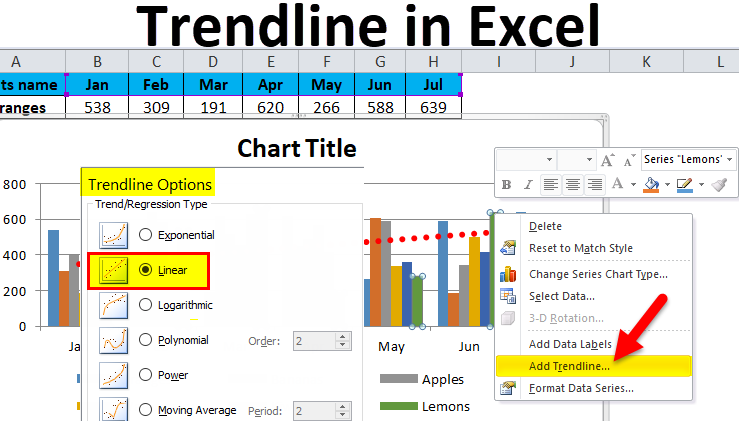
Now for the magic! Find one of the data points on your chart. It doesn’t matter which one. Right-click on it. When the little menu pops up, you’ll see an option that says Add Trendline…. Click it! Like a tiny data fairy, Excel will sprinkle its trendline magic.
Step 3: Customizing Your Crystal Ball (Optional, but Fun!)
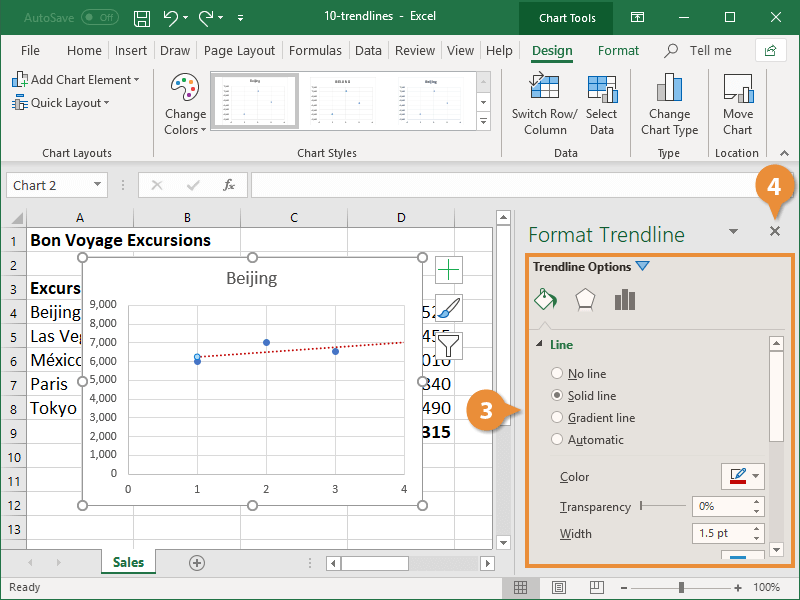
A basic trendline will appear, usually a straight line. But Excel is generous! On the right side of your screen, a Format Trendline pane will open up. This is where you can play!
You’ll see different Trend/Regression Type options. The default is usually Linear (a straight line), which is great for many situations. But if your data looks more like a curve, you might want to try Exponential, Logarithmic, Polynomial (this one’s fun for U-shapes or S-shapes!), or even Power. Don’t be afraid to experiment! Click on each one and see how the line changes. It’s like trying on different hats for your data.
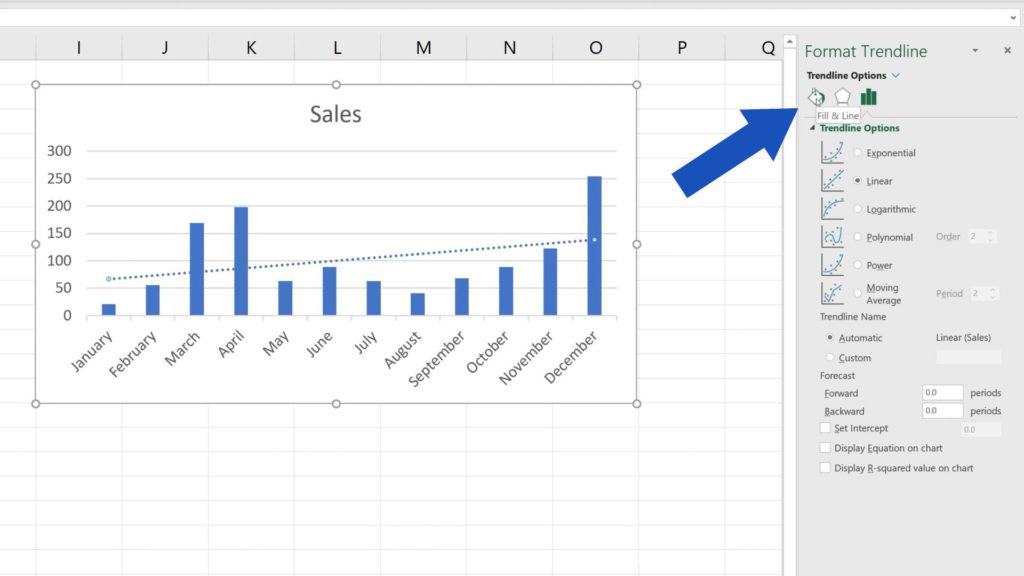
Want to see how well the trendline actually fits your data? Scroll down in the Format Trendline pane and check the box that says Display R-squared value on chart. This R-squared number (ranging from 0 to 1) tells you how well your trendline explains the variation in your data. A number closer to 1 means your trendline is a really good fit. If it's low, maybe try a different trendline type!
And get this – you can even have Excel Forecast ahead! See the options for "Forecast forward" and "Forecast backward"? You can tell Excel to extend the trendline into the future or past, giving you a glimpse of what might have been or what could be. Just enter the number of periods you want to forecast. How cool is that? It’s like getting a sneak peek into tomorrow’s weather report, but for your numbers!
Don't forget you can also change the color and style of your trendline to make it stand out. Make it bright and bold, or a subtle whisper. Whatever makes your data story clearest!
Why This Matters (Beyond Just Pretty Lines)
So, you’ve got your trendline. You can see the upward slope of ice cream sales as the temperature rises. What’s the big deal? Well, this simple visual tool can save you hours of guesswork. Instead of poring over spreadsheets, you get an instant, intuitive understanding of your data's trajectory.
Imagine you're planning an event. Knowing your trend of, say, website traffic over the past few months can help you predict how many people might visit on a specific day. Or if you’re tracking your fitness goals, seeing a trendline of your weight loss (or lack thereof!) can be a powerful motivator or signal to change your approach. It’s about making informed decisions, faster and more confidently.
It takes the anxiety out of numbers. Instead of feeling overwhelmed, you feel empowered. You’re no longer just looking at a jumble of figures; you’re seeing a story, a pattern, a potential future. This shift in perspective can be incredibly inspiring, making you more eager to dive into your data and uncover even more insights.
And honestly, there’s a certain satisfaction in mastering a tool that can make your professional life smoother and your personal projects more insightful. It’s a small skill, but it packs a big punch. It’s a gateway to understanding the world through data, and that’s a fascinating journey.
Go Forth and Trend-Set!
There you have it! Adding a trendline in Excel is a fantastic way to bring your data to life. It transforms raw numbers into meaningful insights, making analysis feel less like a chore and more like an adventure.
So, next time you're staring down a daunting spreadsheet, remember the power of the trendline. Play with it. Experiment with different types. See what stories your numbers are trying to tell you. You might be surprised at how much clearer and more exciting your data can become.
This is just the beginning of your data exploration journey. The more you explore, the more you'll discover. So go ahead, get charting, get trending, and get inspired! The world of data is waiting for you to uncover its secrets.