How To Make Tick Marks In Excel
Hey there, spreadsheet wranglers and data doodlers! Ever stare at a sea of cells in Excel and feel a tiny bit overwhelmed, like trying to organize your sock drawer after a laundry explosion? Yeah, me too. But what if I told you there's a super simple trick that can make your spreadsheets so much clearer and your life just a little bit easier? We're talking about making those little tick marks, those satisfying little checkmarks that shout, "Yep, this is done!" or "Nailed it!"
Think about it. You're making a grocery list, and you want to know what you actually bought. You can’t just scribble "Milk" and then forget if you grabbed it. You need a visual cue. A tick mark! Or maybe you’re tracking your daily habits – drinking enough water, taking your vitamins, remembering to water that sad-looking houseplant. A tick mark is like a tiny pat on the back from your future self.
In Excel, these tick marks, or check boxes as we'll mostly call them, are little superheroes. They’re not just for show; they’re for clarity. Imagine you’re managing a small project – maybe you’re planning a backyard barbecue. You have a list: "Buy charcoal," "Get extra napkins," "Invite Uncle Barry." When you’ve done each one, a quick tick mark makes it instantly obvious. No more scanning and squinting, trying to remember if Uncle Barry is officially on the guest list.
Must Read
So, how do we summon these little check-y champions into our spreadsheets? It's not as complicated as building a tiny robot army or perfectly folding a fitted sheet (which, let's be honest, is a mystical art). There are a couple of ways, and we’ll dive into the easiest ones.
The Super Speedy Way: Wingdings Font Magic!
This is like the cheat code for beginners. It’s a bit of a trick, but a really handy one. Excel has these fonts that are more like picture books than regular text. One of them is called Wingdings. And guess what? A specific letter in Wingdings looks like a tick mark. Mind blown, right?
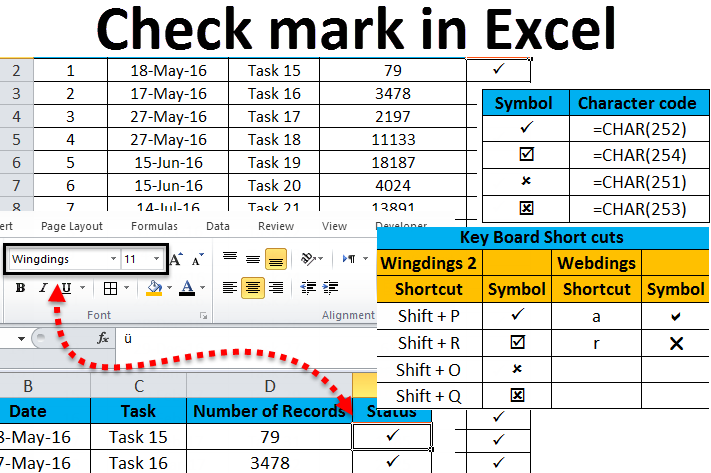
Here’s the lowdown: You want to put a tick mark in a cell. Instead of trying to find a symbol, just type the letter "ü" (that's a lowercase 'u' with two dots above it – if you don't have that on your keyboard, don't sweat it, we'll get to alternatives!). Then, you highlight that cell, go up to the font dropdown menu (where it usually says "Calibri" or "Arial"), and select "Wingdings". Boom! Your little "ü" transforms into a lovely little tick mark.

Let’s say you’re tracking your kid’s homework assignments. You have columns for "Math," "Reading," "Science." For each assignment, you type "ü" in the corresponding cell. Then, you select all those "ü"s and change the font to Wingdings. Instantly, you see exactly what’s been conquered. It’s like giving your child a digital gold star without having to buy a whole sheet of stickers.
Now, what if you can't easily type that special "ü"? No worries! The same principle applies. You can type a regular capital 'P' in Wingdings. It turns into a tick mark too! So, type 'P', highlight the cell, and change the font to Wingdings. Ta-da! Another tick achieved.
This method is great for static lists where you just want to show something is done. You’re not really interacting with it, just marking it off. It’s like using a highlighter pen on a printed report – simple and effective for quick visual cues.
The Interactive Wonder: Developer Tab Charm!
Okay, so the Wingdings trick is awesome for showing, but what if you want to click to tick? What if you want to create something that feels more like a real checklist, where you can toggle things on and off? For that, we need to get a little more official. We need to unlock the Developer tab.

Now, don’t let the word "Developer" scare you. It’s not for coding wizards only! It’s just a hidden tab in Excel that gives you access to more advanced tools, including those glorious interactive checkboxes. To get it to show up, it’s a one-time thing, and it’s super easy.
Here’s how you do it:
- Go to File (usually in the top-left corner).
- Click on Options (often at the very bottom of the File menu).
- In the Excel Options window, click on Customize Ribbon on the left-hand side.
- On the right-hand side, you’ll see a list of main tabs. Find "Developer" and put a little checkmark in the box next to it.
- Click OK.
Voila! You’ll see a new tab called "Developer" appear on your Excel ribbon, right next to "View." It’s like discovering a secret passage in your house – suddenly, you have access to a whole new room of possibilities!
With the Developer tab activated, you can now add genuine Form Controls, which include checkboxes. Here’s the magic:

- Go to the Developer tab.
- In the "Controls" group, click on Insert.
- Under "Form Controls," you’ll see a little square icon – that's your Checkbox. Click on it.
- Your mouse cursor will turn into a crosshair. Click and drag on your spreadsheet where you want your checkbox to appear.
You’ll get a checkbox with some default text next to it, like "Checkbox 1." You can easily change this text by right-clicking on the checkbox, selecting "Edit Text," and typing whatever you like. Or, you can just delete the text entirely if you want a clean look.
Now, the really cool part: you can click on these checkboxes to tick or untick them! They’re actual interactive elements. You can even link them to cells so that when the box is checked, a specific cell shows "TRUE," and when it’s unchecked, it shows "FALSE." This is where the real data-crunching power comes in!
Imagine you’re planning a party. You have a guest list in Excel. Next to each guest’s name, you add a checkbox. As people RSVP, you tick their box. You can even set up a formula that counts how many guests have ticked boxes, giving you a real-time headcount. It’s like having a magical RSVP tracker that updates itself!
Why Should You Care About These Tick Marks?
Honestly, it’s all about making your life simpler and your work look sharper. Think of it like this: When you go to a fancy restaurant, the napkins are folded neatly, right? It doesn’t change the taste of the food, but it makes the whole experience feel more polished and intentional. Tick marks do the same for your spreadsheets.
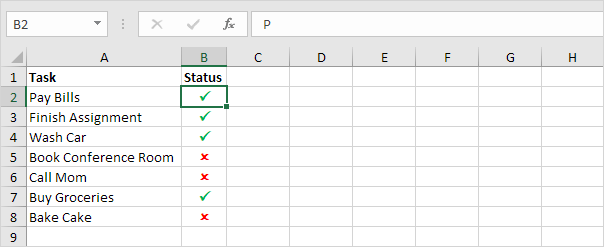
They bring instant clarity. Instead of a long list of items with nothing to show for progress, you have visual confirmation. It’s a quick scan, and you know exactly where you stand. This is a lifesaver when you’re juggling multiple tasks or managing data for other people.
They boost accountability. Whether it’s for yourself or for a team, a tick mark is a declaration: "This is done." It’s a small but powerful motivator. Seeing those ticks pile up can be incredibly satisfying, like collecting badges in a game.
They make your spreadsheets easier to read and understand, even for someone who isn't intimately familiar with your data. If you’re sharing a list with a colleague or your boss, clear tick marks say, "Here’s the status at a glance." It reduces confusion and saves everyone time.
So, whether you're marking off your daily chores, tracking project milestones, or simply creating a super-organized to-do list, mastering these little tick marks in Excel is a fantastic skill to have. It’s a small change that can make a big, happy difference in how you manage your information. Give it a try – you might be surprised at how much satisfaction you get from a simple little tick!