
How To Format Usb Disk On Mac

Hey there, tech explorers! Ever stared at a USB drive and wondered if it holds the secrets to a digital galaxy or maybe just your vacation photos? Well, today we're going to unlock a little piece of that digital magic by learning how to format a USB disk on your trusty Mac. Think of it like giving your USB a fresh start, a clean slate, a brand new digital personality! It’s surprisingly simple, incredibly useful, and can even save you from some common tech headaches. So, grab your favorite beverage, settle in, and let’s make your USB drive the best it can be!
Why Format Your USB Drive? It's Like a Digital Spring Cleaning!
Formatting a USB drive might sound a bit technical, but at its heart, it’s all about preparation and optimization. Imagine you’ve got a messy closet. You can still shove things in, but finding what you need is a nightmare, right? Formatting is like taking everything out, dusting it off, and organizing it neatly. It essentially erases everything on the drive and sets up a new file system, making it ready to store your data efficiently and compatibly.
One of the most common reasons to format is when you’re moving a USB drive between different types of computers. For example, if you’ve used a USB drive on a Windows PC and now want to use it seamlessly on your Mac, formatting it with a Mac-friendly file system is the way to go. Conversely, if you’re sharing files with Windows users, formatting for Windows compatibility is key. It’s like learning a common language so everyone can understand each other!
Must Read
Another fantastic reason is to fix issues. Sometimes, USB drives can get corrupted. Maybe you accidentally unplugged it while it was writing data, or perhaps it’s just encountered a glitch. Formatting can often be the magic wand that fixes these pesky problems, making your drive work like new again. It’s a great first step before you declare your USB drive officially deceased!
Plus, formatting lets you choose the best file system for your needs. Different file systems have different strengths. For Mac users, Mac OS Extended (Journaled) or APFS (Apple File System) are usually the top choices. If you need to share your drive with Windows, exFAT is your best friend. We'll dive into what these mean in a bit, but for now, just know that picking the right one can make your drive work faster and store more data.

Let's Get Down to Business: Formatting Your USB Drive on a Mac
Ready to roll up your sleeves and give your USB drive a fresh makeover? The tool you'll need is built right into your Mac, so no need to download anything extra! It's called Disk Utility, and it's your central hub for all things storage. Think of it as the master control panel for your hard drives and USB sticks.
Step-by-Step Guide to a Perfectly Formatted USB
First things first, you'll need to plug your USB drive into your Mac. Once it's connected, you can find Disk Utility in a couple of ways. The easiest is often to open Finder, go to your Applications folder, then into the Utilities folder. There it is: Disk Utility! Alternatively, you can use Spotlight Search – just hit Command + Spacebar, type "Disk Utility," and press Enter.
When Disk Utility opens, you'll see a list of all your connected storage devices on the left-hand side. Your USB drive will usually be listed under an "External" heading. It might be identified by its brand name or a generic name like "Generic USB Flash Disk." It's super important to select the correct drive here. Double-check, triple-check! Formatting the wrong drive would be like accidentally deleting your entire photo album. Yikes!
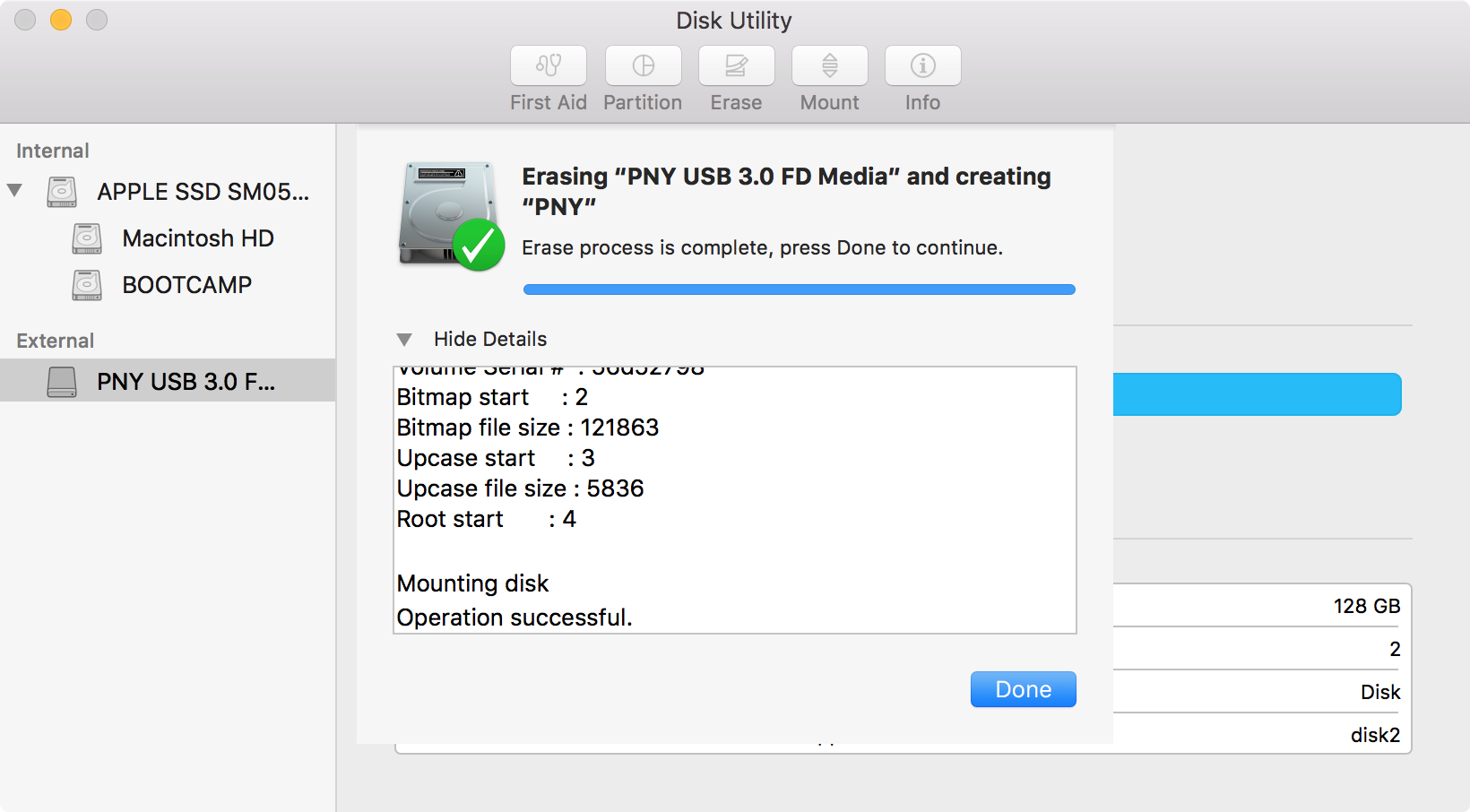
Once you've confidently selected your USB drive, look for a button at the top of the Disk Utility window that says "Erase." This is the magic button that initiates the formatting process. Click it!
A small window will pop up, asking you for a few choices. The first is the "Format" option. This is where you choose the file system. For most Mac users who primarily use their drive with other Macs, Mac OS Extended (Journaled) is a solid, reliable choice. If you have a newer Mac or are looking for modern features, APFS is the way to go. However, if you plan to share this drive with Windows computers, you'll want to select exFAT. It's the most compatible option for both Mac and Windows.
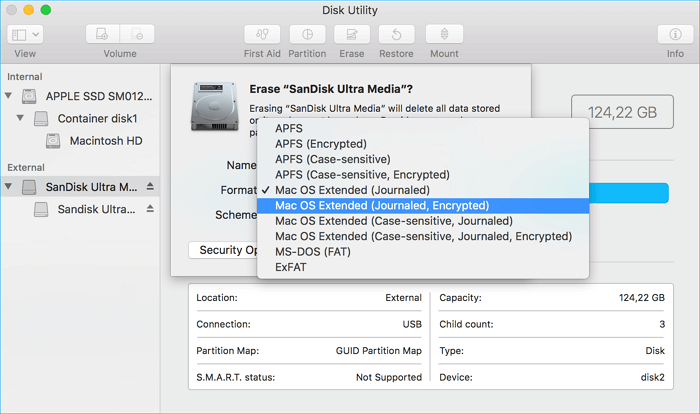
Next, you’ll see a "Scheme" option. For most modern USB drives, you'll want to choose GUID Partition Map. This is the standard for Macs and ensures your drive will be bootable if you ever need it for that purpose.
Finally, you can give your USB drive a name. This is what it will be called in Finder. Be creative! Call it "My Awesome Drive," "Vacation Memories," or whatever makes you smile. Then, click the "Erase" button again to confirm.
Your Mac will now get to work, wiping the drive clean and setting up the new file system. This process usually takes just a minute or two, depending on the size of your USB drive. You'll see a progress bar, and once it's done, you'll get a confirmation message. Congratulations, you've successfully formatted your USB drive!

A Few Friendly Tips for the Road
Remember, formatting erases all data on the drive. So, before you begin, make absolutely sure you've backed up any important files from the USB drive. It’s the digital equivalent of checking your pockets before you throw away old clothes!
If you encounter any errors or the drive doesn't seem to format correctly, you might want to try "Erase" again, or even use the "First Aid" feature within Disk Utility to check for and repair disk errors before formatting.
And that’s it! You’ve just leveled up your Mac skills. Now you can confidently format USB drives for any purpose, ensuring smooth data transfers and a happy digital life. Happy formatting!

