How To Find P Value Using Excel

Let's be honest, the phrase "p-value" can sound a bit intimidating, right? Like something reserved for dusty textbooks and serious scientists huddled in labs. But what if I told you that figuring out this little number is actually way less scary than learning to parallel park in a crowded city street or deciphering your teenager's text messages? Think of it as a fun little detective tool, and your trusty spreadsheet software, Excel, is your magnifying glass. So, grab your favorite mug of ethically-sourced coffee (or maybe a perfectly chilled kombucha – we're going for that easy-going vibe here), and let's demystify the p-value, Excel-style!
You've probably heard the term tossed around in articles, on social media, or maybe even in that one documentary you watched about quirky historical facts. It’s often presented as the ultimate arbiter of whether something is "real" or just a fluke. And while it’s a powerful concept, at its core, a p-value is just a number that helps us understand the probability of seeing our data (or something more extreme) if there was actually no effect or no difference at all. Confused yet? Don't be! We'll get there. It's like asking, "How likely is it that I'd find this many matching socks on laundry day if socks were just randomly disappearing into the ether?"
Imagine you’re trying out a new, fancy organic fertilizer on your tomato plants. You want to know if it actually makes them grow bigger and juicier. You have your experimental plants (with the new fertilizer) and your control plants (with the old stuff, or none). You measure the tomatoes from both groups. The p-value helps you decide if the difference you see in tomato size is genuinely because of the new fertilizer, or if it could have just happened by chance. It's the statistical equivalent of saying, "Hmm, this looks promising, but let's make sure it's not just a lucky streak!"
Must Read
So, how does Excel come into play? Well, Excel is like the Swiss Army knife of the digital world. It's packed with functions that can do everything from simple sums to complex statistical analyses. And for finding p-values, it's surprisingly user-friendly. No need for a PhD in statistics, just a little bit of know-how and a willingness to explore.
The Two Main Flavors of P-Value Hunting in Excel
When we talk about finding p-values in Excel, we're usually dealing with two main scenarios: comparing two groups (like our tomato plants) or looking at how well a variable predicts something else. For these, Excel has some fantastic built-in tools. We’re going to focus on the most common and accessible ones. Think of these as your go-to moves, like your signature dance step or your perfectly crafted avocado toast recipe.
Scenario 1: Comparing Two Groups – The T-Test Tango
The t-test is your best friend when you want to see if the means of two independent groups are significantly different. Did the new fertilizer really make those tomatoes bigger, or is it just a coincidence?
Let’s say you’ve meticulously recorded the weights of your experimental tomatoes and your control tomatoes in two separate columns in your Excel sheet. You’ve got your data ready to rumble. Now, how do we get that magical p-value?
![How to Find P Value in MS Excel [The Easiest Guide 2024]](https://10scopes.com/wp-content/uploads/2022/09/ttest-p-value-excel.jpg)
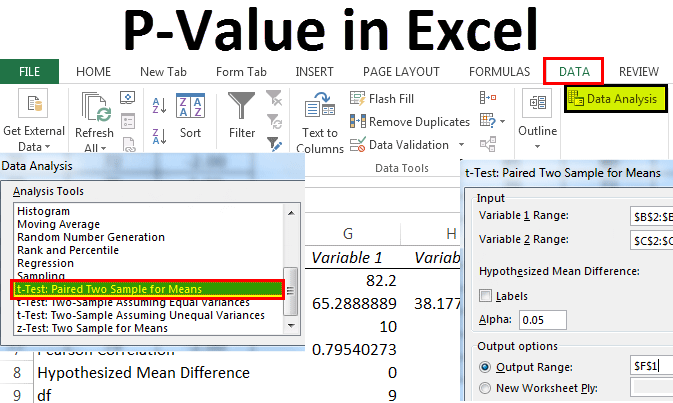
First things first, you’ll need to enable the Analysis ToolPak. This is like unlocking a secret level in your favorite video game. If you don’t see "Data Analysis" under the "Data" tab, don’t panic! Go to File > Options > Add-ins. In the "Manage" dropdown at the bottom, select "Excel Add-ins" and click "Go." Check the box for "Analysis ToolPak" and hit "OK." Boom! You’ve just leveled up your Excel game.
Now, with the ToolPak enabled, go to the Data tab, and you’ll see a shiny new Data Analysis button on the far right. Click it. A pop-up window will appear with a long list of statistical tools. Scroll down and select t-Test: Two-Sample Assuming Equal Variances if you think your tomato weights have similar spread, or t-Test: Two-Sample Assuming Unequal Variances (also known as Welch's t-test) if you suspect they might be a bit different. For a casual experiment, assuming unequal variances is often a safer bet, like choosing a comfy pair of sneakers over stilettos for a long walk.
Once you’ve chosen your t-test, another small window pops up. You’ll need to tell Excel where your data is. For "Variable 1 Range," select the cells containing the weights of your experimental tomatoes. For "Variable 2 Range," select the cells with your control tomato weights. Make sure you include the labels if you have them (like "Fertilized Tomato" and "Control Tomato") and check the "Labels" box. For "Output Options," choose "New Worksheet Ply" to keep your results neat and tidy. Hit "OK."
Voilà! Excel will generate a new sheet filled with statistical goodies. Look for the row labeled P(T<=t) two-tail. This is your p-value! If this number is less than 0.05 (which is the most common threshold, like a green light on a busy street), you can say with reasonable confidence that the new fertilizer had a significant effect on your tomato weights. If it's higher than 0.05, it means the difference you observed could easily have been due to random chance. It's like finding a really cool seashell on the beach – it's exciting, but you wouldn't necessarily bet your life savings on it being the only cool seashell in the entire ocean.

Fun Fact: The threshold of 0.05 is called the alpha level. It's a convention, not a hard-and-fast rule etched in stone by ancient mathematicians. In some fields, like medical research, a more stringent alpha of 0.01 might be used to be extra sure. It’s all about how cautious you want to be. Think of it as deciding how much risk you’re willing to take on a new recipe!
Pro Tip: Always double-check that your data ranges are selected correctly. A misplaced comma or an extra cell can throw off your whole analysis. It’s like forgetting to preheat the oven – you’ll end up with a sad, doughy mess instead of a glorious cake.
Scenario 2: Exploring Relationships – The Correlation Cavalcade
What if you’re interested in how two continuous variables relate to each other? For example, does the amount of sunlight your plants get correlate with how many flowers they produce? Or does the amount of time you spend meditating correlate with your stress levels (we can only hope!)?
For this, we’re looking at correlation. Excel can easily calculate the correlation coefficient (r), which tells us the strength and direction of the linear relationship between two variables. But to get a p-value for this correlation, we often need a little help from another function.
Let's say you have "Sunlight Hours" in Column A and "Number of Flowers" in Column B. You can get the correlation coefficient by simply typing `=CORREL(A2:A100, B2:B100)` into a cell (adjusting the ranges to your actual data). This will give you a number between -1 and 1. A value close to 1 means a strong positive correlation (more sunlight, more flowers), close to -1 means a strong negative correlation (more of one, less of the other), and close to 0 means a weak or no linear correlation.
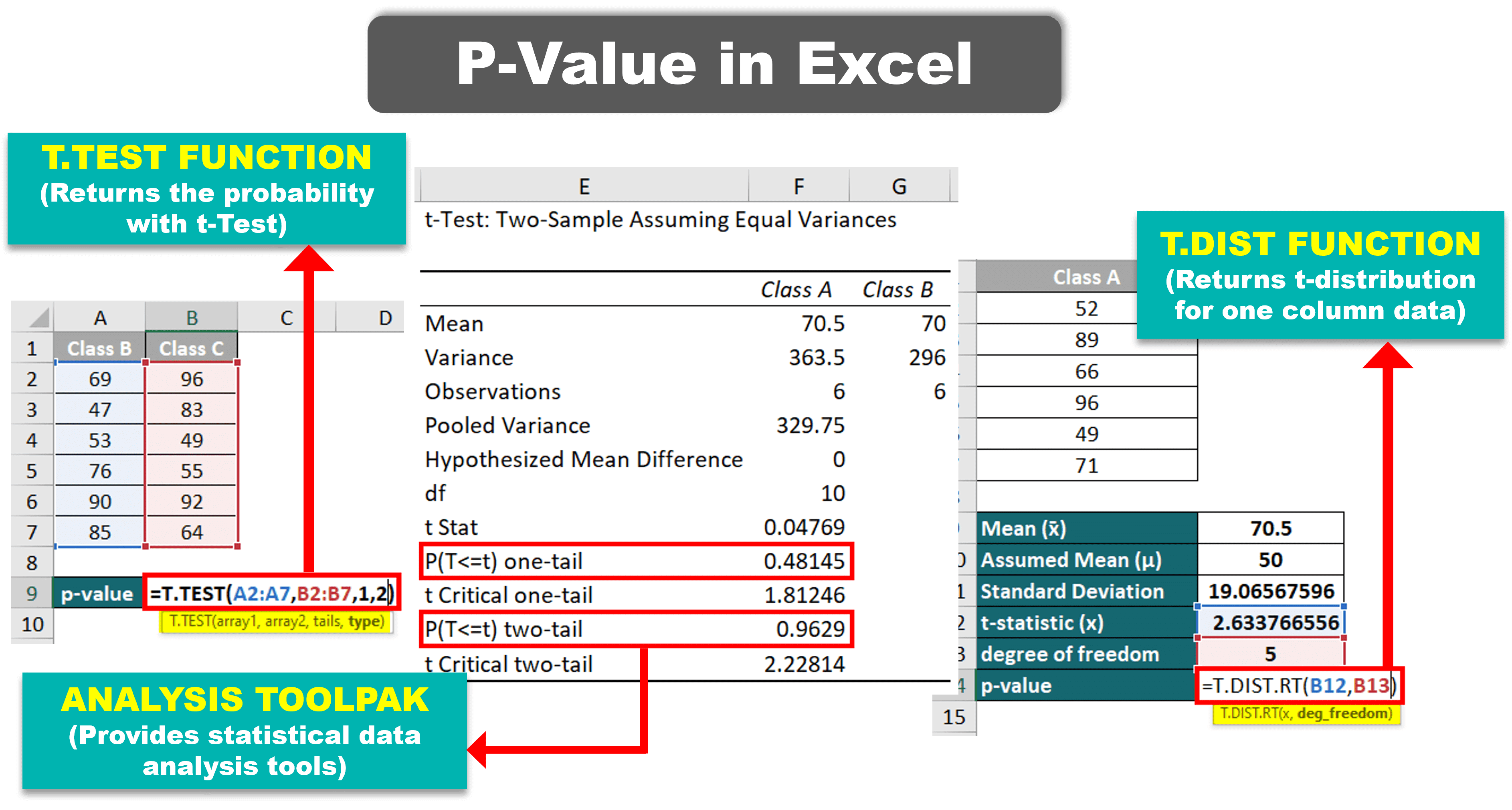
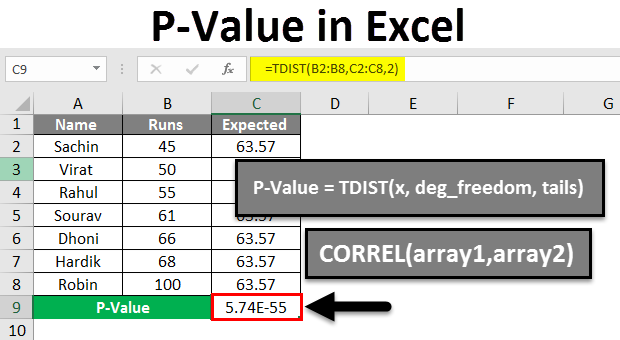
But the p-value tells us if that correlation is statistically significant. Is the correlation strong enough that it's unlikely to be just a random fluke? For this, we can use the `=CORREL.P(A2:A100, B2:B100)` function (available in newer versions of Excel). This function directly calculates the p-value for the Pearson correlation coefficient between two data sets. If this p-value is less than 0.05, you can be more confident that the observed correlation is real and not just a random blip.
If you have an older version of Excel that doesn't have `CORREL.P`, don't despair! You can still get the p-value using a slightly more complex formula that involves the `CORREL` function and the `T.INV.2T` (or `TINV` in older versions) function, which calculates the two-tailed t-distribution. The formula generally looks something like this: `=T.INV.2T(2MIN(1,CORREL(A2:A100, B2:B100)), COUNT(A2:A100)-2)`. It looks a bit intimidating, I know, but it's essentially taking your correlation coefficient and a degrees of freedom calculation to estimate the probability. Think of it as a secret handshake for your data.
Cultural Reference: In the world of online dating, correlation is key, right? You’re looking for people whose interests (variables!) align with yours. A low p-value on shared hobbies means you’ve found a good match, not just someone who coincidentally also likes pineapple on pizza.
Pro Tip: Correlation does not equal causation! Just because your plants get more sun and produce more flowers doesn't mean the sun *caused it. Maybe the plants with more sun also happened to be in better soil. Excel shows you the relationship, but your brain needs to do the detective work for the "why."
When Less Than 0.05 is More Than Enough
So, you’ve crunched the numbers, and you’ve got your p-value. What does it truly mean in your day-to-day life? It’s not about becoming a statistician overnight. It’s about making more informed decisions, whether you’re deciding on a new brand of coffee, choosing a diet, or evaluating a new productivity app.
Think of it as a subtle nudge. A p-value < 0.05 is like a friend saying, "Hey, this looks like a really good idea!" A p-value > 0.05 is more like, "Hmm, maybe we should try something else, or at least not get our hopes up too high for this one." It’s about reducing uncertainty and moving from guesswork to educated guesses.
It’s important to remember that statistical significance (a low p-value) doesn't always mean practical significance. A fertilizer might make tomatoes technically 0.1 grams heavier, resulting in a p-value of 0.02. Great for a statistician, but not exactly a game-changer for your BLT. Always consider the context and the magnitude of the effect.
Excel makes these insights accessible. It democratizes data, allowing anyone with a spreadsheet and a curious mind to peek behind the curtain of uncertainty. So, the next time you see a p-value, don’t shy away. Think of it as a conversation starter with your data, facilitated by your friendly neighborhood spreadsheet.
Ultimately, finding a p-value in Excel is about embracing a slightly more data-driven approach to life. It’s about recognizing that not every outcome is random, and that sometimes, there are genuine patterns to discover. It’s a small step towards understanding the world a little better, one calculated probability at a time. And honestly, isn't that just a more enlightened way to live?