How To Duplicate A Site In Wordpress
So, you've built this absolutely smashing website on WordPress. It’s got all the bells and whistles, looks a million bucks, and frankly, it’s your digital masterpiece. You’re practically ready to hang it in the Louvre! But then, a brilliant idea strikes you: “Hey, what if I need another one just like it? Or maybe a slightly different version for a special project?” Suddenly, you’re staring at your beautiful creation and thinking, “How on earth do I clone this without starting from scratch and losing my marbles?” Fear not, my web-wizards-in-training, because duplicating a WordPress site is surprisingly doable, and dare I say, even a little bit fun! Think of it like having a secret superpower for your website.
Imagine you’ve perfected a recipe for the most amazing chocolate chip cookies known to humankind. Every bite is pure bliss! Now, your best friend begs you for the recipe. You could, of course, jot it all down, painstakingly measuring out each ingredient again. Or, you could just poof – magically conjure up an identical batch of cookies for them. Duplicating a WordPress site is kind of like that magical cookie conjuring, but for your online presence.
Now, let’s get down to the nitty-gritty, the delicious details of how this magic happens. While there are a few ways to achieve this digital doppelgänger, one of the most popular and downright friendly methods involves using a handy-dandy plugin. Think of this plugin as your trusty sidekick, your Robin to your Batman, your Watson to your Sherlock Holmes. It’s going to do all the heavy lifting so you can sit back, sip your coffee, and feel like a coding genius.
Must Read
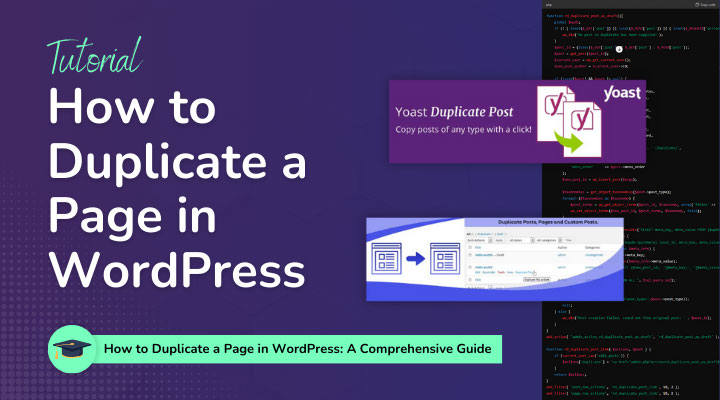
The superstar of this operation, the plugin that gets the job done with a smile, is often called “Duplicator”. Yes, the name says it all! It’s not exactly rocket science to figure out what this little gem does. Once you’ve got Duplicator installed and activated on your existing WordPress site (it’s as easy as installing any other plugin – you’ll find it in the Plugins menu, hit ‘Add New’, search for it, and click ‘Install Now’ then ‘Activate’), it’s time for the cloning to begin.
You’ll find a new menu item called Duplicator in your WordPress dashboard. Click on it, and you’ll see a friendly interface. The main thing you want to do is create a new “Package”. Think of a package as a neatly wrapped-up bundle of your entire website – all your pages, posts, images, themes, plugins, and even your database (which is like the brain of your website, holding all your precious content). You’ll hit a button that says something like “Create New”, and Duplicator will start scanning your site. It’s like a digital detective doing a thorough sweep.
This process can take a little while, depending on how big and fancy your website is. It might feel like you’re waiting for a kettle to boil, but trust me, the reward is SO worth it!
Once it’s done scanning, Duplicator will give you the green light to build your package. You’ll click on that button, and then, ta-da! It will present you with two crucial downloads: an “Installer” file and an “Archive” file. These are your golden tickets, your secret handshake, the ingredients to recreate your website elsewhere. Download both of these to your computer. They’re like the blueprints and the building materials for your new digital twin.
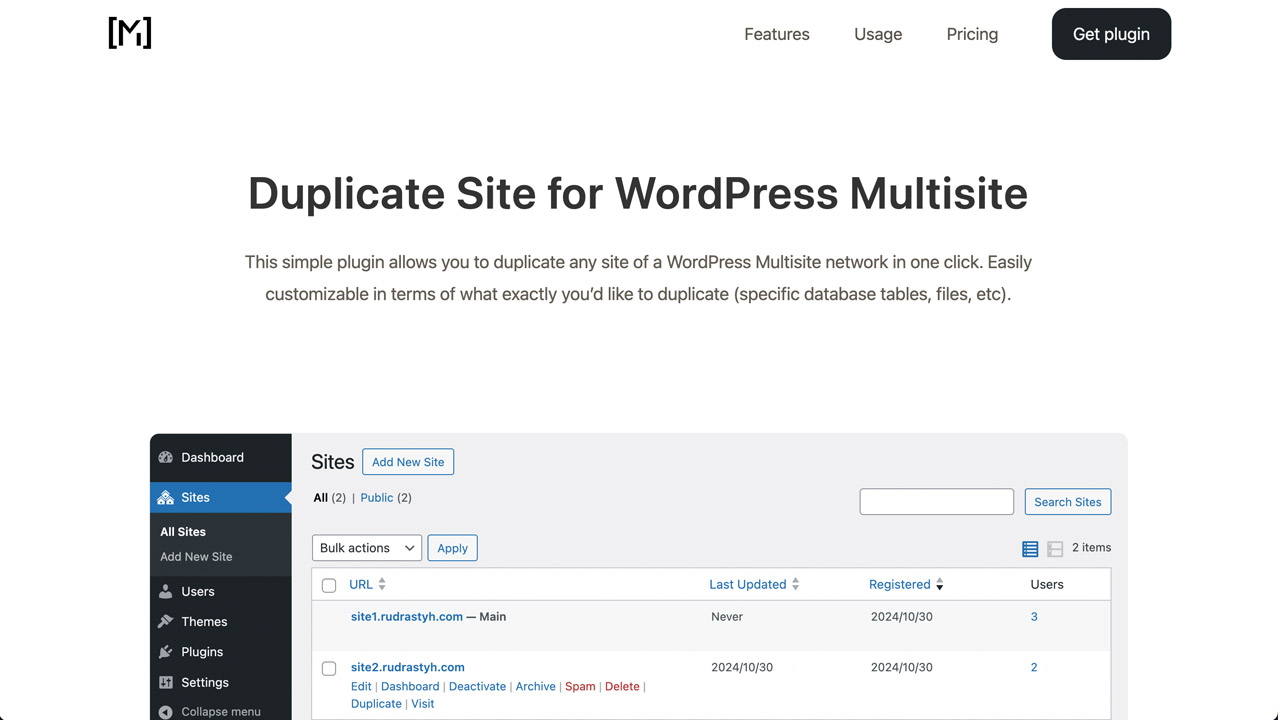
Now, where does this digital twin live? Well, you’ll need a new place for it to sprout. This usually means setting up a new WordPress installation on a different hosting account or a subdomain. Think of it as finding a new plot of land for your magnificent digital mansion. Once you’ve got that fresh, empty canvas ready, you’ll upload the Installer and Archive files to the root directory of that new site. You can do this using an FTP client (like FileZilla – another trusty sidekick!) or sometimes your hosting provider’s file manager.
After the upload, you’ll simply navigate to your new website’s address in your web browser, and the Duplicator installer will magically pop up! It’s a step-by-step wizard that guides you through the rest of the process. You’ll tell it where to put all the website goodies, and it will do the rest. It’s so easy, you might feel like you’ve cheated! You’ll enter your new database details (don’t worry, it’s usually just a few clicks and some simple information to fill in), and the installer will do its thing, unpacking your archive and setting up your database. It’s like a digital jigsaw puzzle that snaps perfectly into place.

And there you have it! Your website, duplicated, cloned, mirrored! You’ve just brought a digital doppelgänger into existence. You can now tweak and experiment to your heart’s content on this new site without fear of messing up your original masterpiece. Maybe you want to try out a bold new design, test out some revolutionary plugins, or even build a completely different kind of website using your original as a super-powered template. The possibilities are as endless as your imagination!
So, next time you’re feeling that cloning urge, remember the power of Duplicator. It’s your secret weapon for website reincarnation, your shortcut to digital duplication, and honestly, a pretty darn satisfying way to prove you’re a WordPress wizard. Go forth and clone, my friends, and may your digital replicas be as spectacular as the originals!

-2.jpeg?width=1950&height=882&name=wordpress duplicate page (update)-2.jpeg)