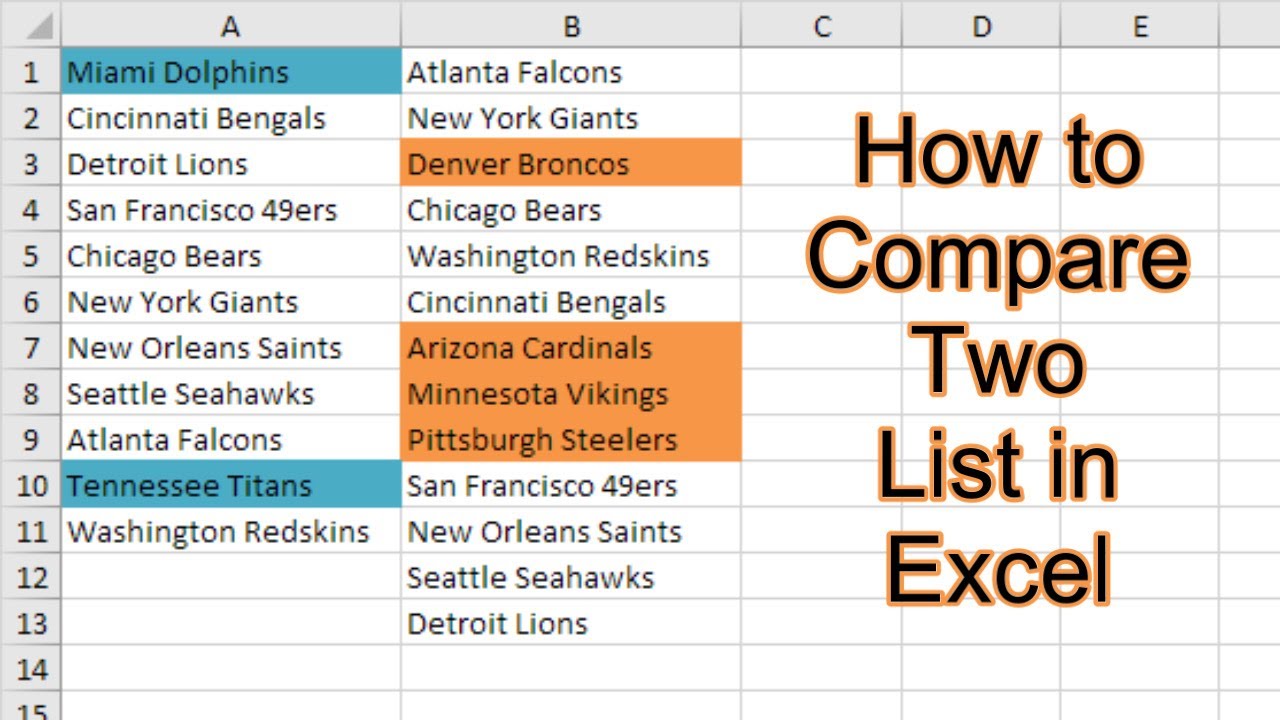
How To Compare 2 Lists In Excel
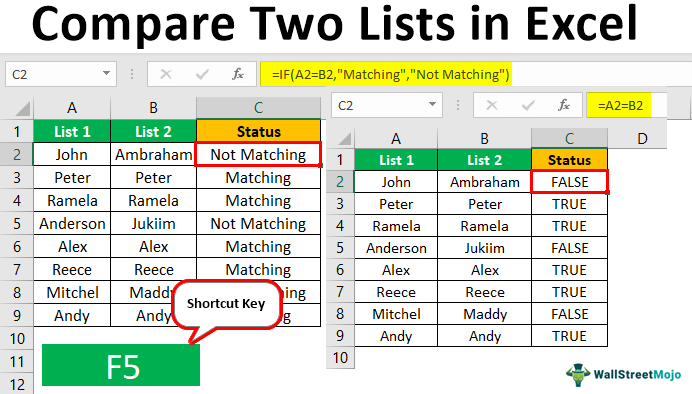
Ah, Excel. The digital magic box that can do… well, pretty much anything with numbers and text. But let’s be honest, sometimes it feels less like a magic wand and more like a particularly stubborn genie. And one of the most common genie-tantrums? Trying to figure out what’s lurking in one list that’s not in another. You know the drill. You’ve got your “Awesome Party Guests” list, and then you’ve got your “People Who Actually RSVP’d” list. And suddenly, your mind’s doing gymnastics trying to spot the invisible folks who promised cake but never confirmed.
It’s like trying to find that one missing sock in the laundry. You KNOW it's somewhere in that mountain of clean clothes, but good luck pinpointing it without a treasure map. Or maybe you’re comparing your grocery list to what’s actually in your fridge. You swore you bought that fancy cheese, but nope. Just a lonely jar of pickles and some questionable yogurt. Excel can be your digital detective in these situations, and thankfully, it’s usually much less dramatic than a real detective story.
Think of it this way: you’ve got two bags of M&Ms. One is your “Favorites” bag, the one you curated with all the best colors. The other is the “Random Grab” bag you got from a vending machine. You want to know which of your favorite colors are missing from the random grab, or maybe, just maybe, if there's a rogue peanut M&M in your pure chocolate bag (the horror!). Excel can help you count those M&Ms, or at least tell you which ones are playing hide-and-seek.
Must Read
Let’s dive into the nitty-gritty, but we’ll keep it as breezy as a summer vacation. No need to put on your tweed jacket and spectacles just yet. We’re just having a friendly chat about finding those elusive entries.
The Big Picture: Why Bother Comparing Lists?
So, why do we even get ourselves into this Excel comparison business? Well, it’s usually because we’re trying to answer a very human question: "What’s different?"
Imagine you’re planning a big family reunion. You have your original guest list (the “Dream Big!” list) and then you have the list of people who’ve confirmed they’re actually coming (the “Reality Bites” list). Your job is to figure out who’s still on the fence or who’s mysteriously vanished from the face of the earth. That’s where comparing lists becomes your superhero power.
Or, consider your personal library. You have a list of all the books you own, and then you have a list of books you’ve read. You want to know which literary adventures are still waiting for you to pick them up. It’s like a personal to-read pile, but with the satisfying tick-tock of progress.
It could be a business scenario too. You have your list of all your valuable customers, and then you have a list of customers who’ve made a purchase in the last month. You want to identify those loyal patrons who might need a little extra nudge, or perhaps, those who’ve gone rogue and are shopping elsewhere. Excel can help you spot these trends without you having to manually scan through hundreds, or even thousands, of names.
Ultimately, comparing lists in Excel is about gaining clarity. It’s about turning a jumbled mess of information into actionable insights. It's like organizing your chaotic closet – you might not want to do it, but once it's done, you feel a sense of calm and control. And who doesn't love that?
The Gentle Giants: Basic Comparison Techniques
Alright, let’s roll up our sleeves and get our hands a little digital. We’re going to look at a few ways to compare your lists. Don't worry, it’s less about complex formulas and more about using Excel’s built-in smarts.
The "Find the Differences" Tango: Conditional Formatting
This is often my go-to. Conditional formatting is like giving Excel a highlighter. You tell it, "Hey, if you see something in this list that's also in that list, make it green! And if you see something in this list that's not in that list, make it red!" It’s a visual feast for your eyes, helping you spot those anomalies at a glance.
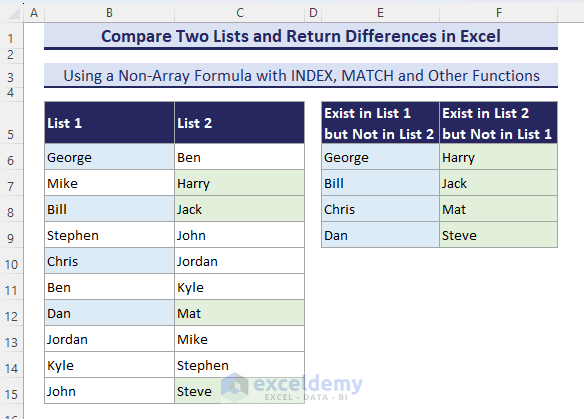
Let’s say you have List A in column A and List B in column B. You want to see which items in List A don’t appear in List B. Here’s the simple dance:
1. Select the range of cells in List A that you want to check (e.g., A2:A100).
2. Go to the Home tab.
3. Click on Conditional Formatting.
4. Choose New Rule.
5. Select "Use a formula to determine which cells to format."
6. In the formula box, you’ll type something like: `=COUNTIF($B$2:$B$100, A2)=0`
* Let’s break this down, because it sounds fancy but it’s just Excel talking. $B$2:$B$100 is your List B. The dollar signs ($) make sure Excel always looks at that exact range, no matter where it is in your checking.
* A2 is the first cell in your selected range (List A). Excel will automatically adjust this for each cell it checks in List A.
* =0 means, "If the count of this item from List A within List B is zero..."
7. Click the Format button and choose a fill color – maybe a nice, attention-grabbing red for the items that are missing.
8. Click OK twice.
Voila! Anything in List A that’s not in List B will now be highlighted in red. It’s like a tiny alarm bell for each missing item. You can do the reverse too – highlight items that are in both lists. Just change the formula to `=COUNTIF($B$2:$B$100, A2)>0` and pick a cheerful green. It’s like a digital high-five for matching entries!
This is super handy for checking things like: * Are all the customers from my "Loyal Customers" list still in my "Active Customers" list? * Did I forget to order any of the items on my "Essential Supplies" checklist? * Are all the employees who attended the training session on the "Training Attendance" sheet?
The "Are You Kidding Me?" Technique: VLOOKUP
Ah, VLOOKUP. This one’s a bit of a legend. It’s like asking Excel, "Hey, can you go find this specific item from my first list in my second list, and if you find it, tell me something about it from that second list?"
It’s best used when you want to find a match and then pull over some related information. Imagine you have a list of product IDs in one column and their prices in another. Then you have a second list of product IDs that were sold. You want to know the price of each sold product. VLOOKUP is your man (or woman, or robot) for the job.
Let’s say List A (Product IDs) is in column A, and List B (Sold Product IDs) is in column C. You want to see if the IDs in List B exist in List A and maybe pull the original product name from List A (which is in column B) into a new column next to List B.
1. In an empty column next to your List B (say, column D, starting from D2), you’ll enter the VLOOKUP formula:
=VLOOKUP(C2, $A$2:$B$100, 2, FALSE)
Let's decipher this:
* C2: This is the item we are looking for in List B (the first sold product ID).
* $A$2:$B$100: This is the entire table where we are searching (our List A, including the product IDs and their names). Again, the dollar signs lock this range.
* 2: This tells Excel, "If you find a match, pull back the item from the second column of that table." In our case, the second column is the product name.
* FALSE: This is super important. It means we want an exact match. No fuzzy guessing here. We want that exact product ID, thank you very much.
2. After you enter the formula in D2, you can drag the fill handle (that little square at the bottom right of the cell) down to apply it to all the cells in column D.
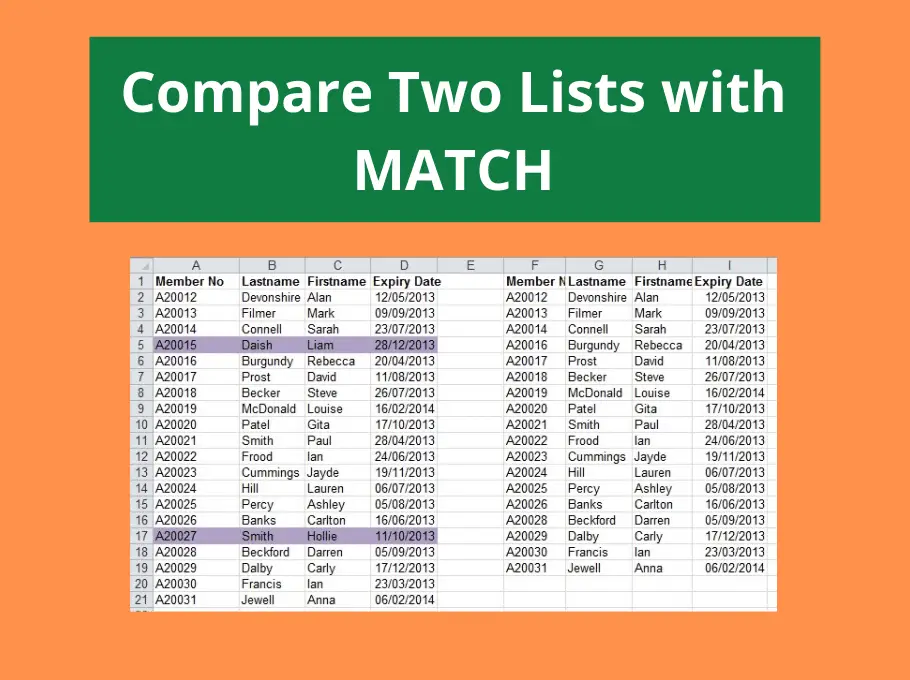
Now, if an ID from column C is found in column A, the corresponding product name from column B will appear in column D. If VLOOKUP can't find a match, you'll see a handy little #N/A error. This #N/A is your signal that the item from List B is not present in List A. It’s like a polite but firm "Nope, not here!"
You can then use conditional formatting on column D to highlight all the #N/A cells to quickly see which items in your "Sold" list were not found in your "Product Inventory" list. It's a dynamic duo!
The "Let's Get Serious" Approach: MATCH and INDEX
Okay, this is where we graduate from the "breezy beach read" to the "slightly more intense but rewarding novel." MATCH and INDEX are a powerful pair for comparing and retrieving data, and they offer more flexibility than VLOOKUP, especially if your lookup column isn't the first one in your table.
Think of MATCH as Excel's sophisticated librarian who can find the exact shelf number for a book. INDEX is the assistant who goes to that shelf number and pulls out the book (or a specific page number from that book).
Let’s say you have your original customer list in columns A and B (Customer ID in A, Customer Name in B). You have a separate list of recent inquiries in column D (Inquiry ID). You want to see if any of these Inquiry IDs exist in your Customer ID list and, if they do, pull their corresponding Customer Name.
1. First, we’ll use MATCH to find the row number of the Inquiry ID within your Customer ID list. In an empty cell (let's say E2, next to your first Inquiry ID in D2), you’ll enter:
=MATCH(D2, $A$2:$A$100, 0)
The breakdown:
* D2: The Inquiry ID we're looking for.
* $A$2:$A$100: The range where we’re looking for the Inquiry ID (your Customer ID column).
* 0: Again, this means exact match. We’re not messing around with approximate matches here.
If D2 is found in column A, MATCH will return the row number within that range where it was found. If not, you’ll get an #N/A error.

2. Now, we’ll use INDEX to grab the Customer Name from column B, using the row number that MATCH just found. In cell F2 (next to your MATCH formula), you'll enter:
=INDEX($B$2:$B$100, E2)
The breakdown:
* $B$2:$B$100: This is the range containing the data we want to retrieve (your Customer Names).
* E2: This is the row number that our MATCH formula found in the previous step.
So, if MATCH found the Inquiry ID in the 5th row of your Customer ID list, INDEX will go to the 5th row of your Customer Name list and pull out that name. If MATCH gave you an #N/A, INDEX will also return an #N/A.
You can then combine these into a single, more powerful formula:
=IFERROR(INDEX($B$2:$B$100, MATCH(D2, $A$2:$A$100, 0)), "Not Found")
This formula says: "Try to find the Customer Name using INDEX and MATCH. If you get an error (meaning the Inquiry ID wasn't found in the Customer ID list), display 'Not Found' instead of an ugly error message." This is much cleaner!
This combo is fantastic when your lookup column isn’t the first one, or when you need more control over what you’re returning. It’s like having a highly organized filing cabinet where you can retrieve any document based on any key identifier.
The "One More Thing" Trick: Power Query
Alright, for those of you who are ready to level up your Excel game, or for those of you who deal with lists so big they make your computer sweat, there’s Power Query (also known as "Get & Transform Data" in newer versions of Excel). It’s like giving Excel a super-powered digestive system for data.
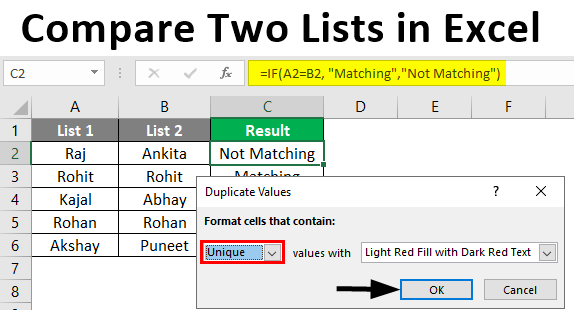
Imagine you’re trying to compare a massive spreadsheet from, say, your sales team with another massive spreadsheet from your inventory department. Doing it with formulas can be slow, clunky, and prone to errors. Power Query is designed for these kinds of heavy-duty data wrangling tasks.
You can import data from all sorts of places (other Excel files, databases, web pages, you name it!), transform it (clean it up, change formats, remove duplicates), and then combine it in powerful ways, including merging and appending lists.
For comparing two lists, you would typically:
1. Load both of your lists into Power Query. 2. Use the Merge Queries feature. This is like the ultimate VLOOKUP or MATCH/INDEX on steroids. You pick your primary list, then pick the second list, and tell Power Query which columns to match on. 3. You can then choose the type of join (similar to a database join, but don't let that scare you). You can do an Inner Join (only show items that are in both lists), a Left Outer Join (show everything from the first list, and matches from the second), or other options to see exactly what you need.
The beauty of Power Query is that it’s a repeatable process. Once you set it up, you can refresh your data, and Power Query will automatically re-do all the comparison and merging steps. It’s like setting up a recipe that automatically updates itself. No more re-typing formulas!
It might seem a bit intimidating at first, like learning to ride a bike with clipless pedals. But once you get the hang of it, it’s incredibly powerful and can save you hours of tedious work. It's for when you're not just comparing lists, but you're orchestrating a whole symphony of data.
Wrapping It Up: Finding Your Missing Pieces
So there you have it. From the simple highlighter magic of Conditional Formatting to the robust machinery of Power Query, Excel offers a spectrum of tools to help you compare your lists.
Whether you’re trying to find that one missing party guest, verify your grocery haul, or conduct complex data analysis, these techniques will help you pinpoint exactly what you’re looking for. It’s all about transforming those moments of “where did that go?” into moments of “aha, there it is!”
Don't be afraid to experiment! The best way to get comfortable with these functions is to play around with them. Take your old grocery lists, your contact lists, your to-do lists – any two lists will do. Try them out, see what happens, and you’ll quickly discover which method feels most natural to you.
Remember, Excel is a tool. It’s there to make your life easier, not harder. So, take a deep breath, grab your digital detective hat, and go find those missing pieces. Happy comparing!