Okay, folks, let’s talk about a little-known superpower lurking within your favorite video player: VLC Media Player! You know, that trusty digital butler that plays everything without complaining? Well, it turns out it’s not just a master of playback; it’s also a secret video-cutting ninja! Yes, you heard that right. You can snip and clip your videos like a seasoned pro, right there in your cozy living room, without needing to wrestle with complicated software or sell a kidney for expensive editing suites.
Imagine this: you’ve got this absolutely hilarious cat video. It’s got that perfect moment, the one that makes your belly ache with laughter. But the whole thing is, like, three minutes long, and you just want to share that one golden second with your friends. Sending a three-minute video for a one-second gem? Sacrilege! But fear not, for VLC is here to save the day (and your friends’ data plans!).
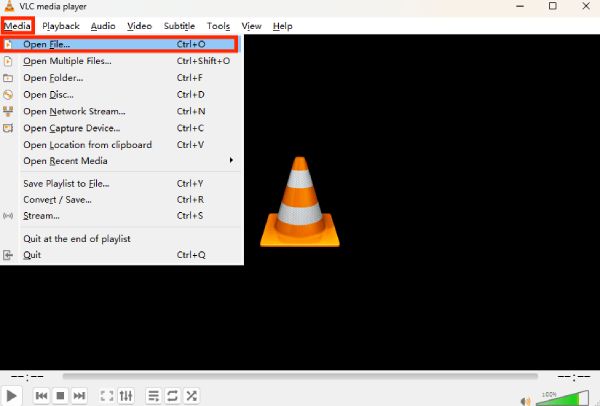
So, how does this magical feat of video sorcery work? It’s ridiculously easy. Seriously, if you can open a bag of chips, you can probably do this. First things first, you need VLC Media Player installed. If you don’t have it, go get it! It’s free, it’s fantastic, and it’s probably already on your computer disguised as just another icon. Once you’ve got it fired up, open the video you want to snip.
Now, here’s where the magic begins. Look up at the menu bar. See it? Don't get scared. We're not going to be diving into anything too complex. We're just going to take a peek at the "View" menu. Click on that bad boy. And then, you’ll see it – a beacon of hope in the video editing darkness: "Advanced Controls". Click that too!
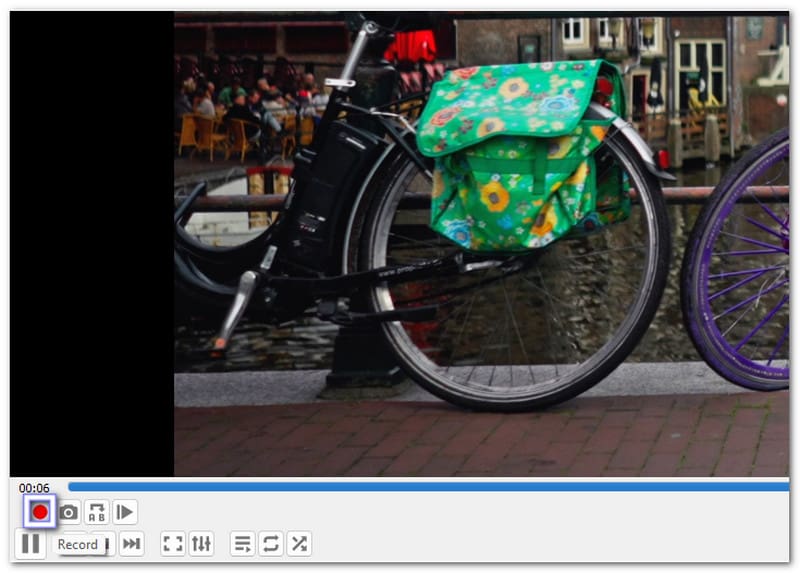
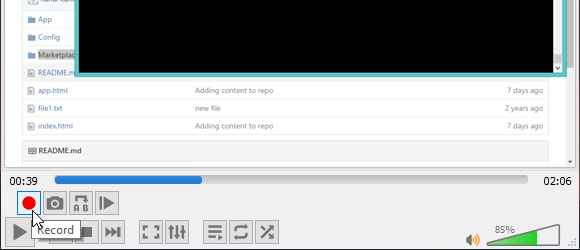
Suddenly, your VLC window will sprout a new row of buttons, like a cheerful little mustache. Don't be intimidated by the extra buttons; they're not going to bite. Among these new, exciting additions, you'll spot a beautiful, shiny red record button. This, my friends, is your key to the kingdom of clipping!
Créer Facilement un Clip Vidéo avec VLC Media Player
Here's the trick: you want to start recording right when your desired clip begins. So, you'll be watching your video, maybe with a cup of tea and a hopeful glint in your eye. When that cat finally does its epic faceplant (or whatever glorious moment you’re after), you hit that glorious red record button. Think of it as pressing the "start" button on your personal video snippet creation machine.
Now, the video is playing, and VLC is diligently recording everything from that moment forward. Keep watching, enjoying the show, and then, when your perfect moment is just about to end, or when the clip naturally concludes, you hit the red record button AGAIN. That’s it! You've just captured your perfect snippet.
One-in-All – Comment monter une vidéo avec VLC Media Player
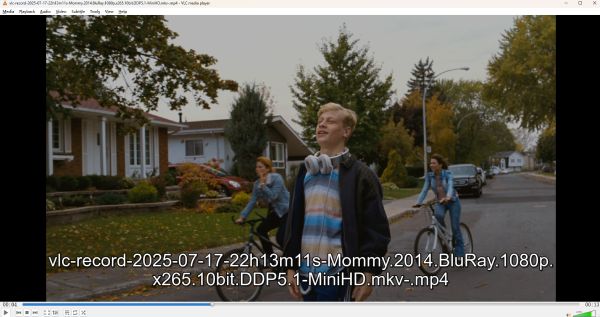
But wait, where did this precious little piece of video go? Ah, the eternal question! It's not like it pops out in a puff of glitter. Don't worry, VLC is a good organizer. By default, it saves these recordings in your "My Videos" folder (or wherever your operating system typically tucks away your downloaded treasures). It’ll be named something like "vlc-record-YYYY-MM-DD-HH-MM-SS.mp4". It’s like a digital time capsule of your epic clips!
So, you've recorded your clip. Was it perfect on the first try? Probably not, and that’s perfectly fine! This is the fun part. You can go back and try again. Missed the start? Rewind and hit record a hair earlier. Cut it a bit too late? Go back and hit stop a bit sooner. It’s a wonderfully forgiving process. Think of it as a playful game of video archery. You’re not aiming for perfection on the first shot; you’re aiming for a good enough shot that you can then refine.
Seriously, this is the easiest way to get those perfect little video moments without breaking a sweat. No more confusing timelines, no more rendering nightmares. Just pure, unadulterated clipping joy!
One-in-All – Comment monter une vidéo avec VLC Media Player
Let’s say you’re watching a hilarious cooking fail – the moment the soufflé collapses with a dramatic poof. You want to send that poof to your friends to illustrate your culinary prowess (or lack thereof). With VLC, you simply play the video, hit record just before the poof, and hit stop just after. Boom! You’ve got that perfect little poof clip ready to go.
Or maybe you’re watching a motivational speech and there’s that one sentence that just hits you right in the feels. You want to save it, loop it, marinate in its awesomeness. You can do that! Play the video, record that potent sentence, and presto! You have your personal inspiration snippet.
Comment couper une vidéo avec VLC - malekal.com
The beauty of this method is its simplicity. It’s not trying to be Adobe Premiere Pro or Final Cut Pro. It’s just a friendly tool helping you grab what you need. It’s like having a really sharp pair of scissors for your digital life. You don’t need to be a tailor to use scissors, and you don’t need to be a video editor to use VLC’s recording feature.
Remember, the key is to have the "Advanced Controls" enabled. Without them, you're just a regular VLC user. With them, you're a video-clipping maestro! And don’t forget that glorious red record button. It’s your new best friend in the world of short, sweet video sharing.
So, the next time you find yourself with a video containing a moment so perfect, so hilarious, so profound that it must be shared, don’t despair. Just fire up VLC Media Player, enable those Advanced Controls, and let that trusty red record button do its thing. You'll be clipping like a pro in no time, and your friends will be amazed by your newfound video wizardry. Go forth and clip, brave digital adventurer!