How To Clear An Sd Card On Mac
Hey there, fellow Mac users! Ever found yourself staring at a full SD card, wondering what to do next? Whether it's brimming with vacation photos, precious family memories, or the latest masterpiece from your hobby projects, that little card can get packed in no time. Today, we're diving into a super straightforward and surprisingly satisfying task: clearing out your SD card on your Mac. Think of it as giving your digital memories a fresh, organized home!
Why is this so useful, you ask? Well, for starters, it's all about making space. Imagine needing to capture that once-in-a-lifetime moment, only to be greeted by the dreaded "storage full" message. Clearing your SD card ensures you're always ready! For beginners, it's a fantastic way to get comfortable with managing your digital files and understanding how your devices communicate. Families will love this for freeing up space for more adorable baby pictures or hilarious vacation videos. And for the hobbyists out there – photographers, videographers, drone pilots – a clean SD card means uninterrupted creative flow, so you can keep capturing those stunning shots without a second thought.
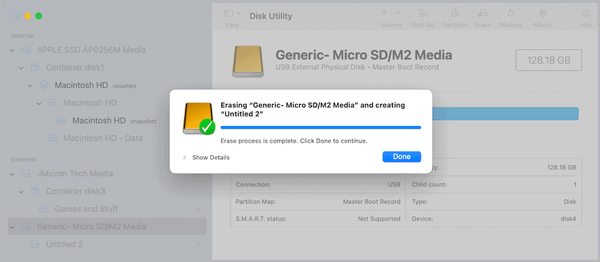
Let's talk about the fun variations! Maybe you've just returned from a fabulous trip and want to back up all those photos before wiping the card clean. Or perhaps you're clearing out an old SD card from a dashcam, or even a game console. The process is generally the same, but knowing why you're clearing it helps you decide what to keep and what to let go. You might even consider reformatting the card after deleting everything to give it a truly fresh start, like a digital spring cleaning!
Must Read
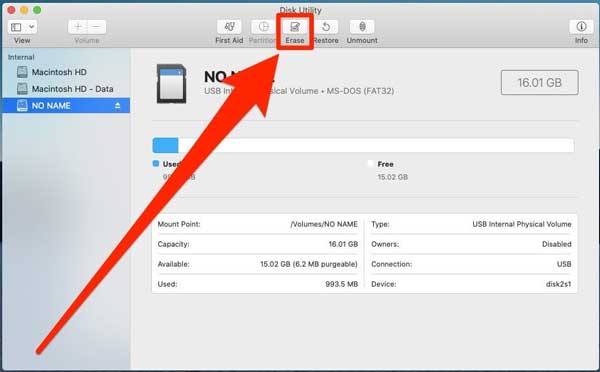
Ready to get started? It's as easy as 1-2-3. First, you'll need to connect your SD card to your Mac. Most Macs have a built-in SD card slot. If yours doesn't, a simple USB card reader is a lifesaver and usually quite affordable. Once it's plugged in, your SD card should appear on your Desktop, or in the Finder sidebar, just like any other drive. Look for a name that sounds like "Untitled" or something similar, or the name you might have given it.
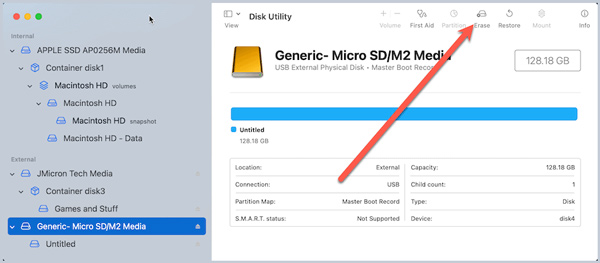
Now, the exciting part: deleting! Open the SD card by double-clicking its icon. You'll see all your files and folders. To delete them, you have a couple of simple options. You can select all the files (press Command + A on your keyboard) and then drag them to the Trash icon in your Dock. Alternatively, you can select individual files or folders you no longer need by clicking on them while holding down the Command key, and then drag those to the Trash. Don't forget to empty the Trash afterwards to truly free up the space!
Clearing an SD card on your Mac is more than just a technical chore; it's about empowering yourself with control over your digital life. It’s a simple step that brings a huge sense of accomplishment and ensures you’re always ready for your next adventure, memory, or creative burst. Enjoy the newfound space and the peace of mind that comes with it!
:max_bytes(150000):strip_icc()/mac4-43e838228ee54939903df8213423a984-082b460870e14179ba44e046ce930d98.jpg)