How To Add Line Numbers On Word
Ever found yourself squinting at a long document, trying to pinpoint a specific sentence or phrase? Or perhaps you've been involved in a collaborative project where people keep referencing "that bit in the middle" without much clarity? If so, you've probably wished for a little something to make navigation easier. Well, guess what? Adding line numbers in Microsoft Word is a surprisingly simple and incredibly useful skill that can bring a touch of order and efficiency to your documents, whether they're for school, work, or just personal use. It's a little feature that packs a big punch!
So, what exactly is the point of line numbers? It's pretty straightforward: they provide a sequential reference point for each line of text in your document. Think of it like a built-in index for every single line. This might sound niche, but the benefits are actually quite broad. For starters, it dramatically improves clarity and communication. When you need to discuss a specific part of a document, you can simply say, "Please refer to line 47," and everyone knows exactly what you're talking about. No more vague descriptions or wasted time trying to find the right spot.
The educational world is a prime example of where line numbering shines. Students often have to refer to textbooks, articles, or even their own essays for assignments. Imagine a teacher asking students to "analyze the argument presented on lines 112-115" of a piece of literature. It instantly focuses their attention and encourages close reading. Similarly, in legal documents or technical manuals, precise referencing is absolutely crucial. Think about it – if you're reviewing a contract, being able to say, "I have a question about the wording on line 83," is far more efficient and less prone to error than trying to describe the paragraph.
Must Read
But it's not just for formal settings. Even in your personal life, you might find it helpful. If you're writing a long personal letter and want to ask a friend to look at a specific paragraph, mentioning a line number makes it super clear. Or if you're proofreading a lengthy story you've written, line numbers can help you keep track of your progress and easily revisit sections you want to tweak.
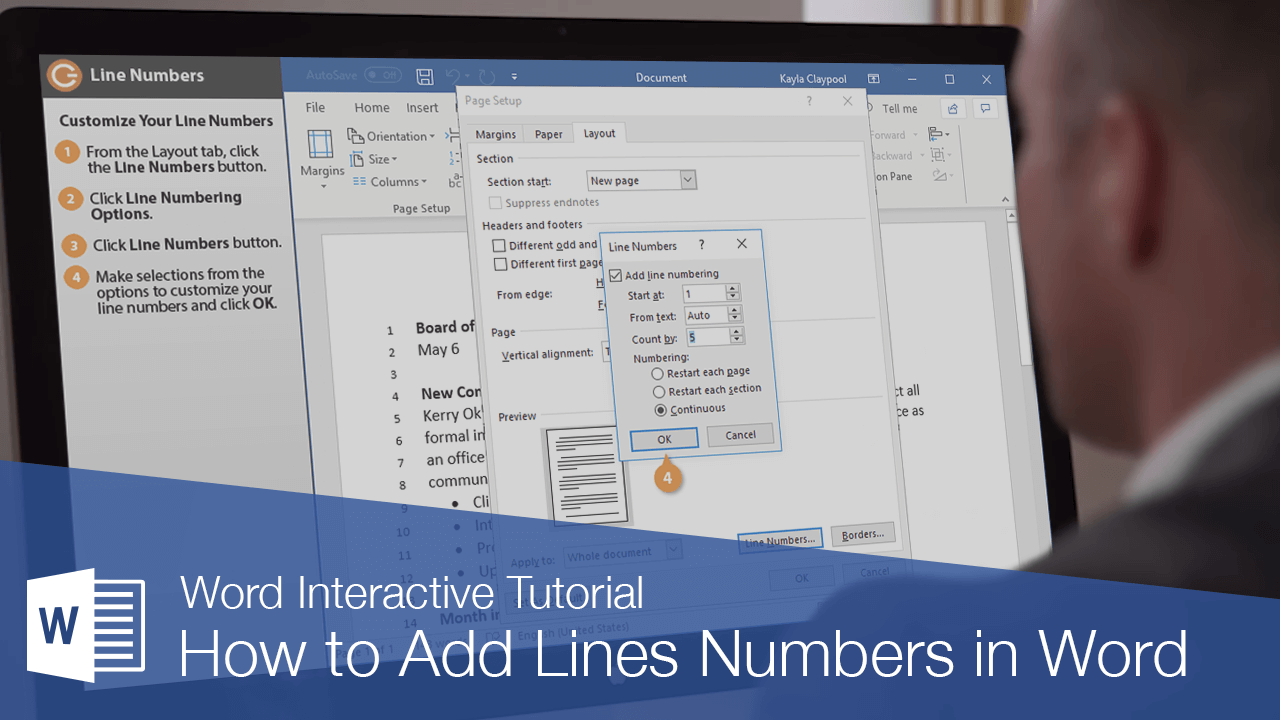
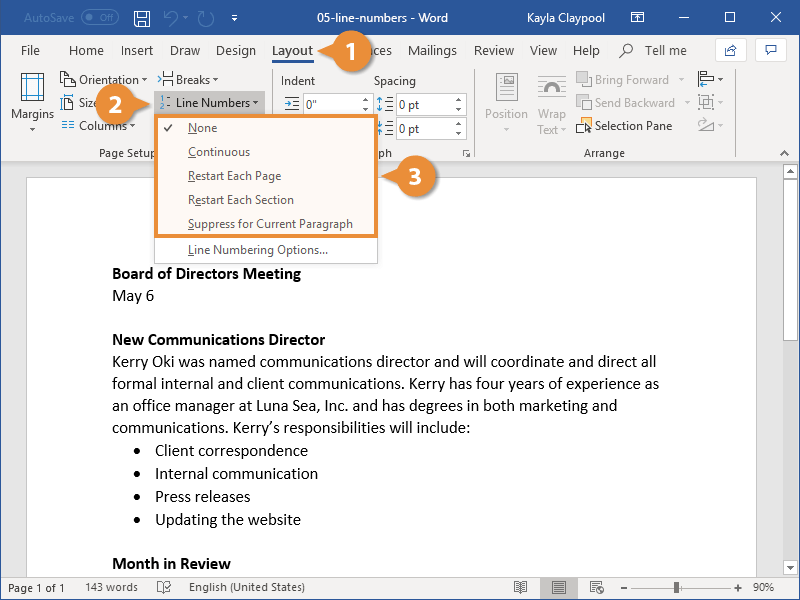
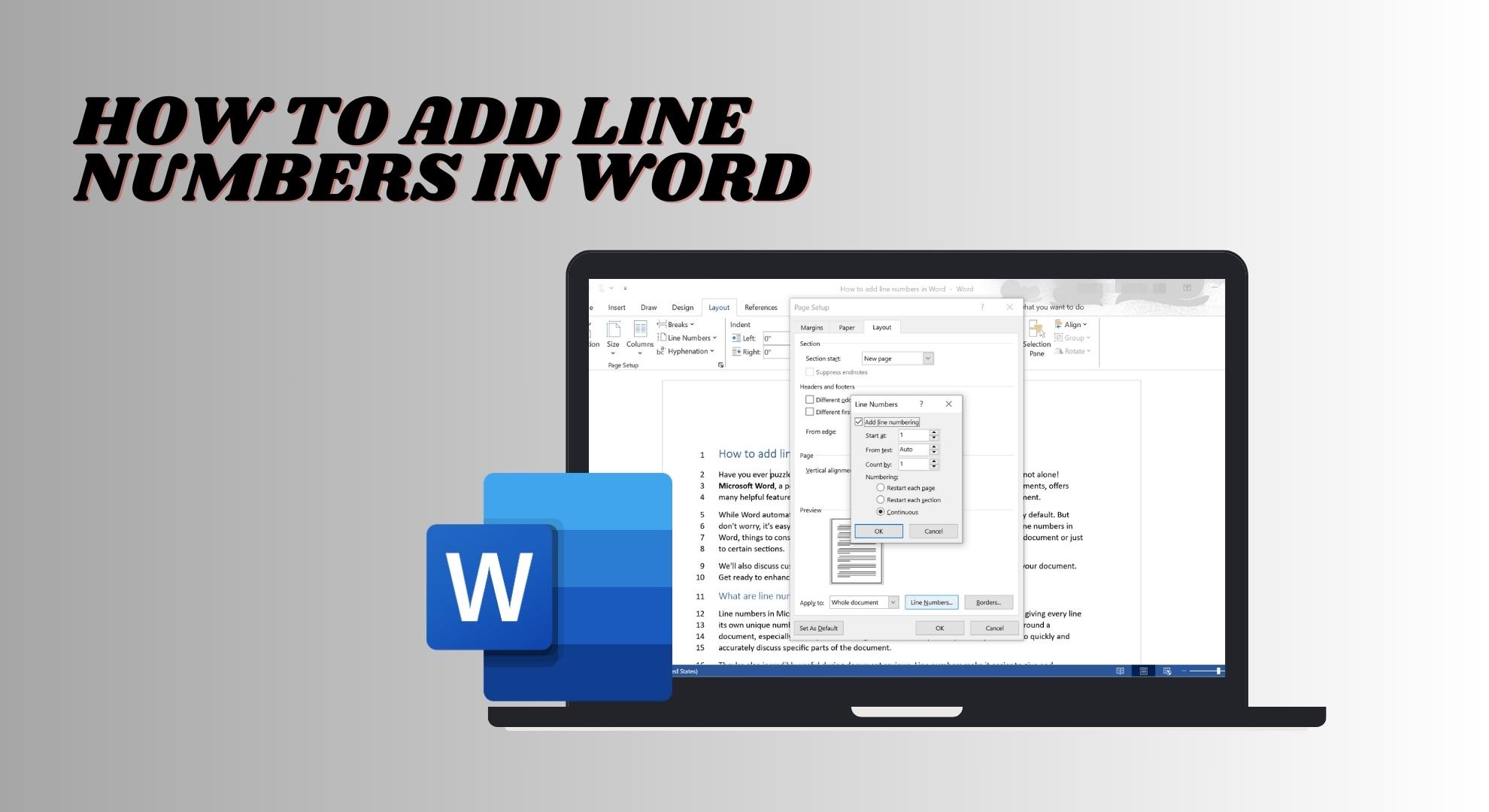
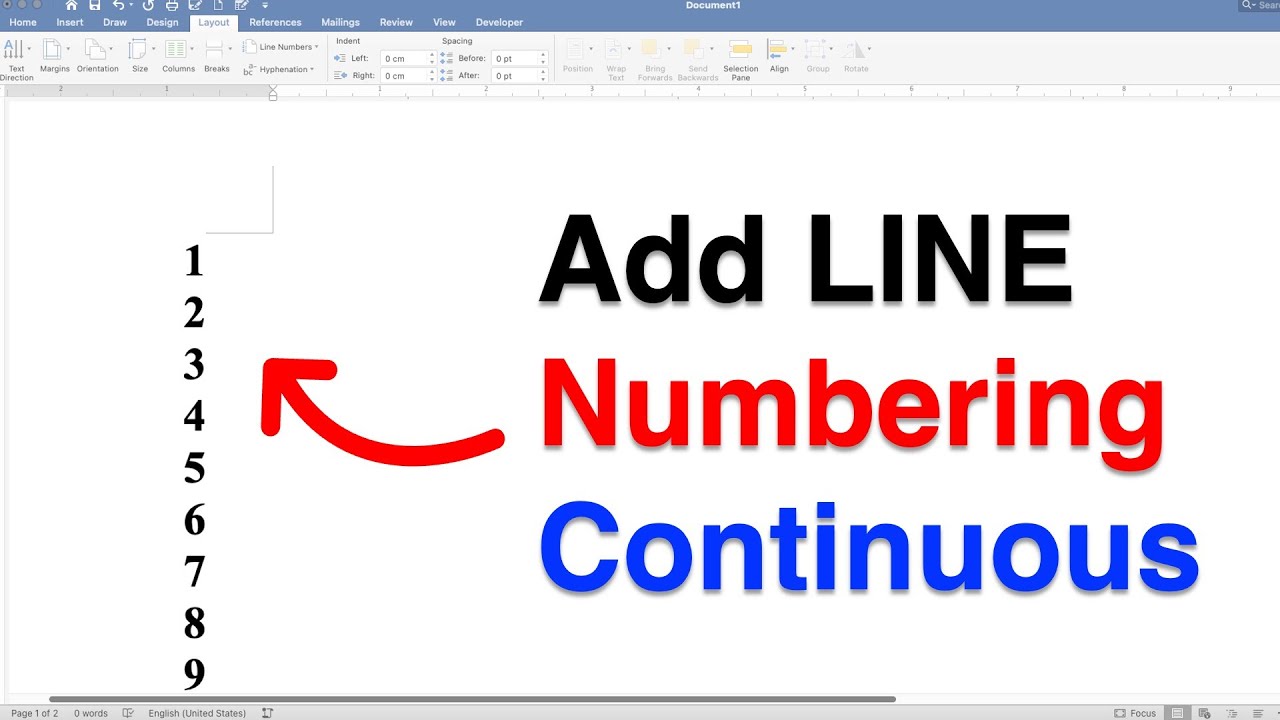
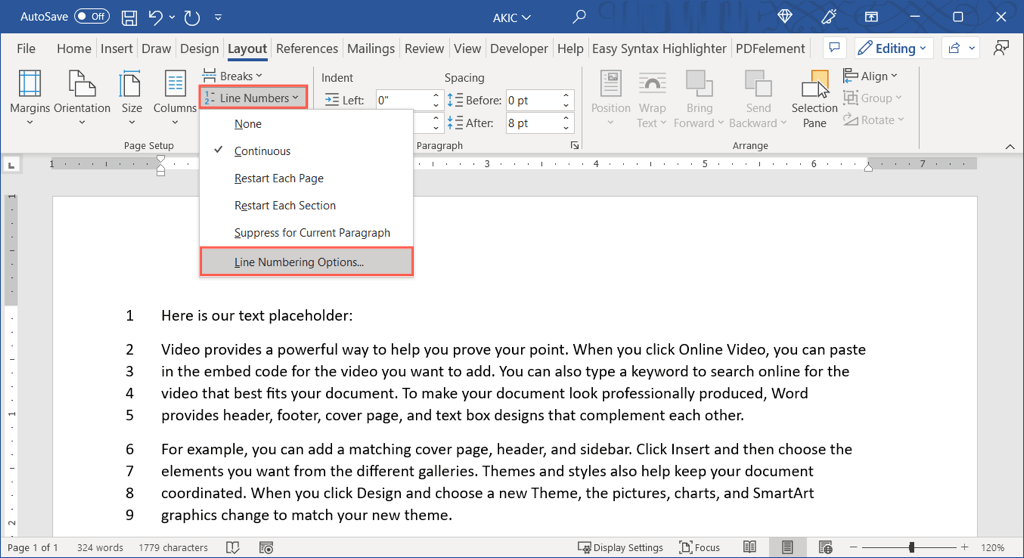
Now, how do you actually do this magical line numbering thing? It's remarkably easy! Open your Word document. Navigate to the Layout tab on the ribbon. You'll see a group of options called "Page Setup," and within that, you'll find a button labeled Line Numbers. Click on it. You’ll likely see options like "None" (which is the default), "Add Line Numbers," and potentially some customization options. Selecting "Add Line Numbers" will instantly sprinkle those helpful numbers down the side of your document. Easy peasy!
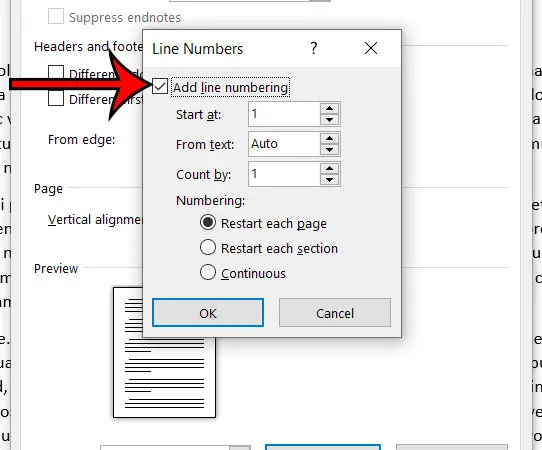
If you want to get a bit more creative, you can explore the "Line Numbering Options" that appear after clicking "Add Line Numbers." Here, you can choose where the numbers appear (e.g., restart on each page or section), the numbering format, and even the spacing. It's a great way to experiment and see what works best for your specific needs. So, don't be afraid to click around and discover the different ways you can tailor this feature. It’s a small addition that can make a big difference in how you interact with your documents.
![How to Add Line Numbers in MS Word [Step-by-Step Pics]](https://cdn.appuals.com/wp-content/uploads/2023/11/What-are-line-numbers-in-Word-1024x559.jpg)