How Do You Find History On Ipad
Okay, let's talk about history. Not the stuff with kings and queens that might make your eyes glaze over faster than a donut in a kindergarten classroom. No, no, no. We're talking about your history. The digital kind. The "what was I even looking at last Tuesday?" kind of history. And specifically, how you wrangle that elusive beast on your trusty iPad.
Think of your iPad’s history like a digital breadcrumb trail. You know, like Hansel and Gretel, but hopefully leading you to something more useful than a gingerbread house guarded by a witch. More often, it's about remembering that amazing recipe you found for banana bread last week, or that hilarious cat video that made you snort-laugh at 3 AM. We've all been there, right? Staring blankly at your screen, a vague memory of something brilliant flickering at the edge of your consciousness, and absolutely zero clue where to find it again.
So, how do you actually dig through this digital attic? It’s usually tied to the app you were using. This is where things get a little… app-specific. But the underlying principle is pretty much the same. It’s like looking for your keys. You know they're somewhere in the house, but you have to retrace your steps, or at least, poke around the usual suspects.
Must Read
The Safari Saga: Reliving Your Web Adventures
Let’s start with the biggie: Safari. This is where most of our internet wanderings happen. You know that feeling when you’ve clicked your way through twenty different tabs, researching the best way to repot a succulent, only to suddenly realize you have no idea which tab had the actual helpful advice?
Well, fear not, fellow digital explorer! Your iPad is actually a pretty good archivist. Open up Safari. See that little book icon down there? The one that looks like it’s guarding all the secrets of the universe? Give that a tap.
Now, you’ll see a few options. There’s “Favorites,” which are the websites you actually want to remember. Then there’s the “Reading List,” for those articles you bookmark with the best intentions of reading “later.” But the magic button for our current mission is the one that says “History.”
Tap that, and BAM! It’s like opening a dusty old diary. You’ll see a list of websites, sorted by date. Today, yesterday, the day before… it’s all there. You can scroll back for what feels like ages. Did you spend an entire afternoon researching obscure facts about the mating habits of the Emperor Penguin? It’s probably in there. Did you get lost in a Wikipedia rabbit hole about the history of shoelaces? Yep, Safari remembers.
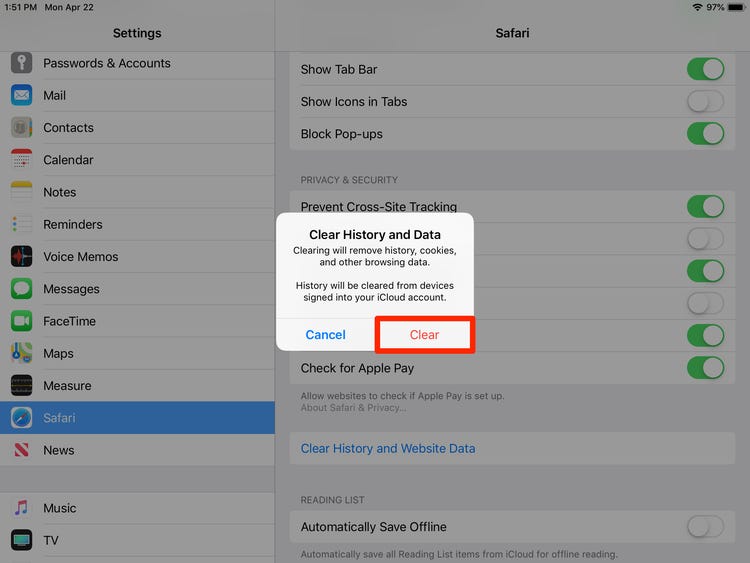
And here’s a little pro-tip, a secret handshake amongst iPad users: If you’re looking for something from a specific day, and you’ve got a ton of history, you can even tap that “Clear” button at the bottom. Don’t worry, it won’t delete everything forever (unless you want it to, you digital minimalist, you!). It just lets you select a time frame. So, you can ditch the history from last month and just focus on that frantic search for a last-minute birthday gift idea from last weekend.

Incognito Mode: The Digital Cloak of Invisibility (Almost)
Now, what if you were doing some discreet research? You know, looking up “is it weird to eat ice cream for breakfast?” or “how to pretend you know what cryptocurrency is?” For those moments, there’s Incognito Mode, or as Safari calls it, “Private Browsing.”
When you’re in a private browsing window, Safari pretends it never happened. It doesn’t save your browsing history, cookies, or website data. It’s like a digital vanishing act. So, if you’re hunting for that perfect, slightly embarrassing gift, or researching a surprise party, using private browsing means your iPad won’t rat you out to anyone who might glance at your history later. It’s the digital equivalent of whispering secrets.
But, and this is a big BUT, remember that private browsing is only private on your device. If you’re logging into websites, those websites still know you were there. So, don’t go thinking you’re an invisible ninja when you’re logged into your email in private mode. The internet, as a whole, still has eyes.
App-Specific Histories: Beyond the Web
Okay, so Safari is covered. But what about all the other apps you use? The ones where you’re not just browsing, but actually doing things?
Think about it. You’re watching videos on YouTube. You’re scrolling through Instagram. You’re probably even playing a game or two. Each of these apps has its own internal memory, its own way of saying, "Hey, remember this?"
YouTube: Your Personal Entertainment Reel
YouTube is a classic. You’ve probably spent hours there, falling down a rabbit hole of cat videos, cooking tutorials, and documentaries about… well, anything. How do you find that one video of a parrot singing opera that you swear you saw?
:max_bytes(150000):strip_icc()/003-manage-history-and-browsing-data-in-safari-for-ipad-4103656-f57d35f4b8a34be7b49c2ffed78c1397.jpg)
Open your YouTube app. On the bottom right, you'll see a section labeled “Library.” Tap that. And lo and behold, you’ve got “History” right there, usually near the top. It’s a chronological list of every video you’ve watched. It’s like your own personal, slightly chaotic, entertainment highlight reel. You can even see your “Watch Later” list, which is basically a graveyard of videos you intended to watch but probably never will.
And if you’re worried about someone seeing your… unique viewing habits (we’re not judging!), YouTube also lets you pause your history or clear it. So, your secret love for ASMR cooking videos can remain your little secret.
Social Media Shenanigans: The Scroll of Memory
Now, social media apps are a bit different. They don’t usually have a direct “history” of what you’ve viewed in the same way Safari or YouTube does. Instagram, Facebook, TikTok – these are more about the content you’ve interacted with.
For example, on Instagram, you can see your “Activity”. This shows you posts you’ve liked, comments you’ve made, and accounts you’ve recently followed. It’s not quite a “viewing history,” but it’s a good way to retrace your steps if you remember liking something or seeing a particular post.
On Facebook, the “Activity Log” is your best friend. It’s a treasure trove of everything you’ve ever done on the platform, from posts you’ve made to things you’ve searched for. It’s a bit overwhelming, honestly, like trying to find a single LEGO brick in a bin of a thousand. But it’s there!
![How to Check History on iPad After Deleted? [4 Easy Ways]](https://www.coolmuster.com/uploads/file/202405/check-history-on-ipad-after-deleted.jpg)
TikTok, bless its algorithm, does a decent job of remembering what it thinks you’ll like. But if you want to see what you’ve actually watched, you can often find a “Watch History” or “History” within the app’s settings or profile section. It’s usually tucked away, like a shy sibling at a party.
The Built-in Search: Your Digital Detective
Sometimes, you don’t need to go digging through every single app. Your iPad has a secret weapon, a little bit of digital magic that can search across most of your apps, including your Safari history and even some app content.
This is called Spotlight Search. You know that little search bar that appears when you swipe down from the middle of your Home Screen? That’s your guy. Give it a swipe down, and start typing. You can type in keywords from that website you were on, or even the name of that app you were using.
For example, if you remember reading an article about “fermented foods” on Safari, typing “fermented foods” into Spotlight might just bring up the Safari link. It’s like having a tiny, very efficient librarian who can find anything in your digital library.
It’s not foolproof, mind you. It won’t magically remember every single thing you’ve ever looked at in every single app. But for common things like Safari history, contacts, apps, and even some notes, it’s a lifesaver. It’s the digital equivalent of saying, “I know I saw it somewhere around here!” and then having it appear.
When All Else Fails: The Power of Association
So, you’ve tried Safari history, app-specific histories, and even Spotlight Search, and you’re still coming up empty. Don’t panic! Sometimes, the best way to find something is to think about the context in which you saw it.
![[100% Useful] Tips to Find Deleted History on iPad](https://www.aiseesoft.com/images/iphone-data-recovery/find-deleted-history-on-ipad.jpg)
Were you looking at that recipe on your iPad while you were cooking? Maybe you were comparing prices for that new gadget while on the couch. Were you researching that obscure historical fact while waiting in line at the coffee shop?
Think about those moments. The feeling of that moment. The other apps you might have had open. The time of day. This is where your brain’s own amazing memory power comes into play. It’s like trying to remember where you put your glasses. You might not remember the exact spot, but you can usually remember the room you were in when you last had them. Apply that same logic to your iPad.
If you were cooking, maybe you were also checking your grocery list app or a recipe app. If you were shopping, maybe you had a different browser open, or a shopping comparison app. It’s a bit like being a digital detective, piecing together clues.
The Moral of the Digital Story
Ultimately, finding your history on an iPad is about understanding that your device is a living, breathing entity (well, sort of) that records your digital footsteps. Most of the time, these footsteps are neatly cataloged in the apps you use.
The key is to know where to look for each app. Safari has its dedicated history section. YouTube has its library. Social media has its activity logs. And Spotlight Search is your all-purpose digital compass.
And hey, if you’re still struggling, maybe that lost piece of digital history wasn’t that important after all. Or maybe, just maybe, it’s an invitation to go on another grand digital adventure to find it again. Happy hunting!