How Do You Erase A Usb Stick

Ever felt that thrill of giving your trusty USB stick a fresh start? It’s like tidying up a digital closet, making space for new adventures and keeping your precious data safe and sound. Whether you’re a student handing in a project, a creative professional sharing your portfolio, or just someone who likes a clean slate, knowing how to erase your USB is a super handy skill to have. Think of it as hitting the reset button for your portable storage!
So, why bother with the whole “erasing” thing? Well, it’s all about versatility and security. Firstly, there’s the storage space factor. Over time, a USB stick can fill up with old files, forgotten downloads, or temporary documents. Erasing it gives you back that valuable real estate, making it ready to hold all your new photos, music, or important work. It’s like decluttering your physical desk to make room for that exciting new project!
Beyond just freeing up space, erasing your USB stick is a fantastic way to protect your privacy. Imagine you’ve lent your USB to a friend, or you’re about to sell it or give it away. You wouldn't want any of your personal photos, sensitive documents, or login details falling into the wrong hands, right? A simple erase ensures that all your previous data is gone, leaving the USB as blank as a fresh notebook. It’s the digital equivalent of shredding sensitive documents before you toss them!
Must Read
Furthermore, sometimes files can get a little… wonky. They might become corrupted, or you might encounter strange errors. Erasing the entire USB stick can often resolve these nagging issues, giving you a clean and stable drive to work with. It’s a bit like rebooting a stubborn computer – sometimes a full reset is the most effective solution!
Getting Down to Business: Erasing Your USB on Windows
Alright, let’s get practical! If you’re a Windows user, erasing your USB stick is a breeze. You won’t need any fancy software or tech wizardry. Here’s how it’s done:
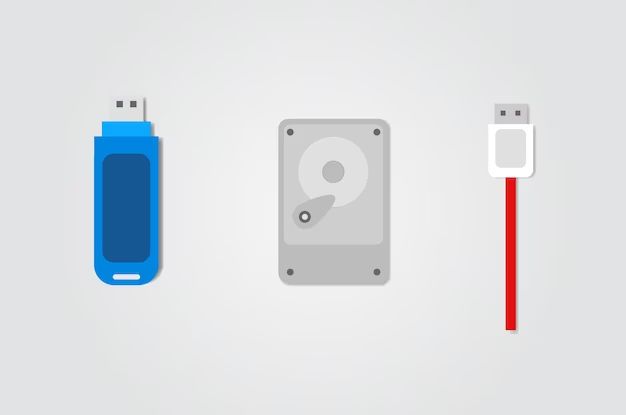
- Plug in your USB stick to an available USB port on your computer.
- Open File Explorer. You can usually do this by clicking the folder icon on your taskbar or pressing the Windows key + E.
- In the File Explorer window, look for "This PC" or "Computer" on the left-hand side. Click on it.
- You’ll see a list of all the drives connected to your computer. Find your USB stick. It will usually be labelled with a drive letter (like D:, E:, or F:) and might have a name you’ve given it.
- Right-click on your USB drive. A context menu will pop up.
- From the menu, select "Format...".
A formatting window will appear. Don't panic! It looks a bit technical, but it's straightforward.
- Capacity: This will show the size of your USB drive.
- File system: For most USB drives and general use, FAT32 or NTFS are common choices. If you're unsure, sticking with the default or choosing FAT32 is usually safe for compatibility with most devices.
- Allocation unit size: You can generally leave this at the default setting.
- Volume label: This is where you can give your newly erased USB stick a name! Type something fun or descriptive.
- Format options: You’ll usually see a checkbox for "Quick Format". For most situations, a quick format is perfectly fine and much faster. It essentially deletes the file index, making the space available, but doesn't go through every single bit of data. If you're particularly concerned about security and want to make it harder for data recovery, you can uncheck this for a full format, but it takes significantly longer.
Once you've reviewed these settings, click the "Start" button. You'll get a warning message stating that formatting will erase all data. If you’re sure you want to proceed, click "OK". After a few moments, your USB stick will be completely erased and ready for new files!

The Mac Way: Wiping Your USB Stick
For our Mac users, the process is equally simple, and it’s handled by a handy utility called Disk Utility.
- Connect your USB stick to your Mac.
- Open Finder.
- Go to Applications > Utilities.
- Launch Disk Utility.
- In the left-hand sidebar of Disk Utility, you'll see a list of drives. Look for your USB drive under the "External" section. Click on it to select it.
- At the top of the Disk Utility window, click the "Erase" button.
A dialogue box will appear with a few options:

- Name: This is where you can name your USB stick.
- Format: Similar to Windows, you’ll have choices like MS-DOS (FAT) for broad compatibility or ExFAT for larger files and wider compatibility. Mac OS Extended (Journaled) is also an option if you primarily use it with Macs.
- Scheme: For most USB drives, GUID Partition Map is the recommended scheme.
For a standard erase, you don’t need to worry too much about the security options unless you have a specific need. Simply choose your desired name and format, then click "Erase". Disk Utility will then proceed to wipe the drive clean. It’s as simple as that!
A Note on Secure Erasure
It's worth mentioning that the "quick format" option, which is the default for most operating systems, doesn't physically destroy the data. It simply marks the space as available. For most everyday purposes, this is perfectly sufficient. However, if you are dealing with highly sensitive data and want to ensure it's virtually impossible to recover, you would need to use more advanced methods like data wiping software that overwrites the data multiple times. But for the vast majority of us, a standard format does the job wonderfully!
So there you have it! Erasing your USB stick is not only a useful skill but a straightforward one, whether you're team Windows or team Mac. Happy erasing, and enjoy that fresh, blank canvas!