
How Do I Print A Gmail Email
Let's talk about something so gloriously normal, so utterly… everyday. We're diving into the wonderfully mundane, yet surprisingly essential, art of printing a Gmail email. Yes, you heard me right. In this age of infinite digital storage and the mythical cloud, sometimes, just sometimes, you need a tangible piece of paper. Think of it as a digital artifact, a memory you can hold, or a crucial document that simply must be offline. So, grab a cup of your favorite brew – perhaps a perfectly frothed oat milk latte, or a no-fuss black coffee – and let's navigate this surprisingly satisfying process.
Why would you even want to print an email in 2024? It's a fair question! Maybe it's a recipe from your grandma that tastes best when you can spill a little flour on the printout (because let's be honest, digital screens don't quite have that same rustic charm for cooking). Or perhaps it's a booking confirmation for that dream getaway you've been planning for ages, and you just want that extra layer of security, that physical reminder that it’s real. It could be a funny chain email that’s just too good to let disappear into the digital ether, destined for the fridge door gallery. Or, in the more serious realm, it might be a vital piece of information, an invoice, or a contract that needs to be archived the old-fashioned way. Whatever your reason, the ability to translate that digital missive into a paper treasure is a handy skill to have in your back pocket.
Now, before we even get to the clicks and scrolls, a little preamble. Ensure your printer is, well, on. This might sound ridiculously obvious, but we’ve all been there, staring at a blank page, wondering where the magic went, only to realize the printer was in sleep mode, dreaming of toner. Also, make sure it’s connected to your Wi-Fi or USB, and that you have paper loaded. It’s the digital equivalent of checking if you have eggs before attempting to bake a cake – fundamental, yet often overlooked in the heat of the moment.
Must Read
The Straightforward Path: Gmail's Built-In Printer Icon
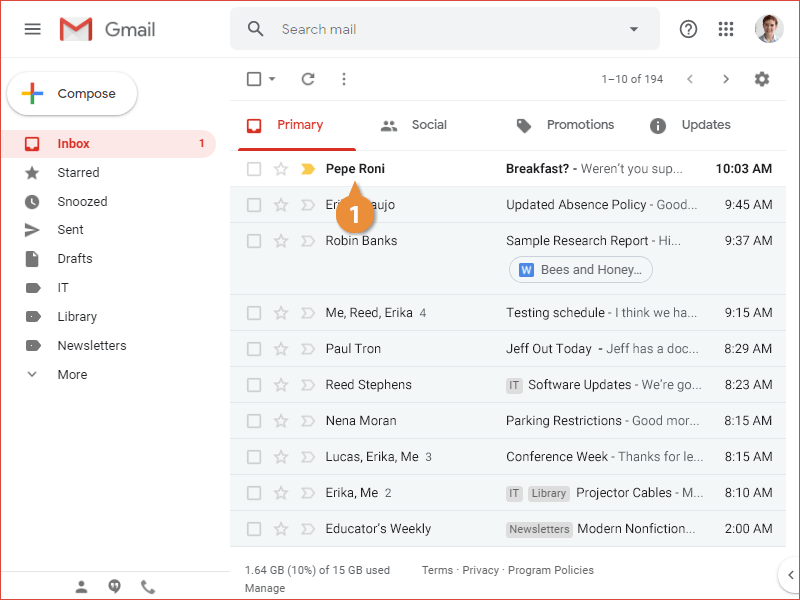
Gmail, bless its digital heart, has made this process wonderfully straightforward. Most of the time, your email is sitting right there, looking all neat and tidy on your screen. You’ll notice, usually in the top right corner of the email itself (not the general Gmail interface), a little icon that’s a universal symbol for "print." It looks like a miniature printer. A tiny, benevolent printing machine, ready to serve.
Click that icon. Seriously, that’s it. A single click. It’s almost too easy, isn’t it? It feels like a little act of defiance against the overwhelming complexity of modern technology. Like finding a perfectly ripe avocado – a small, but significant victory.
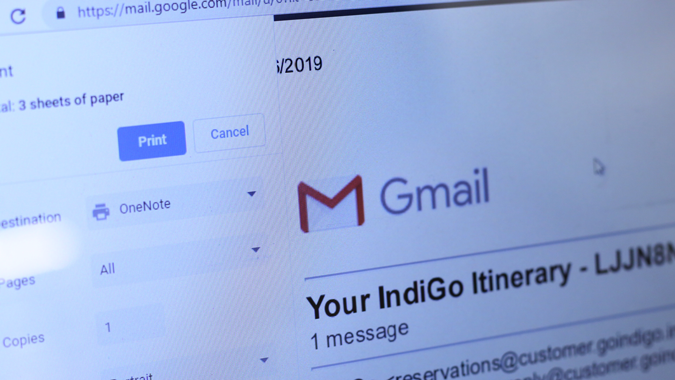
Once you click, a new window, or a tab, will pop up. This is your print preview. Think of it as the dress rehearsal before the main performance. It's showing you exactly what your printed email is going to look like. This is where you can make sure everything is formatted correctly, that no important bits are cut off, and that the font size is legible (unless you’re going for a deliberately artistic, microscopic font, which, kudos to you!).
In this print preview, you'll see your printer options. This is where you select which printer you want to use if you have more than one connected (perhaps one for speedy drafts and another for high-quality photos, like a digital chameleon). You can also choose the number of copies, the page range (though usually it’s just the one page for a single email), and paper orientation (portrait or landscape). Most emails look best in portrait, but for those sprawling, epic tales, landscape might be your friend.
Pro Tip: Look for the "More settings" or "Advanced settings" option. This is where the real power lies. You can adjust margins, scale the content to fit the page perfectly, and even choose whether to include background graphics or just the text. Sometimes, those colorful email backgrounds can be a printer's worst nightmare, gobbling up ink and looking a bit… chaotic on paper. So, consider printing just the text for a cleaner look.
Once you’re happy with the preview and your settings, hit that "Print" button. And voilà! Your email, transformed from intangible bits to tangible paper. It’s like a tiny digital miracle happening right before your eyes.
The "File > Print" Detour: For the Purists
What if you're a bit more old-school, or maybe you’re navigating Gmail on a browser where the print icon isn't immediately obvious? Fear not, for the traditionalists among us, there’s the classic "File > Print" route. This is like knowing how to tie a knot properly; it might not be the flashiest method, but it’s reliable and always works.
Navigate to the email you want to print. Then, look at the very top of your browser window. You’ll see options like "File," "Edit," "View," and so on. Click on "File." A dropdown menu will appear. Within that menu, you’ll find the glorious option: "Print…"
This will generally bring up the same print preview window that the Gmail icon does. The interface might look slightly different depending on your operating system (Windows, macOS, etc.), but the core functionality remains the same. You’ll select your printer, choose your settings, and hit print. It’s the same destination, just a slightly different scenic route to get there.
This method is particularly useful if you're printing a whole conversation thread. Sometimes, the individual print icon only grabs the latest email. Using "File > Print" on the main conversation view might give you more options for including or excluding previous messages. It’s like having a director’s cut of your email correspondence.
:max_bytes(150000):strip_icc()/001_how-to-print-an-individual-email-message-in-gmail-1171998-5c2d0a7e46e0fb00014aa808.jpg)
Dealing with Attachments: The Extra Layer of Complexity
Ah, attachments. Those little digital passengers that tag along with our emails. Printing an email with attachments can sometimes feel like trying to fold a fitted sheet – a bit more involved than it needs to be.
Scenario 1: The attachment is a document you can easily open and print separately. This is the easiest scenario. Open the attachment (e.g., a PDF, a Word document, an image file) in its native application. Then, use the print function within that application. This gives you the most control over the formatting of the attachment itself.
Scenario 2: You want the attachment and the email body on the same printout. This is where things get a tad more creative. Gmail often shows attachments as little icons or previews at the bottom of the email. When you use the Gmail print icon or "File > Print," it usually includes these. However, the way they are displayed can vary. Sometimes it's just a link, and sometimes it’s a small thumbnail.
If you need a high-quality printout of an attachment (like photos), printing it directly from the email might not yield the best results. In this case, it’s always best to download the attachment first and then print it from its dedicated application. Think of it as giving the attachment its own moment in the spotlight, rather than being a supporting actor in the email drama.
A Fun Fact: The concept of attaching files to emails actually predates the World Wide Web! Early email systems in the 1970s allowed for file transfers, a primitive ancestor to the modern attachment we know and love (or sometimes dread).
When Things Go Slightly Awry: Troubleshooting Tips
Even the most well-intentioned printing endeavors can hit a snag. Don’t panic! These are usually minor hiccups, easily resolved with a bit of digital detective work.
Blank Pages or Missing Content:
This is often a formatting issue. Go back to the print preview. Are there any "Print background colors and images" or "Scale to fit paper" options you can toggle? Sometimes, a busy email with lots of images can overwhelm a simple printer. Try printing just the text. Also, check your printer’s driver settings – sometimes there are specific settings for web pages that can help.
Jumbled Text or Weird Characters:
This can happen with complex HTML formatting or if you’re trying to print an email that uses special fonts your printer doesn’t recognize. Again, trying to print just the text often solves this. You might also consider copying and pasting the email content into a plain text editor (like Notepad on Windows or TextEdit on Mac) and printing from there. This strips away all the fancy formatting, leaving you with pure, unadulterated text. It’s like the email equivalent of a digital detox.
Printer Not Responding:
The classics: Is it plugged in? Is it turned on? Is it connected to your network? Restart your printer, your computer, and your router. Sometimes, a simple reboot is all the technology needs to get back on track. Check your printer's queue to see if there are any stalled print jobs.
Beyond the Basics: Customizing Your Printout
For those who like to get a little fancy, there are ways to elevate your printed emails. Think of it as adding a personal flourish, a unique signature to your paper communications.
Print to PDF: Your Digital Time Capsule
Instead of printing to a physical printer, you can often "print" to a PDF file. This is a fantastic option if you want to save the email as a file for future reference, share it with someone who doesn't use Gmail, or archive it in a more organized way. In the print preview, look for an option that says "Save as PDF" or "Microsoft Print to PDF" (on Windows). This creates a digital document that looks exactly like your printed email, but stays firmly in the digital realm until you decide to print it later.
Browser Extensions for Printing: The Power-Ups
The internet is a vast and wonderful place, and there are browser extensions designed to make printing web content easier. While Gmail is pretty good on its own, if you're printing a lot of complex web-based content, an extension like "PrintFriendly & PDF" can be a lifesaver. It helps remove ads, navigation bars, and other clutter, giving you a clean printout of just the content you care about.
Cultural Nod: Remember those days of meticulously cutting out coupons from the newspaper? Printing an email feels like a modern, slightly more sophisticated version of that. It’s about extracting something valuable and making it physically accessible.
The Humble Screenshot: A Quick Fix (with caveats)
For a very quick and dirty snapshot of an email, a screenshot is an option. However, it’s generally not recommended for anything that needs to be clean, professional, or easily readable. Screenshots capture what’s on your screen, including scroll bars, browser tabs, and other visual noise. Plus, they often don't retain the text as searchable data. Use this for capturing a funny message to quickly share with a friend via text, not for saving important documents.
A Final Thought: The Value of Tangibility
In our increasingly virtual lives, there’s a quiet satisfaction to holding something physical. Printing an email is a small act, but it’s a connection to a time when information was less fleeting. It's about making a moment, a message, a piece of data, real. It’s a reminder that even in the age of instant global communication, there’s still a certain charm, a certain gravitas, to a printed page. So, the next time you’re looking at that email and feel a pull towards something more concrete, don't hesitate. Hit that print button. You might be surprised at how good it feels.
:max_bytes(150000):strip_icc()/001_how-to-print-an-individual-email-message-in-gmail-1171998-619cb041e93f47699c9c3860b3508638.jpg)