How Do I Add Comments To A Pdf

Hey there, digital explorer! So, you’ve got this PDF document, and your brain is practically overflowing with brilliant thoughts, helpful suggestions, or maybe just a cheeky little doodle you want to attach. But how, oh how, do you stick those thoughts onto the page without actually editing the PDF itself? Fear not, my friend, for adding comments to a PDF is about as tricky as teaching a cat to fetch (spoiler: it's not that hard, but much more rewarding!).
Think of it like this: your PDF is a beautifully crafted cake. You don't want to start slathering frosting all over it, do you? No, you want to add little decorative sprinkles or maybe a tiny edible figurine. Comments are those sprinkles! They add extra flavor and information without messing up the original masterpiece.
Now, you might be thinking, "But is this some super-secret, high-tech wizardry?" Absolutely not! It’s more like knowing a handy shortcut on your phone or remembering where you put your reading glasses (which, let's be honest, is often the real challenge). We’re going to break it down into easy peasy steps, no jargon, no sweat. Just pure, unadulterated PDF commenting fun!
Must Read
The Tools of the Trade: Your Commenting Arsenal
Before we dive in, let’s talk about what you'll need. You don't need a cape or a secret lair, just a few trusty digital companions. The most common way to add comments is by using a PDF reader. And when you hear "PDF reader," one name usually springs to mind: Adobe Acrobat Reader. It's the OG, the classic, the one your grandma probably uses (and bless her heart, she’s probably a PDF commenting pro by now).
Adobe Acrobat Reader DC (that’s the "Document Cloud" bit) is free, readily available, and packed with commenting tools. Seriously, it’s like the Swiss Army knife of PDF viewing. You can download it from Adobe’s website – it’s a straightforward process, no need to sell a kidney or perform a cryptic ritual.
But wait, there's more! The world of PDF readers has expanded like a well-fed cat. Other excellent free options include:
- Google Chrome: Yep, your trusty web browser can actually do some basic PDF viewing and commenting. It’s not as feature-rich as dedicated software, but for a quick annotation, it’s a lifesaver.
- Microsoft Edge: Similar to Chrome, Edge has built-in PDF capabilities. You can often draw and add text notes.
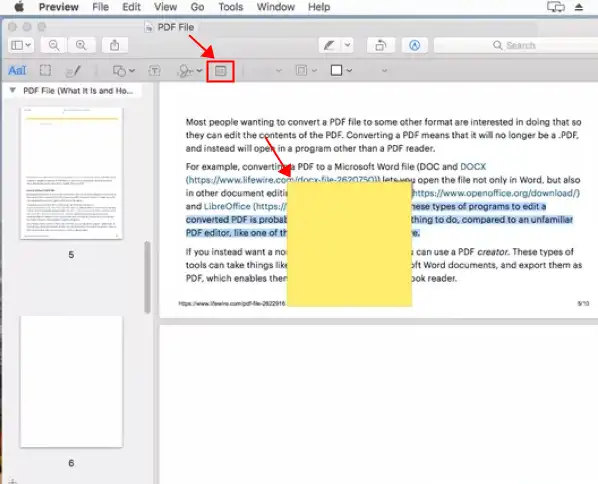
- Preview (on Mac): If you’re rocking a Mac, you’re already ahead of the game! Preview is built-in and surprisingly powerful. It handles comments like a champ.
And if you're feeling fancy (or if your work requires it), there are paid versions like Adobe Acrobat Pro DC, which offer even more advanced features. But for most of us, the free versions are more than enough to get our comment-on!
Let's Get Down to Business: Adding Those Comments!
Alright, apron on, ready to cook? Let’s add some comments! We'll focus on the most popular method, using Adobe Acrobat Reader, but the general principles apply to most other PDF viewers.
Method 1: The "Sticky Note" Approach (Text Comments)
This is probably the most common and versatile way to add comments. It's like leaving a virtual sticky note on the page. You click, you type, and voila! Your thoughts are preserved.
Step 1: Open Your PDF. First things first, open the PDF document you want to annotate in Adobe Acrobat Reader. You can do this by double-clicking the file or by going to "File" > "Open" within the application.
Step 2: Find the Commenting Tools. Look for the commenting tools. In Adobe Acrobat Reader, they are usually located in a panel on the right-hand side of the screen. If you don't see it, don’t panic! You can usually access it by going to "Tools" > "Comment." You might see a whole bunch of options pop up. For adding text notes, we’re looking for something that says “Add Text Comment” or looks like a little speech bubble with a plus sign.
Step 3: Place Your Comment. Click on the “Add Text Comment” tool. Now, move your cursor to the exact spot on the PDF where you want to leave your comment. You’ll notice your cursor might change into a crosshair or a text insertion point. Click your mouse button.
Step 4: Type Away! A small text box will appear on your PDF, and a separate comment window will pop up. This is where you type your brilliant insights! You can write as much or as little as you like. Want to point out a typo? Go for it! Want to suggest a different approach? Absolutely! It's your digital playground.
Step 5: Save Your Work. Once you're done typing, you can usually click outside the text box to dismiss it. The comment will appear as a small icon (usually a speech bubble) on the page. When you hover over it, your text will pop up. And crucially, remember to SAVE your PDF! Go to "File" > "Save" or "Save As" to make sure your amazing annotations are preserved for posterity (or at least until your colleague needs to see them).
Method 2: Highlighting and Underlining (Visual Emphasis)
Sometimes, you don't need a whole essay. You just need to say, "Hey, THIS is important!" Highlighters and underlining tools are your best friends here.
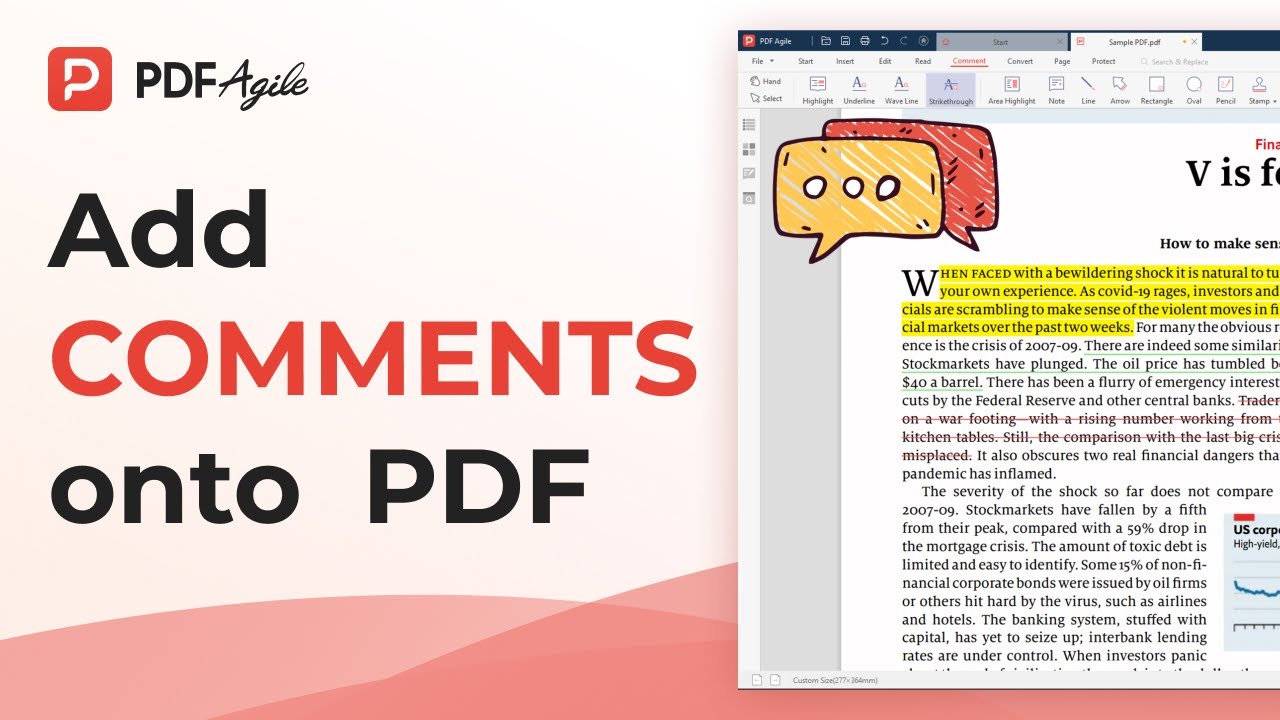
Step 1: Locate the Highlighting/Underlining Tools. Again, head to the commenting tools panel in Adobe Acrobat Reader. You’ll see icons that look like a highlighter pen or a pen for underlining. Sometimes they're grouped together under a "Highlight" or "Drawing" tool.
Step 2: Select Your Tool. Click on the highlighter or underline tool. You might have options for different colors – choose your favorite! Or pick a professional, understated color if you're feeling particularly corporate.
Step 3: Apply to Text. Now, click and drag your mouse over the text you want to highlight or underline. It’s just like using a real highlighter! You can cover entire sentences, paragraphs, or even just a single word that’s particularly captivating.
Step 4: Add a Note (Optional but Recommended!). After highlighting, you can often right-click on the highlighted text. This brings up a context menu, and you’ll usually see an option like “Add Note to Highlight” or "Add a Comment." This is fantastic because it links your visual emphasis directly to a more detailed thought. So, you highlight a sentence, and then add a note saying, "This is the part I think we need to rework because of X, Y, and Z."
Step 5: Save, Save, Save! Don’t forget to save your PDF after you’ve added your visual flair!
Method 3: Drawing and Shapes (For the Visually Inclined)
Perhaps you’re more of a visual thinker. Maybe you need to circle something, draw an arrow, or even sketch a quick smiley face to express your enthusiasm. Most PDF editors have drawing tools.
Step 1: Find the Drawing Tools. In Adobe Acrobat Reader, look for tools like "Drawing Tools" or a pencil icon. This will open up a submenu with various drawing options.

Step 2: Choose Your Tool. You'll find tools for drawing lines, arrows, rectangles, ovals, and even freehand drawing. Pick the one that best suits your annotation needs.
Step 3: Draw on the PDF. Click on the tool you want, and then click and drag on the PDF to create your shape or line. Want to draw a big, bold arrow pointing to a glaring error? Go for it! Need to circle a section for discussion? Easy peasy.
Step 4: Add Notes to Drawings (Optional). Just like with highlighting, you can often right-click on your drawings to add a text comment. This is super handy for explaining why you drew that particular shape or arrow.
Step 5: Don’t Forget to Save! You know the drill by now, right? Save your masterpiece!
Method 4: Stamps (For Official-Looking Markings)
Feeling a bit official? PDF editors often have a “Stamp” tool. These are pre-made images or text that you can place on your document. Think “Approved,” “Confidential,” “Draft,” or even a custom stamp you create yourself.
Step 1: Locate the Stamp Tool. In Adobe Acrobat Reader, you’ll find this under the "Comment" tools. It usually looks like a rubber stamp icon.
Step 2: Choose a Stamp Category. A menu will pop up with different categories of stamps (e.g., Dynamic, Standard Business, Sign Here). Explore them!

Step 3: Select Your Stamp. Click on the stamp you want to use. Some stamps, like “Approved,” are straightforward. Others, like “Dynamic” stamps, might ask you for information like your name, date, or an organization.
Step 4: Place the Stamp. Click on the PDF where you want the stamp to appear. You can often resize and reposition it.
Step 5: Save Your Stamped PDF. Yes, you guessed it – save!
A Word on Different PDF Readers
While we’ve focused on Adobe Acrobat Reader, the core concepts are similar across most platforms. Here’s a super quick rundown:
- Google Chrome/Microsoft Edge: These are generally more basic. You’ll often find tools for drawing, highlighting, and adding simple text notes. Look for a pencil or pen icon.
- Preview (Mac): This is a bit more robust. You’ll find a variety of markup tools, including highlighting, underlining, text boxes, and shape tools, often accessed through a toolbox icon or a "Markup" option in the menu bar.
- Online PDF Editors: There are tons of websites that let you edit PDFs online. These are great if you don’t want to download anything. They usually offer similar commenting features, but always be mindful of the privacy and security of your documents when uploading them to online services.
Pro-Tips for Seamless Commenting
Want to take your PDF commenting game to the next level? Here are a few little nuggets of wisdom:
- Be Clear and Concise: While you can write essays in your comments, a brief, to-the-point note is often more effective. Get to the good stuff!
- Use Different Colors (Wisely): If you’re collaborating with others or using comments for different purposes, using different colors for highlights or sticky notes can help categorize information. Just don’t turn it into a rainbow explosion unless that’s your vibe.
- Review Your Comments: Before sending the PDF off, take a moment to quickly read through your comments. Are they clear? Do they make sense? Did you accidentally say "I love this document!" when you meant "I hate this document!"? (It happens!)
- "Save As" is Your Friend: If you're making significant changes or want to keep a version of the document with your comments and a version without, use "Save As" to create a new file. This is like having your cake and eating it too!
- Understand the Difference Between Annotations and Editing: What we’ve discussed here are annotations – adding notes and marks on top of the PDF. This is different from editing, which means changing the actual text and content of the PDF itself. For most commenting needs, annotations are perfect!
So there you have it! Adding comments to a PDF is not a Herculean task. It’s a simple, effective way to communicate, collaborate, and ensure everyone is on the same page (or at least knows where the important bits are!).
Now go forth and annotate with confidence! Whether you're a student marking up a textbook, a professional reviewing a report, or just someone who wants to leave a digital trail of breadcrumbs, you’ve got the power. And remember, every comment you add is a tiny act of clarity, a small step towards understanding, and a testament to your engaged mind. You're not just viewing a PDF; you're interacting with it, shaping it, and making it work for you. And that, my friend, is pretty darn cool. Now go make some digital magic happen!