How Can I Print A Pdf File

Hey there, my print-curious pal! So, you've got a PDF file – maybe it's a recipe for grandma's secret cookies, a super important contract you need to sign with a real pen (the old-school way!), or perhaps just a really funny meme that deserves a physical existence. Whatever it is, you're staring at your screen and thinking, "How in the world do I get this onto paper?"
Don't you worry your pretty little head about it! Printing a PDF is like making toast – pretty straightforward once you know the buttons to push. We're going to walk through this together, step-by-step, with zero jargon and maximum cheer. Think of me as your personal printing fairy godmother, minus the glitter and the carriage.
The Magic Wand: Your Computer and Printer
First things first, the absolute essentials. You'll need:
Must Read
- Your computer (laptop, desktop, tablet – whatever digital wizardry you're using).
- Your printer (and yes, it needs to be plugged in and turned on! Groundbreaking, I know.)
- The PDF file itself (duh!).
- A connection between your computer and printer. This is usually a USB cable, or if you’re living in the future, it's probably Wi-Fi.
If your printer is giving you the silent treatment, or your computer seems to have forgotten it exists, that’s a whole other adventure for another day. But for now, let's assume all your tech is playing nice. If not, try turning everything off and on again. It’s the universal IT solution, right after "have you tried turning it off and on again?"
Step 1: Open That PDF!
This is where we get to see the goods! You've got a few options for opening your PDF:
- The most common way: Double-click on the PDF file. Most computers come with a default PDF reader, like Adobe Acrobat Reader (the free version is totally fine!) or your web browser. If your browser opens it, that's perfectly okay!
- If it opens in a weird program: Sometimes, PDFs can be a bit like stubborn mules. If it opens in something you don't recognize and can't seem to print from, you might need to install a proper PDF reader. Adobe Acrobat Reader is your best bet. Just Google "Adobe Acrobat Reader download" – it's free and easy peasy.
- Using your web browser: If you're viewing the PDF in Chrome, Firefox, Edge, or Safari, you can usually print directly from the browser window. Look for a printer icon somewhere on the screen. It’s often in the toolbar or a "File" menu.
Once it's open, take a moment to admire your PDF. Is it a masterpiece? A crucial document? A grocery list you still forgot to buy kale for? Whatever it is, it’s ready for its close-up on paper.
The “Print” Button: Your New Best Friend
Alright, the moment of truth! Finding the print button is usually pretty intuitive. Here are the usual suspects:
- The Printer Icon: This is the universal symbol for "PRINT ME!" You'll often see it in the toolbar of your PDF reader or web browser. It looks like a little printer. Genius, right?
- The File Menu: If you don't see a printer icon, look for a "File" menu at the top of your screen. Click on it, and you should see a "Print..." option. Easy peasy lemon squeezy!
- Keyboard Shortcut (for the speedy Gonzaleses): Want to feel like a tech ninja? On most Windows computers, press Ctrl + P. On a Mac, it’s Command + P. Poof! The print dialog box should appear like magic.
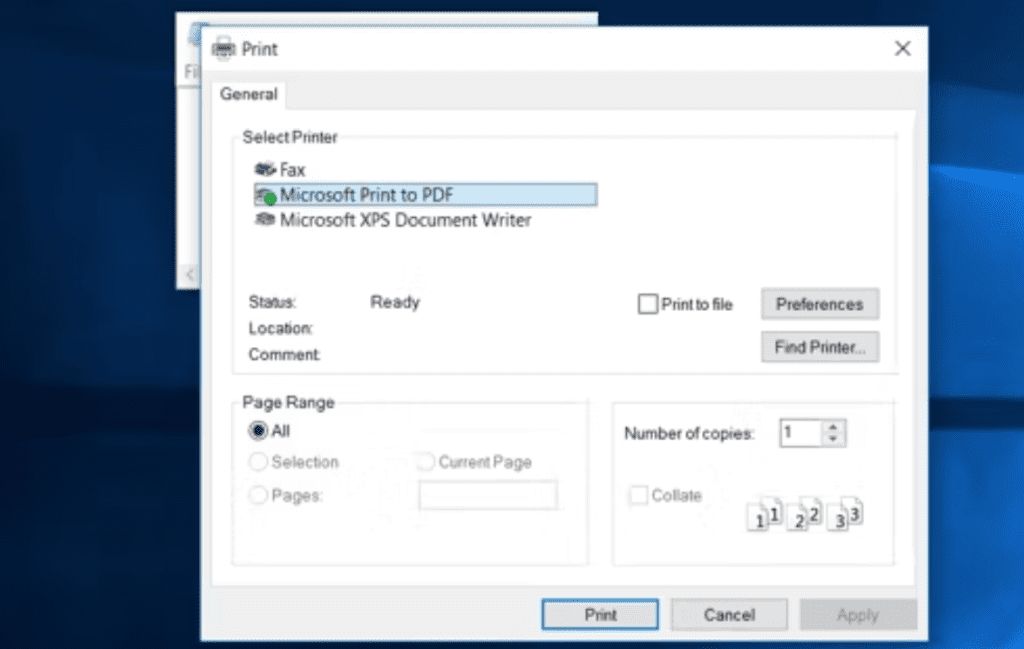
Whichever method you choose, you'll be met with the magical Print Dialog Box. This is where you tell your printer exactly what you want it to do. It might look a little intimidating at first, but it's mostly just options to make your printing life better. Think of it as a customization station for your paper dreams.
Navigating the Print Dialog Box: What All Those Buttons Mean
Okay, deep breaths. This box has a few things going on, but we'll break it down:

- Printer Selection: This is super important! Make sure the correct printer is selected from the dropdown menu. If you have multiple printers (lucky you!), you don't want to send your masterpiece to your neighbor’s ink-guzzling dinosaur.
- Copies: How many of this glorious document do you need? One for you, one for your mom, one to frame? Just type in the number.
- Pages to Print: This is where you can be picky. You can usually choose:
- All: Print the entire PDF from start to finish.
- Current Page: Only print the page you're currently looking at. Handy for saving ink!
- Pages: This is where you can specify a range. For example, "pages 3-7" will print pages 3, 4, 5, 6, and 7. You can also list individual pages like "2, 5, 8".
- Pages from: Sometimes you'll see "Pages from [start] to [end]". It's the same idea as the range selection.
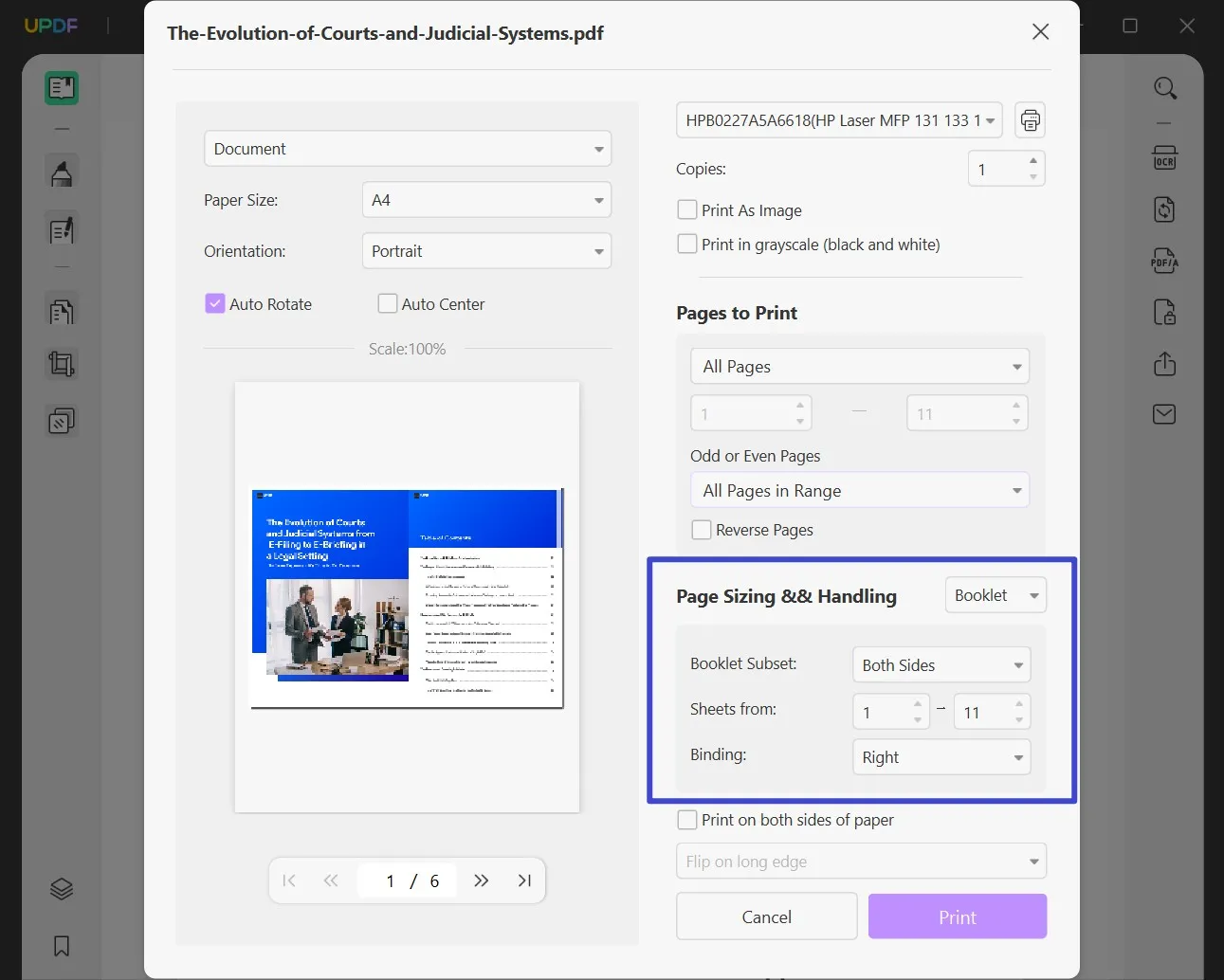
- Page Sizing & Handling (or similar wording): This section is all about how the PDF fits on your paper. You'll likely see options like:
- Actual Size: Prints the PDF at its original dimensions. This is usually what you want unless things look weird.
- Fit: The printer will try its best to shrink or enlarge the PDF to fit the paper. Sometimes this can crop off edges, so use with caution!
- Shrink Oversized Pages: If the PDF is bigger than your paper, it'll shrink it down. This is a good default to have if you're not sure.
- Custom Scale: For the perfectionists! You can enter a specific percentage.
- Orientation: This tells the printer whether your document should be printed horizontally (Landscape) or vertically (Portrait). Think of a wide panoramic photo needing landscape, and a tall, skinny ID card needing portrait.
- Color/Black & White: If your printer is color, you'll usually have the option to print in color or just black and white. Printing in black and white is a great way to save on expensive color ink. Your document will still look fantastic, even in grayscale!
- Duplex Printing (if your printer supports it): This is the fancy term for printing on both sides of the paper. If your printer has this magic, you'll see options for "Print on Both Sides" or "Flip pages on long edge" / "Flip pages on short edge". This is amazing for saving paper and making your documents thicker and more book-like.
Don't feel like you need to understand every single option right away. For most common PDFs, sticking to "All pages," "Actual size," and the correct orientation will get you 99% of the way there. If you're printing something intricate or you're not getting the results you expect, then it's time to dive a little deeper into those settings. But for now, let's keep it simple!
Sending It to the Printer: The Grand Finale!
Once you've double-checked (or triple-checked, no judgment!) that all your settings are as you want them, there's just one button left to press: The Print Button!
Click it. With conviction! And then... you wait.
You might hear the printer whirring to life, its gears grinding with anticipation. It’ll probably make some happy little noises as it pulls in a sheet of paper and starts to work its magic. It’s like watching a tiny paper factory come to life!
And then, like a glorious phoenix rising from the digital ashes, your PDF will appear on paper. Ta-da! You did it! You conquered the PDF printing beast!
Troubleshooting Tips: When Things Go (Slightly) Wrong
Now, what if your printer decides to be a drama queen? Don't panic! Here are a few common hiccups and how to fix them:

- "Printer Offline" Message: This is the most common one. It means your computer can't "see" your printer.
- Check the connection: Is the USB cable plugged in securely? If it's a Wi-Fi printer, is it connected to your network?
- Restart everything: Seriously, turn your printer off and on. Then restart your computer. Sometimes that's all it takes to re-establish the connection.
- Check the printer queue: On your computer, you can usually find a "Printer Queue" or "Print Jobs" section. If there are old, stuck print jobs, try cancelling them.
- Printing Gibberish/Weird Symbols: This usually means there's a communication error.
- Try printing again: Sometimes it's just a one-off glitch.
- Update printer drivers: These are like the translator between your computer and printer. Search online for "[Your Printer Brand and Model] drivers" and download the latest ones.
- Try printing from a different program: If you're printing from a web browser, try opening the PDF in Adobe Reader and printing from there.
- Pages are Cropped or Too Small: Go back to the Print Dialog Box and play with the "Page Sizing & Handling" options. "Actual Size" or "Shrink Oversized Pages" are usually your safest bets.
- Running out of Ink/Toner: A classic! Your printer will usually give you a warning. Stock up on ink or toner before you embark on any major printing projects. It’s like needing enough fuel for a road trip!
Remember, printers can be quirky creatures. They have their moods. But with a little patience and these troubleshooting tips, you can usually coax them back into cooperation. You're a print whisperer now!
The Joy of a Tangible Document
And there you have it! You've successfully navigated the wondrous world of PDF printing. From opening the file to clicking that final "Print" button, you've transformed a digital entity into a tangible piece of paper.
There’s something incredibly satisfying about holding a printed document, isn't there? It’s real. You can highlight it, doodle in the margins, stick it on your fridge, or file it away for safekeeping. It’s a little piece of the digital world brought to life. So go forth and print! Print recipes, print poems, print funny pictures of cats wearing hats. Print whatever makes your heart sing and your printer purr.
You've got this! Now go make some paper magic happen, and enjoy the satisfying crinkle of a freshly printed page. Happy printing, my friend!