How Can I Open A Csv File
Hey there! Ever stared at a file with a name that sounds a bit like a quirky acronym, like "my_shopping_list.csv"? Or maybe you’ve been asked to open something and it just… doesn't look like a regular document you’d typically click on? Yup, we’re talking about those CSV files. Don't let the fancy-sounding name fool you; they're actually pretty straightforward and surprisingly useful. Think of them as the plainspoken, incredibly organized cousins of your everyday documents.
So, what exactly is a CSV file? Imagine you're jotting down your grocery list. You write "Milk" on one line, then "Eggs" on the next, then "Bread" below that. A CSV file is kind of like that, but for computers. It's a way to store information in a nice, neat table, where each line is a new row, and the items on that line are separated by something called a delimiter, which is usually a comma. Hence, Comma Separated Values. See? Not so scary after all!
Why should you even bother caring about these comma-separated wonders? Well, think about it. Our lives are full of data, from the contacts in your phone to your online banking statements, to even the stats for your favorite sports team. These pieces of information often need to be shared, moved around, or analyzed. CSV files are the universal language for this kind of data transfer. They’re like the trusty old handshake of the digital world – everyone understands them, and they’re great for getting things done efficiently.
Must Read
Let’s say you’ve downloaded some data from a website, perhaps for a personal project like tracking your book collection or your fitness journey. Or maybe your boss sent you a spreadsheet of customer names and addresses that you need to use in a different program. If that file ends up being a .csv, you’ll need to know how to open it! It’s like having a secret key to unlock a treasure trove of organized information.
Opening Your CSV File: The Easy Peasy Way
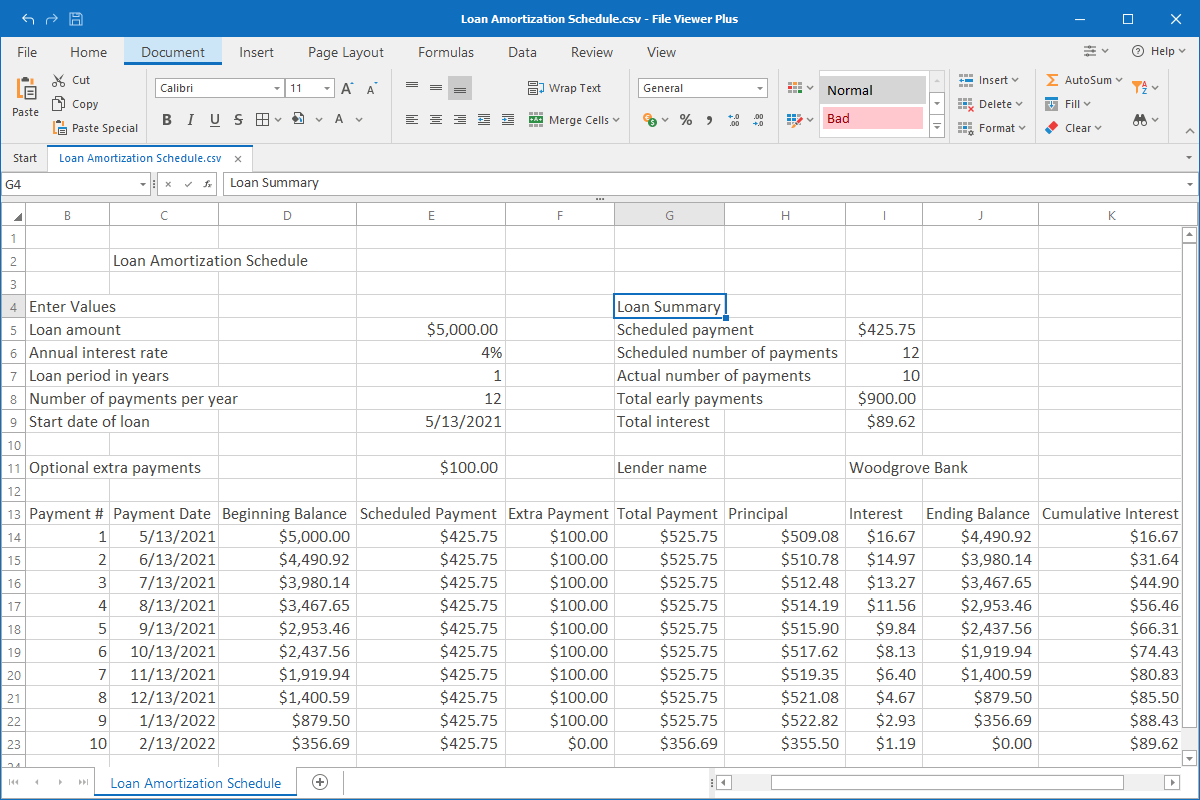
Alright, let's get down to business. The most common and easiest way to open a CSV file is with a program you probably already have on your computer: a spreadsheet program. Think of Microsoft Excel, Google Sheets, or even Apple's Numbers. These are your go-to tools for anything involving rows and columns, and CSV files fit perfectly into their world.
Using Microsoft Excel: If you have Microsoft Office installed, opening a CSV is usually as simple as double-clicking the file. If it doesn't open automatically, just open Excel first, then go to File > Open and navigate to your CSV file. Excel is pretty smart; it will likely recognize the comma as the separator and display your data in neat columns.
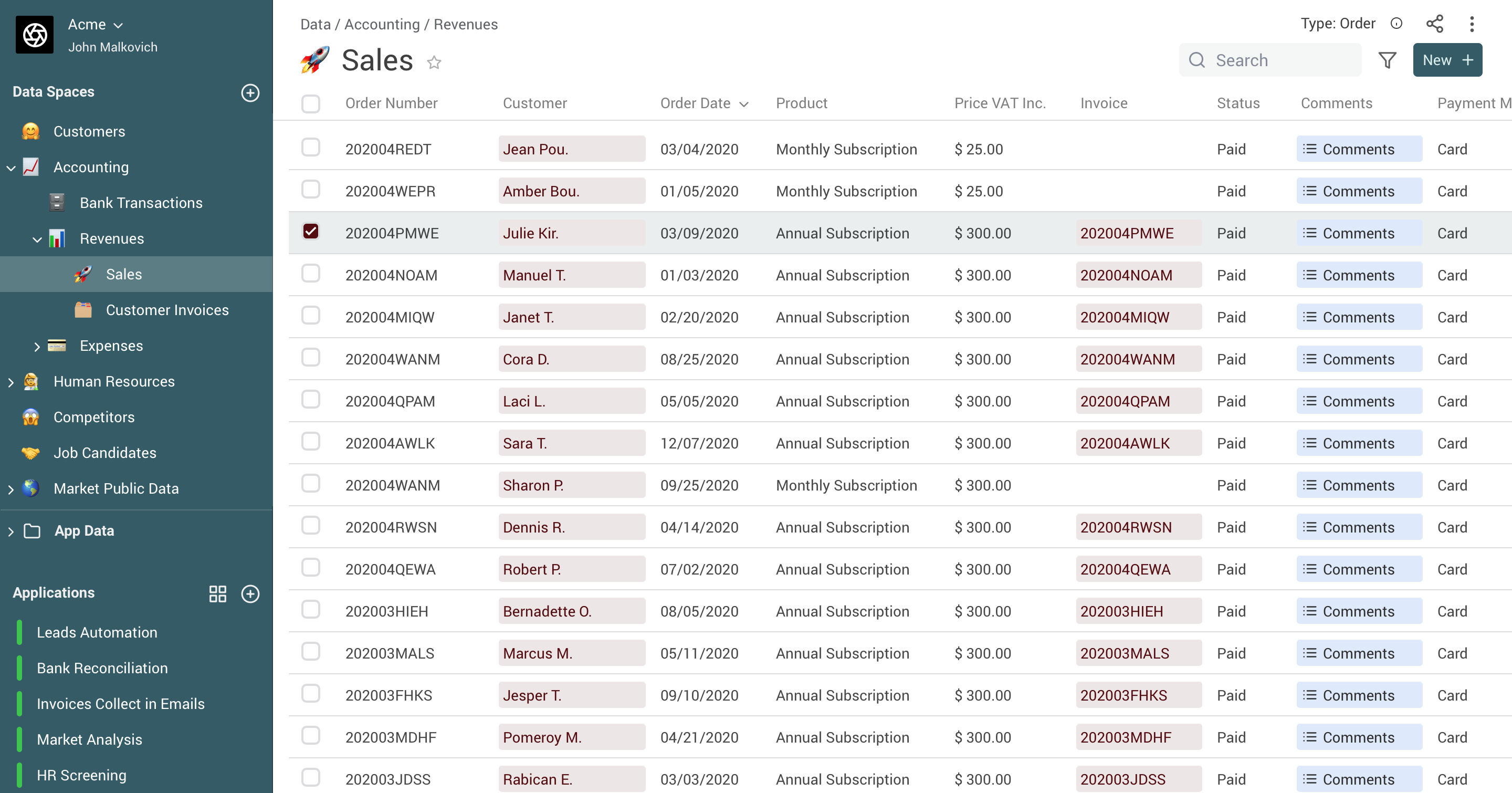
Using Google Sheets: This is a fantastic free option! If you’re already logged into your Google account, just head over to Google Sheets (sheets.google.com). You can then click on the File > Import option, choose the Upload tab, and select your CSV file from your computer. Google Sheets is also super intelligent and will usually figure out the formatting for you. It’s like having a friendly assistant who knows exactly what to do.
Using Apple Numbers: For our Mac users, Numbers is your friend. Similar to Excel, you can often just double-click the CSV file. If not, open Numbers, go to File > Open, and find your file. Numbers will do its best to present your data beautifully.
What if it Looks Like Gibberish? The Text Editor Solution
Sometimes, especially if you’re not using a dedicated spreadsheet program, a CSV file might look a bit… messy. You might see all your data crammed onto one long line, with commas everywhere. Don’t panic! This is where a simple text editor comes to the rescue. Programs like Notepad (on Windows) or TextEdit (on Mac) can open any file, and a CSV is no exception.
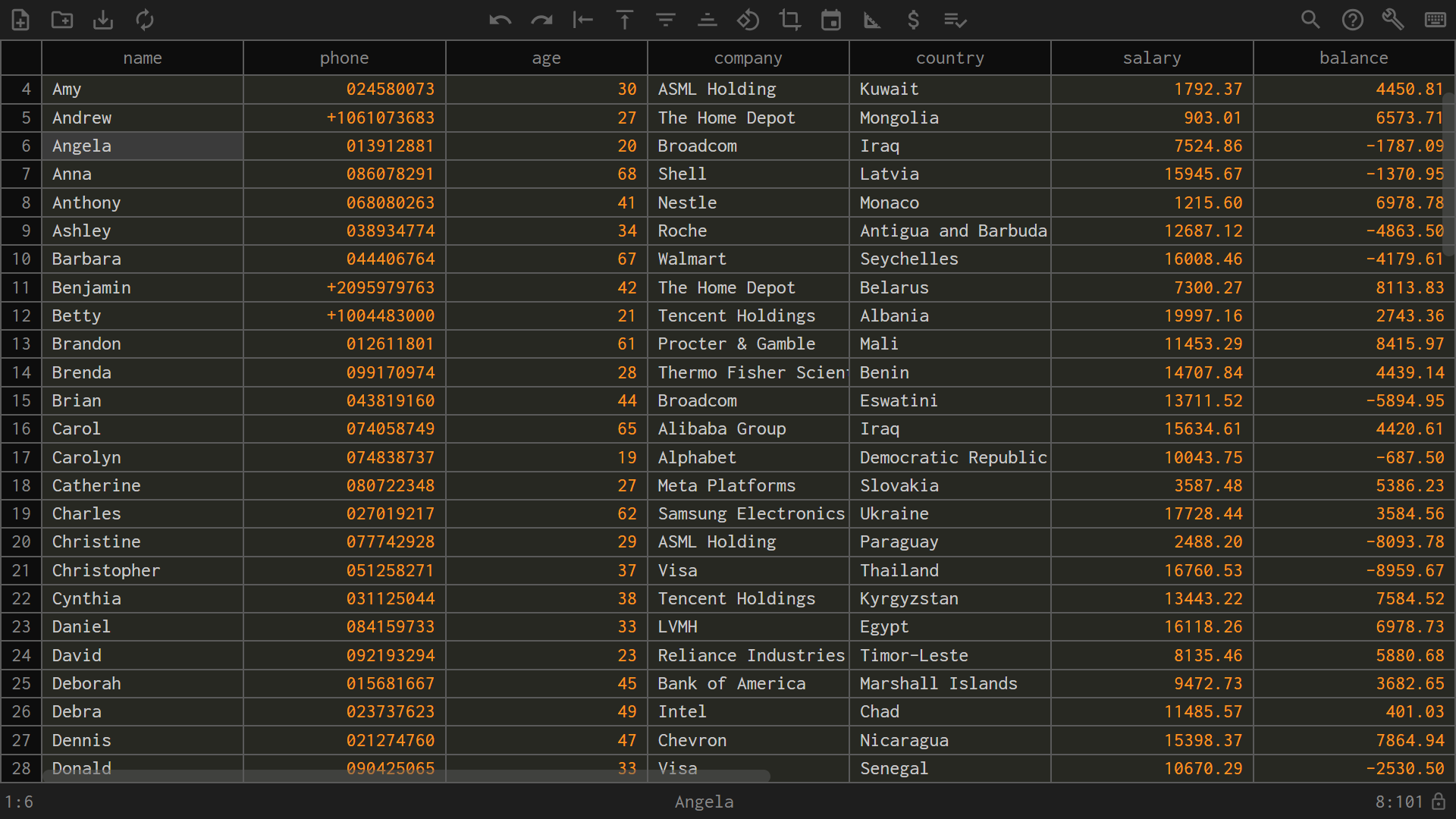
Just right-click on the CSV file, and look for an option like "Open With" or "Choose another app." Select your text editor. You’ll see the raw data, with all those commas. While it’s not the prettiest way to view it, it’s incredibly useful if you just need to quickly peek at a few specific pieces of information or make a tiny, targeted edit. Think of it as looking at the blueprint of your data before it’s nicely furnished by a spreadsheet program.
This is also a good method if you're dealing with a CSV that has a different separator, maybe a semicolon or a tab. A text editor will show you exactly what’s there, and you can then decide if you need to use a more advanced tool to reformat it.
Why is This So Useful, Anyway? A Little Story
Let me tell you about my friend Sarah. Sarah is an avid gardener. She loves tracking every seed she plants, when she waters them, and when they finally bloom. For years, she used a notebook, which was lovely and sentimental, but a bit of a pain when she wanted to see, for example, which tomatoes were the fastest to fruit.
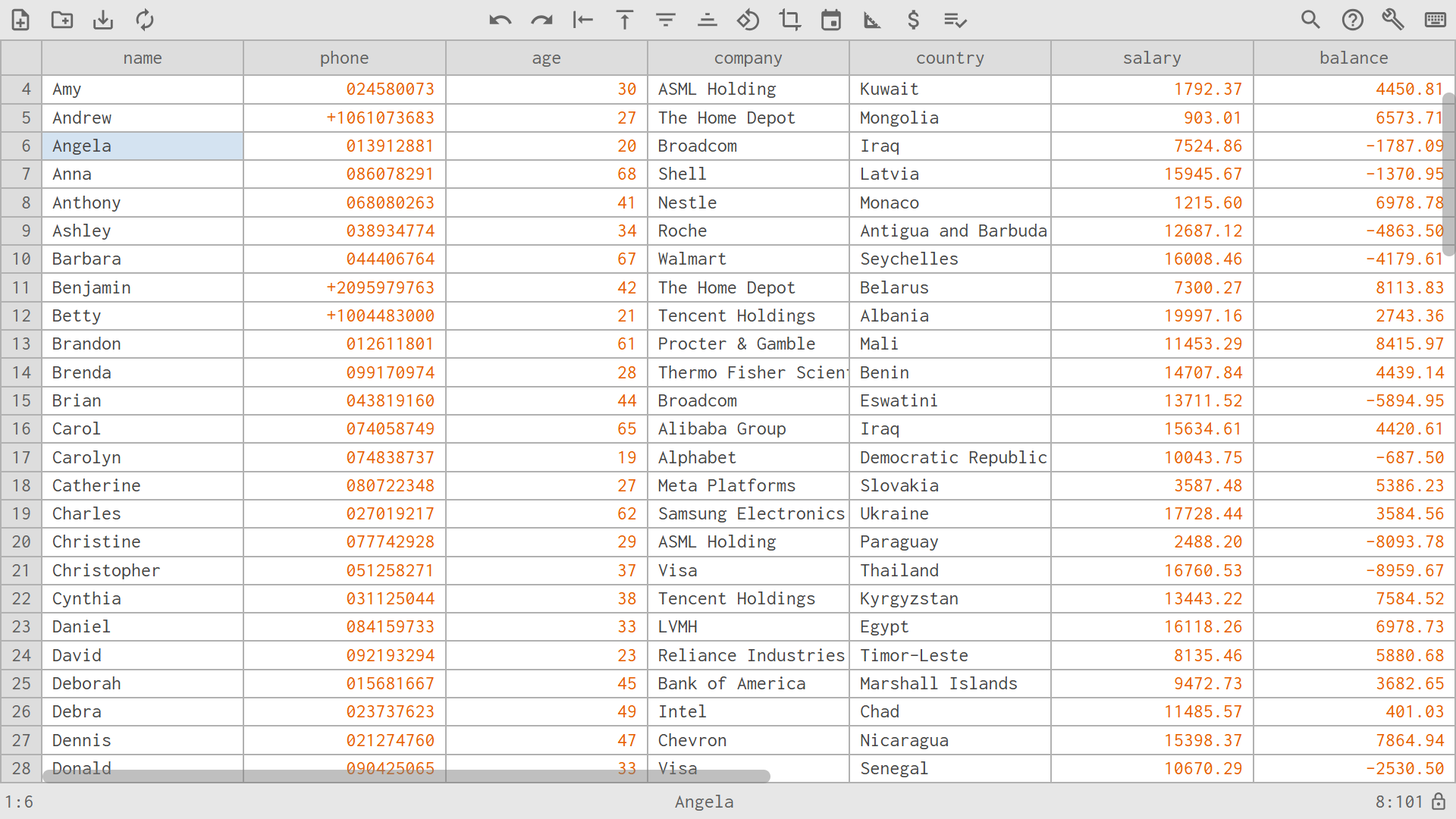
One day, I showed her how to use a simple spreadsheet program (Google Sheets, in her case) and save her gardening notes as a CSV file. Now, she can easily enter all her data, and then, with a few clicks, she can sort her plants by planting date, by variety, or even by how much sun they got. She can create charts showing her average bloom time for different types of flowers. It's turned her hobby into a data-driven hobby!
And the best part? If she wants to share her amazing gardening insights with her garden club, she can just send them the CSV file. Everyone can then open it with their own preferred program and see Sarah's beautifully organized data. No complicated software needed, just the universal language of CSV.
Quick Tips and Tricks
Save your work: Once you've opened a CSV in a spreadsheet program, remember to save it as a spreadsheet file (like .xlsx for Excel or in Google Sheets' native format) if you plan to do a lot more editing. This preserves the formatting and features of the spreadsheet program.

Check the import settings: If your CSV file looks jumbled when you first open it, it might be because the program didn't guess the correct separator or character encoding. Most spreadsheet programs have an "Import Data" or "Text Import Wizard" that allows you to specify these details. It's like telling the program, "Hey, these little commas are actually dividers!"
Not just for tables: While we've talked a lot about tabular data, CSVs can also be used to store simple lists or even configuration settings for some software. They're incredibly versatile.
So, there you have it! Opening a CSV file isn't rocket science. It’s a simple skill that unlocks a world of organized information. Whether you’re a budding gardener, a meticulous budgeter, or just curious about your digital world, knowing how to handle these files is like adding a handy Swiss Army knife to your computer toolkit. Give it a try, and you might be surprised at how much easier managing your data can become!