Icloud Private Relay Connection Failure: 3 Fast Ways To Get Safari Back Online On Iphone
Ever found yourself staring at that spinning wheel in Safari, wondering why your iPhone suddenly decided to take a digital siesta? It’s a common, and frankly, a little frustrating experience, especially when you’re trying to quickly look up a recipe or find that vital piece of information. Often, the culprit behind this sudden connectivity hiccup is iCloud Private Relay, a nifty feature designed to enhance your online privacy. While it’s a fantastic tool, sometimes, like any piece of technology, it can throw a little wobble. But don't worry! Getting Safari back on track is usually a breeze, and understanding how to do it can make your online life smoother and more secure.
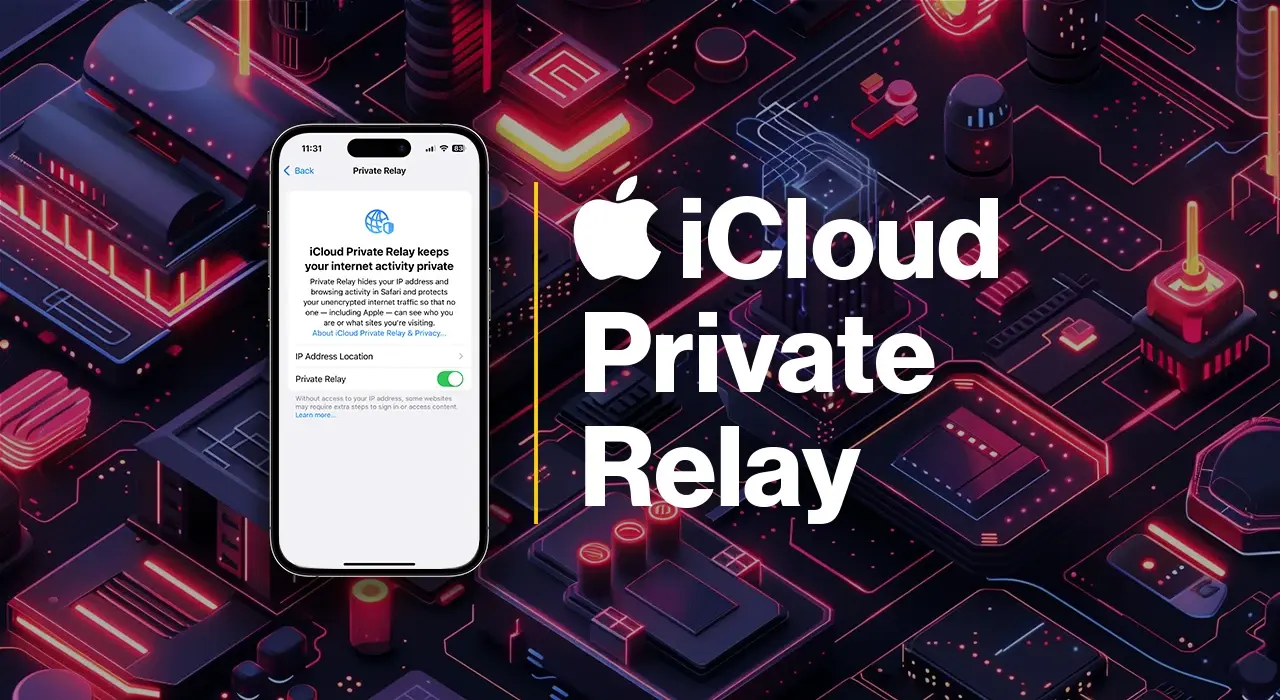
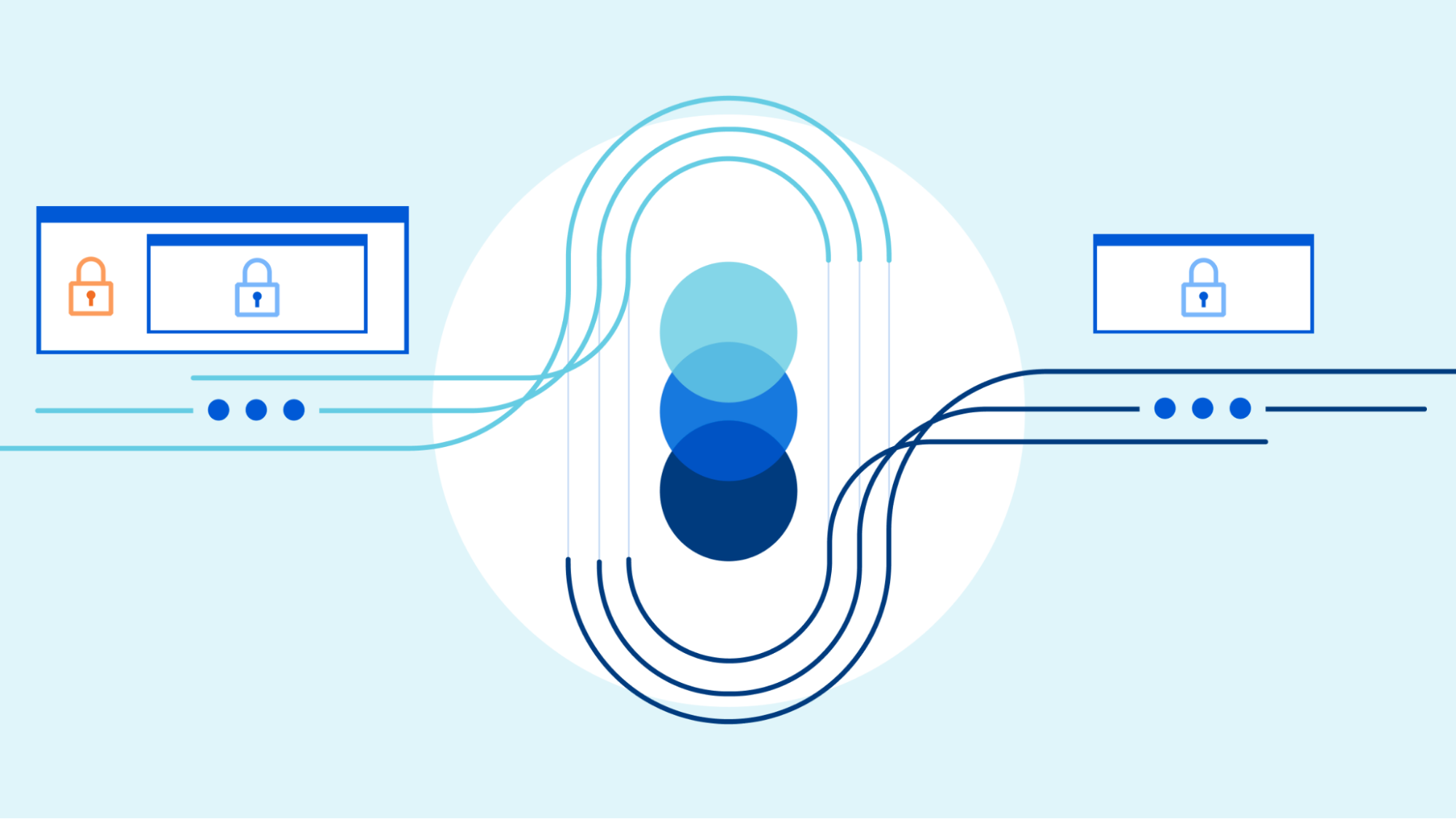
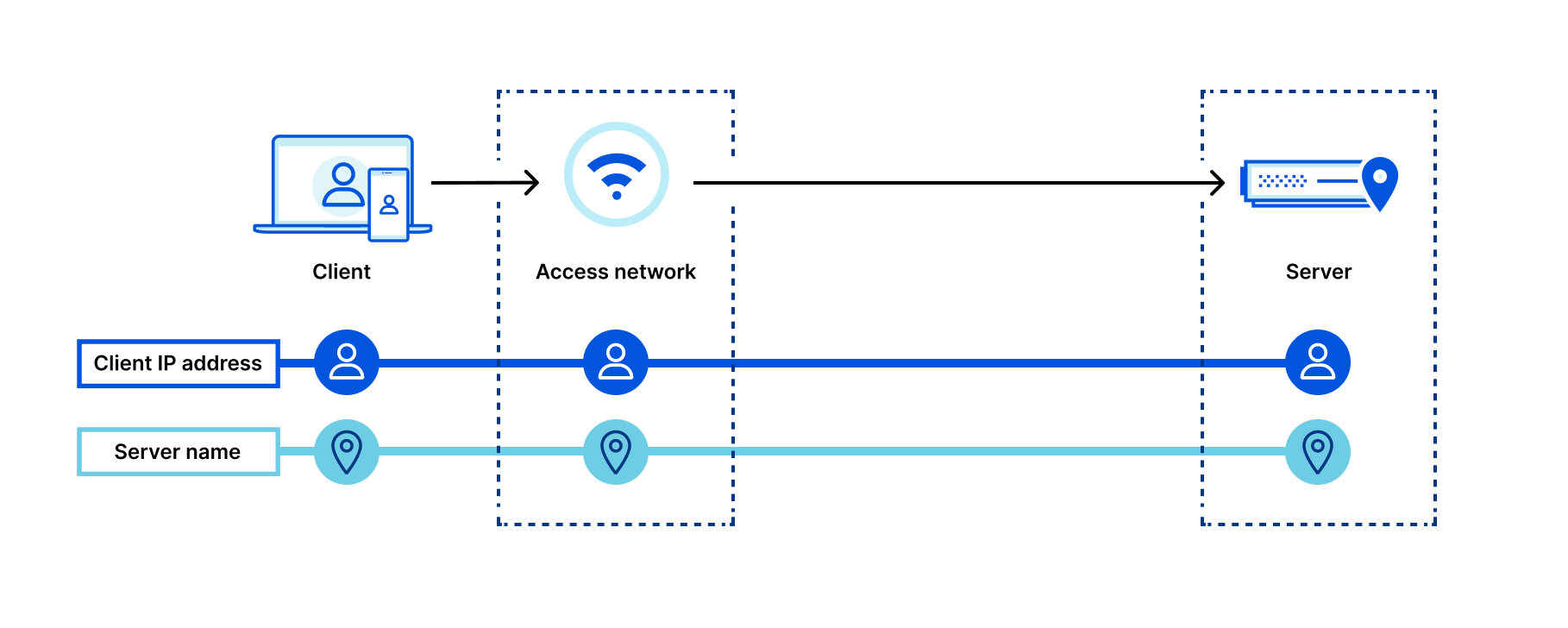
So, what exactly is iCloud Private Relay? Think of it as a digital cloak for your internet traffic when you're using Safari on your iPhone. When this feature is active, it routes your browsing requests through two separate, secure internet relays. The first relay assigns you an IP address, making it appear as though you're in a general location. The second relay then decrypts the website address and sends you on your way. This means that not only is your browsing history kept private from Apple, but your IP address is also hidden from the websites you visit. The primary benefit is a significant boost in your online privacy and security, making it much harder for anyone to track your online activities or identify your location.
This might sound a bit technical, but its applications are surprisingly down-to-earth. In an educational setting, students can browse research materials with added confidence, knowing their activity is less traceable. For daily life, imagine using public Wi-Fi at a café or airport. Private Relay acts as an extra layer of protection, shielding you from potential prying eyes on shared networks. It’s like having a personal, encrypted tunnel for your internet connection, even when you’re on the go.
Must Read
Now, back to that pesky connection failure. When Safari starts acting up, and you suspect Private Relay might be the reason, here are three quick fixes to get you browsing again:
1. Toggle Private Relay Off and On: This is the classic “turn it off and on again” for a good reason! Navigate to Settings, tap your Apple ID name at the top, then select iCloud. Under “Apps Using iCloud,” find and tap on Private Relay. Toggle the switch off, wait a few seconds, and then toggle it back on. This simple reset often clears up any temporary glitches.
2. Adjust Your Location Settings: Sometimes, location services can play a role. Go to Settings, then Privacy & Security, and tap on Location Services. Ensure that Location Services are turned on. While not directly a Private Relay setting, it can sometimes influence how these privacy features interact.

3. Check Your Wi-Fi or Cellular Connection: While this might seem obvious, a weak or unstable internet connection can also cause Private Relay to falter. Try switching between Wi-Fi and cellular data to see if one offers a more stable connection. If you’re on Wi-Fi, try forgetting the network and reconnecting, or even restarting your router.
Exploring these simple steps can not only resolve immediate connection issues but also help you understand how iCloud Private Relay works. It’s a powerful tool for online privacy, and with a little know-how, you can ensure it’s always working for you, keeping your Safari sessions smooth and secure.