How To Work Out Vat In Excel

Ever stared at a spreadsheet, feeling like you're trying to decipher ancient hieroglyphs? You know, the ones with all the numbers and cryptic codes? And then you hit that moment when you realize you need to figure out the Value Added Tax (VAT) for a bunch of items, and suddenly, your brain feels like it's doing the cha-cha with a calculator. Yeah, I’ve been there. But guess what? Excel isn't some scary monster designed to torment us. In fact, it can be your best friend when it comes to wrangling VAT.
Think of Excel as your super-organized digital filing cabinet, but instead of dusty folders, you have neat rows and columns. And when it comes to VAT, it’s like having a magic wand that can do all the heavy lifting for you. No more mental gymnastics, no more second-guessing if you added or subtracted correctly. We’re talking about making VAT calculations as easy as ordering a pizza online. Seriously!
So, why is this even cool? Well, besides the obvious perk of not having to feel like a maths whiz (unless you are, in which case, high five!), understanding how to do this in Excel is incredibly empowering. It gives you control over your numbers, whether you’re a small business owner, a freelancer, or just someone who likes to keep their personal finances tidy. It’s like learning a secret handshake that unlocks a new level of financial savvy.
Must Read
Let's Break Down the Basics (No Sweat!)
Before we dive into the Excel wizardry, a quick refresher on VAT. It's essentially a consumption tax. The general idea is that businesses collect VAT on behalf of the government. You, as a consumer, pay the VAT when you buy goods or services. Businesses then pay the VAT they’ve collected to the government, but they can usually deduct the VAT they’ve paid on their own business expenses. It’s a bit like a relay race for money, where the finish line is the taxman’s office.
In most places, VAT is a percentage. You’ll often hear about things like "20% VAT" or "5% VAT". This means that for every £100 you spend (excluding VAT), you'll add £20 (20% of £100) for VAT, bringing the total to £120. Simple enough, right?
Your New Best Friend: The Formula Bar
Now, onto the star of the show: Excel! The real magic happens in the formula bar. This is where you tell Excel what you want it to do. It’s like giving instructions to a very obedient (and very fast) robot. We’ll be using a few simple mathematical operators – the plus sign (+), the minus sign (-), and the asterisk (), which means "multiply" in computer-speak.
Calculating VAT: The "Add VAT" Scenario
Let’s say you have a price for an item, and you need to add the VAT to it. Imagine you’ve got a cool gadget for £100 (let's pretend that's the price before VAT). And the VAT rate is 20%.
In Excel, you'd put your price (£100) in one cell, let’s say cell A1. Then, in another cell, you'd put the VAT rate (20%). You can either type 20% directly, or you can type 0.20, which is the decimal equivalent. Excel is smart enough to understand both. Let’s assume you put 0.20 in cell B1.
Now, here’s where the magic happens. In a new cell (say, C1), you'll type this: =A1 * B1. See that? You're telling Excel: "Take the number in cell A1 and multiply it by the number in cell B1."
When you hit Enter, cell C1 will show you £20. That's the amount of VAT! Easy peasy, right? It's like finding out your favorite coffee shop offers a loyalty card – an instant win.
Calculating the Total Price (Including VAT)
But what if you want the grand total, the price *with VAT included? No problem! We can build on our previous step. You can either do this in a new cell or combine it into one glorious formula.
Method 1 (using the VAT amount we just calculated): In cell D1, you'd type: =A1 + C1. This tells Excel to add your original price (A1) and the VAT amount (C1). Voila! You get £120. It’s like adding sprinkles to your ice cream – makes everything better.

Method 2 (the shortcut!): You can do it all in one go. In cell D1, you'd type: =A1 + (A1 * B1). This formula means: "Take the original price (A1) and add to it the result of multiplying the original price (A1) by the VAT rate (B1)."
Alternatively, and this is a neat little trick that saves you typing, you can use the percentage addition directly. If your VAT rate is 20%, then the total price is 120% of the original price. So, in cell D1, you could type: =A1 * 1.20 (if your VAT rate is 20% and B1 contains 0.20, you could also write =A1 * (1 + B1) which is even more flexible!). This is like saying, "Give me the original price, and then add an extra 20% on top." Boom! £120 appears.
Calculating VAT: The "Remove VAT" Scenario
Sometimes, you’ll have a price that already includes VAT, and you need to figure out what the price was before VAT was added. This is super common when you’re dealing with invoices or receipts where the VAT is listed separately. Let’s say you’ve bought something for £120, and you know the VAT rate is 20%.
Again, we’ll use our trusty cells. Let's say £120 (the price with VAT) is in cell A1, and the VAT rate (20% or 0.20) is in cell B1.
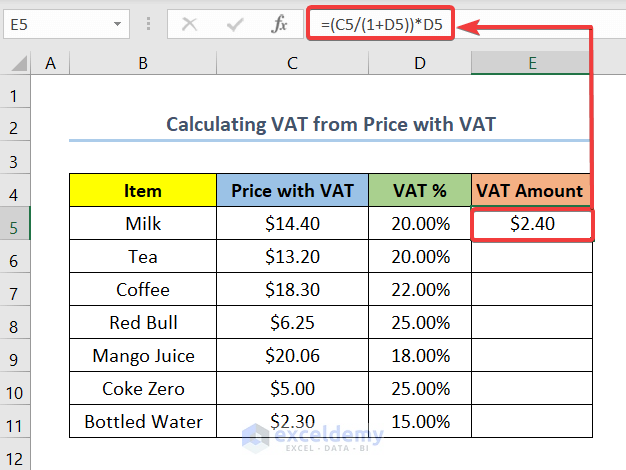
To remove VAT, we need to do a bit of division. The total price including 20% VAT represents 120% of the original price. So, to get the original price, you divide the total price by 1.20.
In cell C1, you'll type: =A1 / 1.20. If your VAT rate is stored in B1, a more flexible formula would be: =A1 / (1 + B1). This tells Excel: "Take the price in A1 and divide it by the total percentage (100% original price plus the VAT rate)."
Hit Enter, and cell C1 will show you £100. Magic! It’s like finding a hidden compartment in your furniture – a pleasant surprise.
Calculating the VAT Amount When Removing It
Once you know the price before VAT, it's easy to find out how much VAT was actually added. In cell D1, you'd type: =A1 - C1. This means: "Take the total price (A1) and subtract the price without VAT (C1)." The result? £20, the amount of VAT!
Making it Even Easier: Using Named Ranges
Are you starting to feel a little bit like a spreadsheet ninja? Good! Now, for a pro tip. Constantly typing "A1" or "B1" can get a bit tedious, especially if your spreadsheet grows. Excel has a feature called Named Ranges.

Imagine you have your VAT rate of 20% in cell B1. You can actually name that cell "VATRate". Then, instead of typing `=A1 * B1`, you can type `=A1 * VATRate`. It makes your formulas so much easier to read and understand, especially for complex spreadsheets. It's like giving your important tools fancy, memorable names instead of just calling them "the thingy."
To do this, select the cell you want to name (e.g., B1), then go to the "Formulas" tab, and click "Define Name." Type in your desired name (like VATRate) and click "OK." Now, whenever you use "VATRate" in a formula, Excel will know you mean cell B1.
Why This Matters (Beyond the Spreadsheet)
Being able to calculate VAT in Excel isn't just about numbers on a screen. It's about understanding your finances better. For businesses, it's crucial for accurate invoicing, bookkeeping, and tax returns. For individuals, it can help you track spending and understand the true cost of goods and services. It takes away the mystery and gives you clarity.
Think of it this way: If you’re planning a trip, you need to know how much flights, hotels, and activities will cost, right? VAT is just another layer to that costing. Excel helps you peel back those layers easily.
So, next time you’re faced with a spreadsheet and a VAT calculation, don't panic! Remember these simple formulas. Excel is your ally, and with a few clicks and a bit of understanding, you can master VAT calculations like a pro. Happy spreading!