How To Undo Read Only In Excel

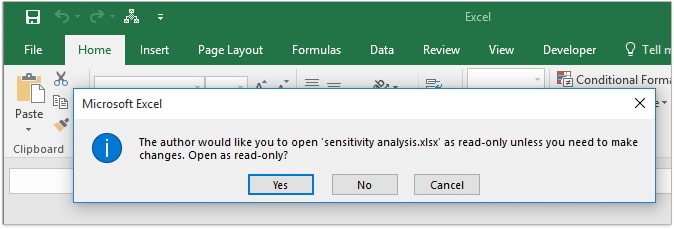
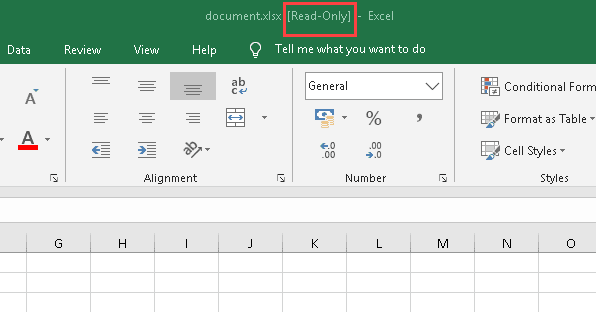
Oh, Excel! Our trusty digital spreadsheet sidekick, the unsung hero of budgets, party planning, and tracking your epic sourdough starter's rise. We love it, we truly do. But then, it happens. That dreaded moment when you’re ready to tweak a cell, maybe add a little celebratory emoji to your year-end report (you earned it!), and BAM! A message pops up, colder than a forgotten ice cream cone on a winter's day: "This workbook is read-only."
Your heart sinks. Your fingers freeze. It feels like your entire digital world just slammed a tiny, digital door in your face. Don't despair, my friend! This isn't the end of your Excel adventure. Think of it as a little detour, a minor bump in the road, or perhaps a mischievous gremlin who’s temporarily locked your precious data. And just like any good adventure, there's always a way to find the key and unlock the treasure!
Let's dive into the wonderfully simple (and dare I say, almost magical) ways to banish that pesky "Read-Only" status and get back to your data-crunching glory. No need for ancient scrolls or secret handshakes here, just a few clicks and a sprinkle of digital common sense.
Must Read
The "Save As" Sorcery
This is your first line of defense, your trusty sword in the fight against read-only tyranny. Sometimes, Excel just gets a little confused, or perhaps the file you opened was meant to be protected from accidental edits (which is totally valid!). But if you want to edit it, the easiest trick in the book is the good ol' "Save As".
Imagine you've found a beautifully decorated cake, but it's behind a velvet rope. You can admire it, sure, but you can't have a slice. So, what do you do? You politely ask the baker if you can have your own, identical cake, just for you! That's essentially what "Save As" does.
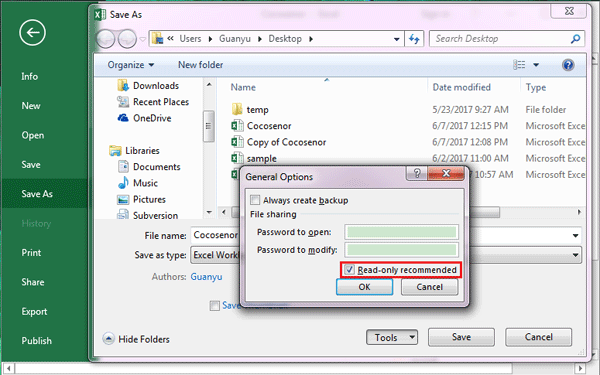
When you’re staring down that read-only notification, simply go to File, then click on Save As. Now, choose a new location for your file (maybe a different folder, or even just give it a slightly different name, like "My Awesome Budget - EDITABLE" instead of "My Awesome Budget"). Hit Save, and ta-da! You’ve created a brand new copy that, fingers crossed, won’t be burdened by read-only restrictions.
This is especially handy if the original file is shared or accessed by multiple people. Your new, editable copy is your personal sandbox, and you can go wild!
The "Properties" Potion
Sometimes, the read-only status is a bit more stubborn. It’s like a grumpy doorman who won’t let you in, even though you have a perfectly good invitation. In these cases, we need to consult the file's birth certificate, its Properties.
This is a little more "under the hood," but still incredibly easy. Find the actual Excel file on your computer – the icon itself. Right-click on it (that's the right-click, not the left-click, unless you're feeling particularly adventurous!). A menu will pop up, like a secret decoder ring. Look for Properties and click it.
A new window will appear, full of fascinating (okay, maybe not fascinating, but important!) details about your file. Now, here’s the magic part: look for a checkbox that says Read-only. If it’s checked, uncheck it! It’s like telling the grumpy doorman, "Nope, not today, pal!"
Click Apply, then OK, and then bravely try opening your Excel file again. You might just find that the read-only gremlin has packed its bags and is off to bother someone else!
Important Note: This trick works best if you're the one who controls the file's permissions. If it's a file from work or a shared drive that’s protected by a system administrator, you might need to reach out to them. They’re the ultimate gatekeepers in those situations!
The "Open As" Overture
This is a bit of a niche move, but it can be a lifesaver when you’re in a bind. Sometimes, when you’re opening a file directly from an email attachment or a website, Excel can be a bit overzealous with its security measures. It sees the file and thinks, "Whoa there, cowboy! Let’s just keep this one safe."
Instead of double-clicking the file, try opening Excel first. Then, go to File > Open. Browse to where your read-only file is located. Now, before you click the final "Open" button, look for a little dropdown arrow next to the "Open" button. Click that arrow!
You’ll see a few options. Sometimes, there’s an option like Open as Copy or Open Read-Only. If you see Open as Copy, that’s your golden ticket! This will open a duplicate of the file, and you can edit that copy to your heart’s content.
It’s like being offered a sample of a delicious treat before you commit to buying the whole thing. You get to try it out, make sure it's just right, and then you can have the full, editable version!
So there you have it! Three super-simple ways to conquer the dreaded "Read-Only" message in Excel. Never again will you be held captive by a protected spreadsheet. Go forth, my friends, and edit with joy!