How To Split The Data In Excel
Ever stared at a big ol' spreadsheet in Excel and felt a little overwhelmed, like you’re trying to drink from a firehose? You're not alone! Learning how to split data in Excel is like gaining a superpower for wrangling those digital giants. It’s not just about making things look neater; it’s about unlocking the hidden stories your data is trying to tell. Think of it as breaking down a complicated puzzle into smaller, more manageable pieces. Once you get the hang of it, you'll wonder how you ever lived without it!
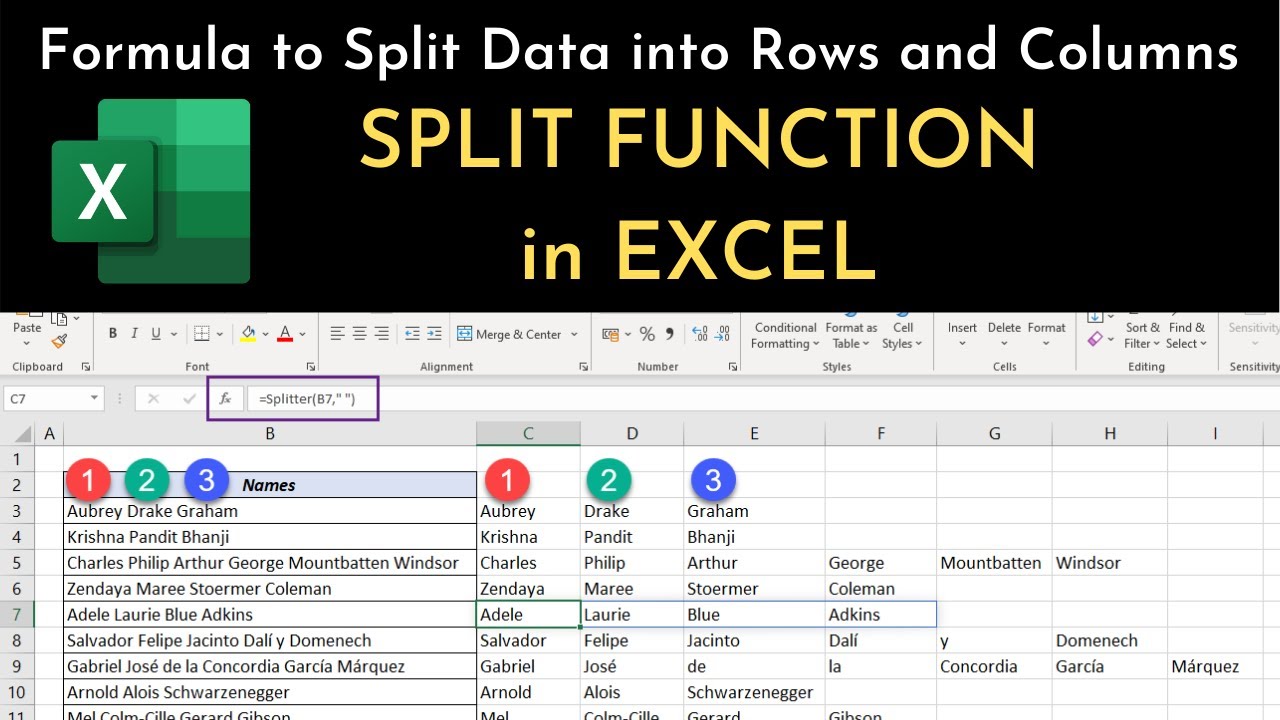
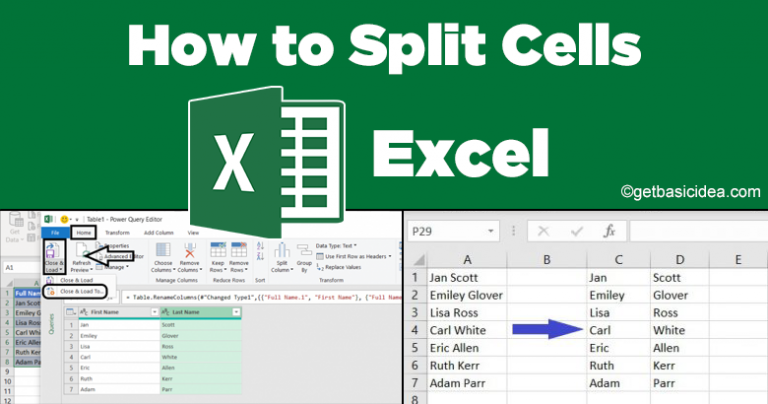
So, what exactly is "splitting data"? In a nutshell, it's the art of taking a single cell containing multiple pieces of information and separating them into their own distinct cells. Imagine you have a column with names like "Smith, John" and you want "John" in one cell and "Smith" in another. That’s splitting data in action! The primary purpose is to organize and standardize your information, making it much easier to analyze, sort, filter, and use in formulas. The benefits are huge: cleaner datasets, more accurate results, and less manual drudgery.
This skill is surprisingly useful in all sorts of situations. In education, teachers can split student lists that might have combined first and last names, or separate subjects from grades. Students can use it to break down research data or prepare for presentations. In daily life, think about your personal finance spreadsheet. You might have a single cell with a transaction description and the date, like "Groceries - 2023-10-27". Splitting this would give you a dedicated column for "Groceries" and another for the date, making it a breeze to track your spending over time or by category.
Must Read
Another common scenario is dealing with addresses. If you have a column like "123 Main Street, Anytown, CA 91234", you can split it into separate columns for Street, City, State, and Zip Code. This is invaluable for mail merging, creating reports, or even just making your data look professional and readable. It’s about transforming messy, unwieldy data into something truly useful.
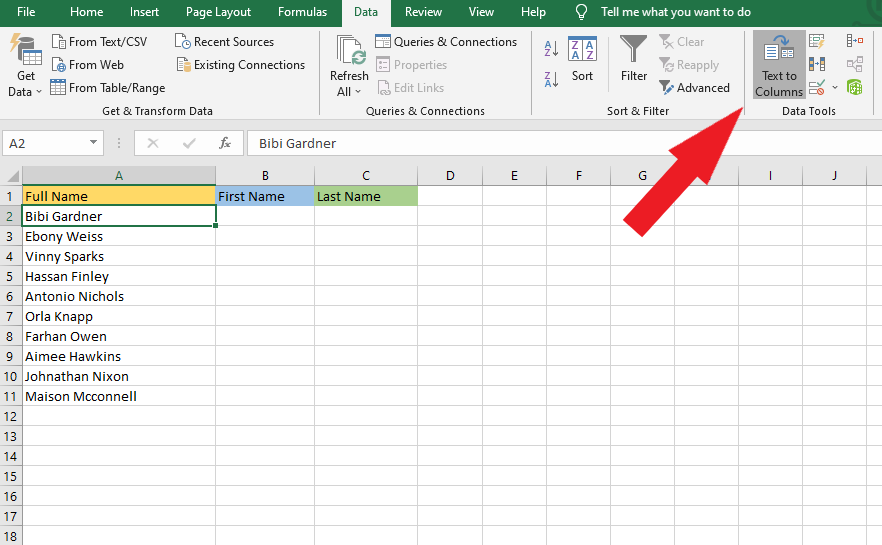
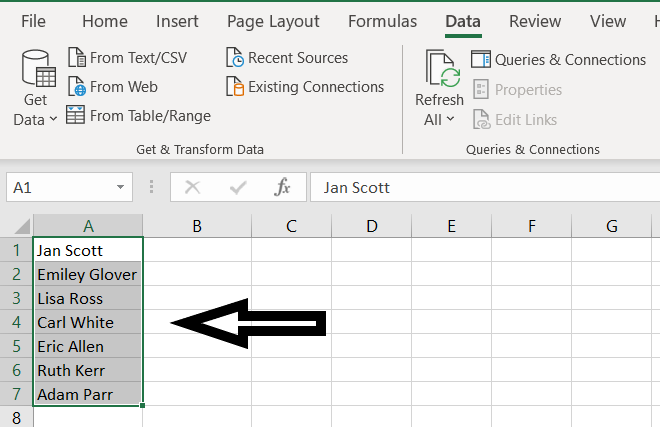
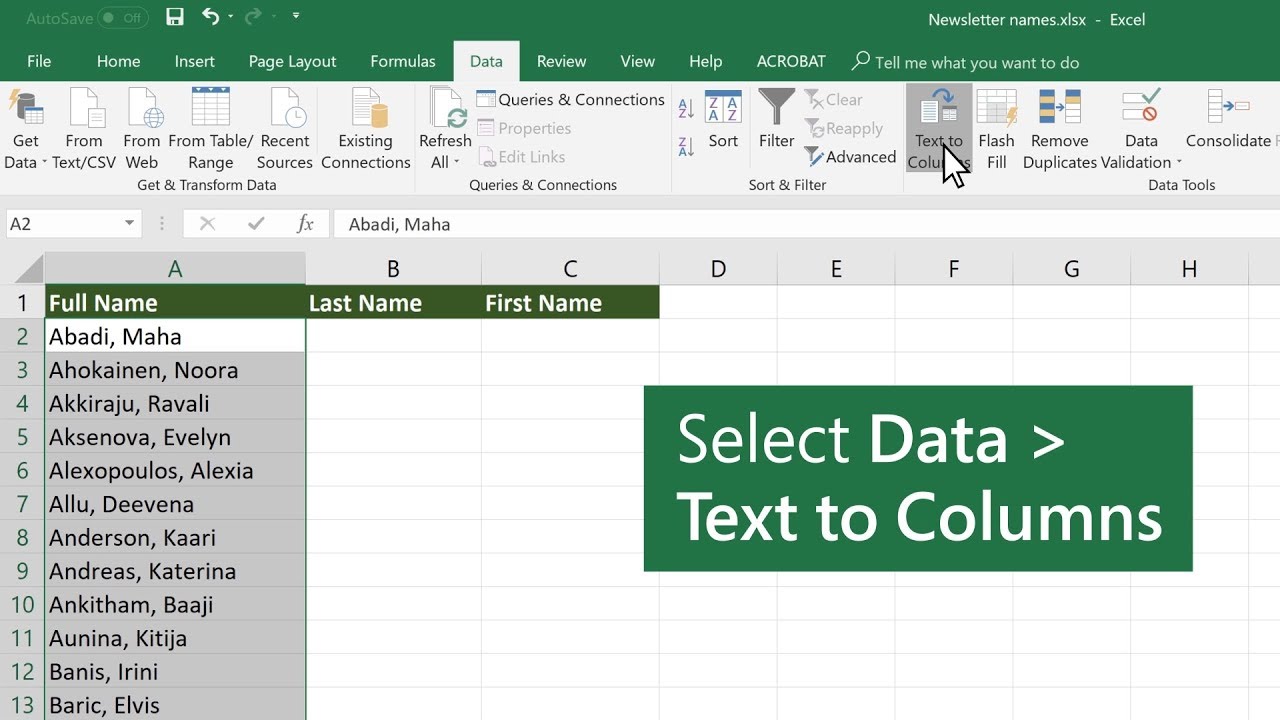
Ready to dive in? The easiest and most popular way to split data in Excel is using the Text to Columns feature. You can find it on the 'Data' tab. It’s a guided process that walks you through specifying how your data is separated (e.g., by a comma, a space, or a specific character). For a more visual and interactive exploration, try simply selecting a column and looking for the little icons on the 'Data' tab. Don’t be afraid to experiment! Create a small test spreadsheet with some sample data and play around with the options. You might be surprised at how intuitive it is. The more you practice, the faster and more confident you'll become at taming your spreadsheets!