
How To Split A Name In Excel
Hey there, spreadsheet superheroes! Ever found yourself staring at a column of full names in Excel, thinking, "Man, I wish I could magically separate these into first and last names?" Well, guess what? You totally can! And it's not some arcane wizardry; it's actually pretty darn fun and surprisingly simple. Think of it as a little digital magic trick that's going to make your data management life so much easier. Ready to unleash your inner Excel sorcerer?
Let's be honest, wrestling with a giant list of names can feel like trying to herd cats. You've got "John Smith," "Maria Garcia," "Lee K. Chen," and maybe even some tricky ones like "De La Cruz." Trying to sort by first name or last name alone? It's a recipe for data chaos. But fear not! With a couple of clever tricks, you can transform that jumbled mess into beautifully organized columns.
The "Text to Columns" Tango: Your First Dance Move
Our first move in this name-splitting extravaganza is the mighty Text to Columns feature. It's like a universal translator for your text data. Here’s how you do it:
Must Read
First, make sure your full names are all in one column. Let's say it's Column A. You'll want to select that entire column (or just the cells you want to work with, if you're feeling selective!).
Now, head up to the Data tab on your Excel ribbon. See it? That’s where all the exciting data manipulation happens! Click on Data, and then look for the Text to Columns button. It's usually in the "Data Tools" group. Go ahead and give it a click!
A wizard will pop up, which might sound intimidating, but it's actually your friendly guide. For most names, the Delimited option is your best friend. Think of delimiters as separators – in this case, the space between the first and last name is our delimiter. So, select Delimited and click Next.
Now for the crucial part. In the next screen, you'll see a bunch of checkboxes. You’re looking for Space. Tick that box! You’ll see a preview below showing how your names will be split. Pretty neat, right? You might also see "Tab" checked by default, which is fine. Just make sure Space is also selected. Then, hit Next again.
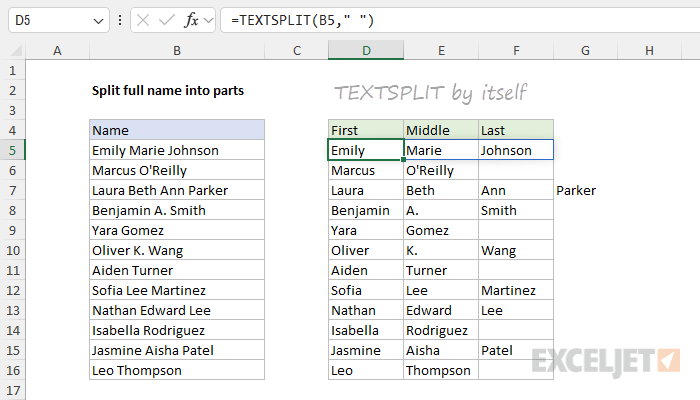
The final step is deciding where you want your split names to go. Excel will default to putting them right next to your original column. If that works for you, great! You can just click Finish. And poof! Your names are separated. You’ll have a column for first names and a column for last names. Isn't that just chef’s kiss?
What About Those Tricky Names?
Now, what if you have names like "Mary Ann Smith" or "Van Der Beek"? The basic Text to Columns with just a space delimiter might split "Mary Ann" into two separate first names. Don't sweat it! You have options.
If you encounter names with multiple parts that you want to keep together (like compound first names or multi-word last names), you can try a slightly different approach with Text to Columns. After selecting Delimited and clicking Next, instead of just selecting "Space," you might need to choose a different delimiter or even use the "Other" option and type in a character that doesn't appear in your names. But for simple first/last splits, "Space" is usually your go-to.
Another super handy trick is the Flash Fill feature. This is like Excel's intuitive assistant. Let's say you have a column of full names (Column A) and you want a column for just the first names (Column B).

In the first cell of Column B (let's say B2), type the first name from the corresponding cell in Column A (e.g., if A2 is "John Smith," you'd type "John" in B2). Then, in the next cell down in Column B (B3), start typing the first name from A3. Excel is smart, and it will likely detect what you're doing and show you a preview of the rest of the column filled in automatically!
If it doesn't auto-fill, you can go to the Data tab and click the Flash Fill button. It's like magic, but powered by algorithms! This is especially brilliant for names with middle initials or different formats, as it learns from your examples. You can even use it to extract just the last name into another column!
Formulas to the Rescue: For the Formula Fanatics
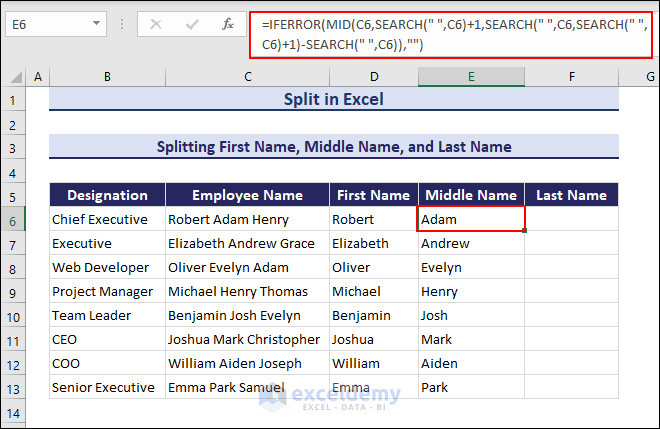
If you're feeling a bit more adventurous and enjoy the power of formulas, there are some fantastic ways to split names too. These are particularly useful if your data changes frequently, as the formulas will update automatically. Don't worry, we're not talking about super complex stuff here!
One common formula uses the FIND and LEFT functions. For example, to get the first name, you can use a formula like this:
=LEFT(A1, FIND(" ", A1)-1)

This formula essentially says: "Find the position of the first space in cell A1, then take all the characters to the left of that space." Easy peasy, lemon squeezy!
To get the last name, you can use a combination of functions like RIGHT, LEN, and FIND. It might look a little something like this:
=RIGHT(A1, LEN(A1) - FIND(" ", A1))
This one is saying: "Find the total length of the text in A1, subtract the position of the first space, and then take that many characters from the right side of the text." Phew! Sounds complex, but once you see it in action, it's quite elegant.

These formulas can be a bit more involved if you have middle names or initials, but for a simple first and last name split, they are absolutely brilliant. And the best part? When you update a name in your original column, the formula columns update too! Talk about a time-saver!
Why Bother? Because It's Fun!
Okay, so why should you bother learning to split names in Excel? Well, beyond the obvious benefit of tidier data, it's incredibly satisfying. It's like solving a little puzzle. Each successful split feels like a tiny victory, a testament to your growing Excel prowess.
Imagine the possibilities! You can now easily create mailing lists sorted by last name, personalize emails with first names, or analyze data where you can differentiate between individuals. Your reports will look sharper, your mail merges will be smoother, and your overall data sanity will be drastically improved. It's not just about organization; it's about reclaiming your time and reducing your stress levels. And who doesn't want more of that?
So, go ahead, give these techniques a try! Experiment with Text to Columns, play around with Flash Fill, or dip your toes into the world of formulas. You might be surprised at how quickly you pick it up, and how much fun it can be.
Don't be afraid to play around. Excel is your sandbox! The more you practice, the more comfortable you'll become, and the more you'll discover its hidden talents. So, dive in, experiment, and unlock the magic of perfectly split names. Your future, more organized self will thank you!

