
How To Put A Gif In Powerpoint

Ever looked at a PowerPoint presentation and thought, "This needs more… oomph?" You know, that little spark that makes people lean forward instead of zoning out? Well, get ready to unlock a secret weapon in your presentation arsenal: the humble, yet mighty, GIF!
Think of GIFs as tiny, looping movie clips that can add a splash of personality to your slides. They're the digital equivalent of a well-timed wink or a spontaneous burst of confetti. And the best part? They're surprisingly easy to sneak into your presentations, turning what could be a snoozefest into something seriously shareable.
Imagine this: you're presenting on, say, the history of ancient Rome. Instead of just showing a stoic statue, you could have a tiny, looping GIF of a chariot race zipping across the screen! Or maybe you're talking about a new marketing strategy, and a GIF of a lightbulb flickering on adds a visual punch to your brilliant idea.
Must Read
Finding Your Perfect GIF
So, where do these magical moving images come from? The internet, of course! Think of websites like GIPHY or Tenor as your personal GIF treasure chests. They have millions of GIFs categorized by mood, topic, or even by the most obscure pop culture references you can imagine.
Need a GIF of someone looking utterly confused? There's probably a dozen. How about a happy dance to celebrate a project's success? You'll find plenty of those too. It's like having a whole library of silent comedians and enthusiastic cheerleaders at your fingertips.
Browsing for GIFs can be a surprisingly fun adventure in itself. You might start looking for something specific, but end up discovering hilarious gems you never knew you needed. It's a bit like scrolling through social media, but with a more productive, presentation-enhancing goal.
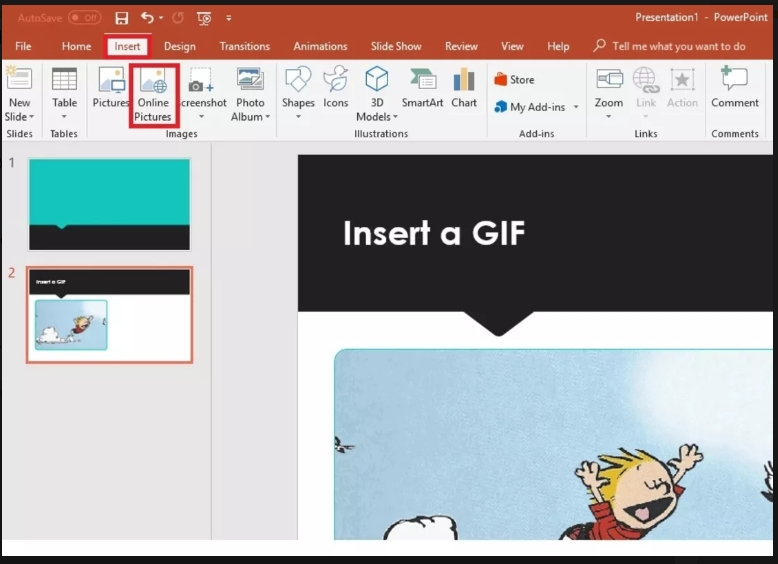
The "How-To" (It's Easier Than You Think!)
Alright, enough teasing. Let's get down to business. Putting a GIF into PowerPoint is surprisingly straightforward, almost as easy as sharing a funny meme with a friend. No complicated coding or mystical incantations required.
First, you'll need to find the GIF you want. Once you've located your perfect looping marvel on a site like GIPHY, you usually have a couple of options. You can right-click on the GIF and select "Copy Image" or, more commonly, look for a "Download" button.
If you choose to download it, make sure to save it somewhere you can easily find it, like your "Downloads" folder or a dedicated "Presentation Assets" folder. This is like giving your GIF a cozy little home before it moves into its new digital dwelling.
Bringing Your GIF to Life in PowerPoint
Now for the grand unveiling! Open up your PowerPoint presentation. Navigate to the slide where you want your GIF to shine. Click on the slide to make sure it's selected.
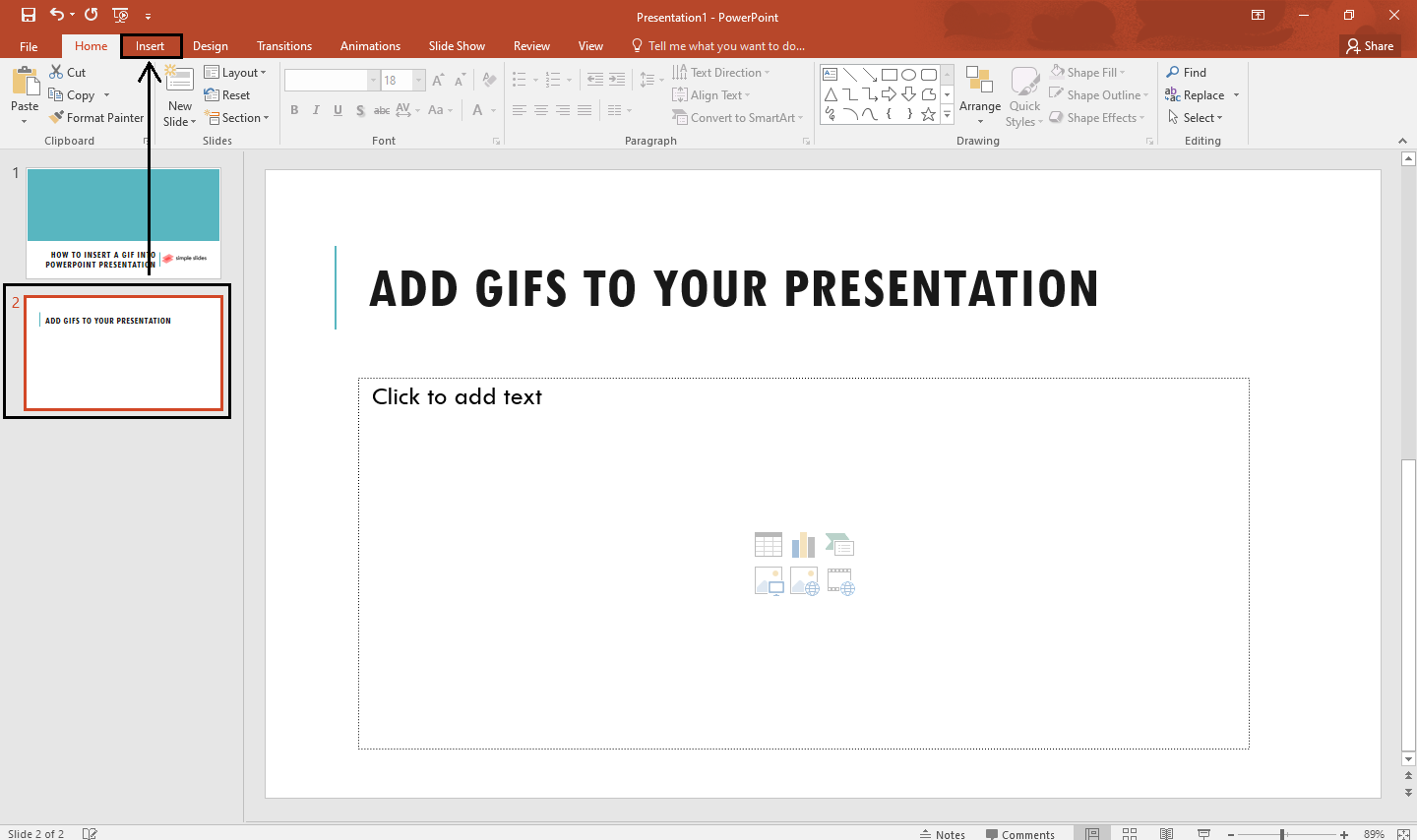
Head over to the "Insert" tab at the top of your PowerPoint window. You'll see a bunch of options, but we're looking for "Pictures." Click on "Pictures" and then choose "This Device" (or a similar option depending on your PowerPoint version).
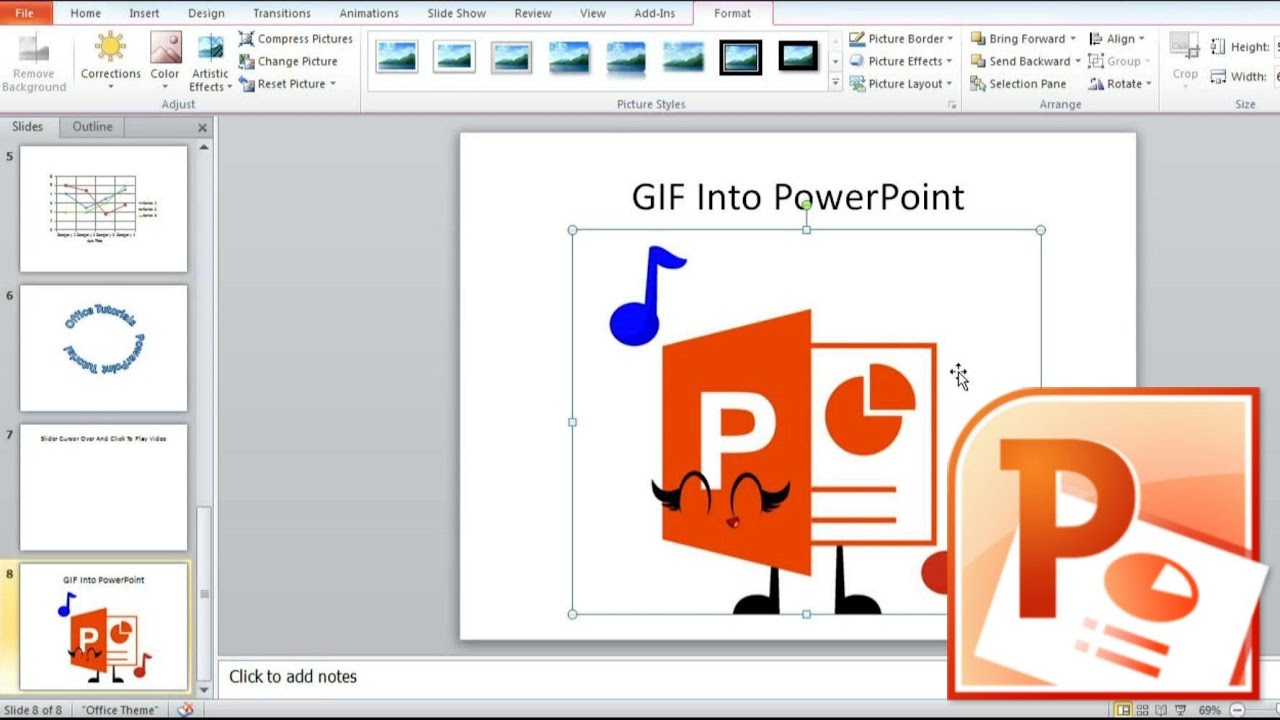
This will open up a file browser. Navigate to where you saved your GIF. Select the GIF file, and then click "Insert." Poof! Your GIF should now appear on your slide, probably doing its little happy dance or looking its most bewildered.
A Few GIF-tastic Tips
Once your GIF is on the slide, you can resize it just like any other image. You can drag the corners to make it bigger or smaller. You can also move it around the slide to position it exactly where you want it. It's your canvas, and the GIF is your moving masterpiece!

Keep in mind that GIFs are essentially short videos. They'll play automatically when you're in "Slide Show" mode. This is where the magic happens, bringing your static slides to vibrant, animated life!
One word of caution: don't go overboard. A few well-placed GIFs can be brilliant. A slide crammed with too many dancing animals might be more distracting than delightful. Think of them as sprinkles on a cake, not the entire cake!
When to Use a GIF (and When to Maybe Not)
GIFs are fantastic for adding a touch of humor to lighten the mood. If you're presenting on a serious topic, a funny GIF can be a great way to break the ice and make your audience more receptive. It shows you don't take yourself too seriously.
"A well-chosen GIF can make an audience chuckle, nod in agreement, or even gasp with delight. It's a powerful tool for emotional connection."
They're also excellent for illustrating a point quickly. Need to show someone's reaction? A GIF can do that in a flash. Want to demonstrate a process visually? A short, looping GIF can be more engaging than a static image.
However, if you're presenting to a very formal audience or in a situation where every second counts, you might want to be more conservative. A GIF that takes too long to load or is too distracting could backfire. Always consider your audience and the context of your presentation.
The Heartwarming Side of Looping Animations
Beyond the humor, GIFs can also be incredibly heartwarming. Imagine showing a GIF of a puppy wagging its tail uncontrollably to represent excitement about a new initiative. Or a GIF of two hands shaking to symbolize partnership and collaboration.
These little animations can tap into our emotions in a way that words alone sometimes can't. They add a layer of visual storytelling that can make your message more memorable and impactful. It’s like adding a soundtrack to your story, but in visual form.
So, the next time you're crafting a presentation, don't shy away from the fun. Embrace the GIF! Experiment with different types of GIFs, see what resonates with your audience, and get ready to inject a little bit of digital joy into your slides. You might just surprise yourself with how much life you can breathe into your next PowerPoint with these simple, animated wonders.
![How to Add GIF to PowerPoint? 3 Easy Ways [2025 Tutorial]](https://cdn.vidwud.com/blog_files/20250113/how-to-add-gif-to-powerpoint.jpg)