How To Put A Footnote In Word

Ever find yourself deep in a fascinating article, only to spot a little superscript number that promises a hidden gem of extra information? That, my friends, is a footnote! And while they might seem like a little secret handshake for academics, learning how to pop one into your own Word documents is surprisingly simple and can add a whole new layer of professionalism and clarity to your writing. Think of it as a gentle nudge to your reader, saying, "Hey, there's a little something extra over here if you're curious!"
So, what's the big deal about footnotes? Essentially, they're a way to supplement your main text without disrupting the flow. They can be used for all sorts of things: to provide a source for a quote, to offer a brief explanation that would be too distracting in the main body, to define an unfamiliar term, or even to add a little personal anecdote. The beauty of footnotes is that they keep your primary narrative clean and focused, while still giving you the freedom to elaborate or credit your sources meticulously. This makes your writing look incredibly polished and well-researched.
You'll see footnotes everywhere! In textbooks, they're your trusty guides to where the information came from. In historical accounts, they might reveal the original source of a diary entry. Even in more casual writing, like a blog post or a personal essay, a footnote can be used to clarify a point without breaking stride. Imagine you're writing about your grandmother's famous apple pie recipe and want to mention a secret ingredient. Instead of inserting a lengthy explanation in the middle of the baking instructions, you could simply add a footnote saying, "The secret ingredient, of course, is a pinch of cardamom!" It's a seamless way to add depth.
Must Read
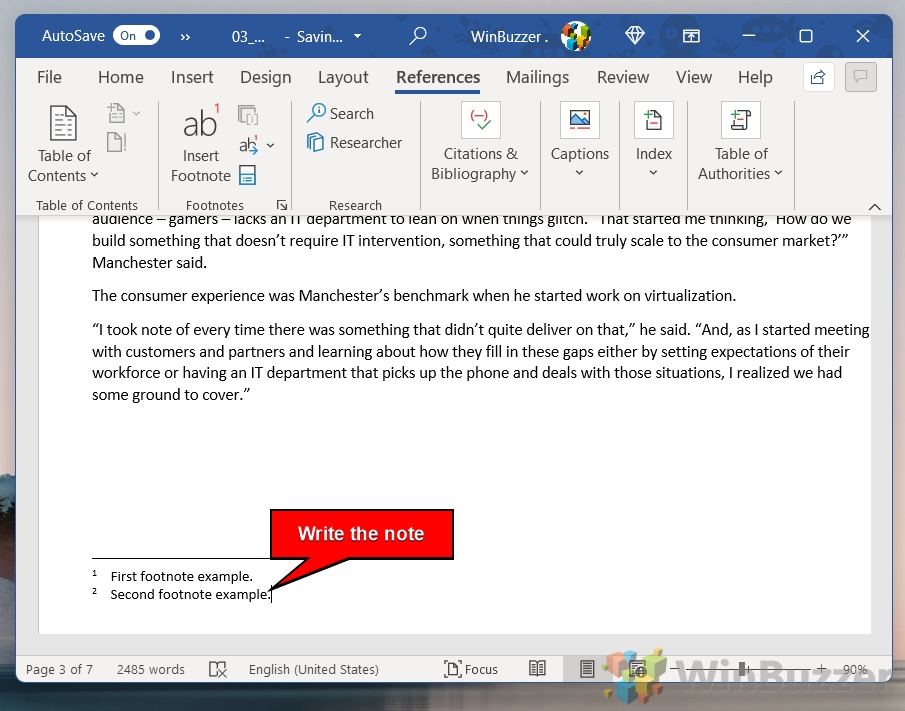
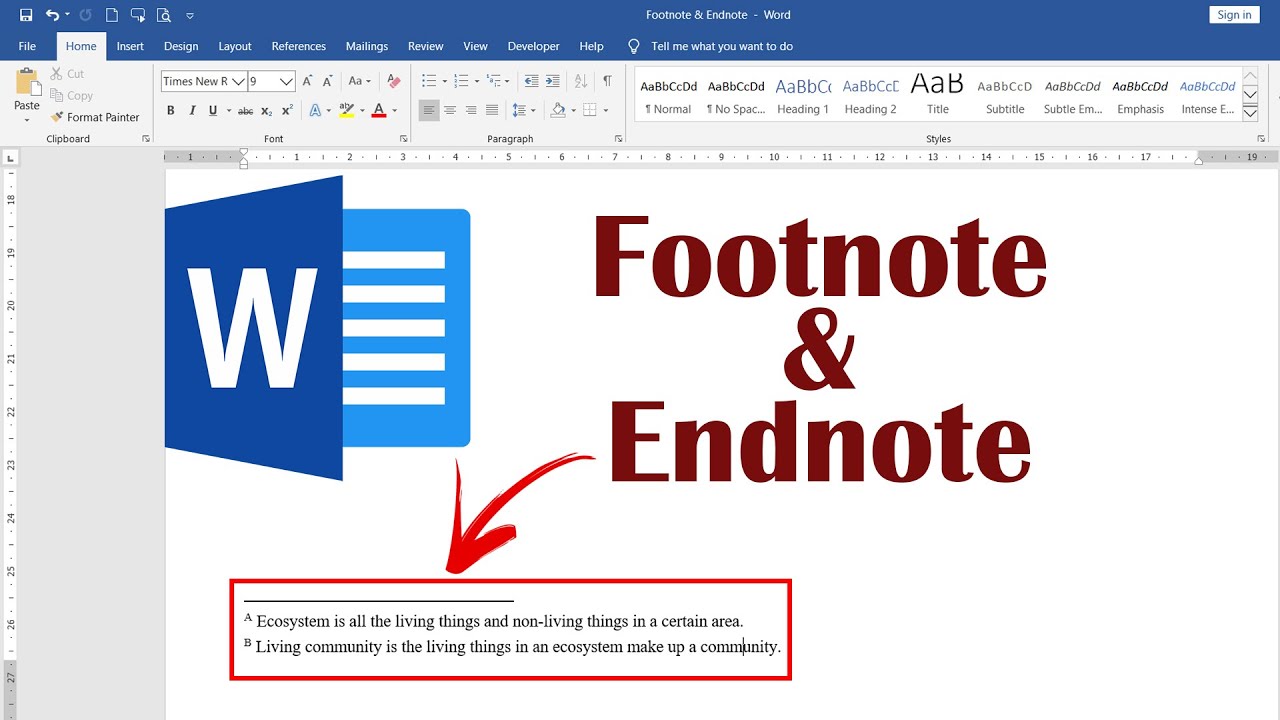
Ready to give it a whirl? It's easier than you might think! Open up your Word document. Find the spot in your text where you want to insert a footnote. Now, head over to the References tab on the ribbon. See that button that says "Insert Footnote"? Just click it! Word will automatically place a superscript number in your text and then jump you down to the bottom of the page where you can type your footnote content. When you're done, simply click back up into your main text, and you're good to go. Word handles all the numbering for you, which is a huge time-saver!
Don't be afraid to experiment! Try adding a footnote to an email you're writing to a colleague to provide extra context for a statistic. Or, if you're working on a personal project, like a family history, use footnotes to add little bits of trivia or biographical details about individuals. The more you practice, the more natural it will feel. Think of it as another tool in your writing toolbox, ready to be deployed whenever you want to add a little extra sparkle to your words.