
How To Find Mac Address On Ps5

Okay, so picture this: I'm deep into a particularly intense Elden Ring session, you know, the kind where you're sweating and yelling at your TV and questioning all your life choices. Suddenly, my internet connection decides it's had enough of my digital masochism and just… poof.
Everything grinds to a halt. No more invaders, no more frantic dodging. Just a static image and the dawning horror that I’m about to lose that boss fight I’d been stuck on for three days. Three days, people! The sheer injustice of it all!
My first thought, naturally, was "Ugh, router issues." But then, a more pressing thought crept in: could it be something specific to my PS5? Maybe it’s being a diva again. And that’s when it hit me – I needed to check my PS5’s Mac address. You know, that unique identifier, like a digital fingerprint, that every device has. It’s the kind of thing you don’t think about until it’s absolutely crucial, like when your console is being a moody teenager and refusing to play nice with the internet.
Must Read
So, if you've ever found yourself in a similar predicament, or just find yourself morbidly curious about the inner workings of your shiny new PlayStation, you've come to the right place. We're going to dive into the surprisingly simple (and sometimes hilariously obtuse) world of finding your PS5's Mac address. Don't worry, no advanced degree in computer science required. Just a little patience and the willingness to navigate a few menus. And maybe a snack. Menu navigation is way better with snacks.
Why On Earth Would I Need My PS5's Mac Address?
I hear you. It’s not exactly a party trick, is it? "Hey, check out my PS5! Its Mac address is 00:1A:2B:3C:4D:5E!" Crickets. But there are actually some legitimate (and, let's be honest, a few niche) reasons why you might need this piece of information.
The most common scenario, the one that probably sent you down this rabbit hole, is network troubleshooting. If your PS5 is having trouble connecting to your Wi-Fi or experiencing random disconnects, your ISP or even your router’s manual might ask for your device's Mac address. It helps them identify your specific console on your network.
Another reason? Parental controls. Some advanced router setups allow you to assign specific internet access rules based on Mac address. So, if you want to ensure your little gamers aren't hogging all the bandwidth during your important Zoom calls (ahem, me), you can set up time limits or content restrictions for their PS5 specifically.
Then there's the slightly more technical crowd who might use it for network security. Some people implement MAC filtering on their routers, which means only devices with pre-approved Mac addresses can connect. It’s a layer of security, though a somewhat outdated one, as Mac addresses can be spoofed. Still, if that’s your jam, you’ll need that address.
And finally, let's not forget the sheer, unadulterated curiosity. You bought a fancy piece of tech, and you want to know everything about it. What's its name? What's its model number? What's its secret handshake – I mean, Mac address? It's all part of the ownership experience!
The Grand Quest: Navigating the PS5 Menus
Alright, enough preamble. Let's get down to business. Finding the Mac address on your PS5 is actually pretty straightforward, once you know where to look. It's nestled away in the system settings, like a shy gamer avoiding the light.
First things first, power on your PS5. You know, the usual routine. Grab your DualSense controller. Marvel at its ergonomic brilliance for a second. You’ve got this. Head to the main menu, the one with all the colorful game tiles.
Now, you're going to look for the Settings icon. It’s usually a little gear or cogwheel. You know, like the ones on a fancy steampunk contraption. It’s located in the top-right corner of the home screen. Click on it. Easy peasy.
Once you’re in the Settings menu, it’s a bit like navigating a digital labyrinth. But fear not! We're looking for something related to the system. So, scroll down until you find 'System'. Highlight it and press the 'X' button. You're doing great!
Inside the 'System' menu, you’ll see a whole bunch of options. Don't get overwhelmed. We're looking for something to do with 'Console Information'. This is where the PS5 stores all its juicy details about itself. Select 'Console Information'.
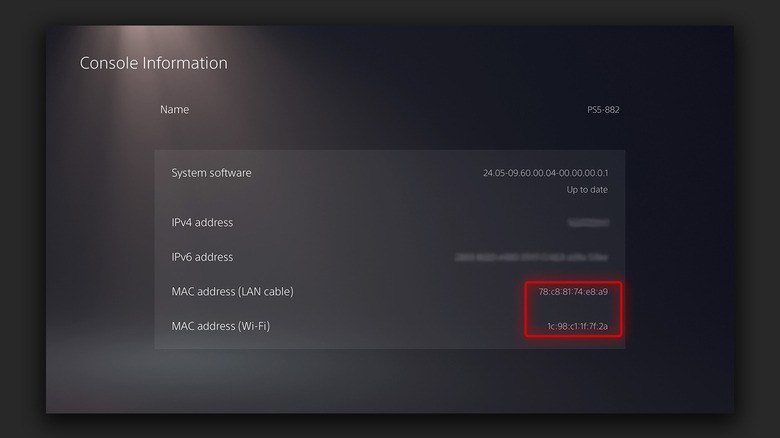
And there it is! In the 'Console Information' screen, you'll find a treasure trove of data about your PS5. You'll see things like your console name, your system software version, serial number, and, most importantly for our mission, the 'MAC Address (LAN)' and the 'MAC Address (Wi-Fi)'.
Wired vs. Wireless: What's the Diff?
Now, you might be asking, "Why are there two Mac addresses?" Excellent question, my astute reader! Your PS5, like many modern devices, has two ways of connecting to the internet: via an Ethernet cable (LAN) and wirelessly (Wi-Fi).
The 'MAC Address (LAN)' is the identifier for your PlayStation when it's plugged into your router with a physical Ethernet cable. Think of it as the address for your wired connection. If you're using a cable for that super-stable, no-lag experience (which, let's be honest, is ideal for Elden Ring), this is the one you'll want.
The 'MAC Address (Wi-Fi)', as you've probably guessed, is the identifier for your console when it's connecting to your network wirelessly. This is the one you'll need if you're relying on Wi-Fi, which, for most people, is the default. Unless you're running an Ethernet cable all the way from your router to your TV stand – a true commitment to the gaming gods!
So, depending on how you're connected, or what troubleshooting you're doing, you'll need to pay attention to the correct one. For general internet issues, it's usually the Wi-Fi Mac address that's relevant, but it never hurts to know both. It’s like having two secret passwords for your digital kingdom!

A Note on the Physical Label
Now, some of you tech wizards out there might be thinking, "Wait a minute! Can't I just find this on a sticker somewhere?" And to that, I say, "You are partially correct, but also a little bit wrong."
Yes, your PS5 does have a serial number and other identifying information printed on a label. You can usually find this on the bottom of the console if it's standing vertically, or on the back if it's lying horizontally. You might need to lift it up a bit to see it clearly. You know, get a little hands-on with your hardware!
However, this sticker typically contains your serial number and, sometimes, the MAC address for the Wi-Fi connection. You might not always find the LAN MAC address printed there. So, while it's a good place to double-check your serial number or Wi-Fi MAC address in a pinch, the menu is the definitive source for both.
It’s a bit like finding a birth certificate versus looking at your driver’s license. One is the official record, the other is a handy everyday reference. Both important, but the system settings are the ultimate authority.
Troubleshooting Tips and Tricks
So, you've found your Mac address. Huzzah! But what if you're still facing internet woes? Don't despair! Here are a few extra tips to keep your online gaming dreams alive.
First, and this is a classic for a reason: restart your router and modem. Unplug them both, wait about 30 seconds (use this time to ponder the mysteries of the universe or, you know, grab another snack), and then plug them back in. Let them boot up completely before trying to reconnect your PS5.

Next, check your router settings. If you're not comfortable with this, maybe enlist the help of someone who is. You can usually access your router's settings by typing its IP address (often something like 192.168.1.1 or 192.168.0.1) into a web browser on a computer connected to your network. From there, you can see connected devices and potentially spot any issues.
If you are using MAC filtering (remember we talked about that?), ensure your PS5's MAC address is actually added to the allowed list. Nothing is more frustrating than setting up a security feature and then locking yourself out!
Also, consider your Wi-Fi signal strength. If you're far from your router, or there are a lot of walls or other electronic devices in between, the signal might be weak. Moving your PS5 closer to the router, or investing in a Wi-Fi extender, could make a world of difference. You wouldn't try to have a whispered conversation across a football field, would you? Same principle!
And finally, if all else fails, don't hesitate to contact your Internet Service Provider (ISP). They have tools and knowledge to help diagnose network issues that might be beyond your home setup. Just be prepared to give them that Mac address you worked so hard to find!
The Takeaway: More Than Just a Number
So there you have it. Finding your PS5's Mac address is a surprisingly simple process, once you know the path. It’s not just a random string of characters; it's your console’s unique digital ID, crucial for everything from basic network connectivity to more advanced network management.
Next time your internet cuts out during a crucial moment, or you're trying to set up some fancy parental controls, you'll know exactly where to turn. You'll be a Mac address-finding ninja, ready to tackle any network-related challenge thrown your way. And who knows, maybe knowing this little piece of information will even give you a tiny bit more confidence in your digital prowess. Go forth and conquer, fellow gamers!

