How To Count The Words In Excel
Ah, Excel! The unsung hero of organization, the digital librarian of our spreadsheets, and, for some of us, a surprisingly satisfying place to spend an afternoon. While you might associate it with complex financial models or intimidating data analysis, there's a simpler pleasure to be found within its grid: counting words. Yes, you read that right! It might sound a little niche, but trust us, there’s a quiet joy in mastering this seemingly small task, and it can be surprisingly useful.
Why on earth would you want to count words in Excel, you ask? Well, it turns out this little skill has a surprising number of benefits and applications in our everyday lives. For writers, bloggers, or anyone crafting content, keeping track of word counts is crucial for meeting publication requirements, staying within character limits for social media posts, or simply gauging the length of their work. Beyond the written word, think about tasks like analyzing customer feedback, summarizing lengthy reports, or even just tidying up that massive list of holiday gift ideas. Knowing how many words are in a particular cell or range can offer a quick, digestible snapshot of information.
The applications are more common than you might think. Imagine you're a student trying to keep your essay within a strict word limit, and you've copied and pasted sections into Excel for easier editing. Or perhaps you're a marketer analyzing the effectiveness of different ad copy variations, and you want to ensure a consistent word count across your campaigns. Even for personal projects, like tracking your daily journaling word count, Excel can be a handy tool. It’s about making complex information more manageable, one word at a time.
Must Read
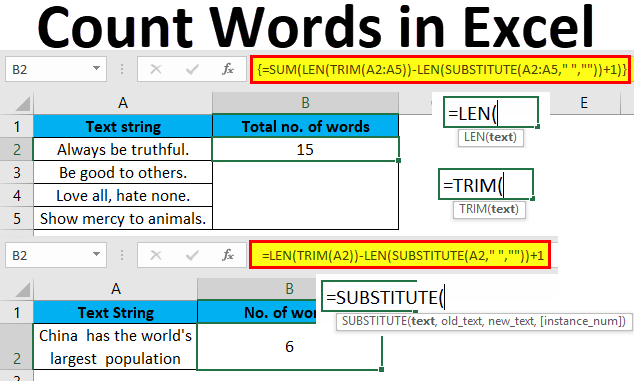
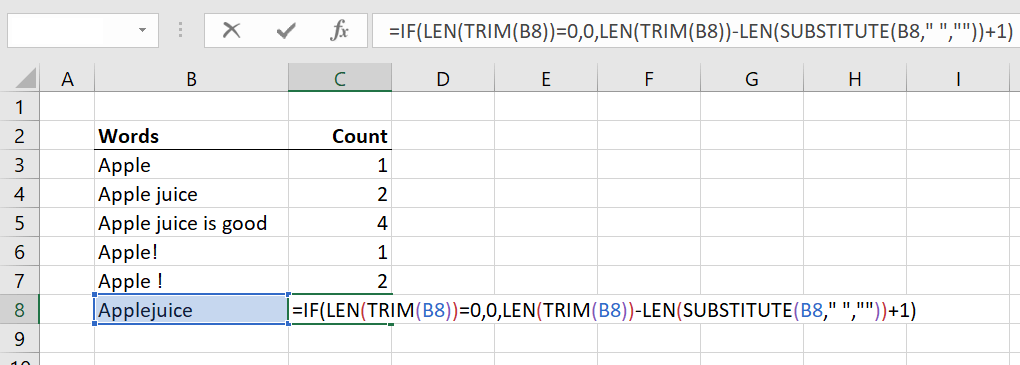
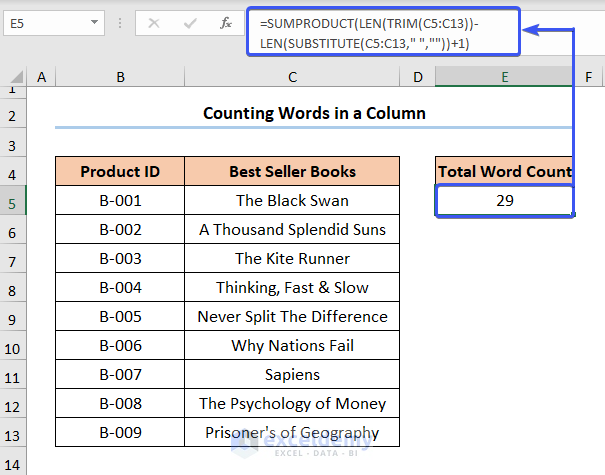
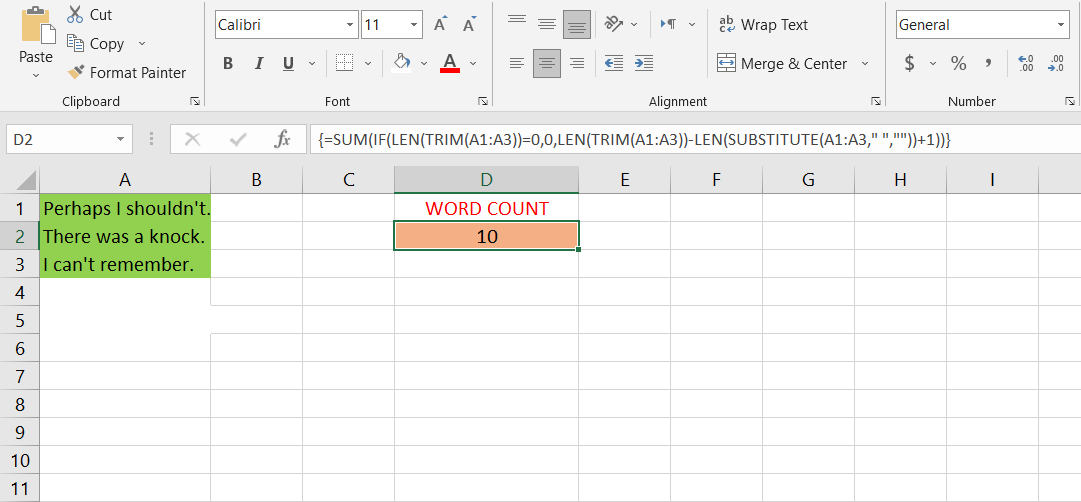
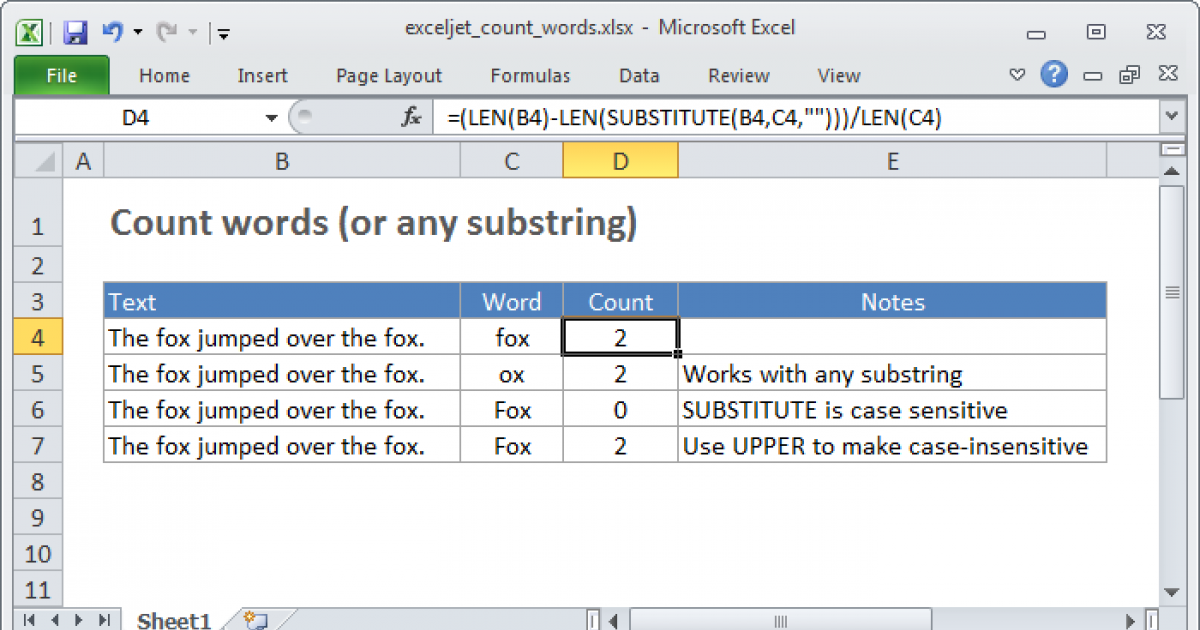
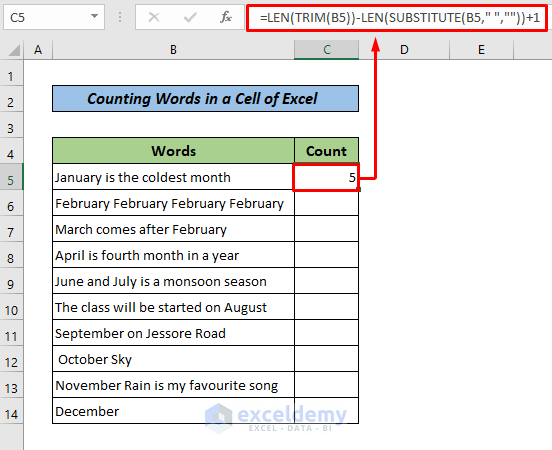
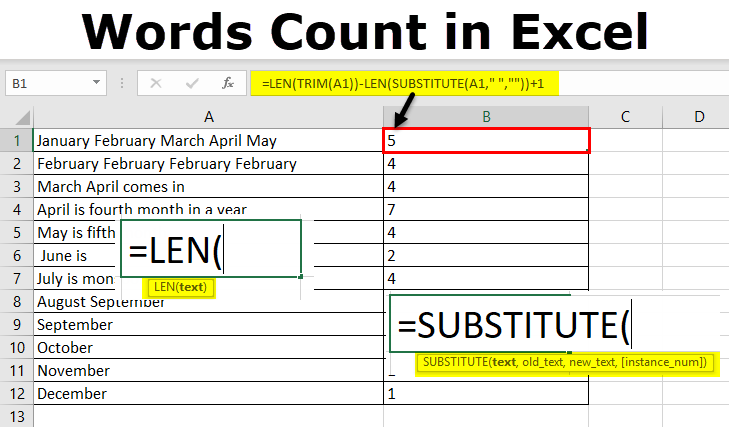
Now, how do we unlock this word-counting magic in Excel? The secret sauce is a clever little formula. The most common and straightforward way is to use the LEN function combined with the SUBSTITUTE function. The LEN function tells you the total number of characters in a cell, including spaces. However, we only want to count words. So, we use SUBSTITUTE to replace all the spaces (" ") with nothing (""). Then, we take the length of that modified text, subtract the original length (which accounts for all the spaces), and divide by the length of a space (which is 1, so we're essentially just adding 1 to get the correct word count). The formula looks something like this: =LEN(TRIM(A1))-LEN(SUBSTITUTE(A1," ",""))+1. Don't be intimidated by the jargon; once you try it a few times, it becomes second nature!
To make your word-counting escapades in Excel even more enjoyable, here are a few tips. First, practice makes perfect. Don't be afraid to experiment with different cells and text. Second, organize your work. If you're counting words in multiple cells, create a new column dedicated to your word count formula. This keeps things neat and tidy. Third, consider using named ranges. If you frequently count words in a specific block of cells, naming that range can make your formulas even more readable and easier to manage. Finally, remember that sometimes, the simplest approach is the best. If you only need to count words in one or two cells, a quick manual application of the formula is perfectly fine. Embrace the small victories, and soon you'll be a word-counting wizard of Excel!